
You’re in a quiet meeting, trying to fall asleep, or simply craving some peace — but your Apple Watch starts chiming. The good news? You can mute all sounds instantly while still feeling every important alert through vibration. Many users assume silencing the watch means missing notifications, but Apple separates sound and haptics entirely — giving you full control. This guide shows you exactly how to turn off all beeps, rings, chimes, and tones on your Apple Watch, while keeping vibration alerts active so you never miss a call, message, or reminder.
Whether you’re using an older Apple Watch Series 3 or the latest Series 9, these steps work across all models and watchOS versions. From quick fixes like Silent Mode to deeper settings like disabling hourly chimes and silent ringtones, you’ll learn how to customize your watch for total quiet without sacrificing awareness. No jargon, no confusion — just clear, actionable instructions that deliver results.
Activate Silent Mode Instantly
Silent Mode is the fastest way to silence all alert sounds on your Apple Watch. It stops ringtones, notification tones, and alert beeps — but crucially, it does not disable haptic feedback, meaning you’ll still feel taps on your wrist.
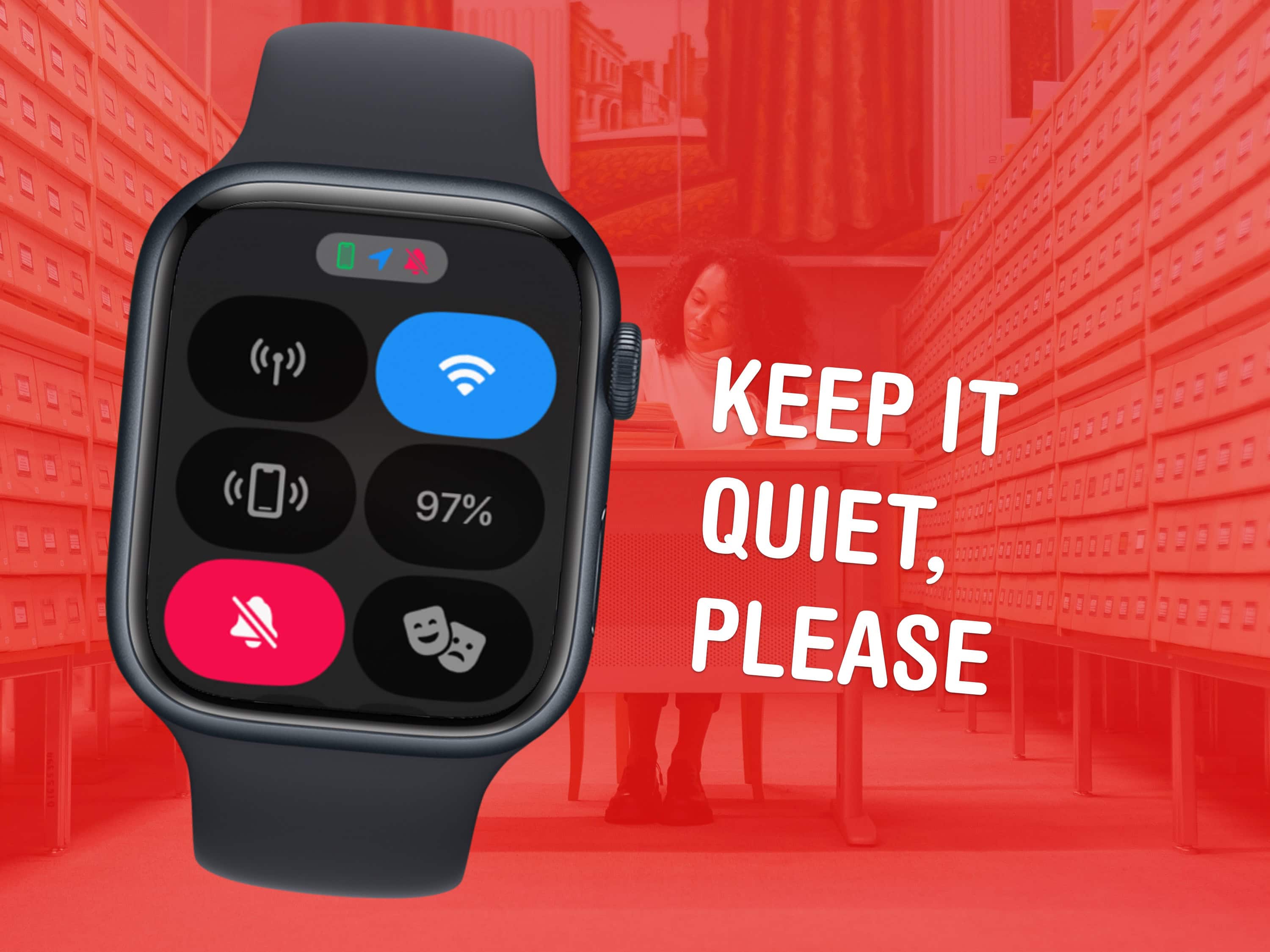
Open Control Center to Mute
- Press and hold the side button on your Apple Watch.
- Swipe up (or wait) to open Control Center.
- Tap the bell icon with a slash — it turns orange when active.
- Look for the muted bell symbol at the top of your screen — that confirms sound is off.
Important: Silent Mode only affects audio. Vibration alerts continue unless Haptics are manually turned off.
Confirm Haptics Are Enabled
Even with sound off, you won’t feel alerts if haptics are disabled. To ensure you still receive tactile notifications:
- On your Apple Watch: Go to Settings > Sounds & Haptics > Haptics.
- Choose Default for standard taps or Prominent for stronger, pre-alert vibrations.
If this setting is set to Off, your watch will be completely silent and motionless — not ideal unless you’re in a meeting with strict no-notifications rules.
Use Cover to Mute for On-the-Spot Silence
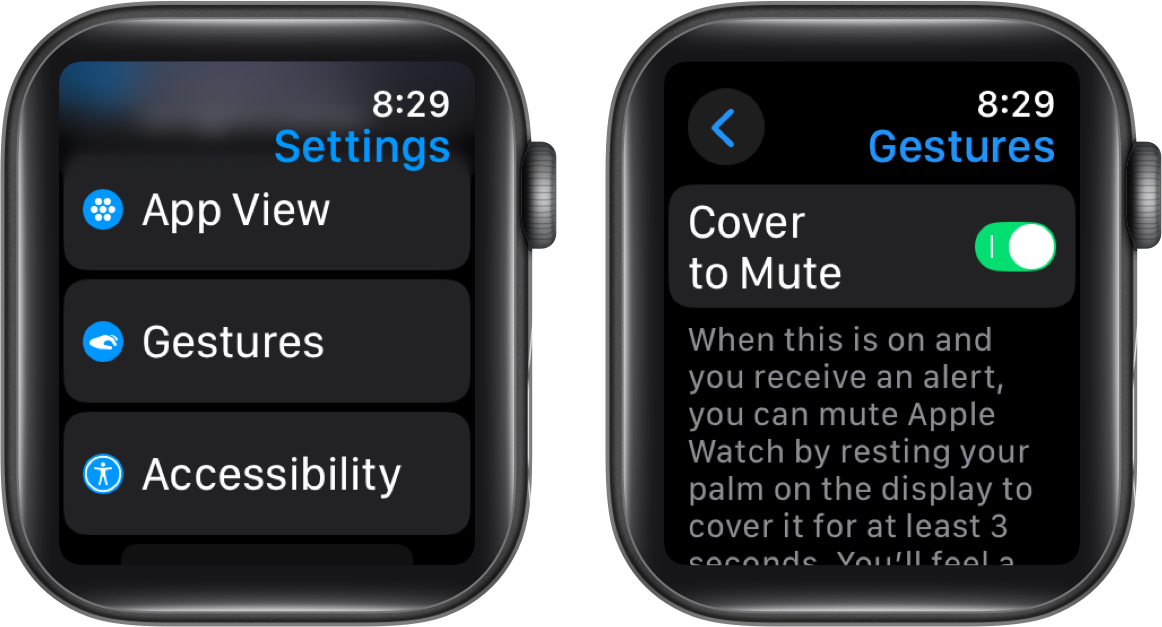
When a notification suddenly rings, you can silence it immediately — without touching a button — using a simple hand gesture.
Rest Palm Over Display
- When your watch starts making noise, cover the screen with your palm.
- Hold for three seconds.
- You’ll feel one short vibration — the sound is now off.
This is perfect for silencing calls or messages during presentations, movies, or quiet moments.
Note: You must enable this feature first:
– On Apple Watch: Settings > Gestures > Cover to Mute > On
What It Won’t Silence
- Alarms: For safety reasons, Cover to Mute does not silence wake-up alarms or medication reminders.
- Older models: Some early Apple Watches may not support this gesture by default.
This feature is ideal for environments like libraries, classrooms, or meetings where sudden sounds are disruptive.
Disable Ringtones Completely

Even with Silent Mode on, your Apple Watch may still play a ringtone when receiving calls — unless you disable the ringtone entirely.
Set Ringtone to None
- Open the Apple Watch app on your iPhone.
- Tap the My Watch tab.
- Go to Sounds & Haptics > Ringtone.
- Select the silent option or choose “None” if available.
Alternative: Do this directly on your watch at Settings > Sounds & Haptics > Ringtone.
Now, incoming calls will vibrate only, even if Silent Mode is turned off. This is essential for users who want guaranteed silence at all times.
Turn Off Automatic Volume Adjustment
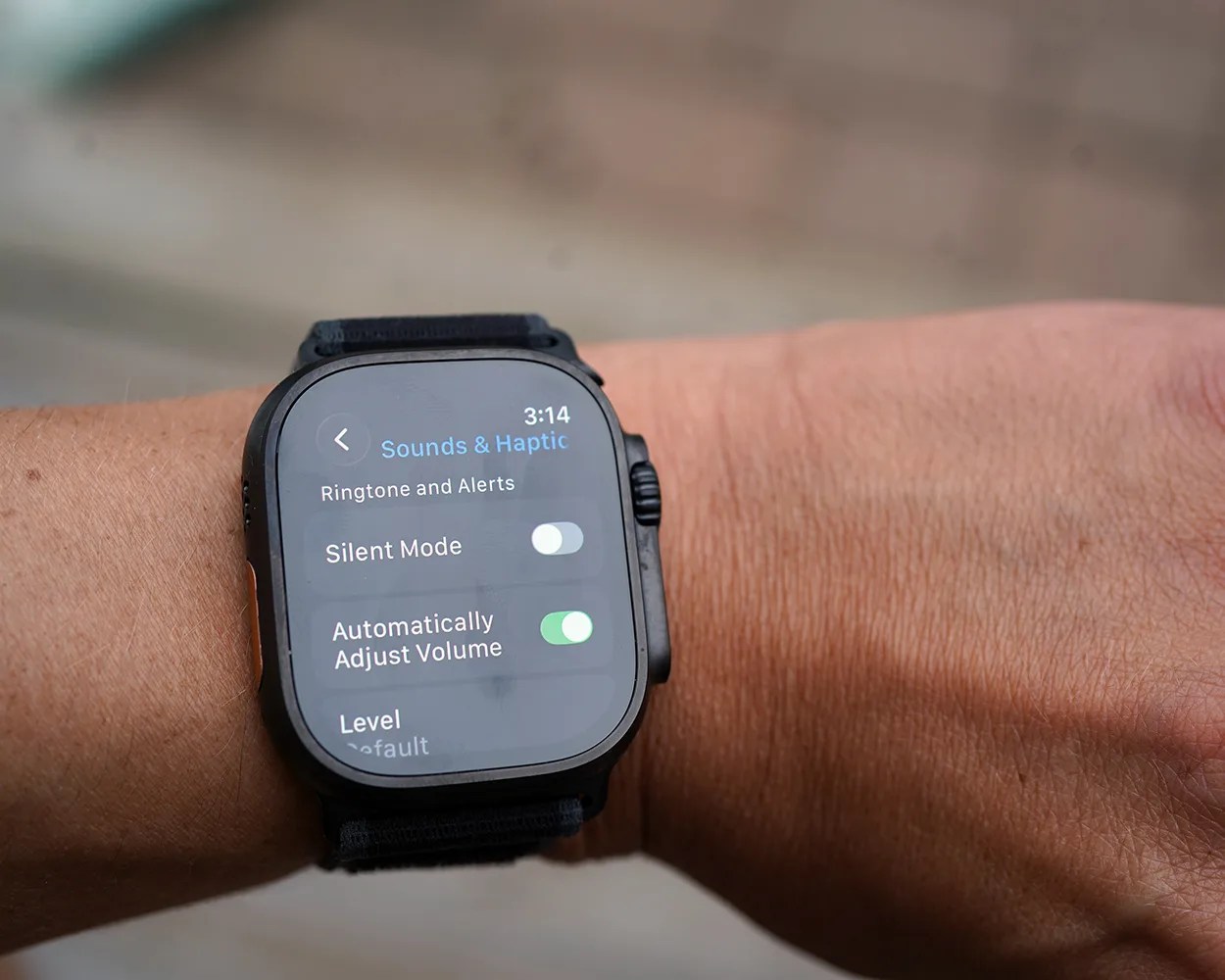
Newer Apple Watch models (watchOS 8+) automatically increase alert volume in noisy environments — which can unexpectedly break your silence.
Lock Volume at the Lowest Level
- On your Apple Watch: Open Settings > Sounds & Haptics.
- Toggle off Automatically Adjust Volume.
- Tap Level, then turn the Digital Crown counterclockwise to lower the volume.
- Set it to the quietest possible setting.
Result: Alerts play at a fixed, minimal volume — ideal for near-total silence.
This step ensures your watch doesn’t suddenly get louder when you enter a busy street or loud office.
Silence Time-Based Chimes
Your Apple Watch can chime every 15, 30, or 60 minutes — and these sounds play even in Silent Mode.
Disable Taptic Chimes
- On Apple Watch: Open Settings > Accessibility > Chimes.
- Toggle Chimes to Off.
Or manage from iPhone: Watch app > My Watch > Accessibility > Chimes
Without this step, your watch may emit soft bird or bell sounds on the hour — defeating your silence efforts, especially at night.
Use Do Not Disturb for Full Quiet Mode
For deeper silence, Do Not Disturb blocks both sound and screen wake-ups — while still allowing alarms and emergency alerts.
Activate via Control Center
- Press the side button to open Control Center.
- Tap the crescent moon icon.
- Choose a duration: 1 hour, until tomorrow, or indefinitely.
Visual cue: A moon icon appears at the top of the watch face.
What Still Gets Through
- Alarms will sound unless manually silenced.
- Haptics depend on your settings — keep them on for silent alerts.
- Emergency SOS or medical alerts may still trigger.
Use this for sleep, meditation, or deep focus sessions — especially when combined with vibration.
Control Media Playback Volume Separately
Music, podcasts, and audiobooks use a separate volume system from alerts — so muting notifications won’t stop media sound.
Adjust Media Volume in Control Center
- Press the side button to open Control Center.
- Tap the volume icon (speaker symbol).
- Turn the Digital Crown to reduce volume to zero.
This affects only media apps — not calls, timers, or system alerts.
To fully silence your watch, reduce both alert volume and media volume independently.
Disable Crown Haptics (Series 4+)
If your Apple Watch vibrates when scrolling with the Digital Crown, you can turn it off — though this doesn’t affect notification haptics.
Turn Off Scroll Feedback
- On Apple Watch: Go to Settings > Sounds & Haptics.
- Toggle Crown Haptics to Off.
Available only on Apple Watch Series 4 and later.
This setting reduces unnecessary taps during navigation and slightly improves battery life.
Fix Missing Vibrations
You’ve turned off sound — but now you’re missing notifications. The problem is often not the setting, but the setup.
Check These Common Issues
- Band too loose: Haptics require skin contact. Wear the band snug (but comfortable).
- Haptics turned off: Go to Sounds & Haptics > Haptics > Default or Prominent.
- Low power mode: Haptic strength may reduce when battery is low.
- Dirty sensors: Clean the back of the watch to ensure proper contact.
User tip: “My husband missed calls because haptics weren’t turned up.”
Ensure Haptic Alerts is On in the iPhone Watch app under Sounds & Haptics.
Best Silent Configurations by Scenario
For Meetings: Silent Mode + Prominent Haptics
- Enable Silent Mode.
- Set Haptics to Prominent.
- Keep Taptic Chimes off.
Result: No sound, strong vibration — you’ll feel every message.
For Sleep: Do Not Disturb + Vibration Only
- Activate Do Not Disturb.
- Set Ringtone to None.
- Keep Haptics On.
- Disable Chimes.
Pair with Sleep Mode to prevent screen wake-ups.
For Hearing Impairment: Zero Sound, Max Haptics
- Turn off all sounds (ringtone, chimes, media).
- Enable Prominent Haptics.
- Use visual cues like screen flashes.
- Rely on tactile feedback for safety.
Your Apple Watch becomes a fully silent, vibration-first device.
Pro Tips for Total Silence
- Double-check Ringtone settings — many users forget this step.
- Disable Cover to Mute if you accidentally trigger it.
- Test with a call — have someone ring you after setup to confirm silence and vibration.
- There is no “Theater Mode” on Apple Watch — Silent Mode is your best equivalent.
Final Checklist: Zero Sound, Full Vibration
To completely silence your Apple Watch while staying alert:
- ✅ Enable Silent Mode (bell icon in Control Center)
- ✅ Set Ringtone to None (iPhone Watch app > Sounds & Haptics)
- ✅ Keep Haptic Alerts On (Default or Prominent)
- ✅ Turn off Taptic Chimes (Accessibility > Chimes)
- ✅ Disable Automatic Volume Adjustment and set manual level to minimum
- ✅ Use Cover to Mute for instant silencing of active alerts
Once set, your Apple Watch will never make a sound — but you’ll still feel every important notification.
Final Note: With the right configuration, your Apple Watch can be completely silent yet highly responsive. Sound and vibration are controlled separately — so you don’t have to choose between peace and awareness. Spend just a few minutes adjusting these settings, and enjoy a quieter, more discreet smartwatch experience.





