
You just ended a workout on your Apple Watch—only to realize it was accidental. Maybe you started a run while adjusting your watch, or your scooter ride got logged as a brisk walk. You tap around, swipe, and scroll, hunting for a delete option. Nothing shows up. Frustrating? Absolutely. But here’s the truth: you can’t delete a workout directly on your Apple Watch.
This limitation affects every model—from the Apple Watch Series 1 to the latest Series 9 and Ultra—across all versions of watchOS and iOS, including the iOS 18 public beta. The good news? You can remove any workout using your paired iPhone, and the process is quick once you know where to look.
In this guide, you’ll learn how to delete a workout on Apple Watch using two reliable iPhone-based methods: the Fitness app for fast removal and the Health app for full control. You’ll also discover how deletion affects your Activity rings, how to fix common issues like lingering exercise minutes, and what to do about false or duplicate workouts from third-party apps like TrainerRoad or WorkOutDoor.
By the end, you’ll be able to clean up your fitness history with confidence—and keep your Move, Exercise, and Stand rings accurate.
Why You Can’t Delete Workouts on Apple Watch
No Native Delete Option on the Watch
Despite years of user feedback, Apple still doesn’t allow you to delete workouts from the Apple Watch itself. Whether you’re using an Apple Watch SE (2nd gen) or a cutting-edge Ultra 2, the Workout and Activity apps offer no “Delete” or “Discard” button.
Once you end a session, it’s automatically saved and synced to your iPhone. There’s no way to undo it from the watch interface.
✅ Applies to all models: Series 1–9, Ultra, SE (1st and 2nd gen), and iOS 18 beta.
iPhone Is the Control Center for Fitness Data
Your Apple Watch records the workout, but your iPhone manages it. All data syncs via iCloud, and editing—including deletion—must happen on the paired device.
💡 Pro Tip: If a recent workout doesn’t appear in your iPhone apps, force a sync by opening the Watch app on your iPhone. Wait a few minutes—sync delays are common.
Method 1: Delete via Fitness App (Fast & Simple)
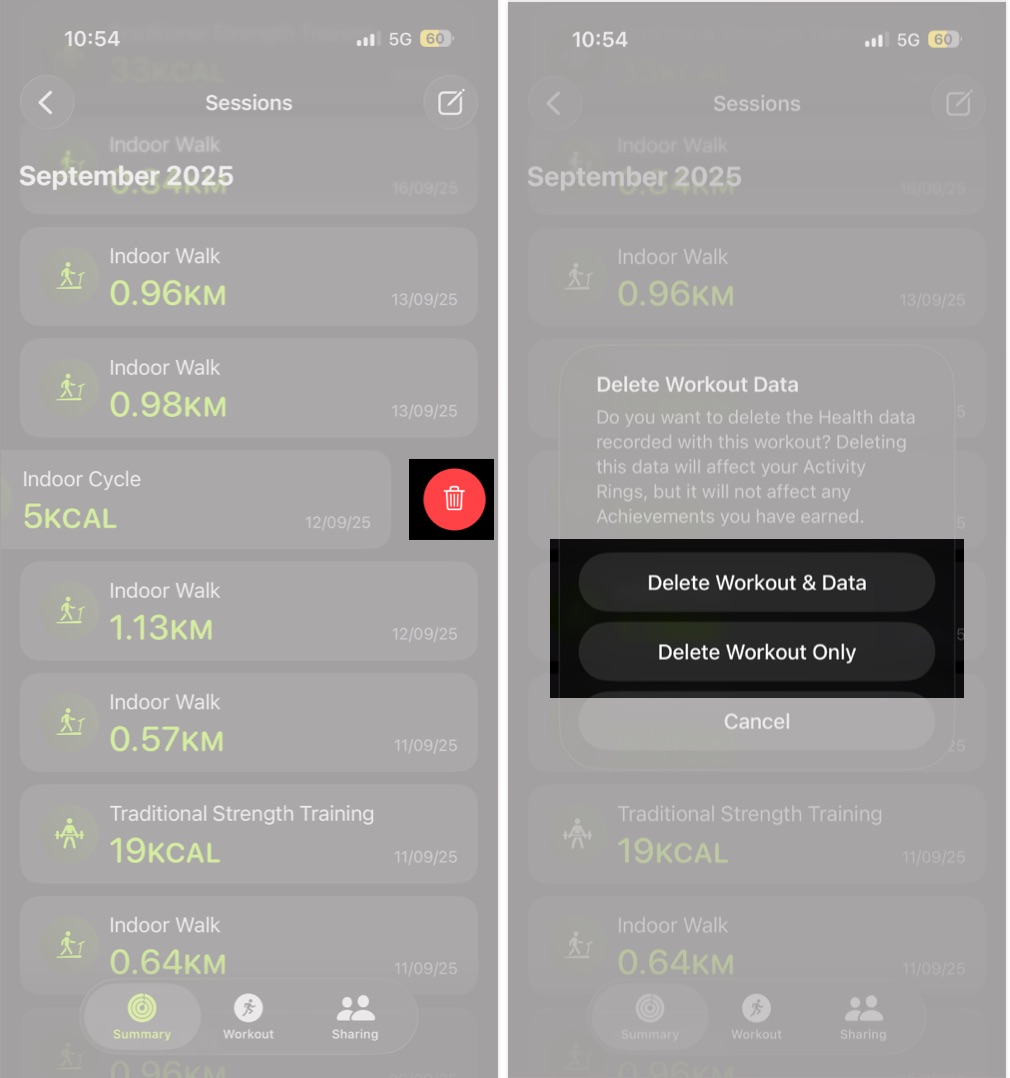
The Fitness app is the quickest way to remove a single workout. Designed for Apple Watch users, it offers a clean layout and intuitive swipe gestures.
Open the Sessions Tab
- Launch the Fitness app on your iPhone.
- Tap Sessions on the main screen.
– If you don’t see it, scroll down to “All Categories” and tap Workouts.
Find and Swipe to Delete
- Locate the workout you want to remove.
- Swipe left on the entry.
– You should feel a slight haptic tap when the gesture registers. - Tap the red Delete button.
⚠️ Common Issue: Swiping left sometimes navigates to the next day instead of showing delete. If this happens, tap Edit in the top-right corner, then tap the red minus icon next to the workout.
Choose Your Deletion Scope
-
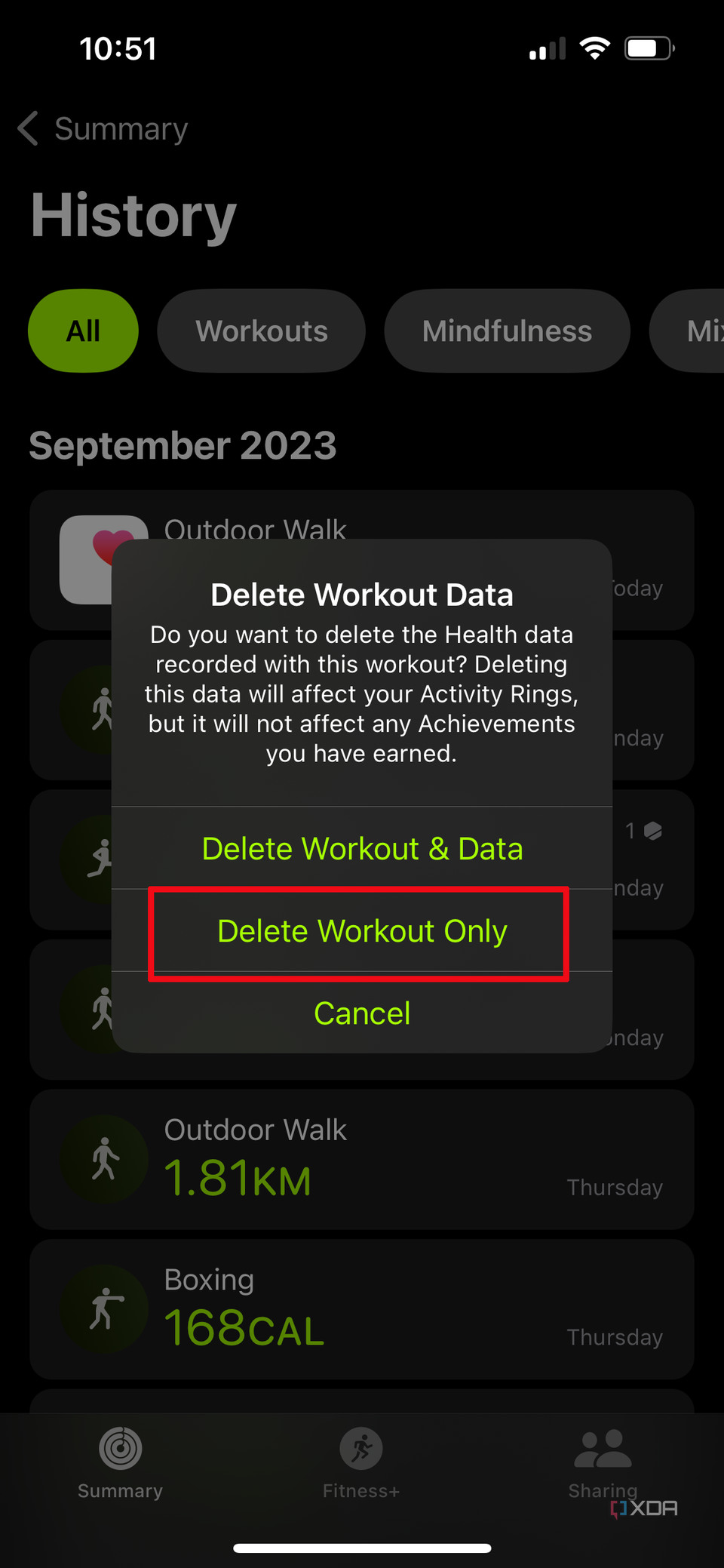
Confirm your choice:
– Delete Workout & Data: Removes calories, heart rate, exercise minutes, and Activity ring progress.
– Delete Workout Only: Keeps health metrics but hides the session from your history. -
Tap Delete to finalize.
💡 Before You Delete: Tap the workout and use Share to save a screenshot or export the data for your records.
Changes Sync Automatically
Once deleted, the workout disappears from your iPhone and syncs to your Apple Watch within seconds. No manual refresh needed.
Method 2: Delete via Health App (Full Control)
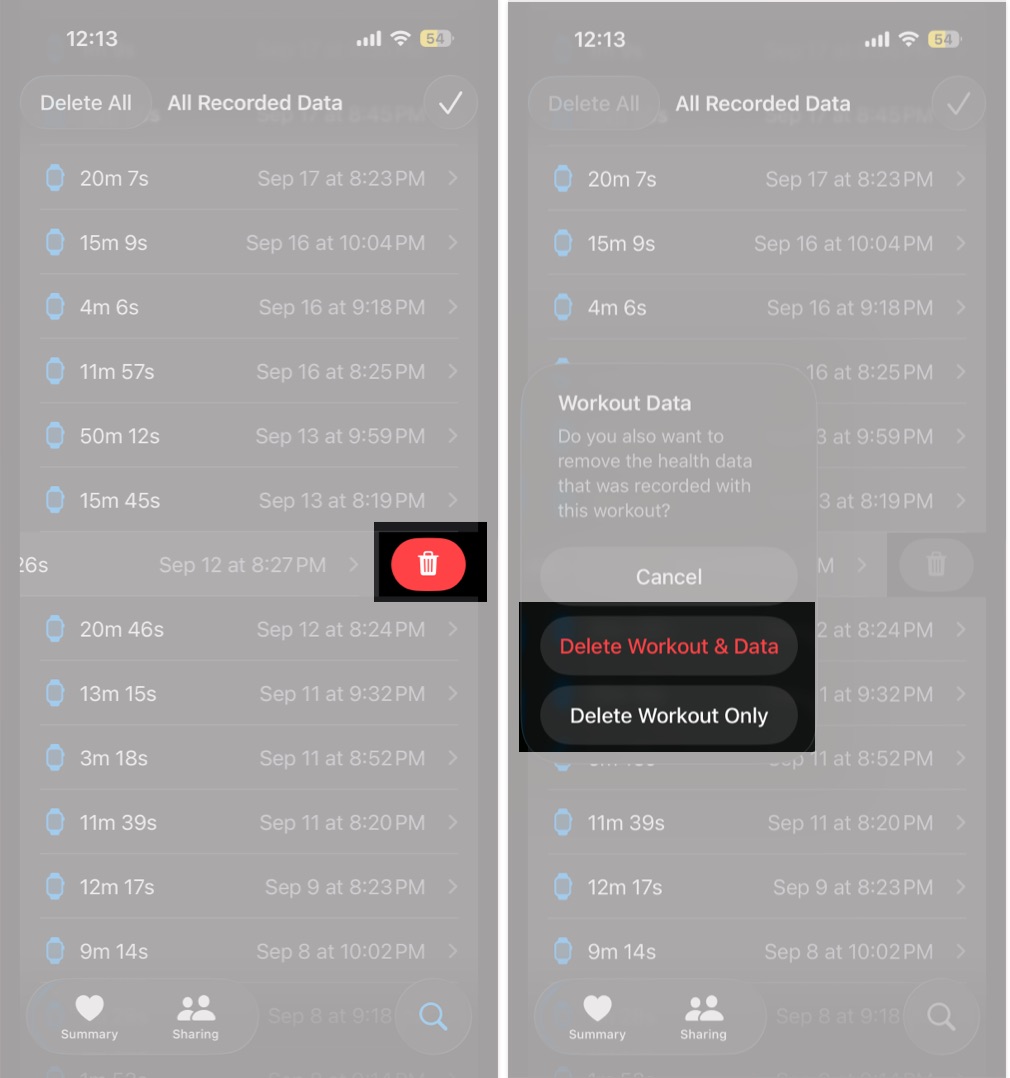
For deeper cleanup—duplicates, false entries, or full audits—the Health app is your most powerful tool. It gives you access to every recorded workout and related metric.
Navigate to Workouts
- Open the Health app.
- Tap Browse (bottom-right).
- Go to Activity > Workouts.
– Or use Search and type “Workouts.”
View All Workout Data
- Tap Show All Data (or Expand) at the top.
– A complete list appears, sorted by date and time.
Delete with Precision
-
To remove a workout:
– Swipe left and tap Delete, or
– Tap Edit, then tap the red minus icon. -
Confirm:
– Delete Workout & Data: Erases all associated metrics.
– Delete Workout Only: Preserves Activity ring contributions. -
Tap Done.
✅ User Pro Tip: After deletion, check Exercise Minutes and Stand Minutes in the Health app—these often remain and must be deleted separately (as noted by user Baremegigjen).
What Happens After You Delete a Workout?
Activity Rings Adjust Automatically
When you delete a workout with data, Apple reverses its impact on your daily goals:
- Move Ring: Active calories are subtracted.
- Exercise Ring: Minutes from the session are removed.
- Stand Ring: Any hourly stand events tied to the workout may be undone.
For example, deleting a 30-minute walk that counted toward Exercise will knock that progress off your daily total.
Achievements Stay Intact
While future progress adjusts, already unlocked awards—like a 7-day streak or monthly Move goal—are not revoked. Apple treats these as earned milestones.
Third-Party Apps Are Not Affected
Deleting a workout in Apple’s ecosystem does not remove it from Strava, TrainerRoad, or WorkOutDoor unless they use two-way sync.
❌ No Auto-Cleanup: You must delete the session in each app separately.
Fix Common Deletion Issues
Swipe Doesn’t Work?
Cause: UI bug (common in iOS 18 beta) or incorrect gesture.
Fix:
– Use Edit mode instead of swiping.
– Ensure you’re in the Fitness or Health app—not the Activity app on the watch.
Workout Missing from iPhone?
Cause: Sync delay or connectivity issue.
Fix:
– Restart both devices.
– Open the Watch app on iPhone to force a sync.
– Wait 5–10 minutes and check again.
Rings Still Show Progress?
Cause: Exercise or Stand Minutes weren’t deleted.
Fix:
1. Open Health app.
2. Go to Browse > Activity > Exercise Minutes.
3. Delete the entry manually.
4. Repeat for Stand Minutes.
🛠️ Pro Move: Filter by data source to see which device recorded the entry.
Handle Special Cases
Delete Duplicate Workouts
Recording the same workout in multiple apps (e.g., Apple Workout + WorkOutDoor) inflates your stats.
Solution:
1. Open Health app > Browse > Workouts > Show All Data.
2. Identify duplicates by time, duration, and distance.
3. Delete the unwanted entry.
4. Manually clean up Exercise Minutes if needed.
✅ Real Example: A 2.7-mile run logged twice showed 3.41 miles. Deleting one entry fixed the record.
Remove False Workouts (e.g., Scooter Rides)
Apple Watch sometimes misclassifies scooter rides or bike share trips as workouts.
Workarounds:
– No setting to disable automatic detection.
– Low Power Mode or Airplane Mode may reduce false triggers (mixed results).
– Best fix: Regularly delete false entries via Health app.
❗ User Complaint: SRK__7 calls this a “mega problem”—manual deletion is currently the only reliable solution.
Delete TrainerRoad or Pushed Workouts
Workouts from TrainerRoad appear as purple calendar-style entries on the watch.
Why You Can’t Swipe to Delete:
– These are pushed via a complication, not standard workouts.
– The delete gesture doesn’t apply.
Solutions:
1. Wait it out: Pushed workouts disappear automatically the day after (confirmed by juansilva1).
2. Unpair and re-pair: Removes old sessions. Only the current day’s workout reappears.
3. Delete from Calendar: If synced, removing it from iPhone Calendar may help—but not always.
✅ Confirmed Behavior: Only today’s pushed workout remains visible. Past ones vanish.
Pro Tips for Clean Fitness Data
Always Double-Check Before Deleting
Once gone, a workout cannot be recovered unless restored from an iCloud or iTunes backup.
💡 Best Practice: Enable iCloud Backup for Health Data in Settings > [Your Name] > iCloud > Health.
Use Health App for Full Cleanup
The Fitness app is great for quick deletes. But for duplicates, false entries, or full audits, the Health app gives you complete control.
Clean Up Related Metrics
Deleting a workout doesn’t always remove:
– Exercise Minutes
– Stand Minutes
– Heart Rate samples
Check these categories in the Health app and remove residuals manually.
Avoid Watch-Only Expectations
The Apple Watch is a companion device. For data management, your iPhone is essential.
🚫 No workaround exists—Apple has not announced plans to add direct deletion on the watch.
Which Method Should You Use?
| Scenario | Best Method |
|---|---|
| Delete one recent workout | Fitness app > Sessions > Swipe to delete |
| Audit multiple entries or duplicates | Health app > Workouts > Show All Data |
| Remove false activity (e.g., scooter) | Health app with source filtering |
| Clean up after third-party app | Delete in original app + Health app |
| Fix lingering Exercise Minutes | Health app > Exercise Minutes > Manual delete |
Final Thoughts
You can’t delete a workout directly on your Apple Watch—but you can manage your fitness data effectively using your iPhone. The Fitness app offers speed and simplicity for routine cleanup, while the Health app delivers precision for full audits and complex issues.
Remember:
– Always confirm deletion scope: Workout Only vs. Workout & Data.
– Check Exercise and Stand Minutes after deleting.
– Back up your Health data regularly.
– Third-party app entries require separate deletion.
Until Apple adds native deletion to the watch, this two-step process—iPhone + swipe or edit—is your best path to accurate, clean fitness tracking.
✅ Bottom Line: Keep your Activity rings honest and your history accurate by using the Fitness or Health app to delete unwanted workouts—fast, free, and fully in your control.




