Is your Apple Watch Series 7 frozen, sluggish, or ready to be passed on? A factory reset can clear performance issues or prepare your device for a new owner. But unlike simpler gadgets, resetting an Apple Watch involves more than just wiping data—it’s about properly handling Activation Lock, Apple ID security, and cellular plans. Do it wrong, and the watch becomes unusable. Do it right, and it’s like brand new.
This guide walks you through four proven methods to factory reset your Apple Watch Series 7—whether you have access to your iPhone, forgot your passcode, or the screen won’t respond. You’ll learn which method removes Activation Lock, how to avoid carrier billing traps, and why holding the Side Button after the Apple logo appears is the key most people miss.
Let’s get your Apple Watch wiped, secure, and ready for its next life.
Unpair via iPhone: Full Reset That Removes Activation Lock
This is the only method that fully removes Activation Lock, making it essential if you’re selling or giving away your Apple Watch.
Why This Method Works Best
Unpairing through your iPhone doesn’t just erase data—it completely detaches the watch from your Apple ID. Without this step, the new user will face an Activation Lock screen and won’t be able to activate the device without your Apple ID and password.
Steps to Unpair Your Apple Watch via iPhone
- Keep your Apple Watch and iPhone close (within Bluetooth range).
- Open the Apple Watch app on your iPhone.
- Tap the My Watch tab.
- Tap All Watches at the top.
- Select the (i) info icon next to your Apple Watch.
- Tap Unpair Apple Watch.
- Confirm the action and enter your Apple ID password.
The watch will begin erasing immediately. This process may take several minutes.
Handle Cellular Plan Correctly Before Unpairing
If you own a GPS + Cellular model, you’ll be prompted to choose:
– Keep cellular plan – Only if you plan to re-pair the same watch later.
– Remove cellular plan – Recommended when transferring ownership.
⚠️ Removing the plan does not cancel your service. You must contact your carrier (Verizon, AT&T, T-Mobile) to stop billing.
Once complete:
– All data is erased.
– Activation Lock is disabled.
– The watch restarts to the setup (Hello) screen.
✅ Always use this method when possible—especially before selling or donating.
Erase Directly on Apple Watch: Quick Reset for Personal Use
Use this method if you’re keeping the watch and just need a clean start—no iPhone required.
When to Use This Method
- You know the passcode.
- The watch is responsive.
- You’re not transferring ownership.
How to Reset on the Watch
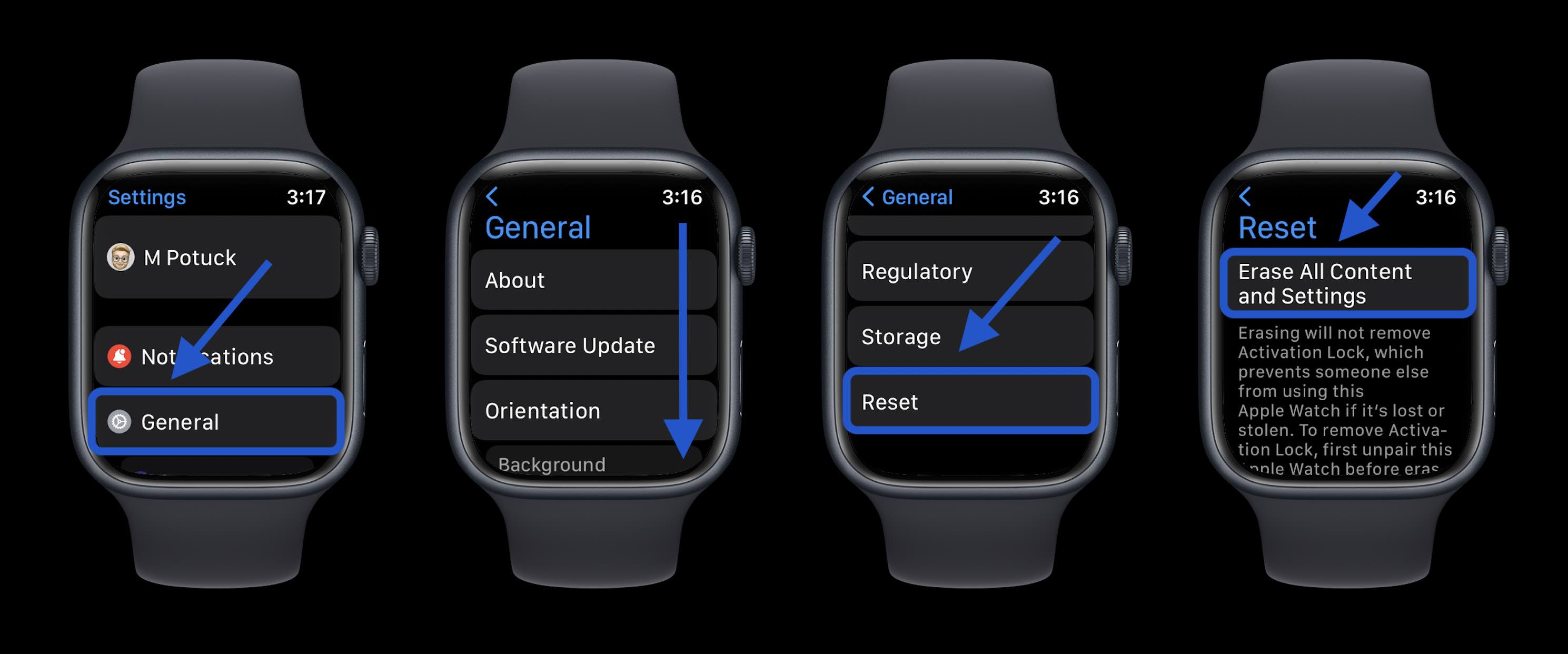
- Open Settings on your Apple Watch.
- Tap General > Reset.
- Choose Erase All Content and Settings.
- Enter your passcode.
- For cellular models, choose Keep Plan or Remove Plan.
- Tap Erase All to confirm.
What Happens After
- All apps, settings, and personal data are wiped.
- The watch restarts to the setup screen.
- Activation Lock remains active.
You’ll need the original Apple ID and password to re-activate the watch.
Alternative: Reset via iPhone App
You can also trigger this from your iPhone:
– Open Apple Watch app > My Watch > General > Reset.
– Tap Erase Apple Watch Content and Settings.
– Enter the watch passcode when prompted.
Same result: a clean slate with Activation Lock still in place.
Hard Reset: Force Erase When Locked or Unresponsive
This is the go-to method when you’ve forgotten the passcode or the watch is frozen on the lock screen.
Why Standard Methods Fail
If you’ve entered the wrong passcode too many times, the watch locks you out. The Settings app won’t open, and unpairing isn’t possible. You need a force erase—this is where the hard reset comes in.
Proven Steps for Hard Reset (2024 Confirmed)
- Press and hold Side Button + Digital Crown for 10 seconds.
- Release when the Apple logo appears.
- Immediately press and hold only the Side Button.
- Hold for up to 20 seconds.
- Wait for “Erase all content and settings” to appear.
- Tap it, then confirm with the green checkmark.
🔄 User Tip: “Hold the Side Button after the Apple logo—don’t let go. The reset option will eventually show.” — miya255, Sep 2024
Alternative Button Sequence (Also Works)
- Hold Side Button + Digital Crown.
- When Apple logo appears, release the Digital Crown only.
- Keep holding the Side Button.
- Wait for the erase prompt.
- Confirm.
Both sequences work. Try both if the first doesn’t trigger the erase option.
Result
- The watch begins erasing.
- Restarts to the setup screen.
- Activation Lock stays on—original Apple ID required for activation.
This method does not bypass Activation Lock. It only forces a wipe.
Swipe Method: Emergency Reset (User-Reported Workaround)
A lesser-known trick when buttons fail to trigger the erase prompt.
Steps
- Press the Side Button until the Power Off slider appears.
- Release, then press and hold the Digital Crown.
- Hold for 10 seconds.
- Swipe across the screen (left to right).
- “Erase all content and settings” should appear.
- Confirm.
⚠️ This method is not officially documented but has user-reported success. May require multiple attempts.
Why It Might Work
Some users report this triggers recovery mode when the watch is stuck in a boot loop or unresponsive state—especially after failed reset attempts.
Fix Activation Lock After Reset
Activation Lock is Apple’s anti-theft feature. It’s great for security—but a hurdle for new owners.
How It Works
- Enabled automatically with iCloud.
- Requires the original Apple ID and password to activate after any erase.
How to Remove It
Only unpairing via iPhone removes Activation Lock.
If you’re the previous owner:
– Unpair using Method 1.
– Or go to iCloud.com > Find My > Devices > select your watch > Remove from Account.
If you’re the new owner:
– Ask the seller to unpair it remotely.
– Without their help, you cannot activate the watch.
🔒 There is no legal or official way to bypass Activation Lock without the original credentials.
Manage Cellular Plan Before Reset

Don’t assume “Remove Plan” stops your bill.
What “Remove Plan” Actually Does
- Deletes the carrier profile from the watch.
- Prevents reuse of your number on another device.
- Does not cancel your subscription.
How to Cancel Service
- Open Apple Watch app on iPhone.
- Tap My Watch > Cellular.
- Tap (i) next to your plan.
- Select Remove [Carrier] Plan.
- Call your carrier to cancel the service.
✅ Carriers require direct contact to fully terminate billing.
Forgot to Remove Plan?
If you erase without removing the plan:
– You may continue to be billed.
– Your number could stay tied to a non-functional device.
Fix it later via carrier app or customer service.
What Happens After Factory Reset?
After any erase:
– Watch shows Apple logo.
– Boots to the Hello screen (setup mode).
– No data remains.
But Activation Lock status varies:
| Method | Removes Activation Lock? |
|---|---|
| Unpair via iPhone | ✅ Yes |
| Erase on Watch | ❌ No |
| Hard Reset | ❌ No |
| Swipe Method | ❌ No |
Only unpairing via iPhone fully frees the device.
For New Owners
If you buy a used Apple Watch:
1. Ask the seller to unpair via iPhone.
2. If not possible, perform a hard reset.
3. But you’ll still need the original Apple ID to activate.
There is no workaround.
Troubleshoot Failed Reset Attempts

Did the erase prompt not appear? Try these fixes.
Problem: No “Erase” Prompt After Holding Side Button
Solutions:
– Hold longer—up to 30 seconds.
– Ensure battery is above 50%.
– Try 3–5 consecutive attempts.
– Clean the screen—oil or moisture may block touch.
User report: “Tried 3 times—on the third, it finally worked.” — MandoKawasaki, Oct 2024
Problem: Watch Reboots but Stuck on Setup Screen
- Normal after erase.
- If frozen, force restart by holding both buttons until Apple logo appears.
Problem: Erase Option Grayed Out
- Caused by low battery or connectivity.
- Charge to 50%+.
- Ensure Bluetooth is on (for iPhone methods).
Prevent Issues: Prep Before You Reset
Avoid headaches with these steps.
Backup Health & Activity Data
Apple Watch doesn’t auto-back up health data unless:
– iCloud Backup is on.
– You’ve synced recently.
To trigger a backup:
1. Open Apple Watch app.
2. Go to My Watch > General > Reset.
3. Tap Erase All, then cancel before confirming.
4. This forces a backup.
💡 Do this before resetting if keeping the watch.
Charge Before Reset
Low battery can interrupt the erase.
- Plug in if below 50%.
- Use magnetic charger.
- Charge 15–30 minutes first.
Know Your Model
Series 7 comes in:
– GPS only
– GPS + Cellular
Cellular models need extra steps. Check the back: a “+” symbol means cellular.
Summary: Pick the Right Reset Method
| Scenario | Best Method | Activation Lock Removed? |
|---|---|---|
| Selling or donating | Unpair via iPhone | ✅ Yes |
| Keeping watch, need clean start | Erase on Watch | ❌ No |
| Forgot passcode | Hard Reset | ❌ No |
| Watch frozen | Hard Reset | ❌ No |
| New owner, seller unavailable | Hard Reset | ❌ No |
🏆 Best overall: Unpair via iPhone.
💣 Last resort: Hard Reset with Side Button hold.
Final Tips for Success
- Never insert tools into case holes—no SIM slot or reset pinhole.
- Hard reset works even when Apple Support fails.
- Activation Lock is permanent without original Apple ID.
- Back up health data—it’s gone forever if not saved.
- Contact carrier to cancel service—don’t rely on “Remove Plan.”
Resetting your Apple Watch Series 7 doesn’t have to be stressful. With the right method, you can wipe it securely, transfer it smoothly, or revive a frozen device in minutes.
Now you’re ready—whether upgrading, troubleshooting, or passing it on.
Leave a Reply