
You’ve just upgraded your iPhone, sold your old one, or want to gift your Apple Watch — but it’s still tied to a previous device. The solution? You need to forget your Apple Watch from your iPhone to break the connection, erase personal data, and disable Activation Lock. Without this step, the watch remains locked to your Apple ID, making it nearly impossible for anyone else to use.
The good news: Apple provides several ways to unpair your Apple Watch, even if you no longer have access to the original iPhone. Whether you’re switching devices, troubleshooting pairing issues, or preparing your watch for resale, this guide walks you through every method — from the standard unpair process using your paired iPhone to remote removal via iCloud. You’ll learn how to fully erase your device, remove Activation Lock, and avoid common mistakes that leave your Apple Watch unusable.
Unpair Using Paired iPhone (Best Method)
If you still have the iPhone your Apple Watch was originally paired with, this is the safest and most complete method. It ensures data backup, full erasure, and automatic removal of Activation Lock.
Access Watch Settings on iPhone
Open the Apple Watch app on your iPhone and tap the My Watch tab. At the top, select All Watches. You’ll see your connected Apple Watch listed with its name and model number.
Tap the info button (i) next to your watch. This opens the pairing details and gives you access to the unpair option.
Confirm and Unpair
Tap Unpair Apple Watch and confirm the action when prompted. You’ll be asked to enter your Apple ID password — this is critical for disabling Activation Lock.
⚠️ Important: Without entering your Apple ID credentials here, Activation Lock will remain active, blocking future setup attempts.
The iPhone will begin backing up your Apple Watch data to iCloud, including app settings, health metrics, and custom watch faces. This process can take 5–15 minutes, depending on data size. Once complete, your Apple Watch will restart and display the initial setup screen.
✅ Pro Tip: After unpairing, verify the backup by going to Settings > [Your Name] > iCloud > Manage Storage > Backups and checking for your Apple Watch in the list.
What Gets Removed?
- All apps, messages, and health data
- Wi-Fi networks and Bluetooth pairings
- Apple Pay cards and saved passwords
- Activation Lock (only when unpaired via paired iPhone)
This method is ideal for selling, gifting, or upgrading — it leaves no trace of your account or data behind.
Erase Apple Watch Without iPhone
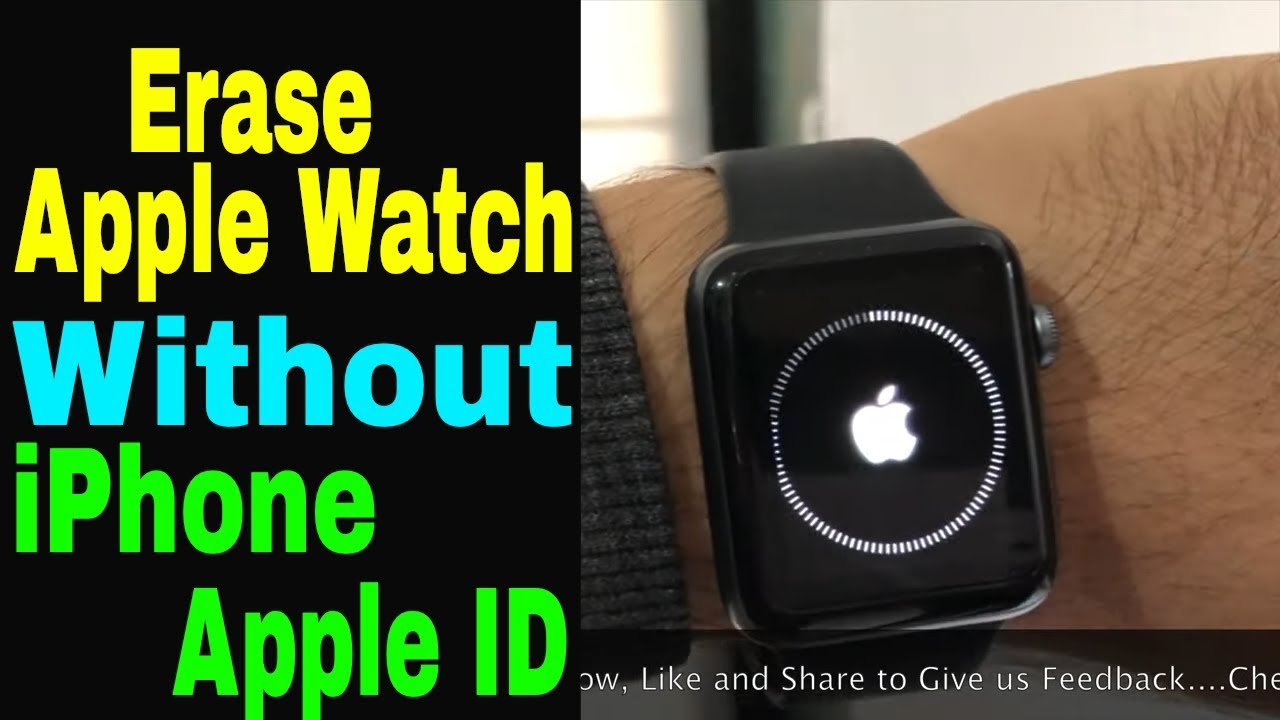
Lost or sold your paired iPhone? You can still erase your Apple Watch directly — but this alone does not remove Activation Lock.
Reset Directly on the Watch
If you have physical access to the watch:
- Open Settings on the Apple Watch.
- Go to General > Reset.
- Tap Erase All Content and Settings.
- Enter your passcode when prompted.
- Choose whether to keep or remove the cellular plan (if applicable).
- Tap Erase All.
The watch will reboot and begin erasing all data. After several minutes, it will show the Apple logo, then restart to the language selection screen.
❗ Warning: This removes local data but does not disable Activation Lock. The next user will still need your Apple ID and password to set it up unless you manually remove the device from your iCloud account.
Remove from iCloud to Disable Activation Lock
Erasing the watch isn’t enough. To truly forget your Apple Watch from your iPhone’s ecosystem, you must remove it from your Apple ID.
Sign In to iCloud.com
On any web browser, go to iCloud.com and sign in with the Apple ID linked to your Apple Watch.
Click Find iPhone (or Find My, depending on your interface). At the top, click All Devices, then select your Apple Watch from the list.
Erase and Remove from Account
Click Erase Apple Watch and follow the prompts. Once the erasure is confirmed, click the X (×) next to the device name to remove it from your account.
✅ Success: The watch is now free of Activation Lock and ready for a new owner.
❌ Failure: If you skip clicking the X, the device remains linked to your Apple ID — even after erasure.
This method is essential when you no longer have the original iPhone but want to fully disassociate the watch.
Use Find My App on Another Apple Device
Don’t have a computer? Use the Find My app on any Apple device signed into your iCloud account.
Locate Your Apple Watch
Open the Find My app and tap the Devices tab. Scroll down and tap your Apple Watch.
Erase and Remove
Tap Erase This Device, confirm the action, and wait for completion. Once erased, tap Remove from Account.
This method works just like iCloud.com and is perfect if you’re using an iPad, Mac, or even a friend’s iPhone. The app shows real-time status, so you’ll know exactly when the process finishes.
✅ Note: The device must be online for remote erasure. If offline, the command will execute the next time it connects to Wi-Fi or cellular.
Fix: Apple Watch Won’t Connect to New iPhone
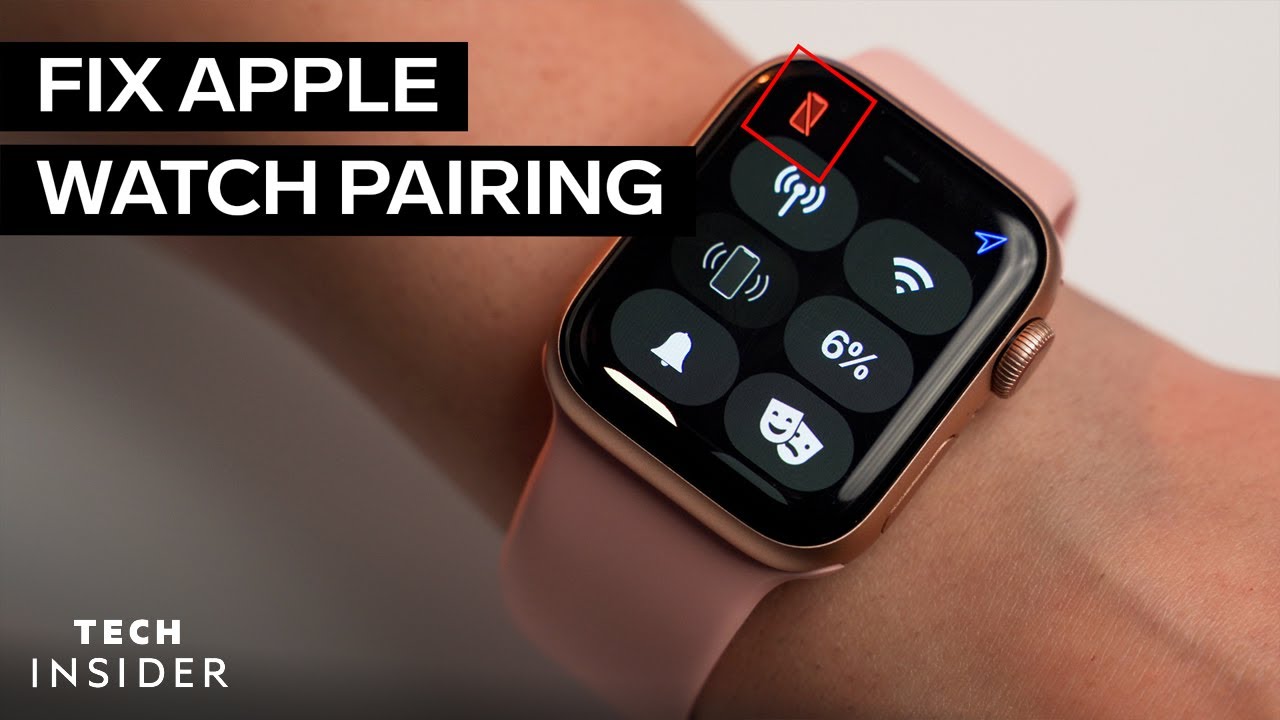
You’ve set up your new iPhone, but your Apple Watch won’t pair. Why? It’s likely still linked to your old device.
Problem: Still Paired to Old iPhone
Even if you no longer own the old iPhone, the watch remains registered to that Apple ID until manually removed.
Solution: Forget via iCloud
- On your new iPhone, open Safari and go to iCloud.com.
- Sign in with the same Apple ID used on the old iPhone.
- Open Find My, select your Apple Watch, and erase it.
- Click the X to remove it from your account.
- Now try pairing it with your new iPhone.
✅ User Tip: “I reset the watch first, then logged into iCloud.com and removed it from Find My. Only then could I pair it with my new phone.”
Prepare for Sale or Gift
Before selling or giving away your Apple Watch, ensure it’s fully forgotten and Activation Lock is disabled.
Steps to Follow:
- Unpair using the paired iPhone — this is best for full backup and lock removal.
- If not possible, erase from watch settings, then remove from iCloud.
- Confirm the watch shows the language selection screen, not a passcode prompt.
- Test by attempting to pair it with another iPhone — if no Apple ID prompt appears, you’re good.
✅ Final Check: A clean Apple Watch shows the setup screen with no account restrictions.
Avoid Common Mistakes
Many users think resetting the watch is enough. It’s not. These mistakes can render the device unusable for the next owner.
Skipping iCloud Removal
Erasing the watch does not remove it from your Apple ID. Always use iCloud.com or Find My to remove the device after erasure.
Not Removing from Find My
Leaving the watch listed under All Devices means Activation Lock stays active. The X button (×) is your final step — never skip it.
Assuming Reset Is Enough
“Just resetting the watch” is a myth. Without removing it from your account, the next user will be blocked by Activation Lock and need your Apple ID and password.
✅ Pro Tip: After removal, log out of iCloud on any shared devices to prevent accidental re-linking.
Handle Cellular Plans Correctly
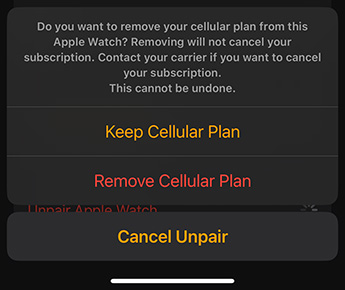
If you have a cellular Apple Watch, manage your plan before unpairing.
During Unpairing:
- Choose Remove Cellular Plan if selling or gifting.
- Choose Keep only if you plan to re-pair the same watch later.
Contact Your Carrier
Removing the plan in settings does not cancel your subscription. Call your carrier to avoid future charges.
Available carriers include:
– AT&T, Verizon, T-Mobile (U.S.)
– Bell, Rogers, Telus (Canada)
– EE, O2, Vodafone (UK)
✅ Best Practice: Cancel service after unpairing to avoid setup issues.
Troubleshoot Unpairing Issues
Sometimes the process fails. Here’s how to fix it.
Watch Stuck on Apple Logo
After erasure, the watch may appear frozen. Wait up to 10 minutes. If still stuck, force restart:
- Press and hold Side Button + Digital Crown for 10 seconds until the Apple logo appears.
“Unpair Not Available” Error
Ensure:
– Bluetooth is on
– iPhone and watch are close together
– Both devices are charged (above 50%)
– Airplane Mode is off
Try restarting both devices and retrying.
Activation Lock Still Active?
Double-check:
– You signed into iCloud.com with the correct Apple ID
– You clicked the X to remove the device
– The watch isn’t still listed under Find My
If locked, you’ll need the original Apple ID and password to proceed.
Summary: Best Way to Forget Apple Watch
| Step | Required? | Purpose |
|---|---|---|
| 1. Unpair via iPhone (if possible) | ✅ | Full erase + backup + lock removal |
| 2. Erase from Watch Settings (no iPhone) | ✅ | Factory reset when iPhone is gone |
| 3. Remove from iCloud (via web or app) | ✅ | Disable Activation Lock |
| 4. Confirm setup screen appears | ✅ | Verify watch is ready for new user |
Final Note: Forgetting your Apple Watch from your iPhone isn’t just about unpairing — it’s about fully removing it from your Apple ecosystem. Always remove the device from Find My to disable Activation Lock. Whether you’re upgrading, troubleshooting, or selling, following these steps ensures your data stays private and your watch stays usable. Now you’re ready to pair fresh — or pass it on securely.





