
If you’ve ever asked, “How do I get my Apple Watch to track steps?” — you’re not alone. While the Apple Watch doesn’t show step count front and center like some fitness trackers, it’s actually one of the most accurate devices for automatic step tracking. The best part? It works right out of the box. No setup needed — just wear it, walk, and your steps are counted.
But here’s the catch: unlike Fitbit or Garmin, the Apple Watch doesn’t display step count on the default watch face. You have to dig into apps or use third-party tools to see your progress at a glance. And while Apple tracks steps in the background, you won’t find a native way to set a daily step goal. That doesn’t mean it’s impossible — far from it.
In this guide, you’ll learn exactly how to get Apple Watch to track steps, view them instantly, set custom goals, and ensure accuracy — even when your iPhone isn’t nearby. Whether you’re a fitness beginner or switching from another tracker, these actionable steps will help you make the most of your Apple Watch.
View Step Count in Built-In Apps
Your Apple Watch is already counting steps — you just need to know where to look.
Check Steps in the Activity App
The Activity app on your Apple Watch is the first place to check for real-time step data.
1. Press the Digital Crown to return to the home screen.
2. Tap the Activity app (the one with three colorful rings).
3. Scroll down past the rings to find Total Steps, listed alongside distance and flights climbed.
This number updates every few minutes and reflects all movement since midnight. It’s pulled from your watch’s built-in accelerometer and gyroscope, so no extra apps or workouts are needed.
Note: The Activity app shows steps only in the summary screen — not on the main rings display. For a cleaner view, check the Fitness app on iPhone.
See Daily Totals in the Fitness App
The Fitness app on your iPhone offers a more detailed, user-friendly layout.
1. Open Fitness on your iPhone.
2. Tap your Activity Rings at the top.
3. Scroll down to Total Steps under the “Today” section.
You’ll also see walking distance, active calories, and stand hours — perfect for reviewing your day in one place.
Analyze Historical Trends in the Health App
Want to track progress over weeks or months? The Health app is your go-to.
1. Open Health on iPhone.
2. Tap Browse > Activity > Steps.
3. View data by day, week, month, or year.
You’ll get visual graphs showing trends, averages, and even export options for personal records. This is especially helpful if you’re training for a goal or monitoring long-term activity.
Pro Tip: Even if your Apple Watch is off or charging, the iPhone’s motion coprocessor continues tracking steps — so your data stays consistent.
Add Step Count to Your Watch Face
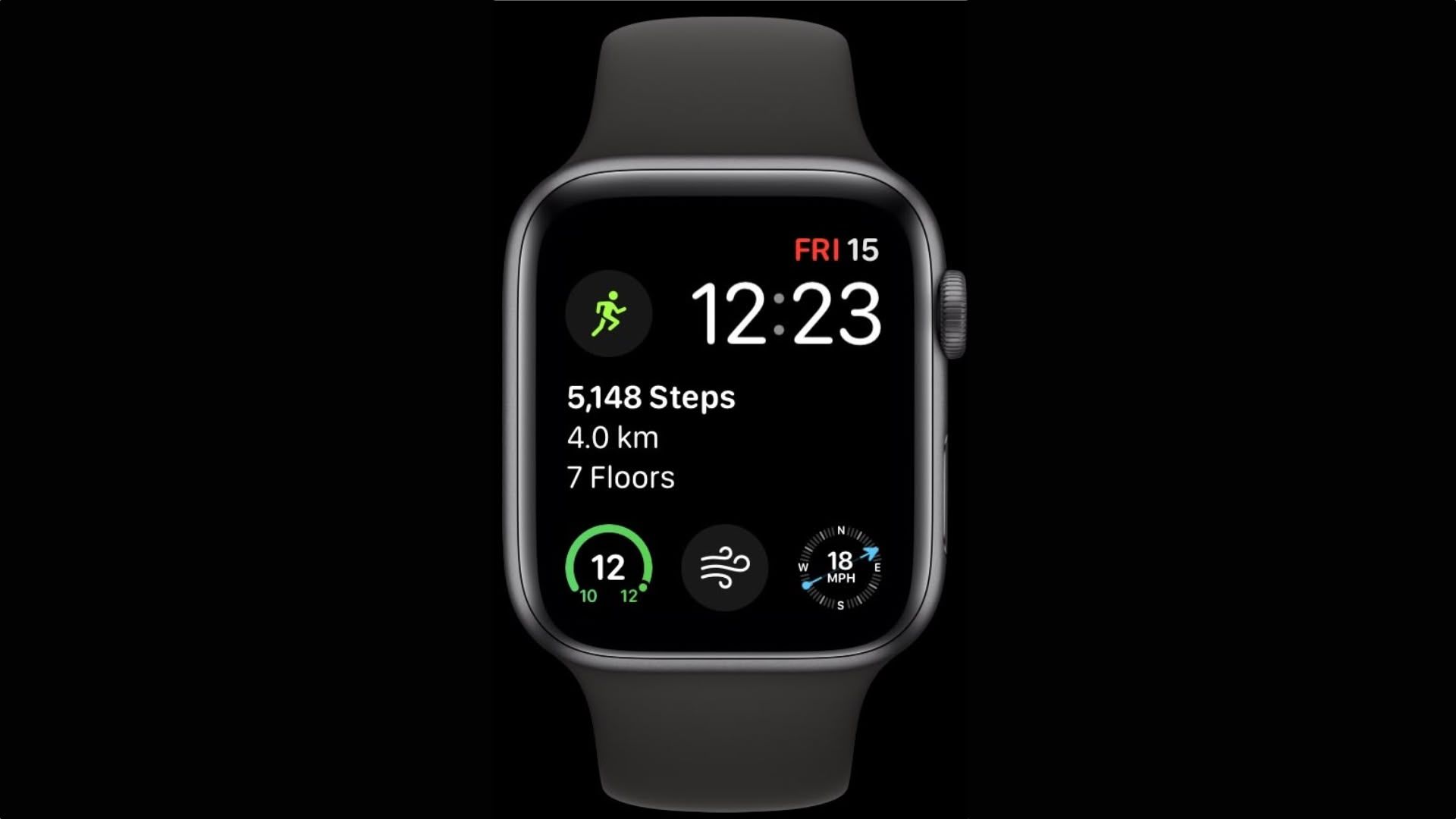
Want to see your steps every time you raise your wrist? You can — with a third-party app.
Install a Step-Tracking App with Complication Support
Since Apple doesn’t offer a native step complication, you’ll need a free third-party app. Popular choices include:
– Duffy – Minimalist, fast, and free
– DailySteps – Simple, lightweight, no frills
– Pedometer++ – Feature-rich with goal tracking
– StepsApp – Clean interface and reliable sync
– Pedometer (by Substantial-Pain1199) – Standalone WatchOS app
All these apps sync with Apple Health and are available via the iPhone App Store. Download one, and it will automatically install on your Apple Watch.
Warning: There are multiple apps named “Pedometer” — double-check the developer to avoid fake or ad-filled versions.
Add a Step Complication to Your Watch Face
Once installed, add the step counter to your watch face:
1. Press and hold your current watch face.
2. Tap Edit.
3. Swipe to the Complications section.
4. Select an empty slot (e.g., bottom center).
5. Choose your step-tracking app (like Duffy or StepsApp).
6. Press the Digital Crown to save.
Now, your step count appears right on the watch face — just like on a Fitbit.
Important Limitation: Due to Apple’s background refresh rules, third-party complications can lag by 10–15 minutes. This is normal and affects all apps equally.
Set Daily Step Goals (Even Without Native Support)
Apple doesn’t let you set step goals in the Activity app — but you can still track them.
Use Third-Party Apps for Custom Step Targets
Apps like Pedometer++ and StepsApp let you set a daily goal — say, 8,000 or 10,000 steps.
– Open the app and go to Settings.
– Enter your target.
– Get a notification when you hit your goal.
These apps pull data from Apple Health, so your steps stay in sync across devices.
Boost Steps by Raising Your Move Goal
Since Apple uses active calories (Move ring) as its primary metric, increasing your Move goal indirectly increases your step count.
1. Open the Activity app on your Apple Watch.
2. Swipe up and tap Change Goals.
3. Increase your daily Move target.
For example, raising your goal from 400 to 600 calories may push you to walk an extra mile — adding over 2,000 steps to your day.
Pro Tip: Combine a higher Move goal with a third-party step app for double motivation.
Maximize Step Tracking Accuracy
Your Apple Watch is accurate — but only if set up correctly.
How Step Counting Works
The watch uses:
– Accelerometer to detect motion
– Gyroscope to measure arm swing
– GPS (during workouts) to verify distance
– User profile data (height, weight, stride) to estimate steps
Ensure your height, weight, and walking pace are correct in the Health app — inaccurate data can skew step and distance calculations.
Tips for Better Accuracy
For the most reliable tracking:
– Wear the watch snugly on your wrist
– Use your dominant hand (default for motion algorithms)
– Calibrate during outdoor walks to improve GPS learning
Avoid inaccuracies caused by:
– Pushing strollers or shopping carts (reduced arm swing)
– Wearing a cast or sling
– Very slow shuffling (may not register as steps)
Best Practice: Start a Workout (e.g., Outdoor Walk) for the most accurate step and distance tracking.
Track Steps Without Your iPhone

You don’t need your iPhone nearby — your Apple Watch tracks steps independently.
Independent Tracking Capabilities
The Apple Watch has its own motion sensor and processor. It tracks steps even when:
– iPhone is off
– Out of Bluetooth range
– In Airplane Mode (as long as Workout detection is enabled)
All data syncs automatically when your watch reconnects via Bluetooth, Wi-Fi, or cellular (on cellular models).
Ensure: Both devices are signed into the same Apple ID and have Fitness Tracking enabled in the Watch app.
Fix Syncing Issues
If steps aren’t appearing:
1. Restart both Apple Watch and iPhone.
2. Open the Watch app on iPhone.
3. Go to My Watch > Privacy > Motion & Fitness.
4. Toggle Fitness Tracking and Health off, then on.
Wait a few minutes — your data should sync shortly.
Monitor Long-Term Progress and Stay Motivated
Seeing trends helps you stay consistent.
Review Trends in the Fitness App
After six months of activity, the Fitness app unlocks Trends, which compares your last 90 days to your past year average.
1. Open Fitness app > Summary > Trends.
2. Scroll to Walk Distance — a strong proxy for step trends.
You’ll see:
– Upward arrow = improvement
– Downward arrow = decline
– Coaching tips (e.g., “Walk an extra 0.25 miles daily”)
Note: Trends doesn’t show steps directly — but walk distance correlates closely.
Use Awards and Challenges
Apple motivates you through:
– Activity Awards (e.g., 7-day streak, monthly badges)
– 7-Day Competitions with friends (based on Move calories)
Both appear in the Activity app under the Awards tab.
While not step-specific, increased activity means more steps — making these tools great for long-term motivation.
Best Apps for Step Tracking: Quick Comparison
| App | Free? | Step Goal | Complication | Offline |
|---|---|---|---|---|
| Duffy | ✅ | ❌ | ✅ | ✅ |
| DailySteps | ✅ | ✅ | ✅ | ✅ |
| Pedometer++ | ✅ | ✅ | ✅ | ✅ |
| StepsApp | ✅ | ✅ | ✅ | ✅ |
| Pedometer (by Substantial) | ✅ | ✅ | ✅ | ✅ |
Best for simplicity: Duffy or DailySteps
Best for features: Pedometer++ or StepsApp
All sync with Apple Health and respect privacy — no subscriptions or ads.
Final Note: The Apple Watch tracks steps automatically and reliably — but to see them instantly and set goals, you’ll need a third-party app. Install Duffy or DailySteps, add a step complication, and adjust your Move goal to stay active. With these tweaks, your Apple Watch becomes a powerful, Fitbit-like step tracker that fits seamlessly into your daily routine. Just wear it, walk, and let the data roll in.





