
You’ve probably missed a notification, struggled to check your workout pace, or had to awkwardly raise your wrist just to see the time. The solution? Keep your Apple Watch screen on—without constantly tapping or flicking your arm. Apple built-in features like Always On Display and Wake Duration to make your watch truly glanceable, giving you instant access to time, fitness stats, messages, and more—even when your arm is down.
Whether you’re driving, working out in gloves, or just prefer a traditional watch-like experience, learning how to keep your Apple Watch screen visible transforms how you use it. This guide walks you through exactly how to enable Always On, extend screen brightness, customize what appears, and avoid common issues—all using Apple’s official settings. No guesswork, no third-party tools—just clear, actionable steps that work on supported models.
Enable Always On Display
Turn On Always On Feature
The fastest way to keep your Apple Watch screen visible is by enabling Always On Display. When active, your watch face stays visible even when your wrist is down—dimmed but readable. This mimics classic watches, where the time is always in view.
To turn it on:
1. Open the Settings app on your Apple Watch.
2. Tap Display & Brightness.
3. Select Always On.
4. Toggle the switch to On.
✅ Pro Tip: On compatible models, Always On is enabled by default unless you’re in Low Power Mode or Theater Mode.
You can also manage this from your iPhone:
– Open the Watch app → My Watch tab → Display & Brightness → Always On Display.
Once enabled, your screen stays on at a lower brightness until you raise your wrist or interact, at which point it brightens fully.
Confirm Device Compatibility
Not all Apple Watches support Always On. If you don’t see the option, check your model:
- ✅ Supported: Apple Watch Series 5 and later, Apple Watch SE (2nd generation and later), Apple Watch Ultra, Ultra 2, Series 8, 9, and 10.
- ❌ Not supported: Apple Watch Series 4 and earlier, 1st-generation Apple Watch SE.
Also, ensure your watch runs watchOS 6 or later. Update via Settings > General > Software Update if needed.
❗ Quick Check: Go to Settings > General > About > Model to confirm your watch version.
When Always On Turns Off Automatically
Apple disables Always On in specific modes to save battery or reduce distractions:
- Low Power Mode: Always On turns off automatically.
- Theater Mode: Screen goes dark until manually tapped.
To restore visibility, disable these modes and re-enable Always On in settings.
🔋 Pro Tip: On Apple Watch Ultra, use Battery Saver Mode during long hikes—it disables Always On but keeps core functions active.
Customize What Shows on the Dimmed Screen

Control Visibility of Complications and Notifications
Even with Always On active, you can choose what information appears when your wrist is down—balancing convenience with privacy.
In Settings > Display & Brightness > Always On, toggle:
– Show Complication Data: Display heart rate, weather, calendar, or fitness rings.
– Show Live Activities: See live updates like timers, sports scores, or food delivery status.
– Show Notifications: Preview incoming alerts.
– Show Apps: Keep active apps (e.g., Workout, Timer) visible.
🔐 Privacy Tip: Disable Show Notifications if sensitive messages (like texts or emails) might be seen by others.
Manage App-Specific Always On Access
For more control, use your iPhone:
1. Open the Watch app → My Watch tab → Always On.
2. Tap Apps.
3. Choose which apps can display content when wrist is down.
For example:
– Allow Workout and Timer for quick access.
– Block Messages or Mail to avoid accidental exposure.
💡 Expert Note: Third-party apps follow developer rules—some may only update once per minute when wrist is down.
Understand Screen Behavior When Wrist Is Down
When your arm is lowered:
– Second hand stops on analog watch faces.
– Time and complications update every ~60 seconds.
– Live data (e.g., Compass, Noise) pauses.
– Timer and stopwatch values round to nearest minute.
⚡ Exception: Apple Watch Series 10 and newer update more frequently, offering a smoother Always On experience.
Extend Screen Brightness After Activation
Choose 70-Second Wake Duration
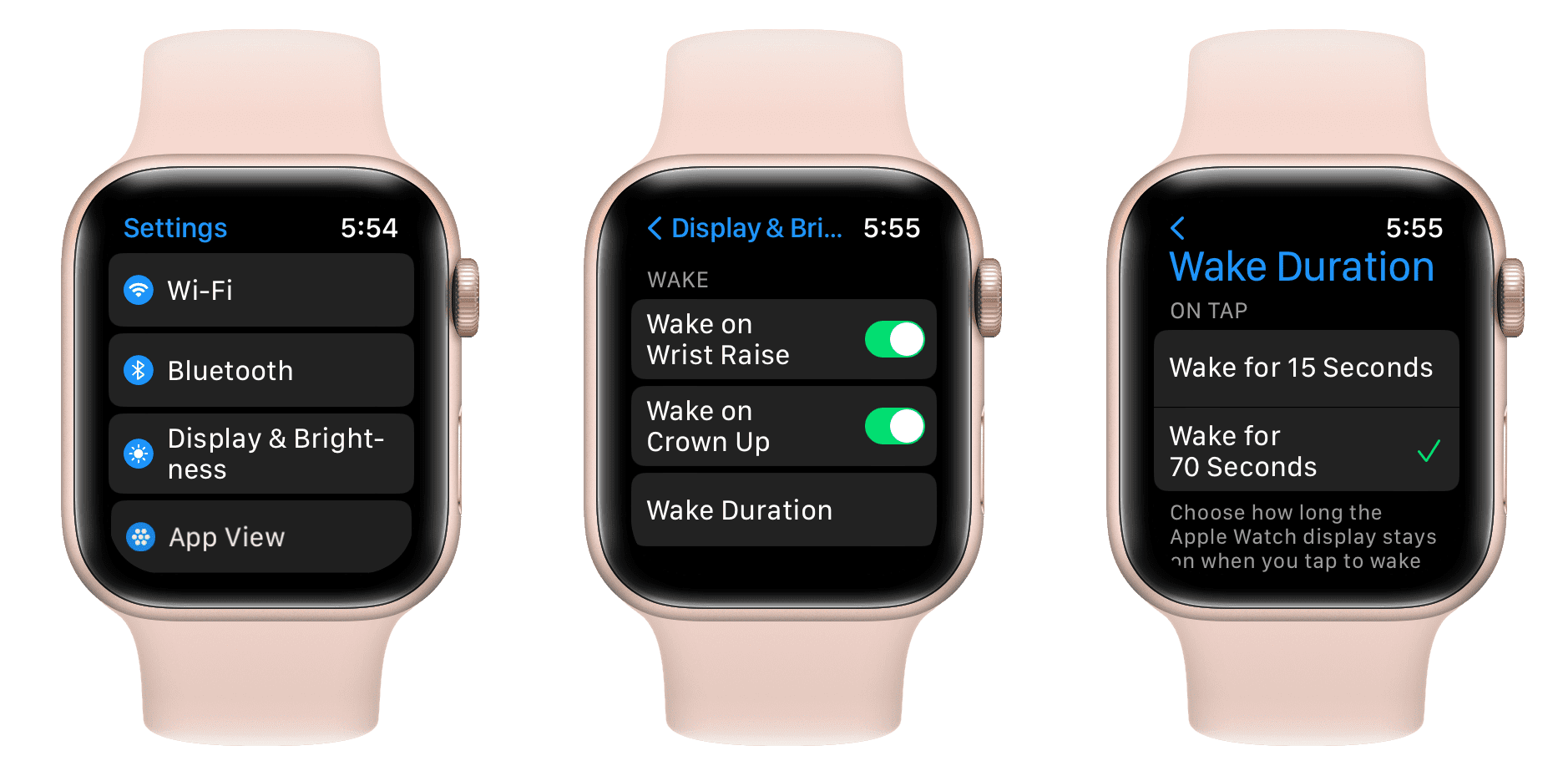
Even with Always On, the screen dims quickly after interaction. To keep it bright longer, extend the Wake Duration.
By default, the display stays bright for 15 seconds after:
– Raising your wrist
– Tapping the screen
– Pressing the Digital Crown or side button
Change it to 70 seconds:
1. Open Settings on Apple Watch.
2. Go to Display & Brightness.
3. Tap Wake Duration.
4. Select 70 seconds.
🕒 Ideal For: Reading long messages, checking navigation, or reviewing detailed workout stats without repeated gestures.
Know the Battery Trade-Off
Extending wake duration increases power use:
– 70 seconds = up to 10–15% more battery drain depending on usage.
– Best used temporarily—switch back to 15 seconds for daily efficiency.
🔋 Pro Tip: Use 70 seconds during workouts or travel, then revert to save battery.
Interact With Screen in Always On Mode
Tap to Open Apps Instantly
Even when dimmed, your Apple Watch remains partially responsive:
– Tap any complication → Opens the linked app (e.g., tap Weather for full forecast).
– Swipe down → Reveals notifications.
– Turn Digital Crown → Navigates Smart Stack.
– Double-click Crown → Opens App Switcher.
– Press side button → Accesses Control Center.
✅ Use Case: Driving or cycling? Tap the screen instead of raising your arm to check time or messages safely.
Fully Wake the Display
To restore full brightness and interactivity:
– Raise your wrist
– Tap the screen
– Press the Digital Crown or side button
The screen brightens instantly, showing live complications and full app functionality.
Optimize for Battery Life
Balance Visibility and Power Use
Always On and extended wake duration improve usability but reduce battery life. Here’s how to balance both:
| Setting | Recommendation |
|---|---|
| Always On | Keep on for convenience; turn off when charging isn’t available |
| Wake Duration | Use 70s sparingly; stick to 15s for daily use |
| Complication Data | Disable non-essential ones (e.g., Noise, Compass) |
| Notifications | Limit sensitive apps from showing previews |
| Watch Face | Choose simple designs—avoid bright or animated faces |
🔋 Battery Impact: Expect 5–15% faster drain with Always On enabled.
Use Low Power Mode Strategically
When battery is low:
– Low Power Mode turns off Always On automatically.
– Wake Duration resets to 15 seconds.
– Complications and background updates slow down.
Re-enable Always On after charging if desired.
🚀 Pro Tip: On Apple Watch Ultra, use Battery Saver Mode during long hikes or races to preserve power while keeping core functions.
Model-Specific Settings

Apple Watch SE (2nd Gen / SE 3)
- Always On available only on 2nd generation (SE 3).
- Second hand stops when wrist is down.
- Supports Wake Duration up to 70 seconds.
- Found under Screen Timeout in some versions.
❗ Common Confusion: SE 1 lacks Always On—check model number in Settings > General > About.
Apple Watch Series 8, 9, and 10
- Full Always On support.
- Series 10 updates dimmed screen more frequently than older models.
- Seamless integration with Focus modes and Smart Stack.
🔄 Tip: Pair with Sleep Focus to dim screen further at night while keeping time visible.
Apple Watch Ultra / Ultra 2
- Built for constant visibility in outdoor environments.
- Always On stays bright even in sunlight.
- Prioritizes critical data: compass, altitude, dive time, workout metrics.
🏔️ Ideal For: Hikers, divers, athletes who need continuous access without wrist raises.
Troubleshoot Screen-Off Issues
Fix Screen Turning Off Completely
If your screen goes black when wrist is down:
1. Check Always On is enabled:
Settings > Display & Brightness > Always On → Toggle On.
2. Ensure you’re not in Low Power Mode or Theater Mode.
3. Verify device compatibility (Series 5+, SE 2+, Ultra).
❌ No Always On option? Your model doesn’t support it (e.g., SE 1, Series 4).
Resolve Missing Notifications on Dim Screen
Notifications not showing when wrist is down?
– Go to Settings > Display & Brightness > Always On.
– Enable Show Notifications.
– In Watch app (iPhone) > Always On, allow specific apps to display alerts.
🔕 Reminder: Silent notifications may still appear—customize per app.
Address Slow Complication Updates
Complications updating every minute when wrist is down is normal behavior. This conserves battery.
- Live data (e.g., heart rate, noise) does not refresh until you raise your wrist.
- Third-party apps vary—some update hourly or on demand.
⏱️ Exception: Series 10+ models offer faster updates in Always On mode.
Best Setup for Maximum Screen Visibility
For users who want maximum screen availability, use this optimized configuration:
| Setting | Recommended Value |
|---|---|
| Always On Display | ✅ Enabled |
| Wake Duration | 70 seconds |
| Show Complication Data | On (customize per need) |
| Show Notifications | On (exclude sensitive apps) |
| Show Live Activities | On (for timers, deliveries, sports) |
| Show Apps | Selective (Workout, Timer, etc.) |
✅ Best For:
– Drivers
– Gym users
– Outdoor athletes
– Anyone who wears gloves or avoids frequent wrist raises
This setup ensures you see critical info at a glance, minimizes taps, and keeps the screen bright longer—perfect for high-activity days.
Final Tips for Continuous Screen Use
- Keep Software Updated: Always On and Wake Duration improve with watchOS updates. Install via Settings > General > Software Update.
- Combine Features for Full Control: Use Always On + 70s Wake Duration + Custom App Permissions together for seamless access.
- Know the Limits: Always On doesn’t work in Low Power or Theater Mode and isn’t available on older models.
With the right settings, your Apple Watch becomes a truly glanceable device—keeping the screen on when you need it, without sacrificing too much battery. Enable Always On, extend wake time, and customize what shows to make your watch work harder for you.




