Is your Apple Watch capable of making calls, sending texts, or streaming music without your iPhone nearby? The answer lies in whether it has cellular connectivity. Knowing if your Apple Watch supports cellular is essential for maximizing independence from your phone—especially during workouts, travel, or when you just want to leave your iPhone behind.
The difference between a GPS-only and GPS + Cellular model isn’t always obvious. Many Apple Watches look nearly identical, yet one can connect to a mobile network independently while the other relies on your iPhone’s Bluetooth or Wi-Fi. Fortunately, there are multiple reliable ways to confirm cellular capability—no guesswork required. Whether you’re troubleshooting, buying used, or simply curious, this guide reveals how to definitively determine if your Apple Watch has cellular hardware.
You’ll learn how to use built-in settings, inspect physical features, decode model numbers, and avoid common pitfalls—especially with misleading visual cues like red Digital Crowns. By the end, you’ll be able to verify cellular support with 100% certainty using methods that even Apple Support technicians rely on.
Check the Watch App on iPhone for Model Name

The most accurate and foolproof way to identify cellular capability is through your paired iPhone.
Open the Watch App and Navigate to About
- Launch the Watch app on your iPhone.
- Tap the “My Watch” tab.
- Go to General > About.
- Scroll down to find the Model field.
Look for “GPS + Cellular” in the Model Name
- ✅ If the label says “GPS + Cellular”, your Apple Watch has built-in cellular hardware.
- ❌ If it only says “GPS”, it’s a GPS-only model.
Even if you’ve never activated a cellular plan, a cellular-capable watch will still display “GPS + Cellular” here. This method is unaffected by carrier status, software version, or activation history, making it the gold standard for verification.
🔍 Pro Tip: Tap the Model Number line to reveal the A-number (e.g., A2982). This unique identifier lets you cross-reference your watch with Apple’s official specs for absolute confirmation.
Inspect the Settings App on the Apple Watch

If you have access to the watch itself, checking directly on the device is fast and reliable.
Go to Settings and Look for Cellular Option
- Press the Digital Crown to return to the home screen.
- Open the Settings app.
- Scroll down and search for a Cellular menu option.
Interpret What You See
- ✅ If Cellular appears—even with a prompt like “Add a Plan”—your watch has cellular hardware.
- ❌ If there’s no Cellular option at all, it’s a GPS-only model.
This method works even if you haven’t signed up for a plan. Cellular-capable watches always show related settings, such as carrier options or signal strength, proving the presence of the necessary hardware.
⚠️ Common Mistake: Don’t confuse Wi-Fi settings with cellular. Wi-Fi is available on all Apple Watch models, including GPS-only versions.
Use Control Center to Check Real-Time Cellular Indicators
For an instant, real-world check, open the Control Center on your watch.
Open Control Center and Look for Signal Icons
- From any watch face, swipe up to open Control Center.
- Look for:
- Cellular signal bars (similar to a phone)
- A green dot near the top of the screen
- A Cellular toggle switch
What These Signs Mean
- ✅ Green dot visible: The watch is currently connected via cellular.
- ✅ Signal bars or toggle present: Cellular hardware is installed and ready to use.
- ❌ No signal icon or toggle: Your watch likely lacks cellular capability.
This method gives you live feedback about connectivity and confirms hardware support—even before activating a plan.
🕒 Time-Saving Shortcut: If you see the green dot while walking or running without your iPhone, you’re definitely using standalone cellular.
Examine the Digital Crown Color for Quick Visual Clue
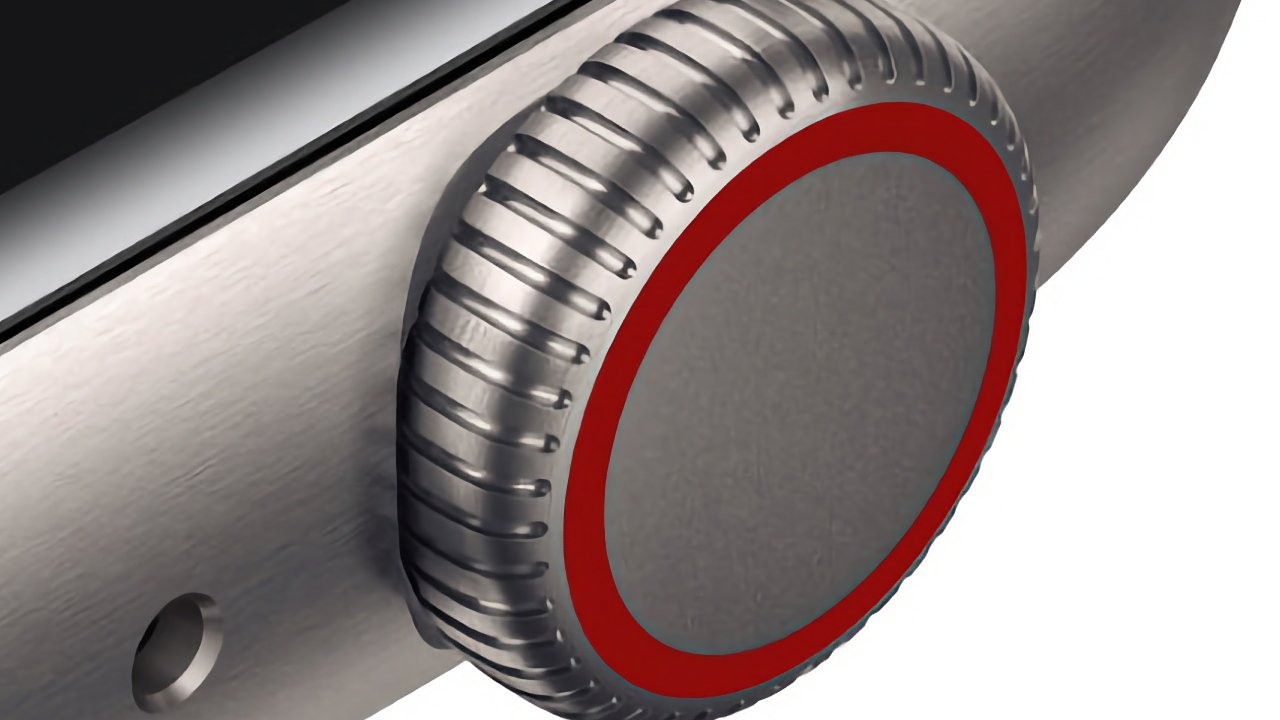
For many models, the ring around the Digital Crown offers a fast visual hint—though with important exceptions.
Red Ring vs. Silver Ring
- 🔴 Red ring: Typically indicates a GPS + Cellular model.
- 🟨 Silver or white ring: Usually means GPS-only.
This design cue was introduced with the Apple Watch Series 3 and applies to Aluminum, Stainless Steel, Nike, and Hermès models.
Know the Exceptions
- ❗ Product Red models: Both GPS and cellular versions of red-colored watches (like Series 9 Product Red) often have a red crown, making color alone unreliable.
- 🟠 Apple Watch Ultra: All Ultra models have an orange ring and include cellular by default—no GPS-only version exists.
🛑 Warning: Never rely solely on crown color, especially with special edition or colored models. Always verify using software methods.
Check the Engraving on the Back of the Watch
When the watch is unpaired, turned off, or you’re inspecting a secondhand device, the back engraving provides definitive proof.
Locate the Text Near the Sensors
- Turn the watch over.
- Look near the heart rate sensor for engraved text.
- Identify the model description.
Look for “Cellular” in the Label
- ✅ If it says “GPS + Cellular” or simply “Cellular”, your watch supports standalone connectivity.
- ❌ If it only says “GPS”, it does not have cellular hardware.
Example:
– Apple Watch Series 9 – GPS + Cellular → Has cellular
– Apple Watch SE – GPS → No cellular
💡 Expert Note: The original packaging also displays this label. Always check the box when buying new or used—sellers sometimes mislabel models.
Decode the Model Number for Technical Confirmation

Every Apple Watch has a unique A-number that reveals its exact configuration.
Find the Model Number
On iPhone:
- Open Watch app → My Watch → General → About
- Tap Model Number to reveal the A-number (e.g., A2982)
On Apple Watch:
- Go to Settings → General → About → Model
Match A-Numbers to Cellular Support
| Watch Model | GPS-Only | GPS + Cellular |
|---|---|---|
| Apple Watch SE (1st gen) | A2351 | A2353 (NA), A2355 (EU/Asia) |
| Apple Watch Series 9 | A2978 | A2982, A2983 |
| Apple Watch Ultra 2 | N/A | A2986, A2987 |
| Apple Watch Series 11 | A3331 | A3335 |
🔎 Cross-Reference: Visit Apple Support – Identify Your Apple Watch and search your A-number to confirm.
Pro Tip: Many cellular models include “C” or “CW” in the SKU (e.g., MHL73LL/A = cellular, MHKD3LL/A = GPS-only). These are used by carriers and retailers—handy for checking receipts or listings.
Look for Carrier Info in the About Settings
Even without an active plan, cellular-capable watches store network identifiers.
Check for Carrier, ICCID, or IMEI
- On Apple Watch: Settings → General → About
- Scroll down for:
- Carrier
- ICCID (integrated SIM identifier)
- IMEI
Interpret the Results
- ✅ If Carrier, ICCID, or IMEI appear—even blank or grayed out—the watch has cellular hardware.
- ❌ If these fields are missing entirely, it’s a GPS-only model.
💡 Useful Fact: You can activate cellular service anytime if these fields exist but are inactive.
Verify the Original Packaging Label
When buying new or used, the box can prevent costly mistakes.
Read the Side Panel for Model Label
- Look for clear text: “GPS + Cellular” or “GPS”
- Match the serial number on the box with the one on the watch
Why It Matters
- Some sellers mistakenly list GPS-only watches as cellular.
- A former cellular owner might transfer their band to a GPS-only watch, causing confusion.
🛒 Buying Used? Never assume based on price or appearance. Use at least two methods to verify.
Special Cases: Ultra and Product Red Models
Not all rules apply universally—some models break the pattern.
Apple Watch Ultra (All Models Are Cellular)
- Every Ultra, Ultra 2, and Ultra 3 includes cellular.
- Features an orange Digital Crown ring.
- No GPS-only version exists.
- Model numbers: A2986, A2987, A3281, A3282
✅ No need to check further—owning an Ultra means you have cellular.
Product Red Confusion
- Red-colored Apple Watches (e.g., Series 7, 8, 9) often have a red Digital Crown, regardless of connectivity.
- Both GPS-only and cellular versions may look identical.
📌 Example: A red Series 9 with a red crown could still be GPS-only.
✅ Best Practice: Use the Watch app method to confirm—never trust color alone.
Confirm Regional Carrier Compatibility
Having cellular hardware doesn’t guarantee service everywhere.
Band and Region Limitations
- U.S.-sold models may not work with Jio or Airtel in India.
- European models might lack support for Verizon or T-Mobile bands.
- Japan models (suffix “J/A”) support Suica transit but may have different LTE coverage.
Steps to Ensure Compatibility
- Check your watch’s region-specific model number
- Visit your carrier’s website (e.g., AT&T, EE, Telstra)
- Confirm Apple Watch support and activation process
🌍 Travel Tip: If moving countries, verify if your carrier allows international activation.
Summary: Fast-Check Identification Table
| Method | Indicates Cellular | Notes |
|---|---|---|
| Watch App Model | “GPS + Cellular” shown | Most reliable |
| Settings Menu | Cellular option present | Works even without plan |
| Control Center | Signal icon or green dot | Real-time indicator |
| Digital Crown | Red (most), Orange (Ultra) | Avoid for Red models |
| Back Engraving | “Cellular” text visible | Great for unpaired devices |
| Model Number | Matches known cellular A-number | Use Apple’s lookup tool |
| Carrier Info | ICCID/IMEI listed | Proves hardware presence |
| Original Box | Labeled “GPS + Cellular” | Ideal for verification |
Use at least two methods for 100% confidence—especially when buying or selling.
Final Note: The easiest and most accurate way to know if your Apple Watch has cellular is to open the Watch app on your iPhone and check the Model name under General > About. From there, you can cross-check with Control Center or Settings on the watch. Avoid relying solely on visual cues like the red crown, especially with Product Red models. Once confirmed, you can activate a plan anytime—or continue using it as a GPS-only device. Knowing your model ensures you get the most value, functionality, and correct carrier setup.
Leave a Reply