You’ve lost your iPhone, sold it, or simply can’t access it—but you still need to wipe your Apple Watch. Whether you’re preparing to sell the device, troubleshooting a frozen screen, or setting it up with a new phone, factory resetting your Apple Watch without the iPhone is absolutely possible. However, there’s one critical catch: Activation Lock.
This built-in security feature ensures your Apple Watch remains tied to your Apple ID, even after a full factory reset. That means while you can erase all data locally, the device will still require your Apple ID and password during setup—unless you take the right steps to disable Activation Lock remotely.
The good news? You don’t need your iPhone to completely wipe and, in some cases, fully unlock your Apple Watch. This guide walks you through every official method available—direct reset on the watch, forced erase without a passcode, and remote wipe via iCloud—so you can reset safely and securely, no iPhone required.
Reset Your Apple Watch Using On-Device Settings (With Passcode)
If you can unlock your Apple Watch and navigate its interface, the easiest way to wipe it is directly from the device itself.
How to Erase All Content and Settings
- Press the Digital Crown to open the app grid.
- Tap the Settings app (the gear icon).
- Go to General > Reset.
- Select Erase All Content and Settings.
- Enter your passcode when prompted.
- For GPS + Cellular models, choose:
– Remove Plan (recommended if selling or giving away)
– Keep Plan (if reusing with the same account) - Tap Erase All and confirm.
This process takes just a few minutes. The watch will restart and display the initial setup screen.
💡 Pro Tip: If your Apple Watch was previously backed up via your iPhone, this method preserves that iCloud backup—so you can restore your data later when pairing with a new phone.
Even after erasing, Activation Lock remains active, meaning anyone trying to set up the watch will need your Apple ID and password. This protects your device from unauthorized use.
🛠️ Difficulty: Easy | Time: 3–5 minutes
✅ Best for: Troubleshooting, personal reuse, or prepping before remote iCloud removal
Hard Reset Without Passcode (Locked or Frozen Device)
Did you forget your passcode? Is your Apple Watch stuck on the lock screen or caught in a boot loop? No problem—you can still perform a full factory reset using only the physical buttons.
Step-by-Step Button Reset
- Place your Apple Watch on its magnetic charger.
- Press and hold the Side Button until the power-off slider appears.
- While holding the Side Button, press and hold the Digital Crown.
- Keep both pressed for 10–20 seconds until the “Erase All Content and Settings” option appears.
- Tap Reset, then confirm.
If the above fails, try this alternative:
- Press and hold Side Button + Digital Crown together for 10 seconds.
- When the Apple logo appears, release both.
- Immediately press and hold only the Side Button for up to 20 seconds.
- Once the erase prompt shows, tap Erase All Content and Settings and confirm.
⚠️ Warning: This wipes all data permanently. Without a prior backup, recovery is impossible.
After the reset, the watch boots into setup mode. Activation Lock stays active, so the original Apple ID is still required to proceed.
🛠️ Difficulty: Moderate | Time: 2–4 minutes
✅ Best for: Forgotten passcode, unresponsive device, or setup loop issues
Remotely Factory Reset via iCloud (No Device or iPhone Access)
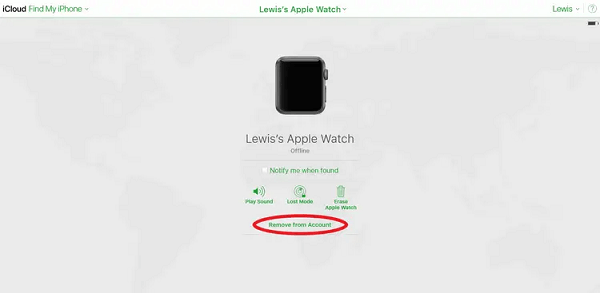
Lost your iPhone and can’t use your Apple Watch? As long as you know the Apple ID used to set it up, you can erase and fully remove Activation Lock from anywhere.
How to Wipe and Unlock from iCloud
- Open any web browser on a computer, iPad, or Android device.
- Go to icloud.com.
- Sign in with the original Apple ID linked to the Apple Watch.
- Click Find My (or “Find iPhone”).
- Select All Devices at the top.
- Choose your Apple Watch from the list.
- Click Erase This Device and follow the prompts.
- Once erased, click Remove from Account.
🔐 Critical Step: Skipping “Remove from Account” leaves Activation Lock active. Only after removal is the device truly unlocked.
Once removed, the Apple Watch becomes fully usable by anyone, even without your credentials. It can be set up as new with any Apple ID.
💡 Pro Tip: This works even if the watch is powered off. The erase command will execute the next time it connects to Wi-Fi or cellular.
🛠️ Difficulty: Easy | Time: 5 minutes
✅ Best for: Selling, gifting, or lost iPhone scenarios where full unlock is needed
Force Restart: Fix Freeze, Not a Reset
A common misconception is that a force restart erases your Apple Watch. It does not.
How to Force Restart
- Press and hold the Side Button + Digital Crown.
- Hold for about 10 seconds.
- Release when the Apple logo appears.
❌ No data is deleted. This only reboots the system.
Use this when your Apple Watch is frozen, unresponsive, or stuck during setup. A force restart often clears temporary glitches and prepares the device for a proper reset.
✅ Best when: Watch is not responding, stuck on Apple logo, or looping
Understanding Activation Lock: What Survives Every Reset?
No matter which method you use—on-device, button reset, or even remote erase—Activation Lock persists unless explicitly removed via iCloud.
Here’s what happens after each reset type:
| Reset Method | Data Erased? | Activation Lock Active? |
|---|---|---|
| Settings > Erase | ✅ Yes | ✅ Yes |
| Button Reset | ✅ Yes | ✅ Yes |
| iCloud Erase Only | ✅ Yes | ✅ Yes |
| iCloud Erase + Remove from Account | ✅ Yes | ❌ No |
❌ There is no official way to bypass Activation Lock without the original Apple ID and password.
Even third-party tools, jailbreaking, or firmware hacks cannot disable it. Apple designed this feature to deter theft, and it works—sometimes too well. Never buy a secondhand Apple Watch without verifying it’s unlocked.
Fixing a Pre-Owned Locked Apple Watch
Bought a used Apple Watch only to find it asking for someone else’s Apple ID?
How to Unlock It
-
Contact the seller and ask them to:
– Log in to iCloud.com
– Open Find My > Devices
– Select the watch and tap Erase, then Remove from Account -
If the seller is unreachable:
– Contact Apple Support
– Provide proof of purchase (receipt, invoice, order confirmation)
– Apple may remove the lock after verifying ownership
⚠️ No proof = no unlock. Apple will not assist without documentation.
✅ Best practice: Only buy from trusted sellers who unpair and remove the device from their account before shipping.
Managing Cellular Plans During Reset
For GPS + Cellular models, handling your cellular plan correctly matters.
| Option | When to Use |
|---|---|
| Remove Plan | Selling, gifting, or ending service |
| Keep Plan | Resetting for personal reuse with same carrier |
📞 Important: Removing the plan during reset does not cancel billing. You must contact your carrier (AT&T, Verizon, T-Mobile) separately to stop charges.
After a remote erase via iCloud, the cellular plan is automatically disassociated.
What Happens After a Factory Reset?
Once erased, your Apple Watch shows the initial setup screen.
You can:
– Choose language and region
– Pair with a new iPhone via Bluetooth
– Set up as new or restore from backup (if available)
💡 Tip: Always back up your Apple Watch via your iPhone before resetting, if possible.
If Activation Lock wasn’t removed, you’ll be blocked at the sign-in screen—requiring the original Apple ID and password.
Best Method by Use Case
| Scenario | Recommended Method | Removes Activation Lock? |
|---|---|---|
| Selling, iPhone gone | iCloud erase + remove from account | ✅ Yes |
| Forgotten passcode | Button reset (Side + Crown) | ❌ No |
| Troubleshooting | Settings > Reset | ❌ No |
| Lost iPhone, want to reuse | iCloud erase + keep same ID | ❌ No (but usable) |
| Pre-owned, locked device | Contact Apple with proof of purchase | ✅ Only if verified |
✅ Only iCloud removal fully disables Activation Lock without the iPhone
Fix Common Post-Reset Issues
“Apple Watch Is Disabled, Try Again in X Minutes”
Caused by too many failed passcode attempts.
Fix: Wait out the timer or perform a button-based reset. Afterward, Activation Lock remains—but the original Apple ID can sign in.
“This Apple Watch Is Paired to Another iPhone”
Means it wasn’t properly unpaired.
Fix: Erase via iCloud.com, then remove from account. Wait a few minutes and retry pairing.
Stuck in “Update Required” Loop
Happens when iOS and watchOS versions don’t match.
Solution: Reset the watch using the button method, then update your new iPhone to the latest iOS before pairing.
💡 Never skip software updates before pairing
Final Checklist Before Selling or Gifting
Before handing over your Apple Watch:
- ✅ Erase All Content and Settings (via device or iCloud)
- ✅ Remove from iCloud account at icloud.com
- ✅ Cancel cellular plan with your carrier
- ✅ Provide proof of purchase if reselling
- ✅ Charge the watch so buyer can set it up immediately
🔐 Never skip step 2—failure to remove from iCloud = Activation Lock = unusable device
Supported Models and watchOS Compatibility
All methods work on:
- Apple Watch (all generations)
- Series 1 through Series 9
- SE (1st and 2nd gen)
- Ultra and Ultra 2
Compatible with watchOS 6 and later, including watchOS 10 and 11.
⚠️ Older models (pre-watchOS 6) may lack some menu options—use button reset or iCloud instead
Need Help? Contact Apple
If you’re stuck:
- Visit Apple Support
- Use live chat or call support
- Schedule a Genius Bar appointment with proof of purchase
Apple can:
– Verify ownership
– Assist in removing Activation Lock
– Diagnose hardware issues post-reset
📌 Bring original receipt or order confirmation—required for lock removal requests
Summary: Reset & Unlock Safely
Yes, you can factory reset an Apple Watch without the iPhone—using Settings, buttons, or iCloud. But only one method fully disables Activation Lock: erasing and removing the device from your iCloud account.
- 🔁 Erase locally = wipes data, keeps lock
- ☁️ Erase + Remove via iCloud = full unlock
- 🚫 Never buy/sell locked watches without proof of ownership
By following these steps, you ensure your Apple Watch is securely wiped, legally transferable, and ready for its next life—whether that’s in your hands or someone else’s.
Leave a Reply