
If your Apple Watch dies by midday—before your workout, meeting, or even lunch—you’re not alone. Most Apple Watch models, from Series 3 to Series 11 and Ultra, are engineered for 18–36 hours of battery life under normal use. That means daily charging is expected. But with smart, targeted adjustments, many users now report 1.5 to 3 full days of reliable performance—without sacrificing essential functions. This guide delivers proven, user-tested strategies to extend your Apple Watch battery life, drawing from Apple’s official settings, real-world testing, and community feedback across watchOS 9, 10, and 11 (as of 2025). Whether you own a standard Series model or an Ultra, you’ll learn how to maximize battery efficiency while keeping the features you rely on.
Enable Low Power Mode to Extend Battery Life

Low Power Mode is the single most effective setting for conserving Apple Watch battery. It intelligently disables non-critical features while preserving timekeeping, alarms, and basic app access—making it ideal for travel, long events, or days when charging isn’t possible.
What Low Power Mode Turns Off
When activated, Low Power Mode automatically:
– Disables Always On Display
– Pauses background heart rate monitoring
– Stops Blood Oxygen (SpO2) scans
– Suspends irregular rhythm notifications
– Halts Background App Refresh
– Limits cellular connectivity (LTE turns off until needed)
– Reduces notification frequency, delivering alerts in batches
⚠️ Important: Safety features like Fall Detection and Crash Detection remain active. However, delayed notifications and paused health monitoring may affect users who depend on real-time cardiac alerts.
Real-World Battery Gains
- Apple Watch Series 10: Up to 36 hours (from 18)
- Series 11: Up to 38 hours
- Apple Watch Ultra: Up to 72 hours
- During workouts: Ultra maintains 20+ hours of GPS + heart rate tracking
One user reported completing a 48-hour hiking trip with 25% battery left—thanks to Low Power Mode and reduced GPS sampling.
How to Turn On Low Power Mode
- Press the side button to open Control Center
- Tap the battery icon
- Tap Low Power Mode
- Choose Turn On or set a duration: 1 Day, 2 Days, or 3 Days
You can also automate it using Focus or Shortcuts—for example, scheduling Low Power Mode to activate every night at 8 PM or when you leave home.
Disable Always On Display to Conserve Power
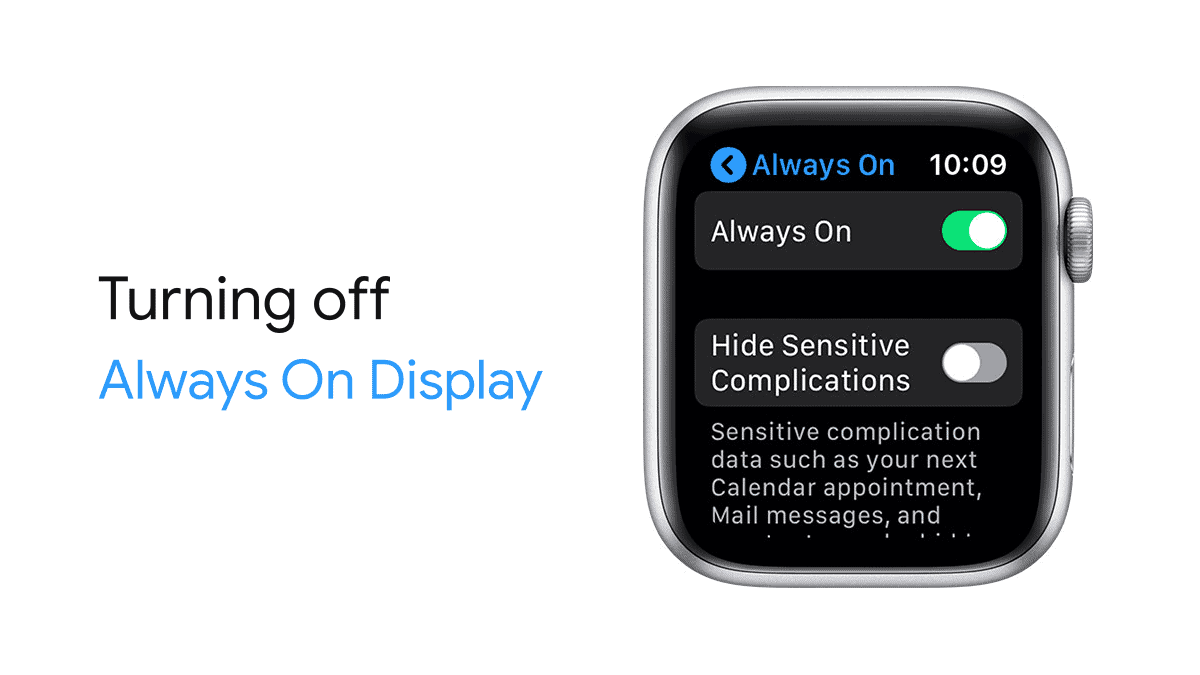
The Always On Display (AOD) keeps your watch face visible when your wrist is down. While convenient, it’s one of the biggest battery drainers on Series 5 and newer models.
Why It Drains Battery
- Screen stays dimly lit instead of turning off
- Uses 5–15% more battery per hour, depending on brightness and design
- Users report up to 50% longer battery life after disabling AOD
One Series 8 user saw their battery last 36 hours with 46% remaining after turning off AOD and switching to a black face.
Maximize OLED Efficiency with Black Watch Faces
Apple Watch uses an OLED screen, where black pixels consume zero power. To reduce screen energy:
– Use fully black watch faces (e.g., Modular Black, Minimalist, or custom designs)
– Avoid animated, bright, or complex faces that light up large screen areas
This small change adds meaningful hours to your charge cycle.
How to Turn Off Always On Display
- Open Settings > Display & Brightness on your Apple Watch
- Toggle Always On to Off
💡 Alternative: Keep AOD enabled but reduce brightness and use static faces to lessen the drain.
Optimize Screen Wake and Brightness Settings
Every screen wake consumes power. Minimizing unnecessary activations adds up over time.
Turn Off Wake on Wrist Raise
This setting activates the screen every time you move your wrist—even slightly. Over a day, that’s dozens of unintended wake cycles, especially if AOD is off.
How to Disable:
– Settings > General > Wake Screen
– Turn off Wake Screen on Wrist Raise
– Use Wake on Tap or press the Digital Crown instead
Trade-off: Less convenience, but noticeable battery savings—especially for active users.
Reduce Screen Brightness
High brightness is rarely necessary. Lowering it saves power and reduces eye strain.
How to Adjust:
– Settings > Display & Brightness > Brightness Slider
– Set to a level visible in daylight but not maxed out
✅ Pro Tip: Enable Auto-Brightness (on by default) to let the watch adjust dynamically.
Limit Background App Refresh

Apps refresh in the background to update data like weather, stocks, or messages. But this uses CPU, network, and battery—even when you’re not using them.
Which Apps Drain Most?
- News, social media, email, and fitness apps
- Apps with live complications on your watch face will still refresh, even if background refresh is off
How to Control Background App Refresh
- On Apple Watch: Settings > General > Background App Refresh
- Choose:
– Turn Off All for maximum savings
– Or disable per app (keep on only for Messages, Calendar, etc.)
⚠️ Note: Disabling refresh doesn’t stop notifications—just background data syncing.
Reduce Health Sensor Usage

Continuous health monitoring is useful but power-intensive. Sensors like heart rate, SpO2, and rhythm detection run constantly, draining battery.
Turn Off Irregular Rhythm Notifications
This feature uses the heart sensor to detect atrial fibrillation. It requires frequent heart rate sampling.
How to Disable:
– Settings > Heart > Irregular Rhythm Notifications → Off
Disable Blood Oxygen (SpO2) Monitoring
SpO2 scans run hourly or overnight and consume significant power.
How to Turn Off:
– On iPhone: Open Watch app > Privacy > Health > Blood Oxygen → Off
Limit Background Heart Rate
While you can’t fully disable heart rate tracking, turning off Irregular Rhythm and SpO2 reduces sampling frequency.
Alternative:
– On iPhone: Watch app > Privacy > Health > Heart Rate → Off (disables background monitoring)
⚠️ Warning: Only disable if you don’t rely on cardiac alerts or sleep tracking.
Cut Down Notifications
Every notification wakes the screen, vibrates, and sometimes plays sound—each action uses battery.
How to Reduce Notifications
- On iPhone: Open Watch app > Notifications
- For each app:
– Turn off notifications entirely
– Set to Mirror iPhone or Custom
– Enable Notification Grouping to reduce interruptions
Silence Activity Alerts
These reminders add up:
– Hourly stand prompts
– Exercise progress updates
– Weekly achievement badges
How to Disable:
– Open Activity app on Apple Watch
– Long-press any reminder → Turn Off
✅ Best Practice: Keep only critical alerts (e.g., Messages, Calendar) and silence the rest.
Manage Connectivity Wisely
Wi-Fi, Bluetooth, and cellular radios search for signals constantly—especially in weak coverage areas.
Turn Off Cellular When Not Needed
Cellular models use extra power scanning for LTE. If your iPhone is nearby, cellular is unnecessary.
How to Disable:
– Settings > Cellular > Cellular → Off
– Re-enable only when leaving your phone behind
🔄 Better Option: Use Airplane Mode, then manually turn Bluetooth back on—this keeps iPhone connection while cutting Wi-Fi and cellular.
Wi-Fi & Bluetooth Tips
- Leave Wi-Fi on only if:
- You’re away from your iPhone
- Streaming music over Wi-Fi
- Keep Bluetooth on when near iPhone—it’s more efficient than Wi-Fi or cellular
Disable “Hey Siri” to Save Battery
“Hey Siri” listens constantly, using the microphone and processor. If you rarely use voice commands, disable it.
How to Turn Off
- Settings > Siri
- Toggle off Listen for “Hey Siri”
- Also disable Raise to Speak if unused
🎯 Tip: You can still activate Siri by pressing and holding the Digital Crown—same function, no background listening.
Reduce Motion and Haptics
Animations and vibrations consume CPU and motor power. Reducing them saves energy.
Turn On Reduce Motion
Disables fluid transitions between screens.
How to Enable:
– Settings > Accessibility > Reduce Motion → On
Disable Prominent Haptics
Reduces vibration intensity and duration.
How to Adjust:
– Settings > Sounds & Haptics > Prominent Haptics → Off
Limit Haptic Alerts
- In Notification settings, allow haptics only for critical apps
- Avoid haptic-heavy watch faces or complications
Optimize Workout Settings for Long Battery Life
GPS, heart rate, and sensor use during workouts are major battery drains.
Enable Low Power Mode for Workouts
Extends tracking time significantly.
How to Turn On:
– Settings > Workout > Low Power Mode → On
Use Fewer GPS and Heart Rate Readings
Reduces sampling frequency during outdoor activities.
Battery Impact:
– Standard GPS: ~12 hours (Ultra)
– With Fewer Readings: Up to 35 hours
Use iPhone GPS Instead
Start workout on Apple Watch but let iPhone handle GPS.
- Keeps watch battery from draining due to GPS module
- Works for runs, walks, or hikes when carrying your phone
Use Focus Modes Strategically
Focus modes silence distractions and can reduce battery use by limiting notifications and screen wake-ups.
Most Effective Focuses
- Sleep Focus: Mutes alerts, dims screen overnight
- Do Not Disturb: Stops all notifications
- Work or Driving Focus: Reduces interruptions
Automate for Savings
Set Focus modes to activate:
– At bedtime
– During meetings
– When arriving at locations (via geofencing)
✅ Pro Tip: Combine Sleep Focus with Low Power Mode for maximum overnight battery preservation.
Charge Smart for Longevity
Good charging habits improve both daily battery life and long-term health.
Enable Optimized Battery Charging
Learns your routine and delays charging past 80% until you typically unplug.
How to Turn On:
– Settings > Battery > Battery Health > Optimized Battery Charging → On
🔍 Check This: If your watch stops at 80%, Optimized Charge Limit may be enabled—turn it off if you need a full charge.
Best Charging Practices
- Avoid draining to 0% regularly
- Try to keep battery between 20% and 80%
- Charge during routine times: showering, commuting, or getting ready
- Use fast charging (30–40 mins = full day of power) for quick top-ups
Avoid Extreme Temperatures
- Don’t leave in hot cars (>35°C / 95°F)
- Avoid freezing conditions (<0°C / 32°F)
- Heat accelerates battery wear; cold causes temporary drain
Monitor Battery Usage
Know what’s draining your battery with built-in tools.
Check Battery Health
- On iPhone: Watch app > Battery > Battery Health
- View Maximum Capacity
– Below 80%? Consider battery replacement
Analyze App Usage
On Apple Watch: Settings > Battery
– See power use over last 24 hours or 10 days
– Identify battery-hungry apps
🛠️ Power User Tip: Use third-party apps like Battery Life to display battery % on your watch face.
Keep watchOS Updated
Apple releases updates that fix bugs and improve efficiency.
Why Update?
- watchOS 11 had early battery drain issues—later patches fixed them
- watchOS 26 (Sept 2025) includes major power optimizations
- Updates often include background process improvements
How to Update
- Settings > General > Software Update on Apple Watch
- Connect to charger and Wi-Fi
- Install update
- Enable Automatic Updates if desired
✅ Best Practice: Don’t skip updates labeled “performance improvements.”
Final Tips: Maximize Battery Without Losing Function
You don’t need to cripple your watch to save power. Use these strategic optimizations:
| Action | Battery Gain | Difficulty |
|---|---|---|
| ✅ Enable Low Power Mode | +50–100% | Easy |
| ✅ Disable Always On Display | +30–50% | Easy |
| ✅ Use Black Watch Face | +5–10% | Easy |
| ✅ Turn Off Background App Refresh | +10–15% | Easy |
| ✅ Limit Notifications | +5–10% | Easy |
| ✅ Disable Unused Sensors | +10–20% | Moderate |
| ✅ Optimize Workout Settings | +20–50% during activity | Moderate |
Top 3 Must-Do Steps:
1. Turn on Low Power Mode when you need extra hours
2. Disable Always On Display and switch to a black watch face
3. Limit background activity—notifications, app refresh, and health sensors
While you may lose some convenience, the battery gains are real. For true multi-day endurance, consider the Apple Watch Ultra or Garmin alternatives. But with these proven settings, even a standard Apple Watch can last well beyond a single day—so you stay connected, active, and informed, all on one charge.




