
You tap your Apple Watch screen, press the Digital Crown, and scan the display—yet that one app you need isn’t showing up. Where did it go? If you’re wondering how to see apps on Apple Watch, you’re not alone. Unlike the iPhone, the Apple Watch doesn’t always make its apps obvious. But once you know where to look—and how to navigate—you’ll find everything just a tap or scroll away.
The fastest way to see all your apps is by pressing the Digital Crown from any screen. This opens the Home Screen, where all installed apps appear either in a colorful grid or a streamlined list, depending on your settings. But that’s just the beginning. You can also jump back into recently used apps with a double-click, manage installations from your iPhone, and even switch viewing modes for faster access.
In this complete guide, you’ll learn every method to view, access, organize, and troubleshoot apps on Apple Watch. Whether you’re trying to launch a workout, find a missing app, or tidy up your layout, we’ll walk you through it step by step—no tech jargon, just clear, actionable instructions.
Open the App Grid (Home Screen)
The App Grid is your main hub for accessing every app installed on your Apple Watch.
Press the Digital Crown to Launch the Grid
- From any watch face or app, press the Digital Crown.
- The App Grid appears, showing all your apps as colorful icons.
- Turn the Digital Crown to scroll up or down through the grid.
- Tap any icon to open the app instantly.
✅ Tip: This is the most direct way to launch any app. No menus, no swipes—just press and tap.
If you have many apps, you might scroll through several screens. The order of apps is customizable, so placing your most-used ones near the top saves time and effort.
The App Grid is the default view and behaves like the Home Screen on your iPhone—only more compact. It’s designed for quick visual scanning and touch-based navigation, making it ideal for fitness, messaging, or music apps you use daily.
Switch to List View for Faster Navigation
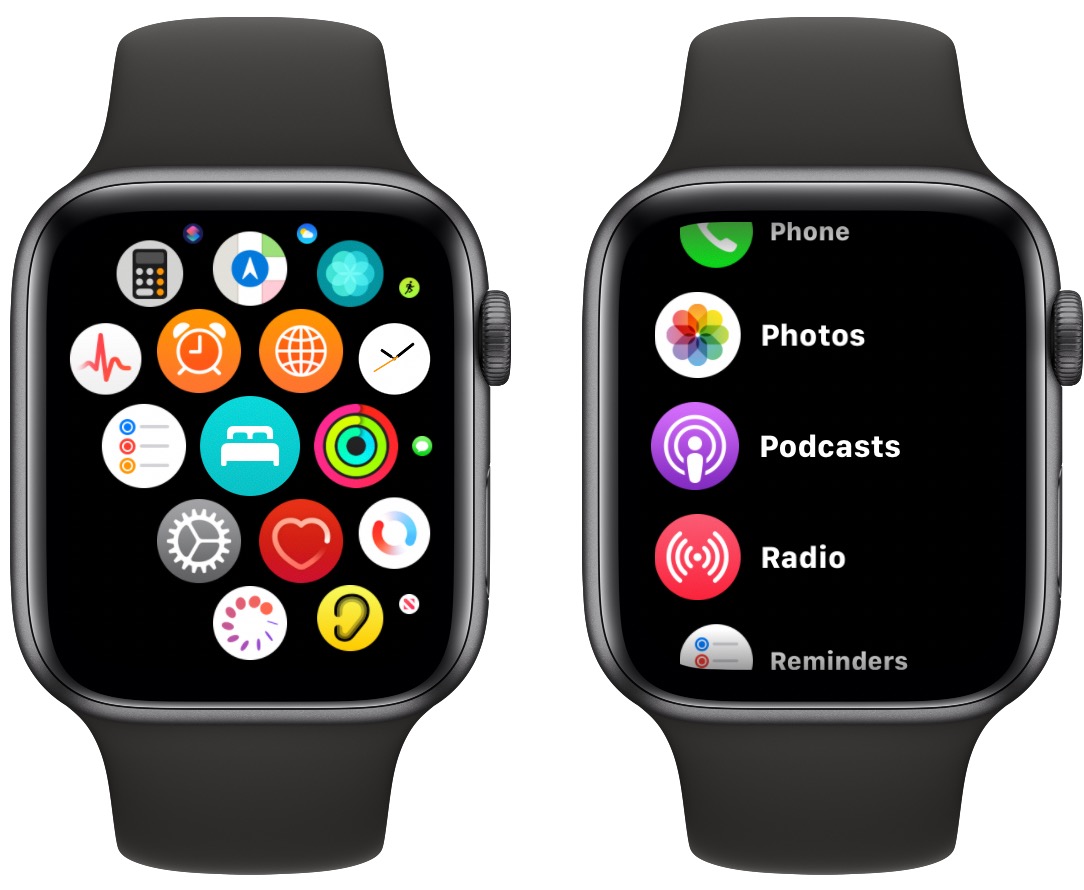
Scrolling through rows of tiny icons can be tedious, especially if you have over 20 apps. That’s where List View comes in.
Enable List View on Your Apple Watch
- Press the Digital Crown to open the App Grid.
- Tap the Settings app.
- Scroll to the bottom and select App View.
- Choose List View.
- A green checkmark will confirm your selection.
Now, when you press the Digital Crown, apps appear in a clean, vertical, alphabetized list with text labels instead of icons.
🔍 Why List View is Better for Some Users:
– Easier to scan quickly if you know the app name.
– Reduces scrolling fatigue with large app collections.
– Ideal for users who rely on text over visuals.⚠️ Important: You can’t rearrange apps in List View directly on the watch. To reorganize, switch back to Grid View or use the Watch app on iPhone.
List View is perfect for power users who want efficiency over aesthetics. It transforms your Apple Watch into a streamlined tool for fast access, especially when you’re on the move.
Access Recently Used Apps with the App Switcher
Need to get back to your timer, music, or navigation in a flash? Use the App Switcher—Apple Watch’s multitasking shortcut.
Open the Multitasking Panel
- Double-click the Digital Crown.
- A horizontal row of app cards appears.
- Turn the Digital Crown to scroll left or right.
- Tap any card to resume that app immediately.
🕒 Pro Tip: Active apps like Workout, Maps, or Timer stay at the front of the list and often show live updates—like elapsed time or current route.
This method skips the Home Screen entirely. It’s ideal for switching between tasks without losing momentum, especially during workouts or commutes.
Remove Apps from the App Switcher
Want to clean up your recent apps list?
Close an App Card
- Double-click the Digital Crown.
- Turn the Digital Crown to find the app.
- Swipe left on the card.
- Tap the red Remove button (X icon).
❗ Note: This only removes the app from the switcher—it does not force-quit the app or stop background activity. Apple Watch manages processes automatically for performance and battery life.
You can’t “force close” apps like on older iOS devices. The system handles memory and background tasks efficiently, so removing a card is purely for visual cleanup.
Rearrange Apps in Grid View for Faster Access
Keep your most-used apps right at your fingertips.
Enter Edit Mode on Apple Watch
- On the Home Screen, press and hold any app icon.
- Icons begin to jiggle—this is edit mode.
- Drag any app to a new position.
- To uninstall: drag the app to the top and tap Remove.
✅ Best Practice: Place Workout, Wallet, Messages, and Flashlight near the top for one-tap access.
When done, press the Digital Crown or tap Done to exit. Your new layout is saved instantly.
❌ Limitation: You can only rearrange apps in Grid View. List View is alphabetical and locked.
Customizing your grid turns your Apple Watch into a personalized tool—faster access means better usability in everyday moments.
Manage Apps Using the Watch App on iPhone
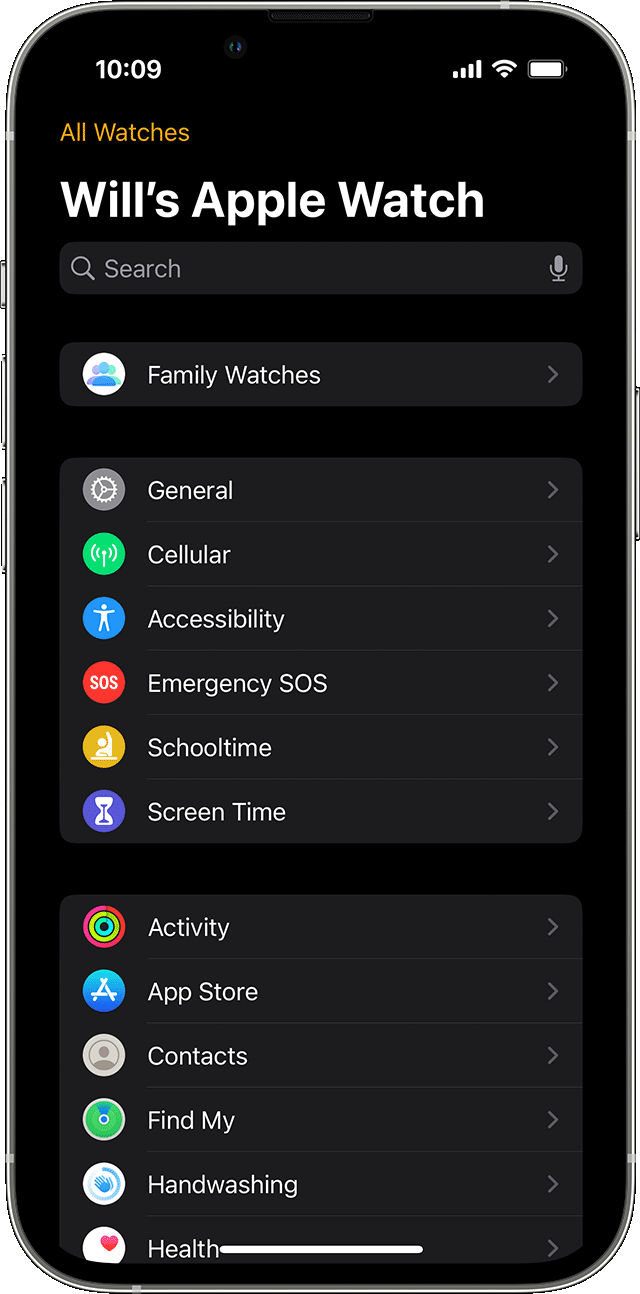
For full control over app management, the Watch app on iPhone is your most powerful tool.
View All Installed Apps
- Open the Watch app on iPhone.
- Go to the “My Watch” tab.
- Scroll to “Installed on Apple Watch”.
- See every app currently on your wrist.
🔎 Missing an app? Look for an Install button next to its name. Some iPhone apps (like Notes or Weather) have optional Apple Watch companions that don’t sync automatically.
This is also where you’ll find compatibility details and installation status.
Install New Apple Watch Apps
Not all iPhone apps work on Apple Watch—but many do.
Install from iPhone
- Open the Watch app on iPhone.
- Tap the “My Watch” tab.
- Find the app you want (e.g., Spotify, Strava, Calm).
- Tap Install.
📦 Alternative: Download from the iPhone App Store. If a Watch version exists, you’ll be prompted to install it on your watch.
Wait a moment—the app will sync over Bluetooth or Wi-Fi. Larger apps may take a few minutes.
Enable Automatic App Installation
Stop manually installing Watch versions every time.
Turn On Auto-Download
- Open the Watch app on iPhone.
- Go to My Watch > App Installations.
- Toggle on “Automatic Downloads”.
✅ Result: Any new iPhone app with Apple Watch support installs automatically.
No more hunting through settings to find why your meditation app isn’t on your wrist. Auto-install keeps everything in sync.
Explore the App Library (iPhone)
Want a full overview of what’s available?
Use App Library
- In the Watch app, go to “My Watch” tab.
- Scroll to “App Library”.
- Browse all compatible apps—installed or not.
🔍 This is your central hub for discovering and managing Apple Watch apps.
You won’t see live status here, but you can install, remove, or check compatibility at a glance.
Control Background App Refresh
Some apps keep updating in the background—this affects battery life.
Adjust Settings on iPhone
- Open Watch app → General → Background App Refresh.
- Choose:
– On: All allowed apps refresh.
– Off: No background activity.
– Or toggle individual apps.
🔋 Recommended: Turn off for games or utilities you rarely use.
⚠️ Keep on for Fitness, Heart Rate, Maps, and Messages to ensure timely alerts.
Apple Watch limits background use aggressively, so only essential apps run when idle.
Troubleshoot Missing Apps
“Why isn’t this app on my Apple Watch?” is a common question.
Fix App Not Showing
- Check compatibility: Not all apps support Apple Watch.
- Open Watch app on iPhone → My Watch.
- Search for the app.
- If you see Install, tap it.
- Ensure Bluetooth and Wi-Fi are on, and your watch is near your iPhone.
⏱️ Wait: Large apps can take minutes to install.
If it still doesn’t appear, restart both devices and try again.
Compare App Viewing Methods
| Method | How to Access | Best For | Customizable? |
|---|---|---|---|
| App Grid (Grid View) | Press Digital Crown | Visual browsing, quick launch | Yes – drag and drop |
| List View | Settings → App View | Fast scrolling, text scanning | No – alphabetical only |
| App Switcher | Double-click Crown | Recent apps, multitasking | No – auto-generated |
| Watch App (iPhone) | iPhone app | Install, remove, manage | Full control |
Use the right method for the task: Grid for launching, List for scanning, Switcher for switching, iPhone app for managing.
Optimize Your App Experience
Get the most from your Apple Watch with these expert tips.
Organize for Speed
- Put frequent apps at the top.
- Use List View with 20+ apps.
- Remove unused apps to reduce clutter.
Preserve Battery Life
- Disable Background App Refresh for non-essential apps.
- Avoid complications with live data.
- Close long-running tasks when done.
Stay Updated
- Keep watchOS updated for better performance.
- Check the App Store for new Watch apps.
💡 Pro Tip: Uninstall rarely used apps. Reinstall anytime via the Watch app on iPhone.
Final Takeaways
Seeing apps on Apple Watch is simple once you know the tools:
- ✅ Press the Digital Crown → See all apps in Grid or List View.
- ✅ Double-click the Digital Crown → Access recently used apps instantly.
- ✅ Use the Watch app on iPhone → Install, remove, and manage everything.
- ✅ Switch to List View → Save time with long app lists.
- ✅ Manage Background Refresh → Boost battery and performance.
There’s no secret menu—just smart, intuitive design. Now that you know how to see apps on Apple Watch, take a minute to clean up your layout, enable auto-installs, and set up your favorites. A well-organized watch means faster access, better battery, and a smoother experience every day.





