
You plug in your Apple Watch before bed, fully expecting it to wake up at 100%. But instead, the screen shows a stubborn 80%—no warning, no error, just a half-charged battery. If this sounds familiar, you’re not imagining things. Thousands of Apple Watch users are reporting the same issue, especially after updating to watchOS 10. The good news? In most cases, your watch isn’t broken—it’s working exactly as Apple designed it.
The real culprit behind Apple Watch not charging to 100% is usually Optimized Battery Charging or the newer Optimized Charge Limit—features built to prolong your battery’s lifespan. These smart systems use machine learning to pause charging at 80% when you’re likely to leave your watch plugged in for hours, then finish topping off just before you typically unplug it. While this helps your battery last longer, it can feel frustrating when you need a full charge and can’t get one.
This guide cuts through the confusion. Whether you own an Apple Watch Ultra, Series 9, or an older model, you’ll learn how to override the limit, force a full charge, diagnose faulty chargers, and fix settings that won’t stay disabled. Most importantly, you’ll understand when to work with the system—and when it’s safe to override it—without damaging your battery.
Why Your Apple Watch Stops at 80%
The most common reason your Apple Watch won’t charge to 100% is Optimized Battery Charging, a feature designed to reduce long-term battery wear.
How It Learns Your Routine
Apple Watch uses on-device machine learning to analyze your charging habits:
- It detects when and where you usually charge (e.g., at home or work)
- If it recognizes a consistent pattern—like nightly charging—it delays charging past 75–80%
- Charging resumes just before you typically unplug, so the watch hits 100% when you need it
This behavior is intentional, not a defect. Lithium-ion batteries degrade faster when kept at full charge for long periods, so Apple limits time spent at 100% to extend battery life.
Visual clue: The charging screen shows a yellow or green ring that stops short of closing—a clear sign optimization is active.
Location-Based Charging Decisions
Optimized Battery Charging only activates in familiar locations like your home or office. It uses your iPhone’s location data (processed entirely on-device) to determine when you’re in a routine environment.
- If you charge your watch while traveling, it likely bypasses optimization and goes straight to 100%
- Disabling Location Services can prevent the feature from working correctly
- No location data is ever sent to Apple—everything happens privately on your devices
✅ Pro tip: Keep Location Services enabled for the Watch app to ensure accurate predictions.
Optimized Charge Limit: Smarter Charging in watchOS 10+
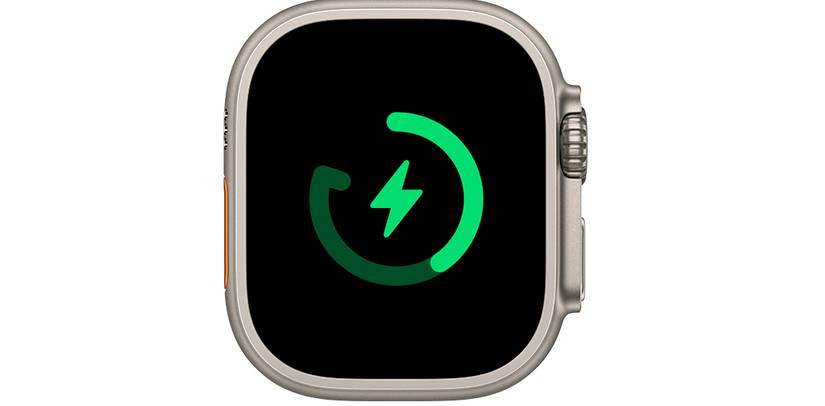
With watchOS 10, Apple introduced Optimized Charge Limit, a more advanced version of battery optimization that considers not just when you charge, but how you use your watch.
Supported Models
This feature is available on:
- Apple Watch SE (2nd gen and later)
- Apple Watch Series 6 and newer
- All Apple Watch Ultra models
It’s not available on older models like Series 3–5.
How It Predicts Your Charging Needs
Unlike the older Optimized Battery Charging, this system analyzes:
- Your daily activity levels
- Recent workouts or GPS usage
- Upcoming calendar events
- Time of day and charging duration
If you’ve been active or have a long day ahead, it may allow a full 100% charge. On lighter days, it caps at 80–90% to reduce battery stress.
Example: After a 5K run, your watch charges fully. On a rest day, it stops at 80%.
Force a Full Charge with One Tap
Even with Optimized Charge Limit on, you can override it anytime:
- Keep your Apple Watch on the charger
- Tap the display to wake the charging screen
- Tap the charging icon (green or yellow circle)
- Select “Charge to Full Now”
The watch will immediately resume charging to 100%, bypassing all optimization.
✅ Best for: Travel, outdoor adventures, or any day you need maximum battery life.
Can You Turn It Off? Model-by-Model Breakdown
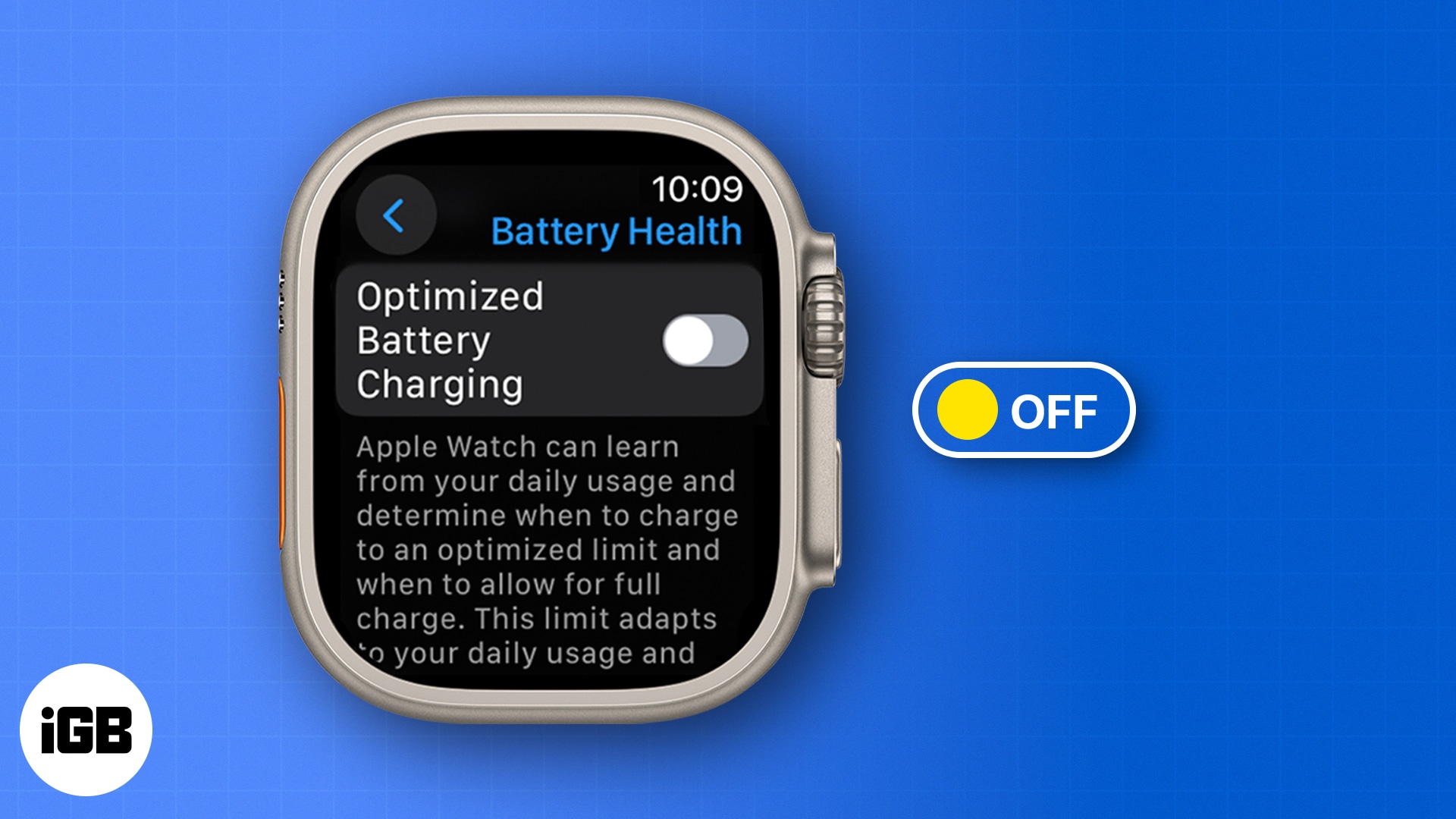
Not all Apple Watch models let you disable battery optimization. Apple has locked the feature on newer devices to protect long-term battery health.
Apple Watch Ultra & Series 9+: No Off Switch
- Optimized Battery Charging is permanently enabled
- Cannot be disabled in Settings
- You must use “Charge to Full Now” to reach 100%
- Applies to all Ultra models (Gen 1 and 2)
This is by design. Apple assumes users of high-end models benefit most from extended battery lifespan.
⚠️ No workaround exists—you cannot permanently disable the feature on these models.
Series 6–8 and SE: Disable With Caution
On older supported models, you can disable optimization:
- Open Settings on your Apple Watch
- Go to Battery → Battery Health
- Toggle off Optimized Battery Charging
- Confirm with “Turn Off” (not “Until Tomorrow”)
Disabling this also turns off Optimized Charge Limit.
❗ Warning: Doing so increases battery wear and may reduce maximum capacity faster.
Missing Battery Health Option? Here’s Why
Some users report no Battery Health menu, especially on Series 8 or after watchOS 10 updates.
Common causes:
– Early watchOS 10 bugs
– Mismatched iPhone and watch software versions
– System glitches hiding settings
Fix it:
– Update both iPhone and Apple Watch to the latest OS
– Restart the watch (hold side button > power off)
– Unpair and re-pair if the option remains missing
Charger Power Matters: 5W vs 3W

Even with optimization off, your Apple Watch may stall at 80% if your charger can’t deliver enough power.
Apple’s Standard: 5W Charging
- Apple’s Magnetic Charging Cable delivers 5 watts
- Required for full 100% charging, especially under watchOS 10+
- Supports fast charging and override features
Third-Party Risks: Low-Power Docks
Many 3-in-1 charging stands provide only 3W to the watch port.
- Insufficient for full charging under optimized settings
- May cause charging to stall at 75–80%
- Even MFi-certified docks can underperform
🛠️ User fix: One user resolved the issue by switching to a 5W-capable 3-in-1 stand (Amazon B0C33TM684).
How to Test Your Charger
- Unplug all devices from your charging dock
- Use only the Apple Watch charger (original or 5W-certified)
- Plug into a wall adapter (not a computer USB port)
- Charge overnight and check if it reaches 100%
If it works: your old charger was underpowered.
If not: proceed to software fixes.
✅ Recommendation: Always use Apple-branded or 5W-certified chargers.
Troubleshooting: When Fixes Don’t Work
If your watch still won’t charge to 100%, try these steps.
Restart the Apple Watch
A simple reboot can fix software glitches:
- Press and hold the side button until the power slider appears
- Drag to turn off
- Wait 30 seconds, then press the side button to restart
Test charging again afterward.
Check for Automatic Re-Enabling
Many users report Optimized Battery Charging turns itself back on after being disabled—especially after updates.
This is due to:
– watchOS bugs (common in 10.0–10.2)
– System defaults restoring after updates
– Sync issues between iPhone and watch
Workaround:
– Disable the setting again
– Monitor it after updates
– Use “Charge to Full Now” as a reliable override
Unpair and Re-Pair (Last Resort)
If settings are missing or unresponsive:
- Open the Watch app on your iPhone
- Tap your watch at the top
- Swipe left on the watch name and tap Unpair
- Back up your data when prompted
- Re-pair and restore from backup
This resets all settings and often restores missing options.
⚠️ Only use this if other fixes fail—takes 10–15 minutes.
Battery Health: Why Apple Limits Charging
The Science Behind the Limit
Lithium-ion batteries degrade fastest when:
– Charged to 100% frequently
– Left plugged in for hours
– Exposed to heat
Keeping charge between 20–80% can double battery lifespan. Apple’s optimization mimics this ideal range automatically.
| Benefit | Effect |
|---|---|
| Reduces chemical aging | Preserves 80%+ capacity longer |
| Lowers heat exposure | Prevents thermal stress |
| Adapts to usage | Charges fully when needed |
✅ Keep it on unless you need 100% daily.
When to Override the Limit
Use “Charge to Full Now” when:
– Going on a long hike or trip
– Using GPS or cellular all day
– Testing battery performance
– Calibrating battery percentage
Otherwise, let the system manage charging. The convenience trade-off is worth an extra year or two of battery life.
Summary: What to Do Based on Your Model
| Model | Can Disable Optimization? | How to Get 100% |
|---|---|---|
| Ultra (all) | ❌ No | Use “Charge to Full Now” |
| Series 9+ | ❌ No | Use “Charge to Full Now” |
| Series 6–8, SE | ✅ Yes | Disable in Battery Health or use override |
| All models | — | Use 5W charger for best results |
Final Fixes & Recommendations
Quick Checklist
✅ Need 100% today?
→ Tap charging screen > “Charge to Full Now”
✅ Want full charge every night?
→ Disable optimization (if your model allows)
✅ Using a 3-in-1 charger?
→ Switch to a 5W-capable model or use Apple’s original
✅ Settings missing?
→ Update iOS/watchOS > Restart > Try unpairing
✅ Battery degrading fast?
→ Avoid disabling optimization—trade-off isn’t worth it
Contact Apple If…
- Your watch won’t charge past 80% even with “Charge to Full Now”
- Battery capacity drops more than 2% in a week
- The charging ring shows no movement
- You see a red lightning bolt or charging error
These may indicate hardware failure—covered under warranty or AppleCare+.
Bottom line: Apple Watch not charging to 100% is usually by design, not defect. Use the “Charge to Full Now” option when needed, stick with 5W chargers, and let optimization protect your battery. For most users, the smarter choice isn’t fighting the system—it’s working with it.





