
You finish a morning jog and glance at your wrist—was your heart pumping hard enough to count as cardio? Or maybe you’re feeling anxious and want to see if your pulse matches your mood. The good news: your Apple Watch is already tracking your heart rate, and learning how to see heart rate on Apple Watch is simple once you know where to look.
Apple Watch continuously monitors your cardiovascular activity using advanced sensors, delivering real-time BPM (beats per minute), historical trends, and even medical-grade ECG readings on supported models. Whether you’re checking your resting heart rate, monitoring workout intensity, or reviewing long-term patterns, every piece of data is accessible with just a few taps.
In this guide, you’ll learn how to view your heart rate instantly using the native Heart Rate app, customize your watch face for at-a-glance access, interpret workout zones, and ensure accurate measurements. We’ll also cover how to enable alerts, compare Apple Watch models, and share data with healthcare providers. Let’s dive into the full power of your wrist-based heart monitor.
Open the Heart Rate App for Instant Readings
The fastest way to see your current heart rate is through the built-in Heart Rate app.
Launch with the Digital Crown
- Press the Digital Crown to return to the home screen.
- Tap the Heart Rate app (red heart icon).
- Wait 15–30 seconds while the sensor takes a reading.
Your latest BPM appears immediately. If a measurement was taken within the last 10 minutes, it shows first—then updates with a fresh one.
Pro tip: Keep your arm still and the back of the watch flush against your skin. Movement or a loose fit can delay or distort the reading.
Scroll to View Resting and Walking Averages
After seeing your current heart rate, scroll down to access additional insights:
- Resting heart rate: Average when awake and inactive
- Walking average: Typical BPM during daily movement
- Workout heart rate: Most recent session’s peak and average
- Recovery heart rate: 3-minute post-exercise measurement
Swipe up to reveal your daily range—for example, “Low: 62, High: 98”—helping you spot spikes linked to stress, activity, or poor sleep.
Add Heart Rate to Your Watch Face for Real-Time Access
Why open an app when you can see your BPM right on your wrist?
Insert a Heart Rate Complication
- Press and hold your current watch face.
- Tap Edit.
- Choose a module (e.g., center or corner).
- Tap the module and select Heart Rate under Health & Fitness.
- Tap Add, then press the Digital Crown to save.
Now, your heart rate updates live—no tapping required.
Best Watch Faces for Heart Rate Display
- Modular: Use the large center module for a real-time BPM graph.
- Infograph: Fits multiple complications; ideal for heart rate + activity rings.
- Motion: Shows a beating heart animation with current number.
- Utility: Compact design perfect for quick checks.
Avoid minimalist faces like Simple or Activity Analog—they don’t support heart rate complications.
Use the Heart Rate Widget for Fast Swipe Access

Need a near-instant check without opening the app? Use the widget.
Enable the Heart Rate Widget
- Swipe up from the watch face to open widgets.
- Tap Edit > +.
- Search for Heart Rate.
- Select display style (numeric or full card).
- Tap Add > Done.
Now, swipe up anytime to view your most recent reading.
Note: This shows the last recorded value. A new reading only starts if no recent data exists.
Check Heart Rate Trends on iPhone for Long-Term Insights
Your Apple Watch collects data—but the full picture lives in the Health app on iPhone.
Browse Heart Data by Category
- Open the Health app.
- Tap Browse > Heart.
-
Select a metric:
– Resting Heart Rate
– Walking Average
– Workout Heart Rate
– Heart Rate Variability (HRV)
– Irregular Rhythm Notifications -
Adjust the time frame:
– H (hourly), D (daily), W, M, 6M, or Y (yearly)
Use 6-month or yearly views to detect cardiovascular changes over time.
Tap to Explore Specific Readings
- Tap any point on the graph to see exact BPM and timestamp.
- Scroll down to view:
- Number of daily readings
- Data sources (e.g., Apple Watch Series 9)
- Related metrics like sleep or exercise
Export PDF reports to share with doctors: Tap Share > Export Health Data.
Understand How Apple Watch Measures Heart Rate
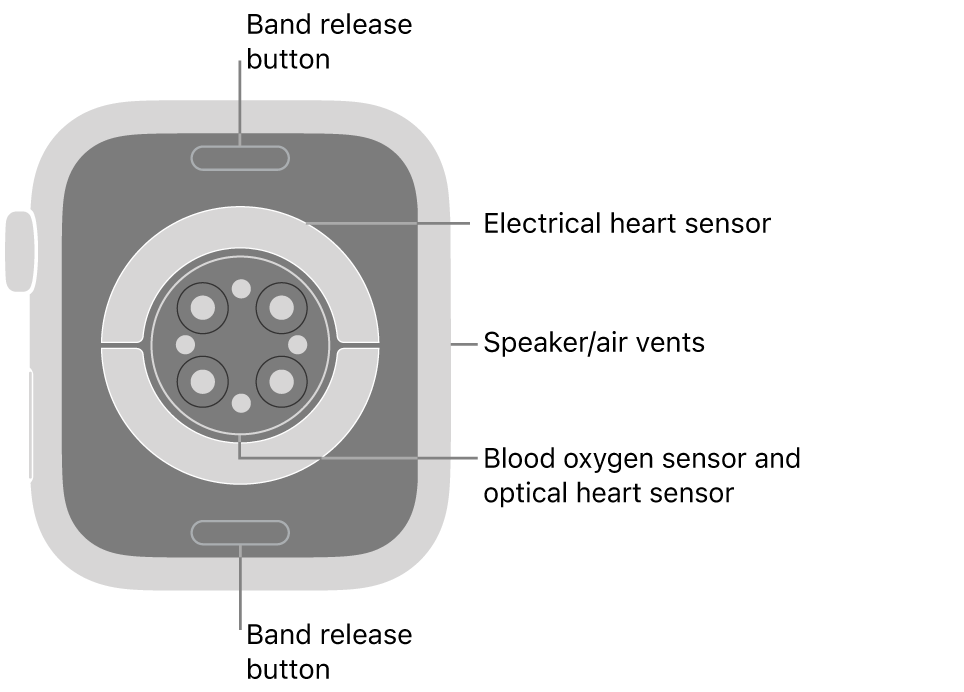
Two technologies work together to track your pulse.
Optical Sensor (All Models)
Uses green LED lights and photodiodes to detect blood flow changes.
- Flashes LEDs hundreds of times per second
- More blood = more green light absorbed
- Effective for workouts, breathing sessions, and background checks
- Range: 30–210 BPM
Automatically boosts brightness in cold weather or low-signal conditions.
Switches to infrared light when you’re still for energy-efficient background monitoring every 5–10 minutes.
Electrical Sensor (ECG) – Series 4 and Newer
Available on Apple Watch Series 4, 5, 6, 7, 8, 9, Ultra, and Ultra 2.
- Open Heart Rate app.
- Place finger on Digital Crown.
- Wait 30 seconds.
- Captures electrical signals across the heart
- Records data every second (vs. every 5 seconds optically)
- Labels readings as “ECG” in Health app
Not available on Apple Watch SE.
Powers the ECG app, which can detect signs of atrial fibrillation (AFib).
Set Up High and Low Heart Rate Alerts
Get notified when your heart rate stays out of range.
Configure Thresholds on iPhone
- Open Apple Watch app > My Watch > Heart.
- Tap High Heart Rate or Low Heart Rate.
- Set limits:
– High: 100–150 BPM (default: 120)
– Low: 40–50 BPM (default: 40) - Enable alert if rate stays outside range for 10 minutes.
These rely on background readings—so wear your watch consistently.
Turn On Irregular Rhythm Notifications
- Go to Heart > Irregular Rhythm Notifications.
- Follow setup steps.
- Watch checks when:
– Heart rate is 50–120 BPM
– You’ve been still for 10+ minutes
Requires watchOS 5.1.2 or later and is region-dependent.
View Heart Rate During Workouts in Real Time
Track intensity and stay in your target zone.
Start a Cardio Workout
- Open Workout app.
- Select activity (e.g., Outdoor Run, Cycling).
- Begin exercise.
Your BPM updates continuously.
Switch to Heart Rate Zone View
While exercising:
– Turn the Digital Crown to cycle screens.
– Select the display showing:
– Current heart rate zone
– BPM
– Time spent in zone
– Average heart rate
Know Your Five Zones
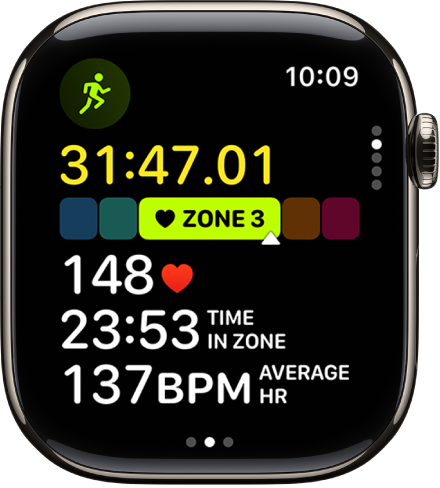
Based on your max heart rate (calculated from age in Health app):
| Zone | Effort Level | Target % of Max HR |
|---|---|---|
| 1 | Very light | 50–60% |
| 2 | Light (fat-burning) | 60–70% |
| 3 | Moderate (aerobic) | 70–80% |
| 4 | Hard (anaerobic) | 80–90% |
| 5 | Maximum | 90–100% |
Zones 1 and 5 are fixed. Zones 2–4 can be customized manually.
Review Post-Workout Data
- Open Fitness app on iPhone.
- Tap Sessions > select workout > Show More under Heart Rate.
- View a graph of BPM over time and time spent in each zone.
Improve Heart Rate Accuracy with These Tips
Even advanced sensors need proper use.
Wear It Right
- Fit snugly: one finger width from wrist bone.
- Too loose? Sensor loses contact.
- Too tight? Restricts blood flow.
Keep Sensors Clean
- Wipe the back of the watch weekly.
- Wash your wrist to prevent sweat or lotion buildup.
Avoid Interference
- Cold weather: Warm hands first—cold reduces skin blood flow.
- Tattoos or dark ink: May absorb light—try wearing higher on wrist.
- Wrist hair: Trim if it blocks sensor contact.
- Motion: Keep arm still during manual readings.
For clinical accuracy, compare with a chest strap monitor.
Use Third-Party Apps for Extra Customization
Enhance display options beyond Apple’s defaults.
Top Apps for Heart Rate
- Heart Analyzer:
- Adds live heart rate to Photos and Utility watch faces.
- Offers detailed widgets and charts.
- BeatWatcher:
- On-demand BPM checks.
- Simple interface for stress or anxiety moments.
These apps use Apple’s sensors—no hardware bypass.
Install via iPhone’s App Store, then open on Apple Watch.
Know What Data Is Tracked Automatically
Apple Watch doesn’t measure every second—but it’s smart about when it does.
Background Readings
- Taken when still or walking
- Interval: every 5–10 minutes
- Used for:
- Resting heart rate
- Walking average
- Irregular rhythm checks
Unlike some Fitbit or Garmin models, Apple prioritizes battery life.
Workout Monitoring
- Continuous tracking during cardio sessions
- Includes real-time BPM, calories, zones
- Continues for 3 minutes post-workout to measure recovery
Battery Trade-Off
- Full-time optical monitoring would drain battery fast.
- Apple balances insight with ~18-hour battery life.
Charging nightly ensures uninterrupted tracking.
Compare Apple Watch Models for Heart Features
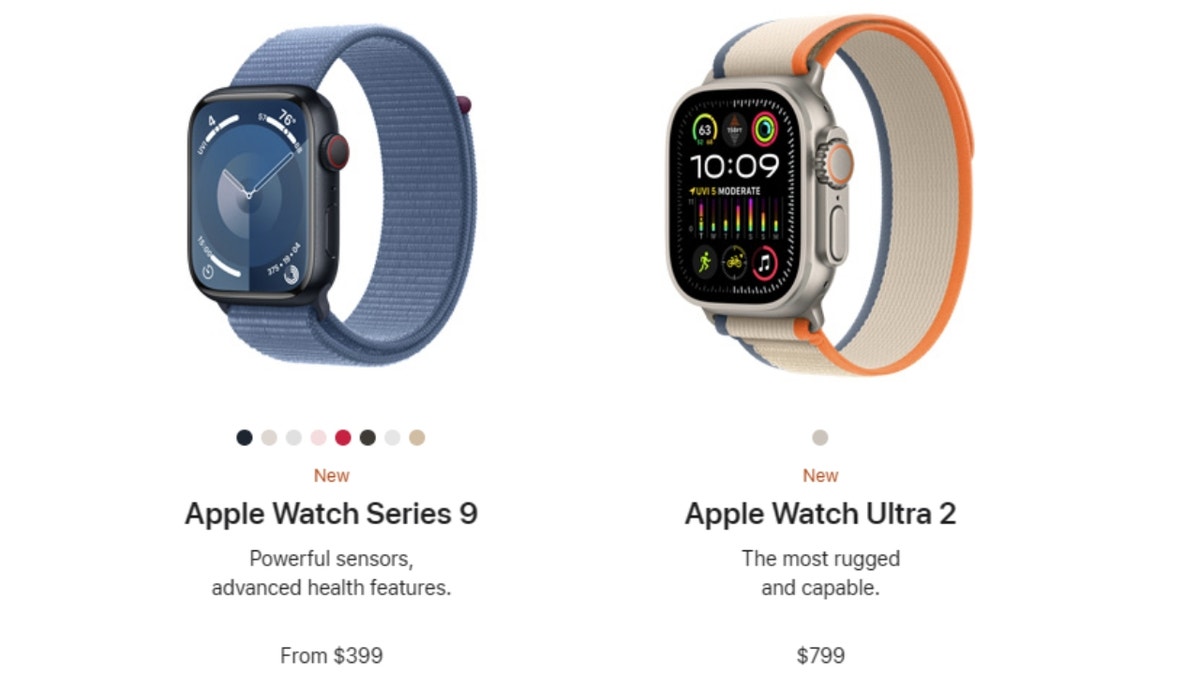
Not all models offer the same capabilities.
| Feature | Apple Watch SE | Series 4+ | Ultra |
|---|---|---|---|
| Optical Heart Sensor | ✅ | ✅ | ✅ |
| ECG App | ❌ | ✅ | ✅ |
| Irregular Rhythm Alerts | ✅ | ✅ | ✅ |
| Heart Rate Zones | ✅ | ✅ | ✅ |
| HRV Tracking | ✅ | ✅ | ✅ |
Apple Watch SE supports all core heart rate functions except ECG.
Choose based on whether medical-grade electrical readings matter for your health needs.
Sync and Share Heart Data with Care Teams
Your heart rate isn’t just for you—it can help your doctor.
Automatic Sync to iPhone
- All BPM readings sync via Bluetooth to the Health app.
- Includes timestamp, measurement type (optical, ECG), and context.
Share Reports with Doctors
- Open Health app > Browse > Heart.
- Tap a category (e.g., Resting Heart Rate).
- Tap Share > Export Health Data.
- Send as PDF via message, email, or print.
Especially useful for monitoring AFib, recovery, or fitness progress.
Control App Permissions
Manage which apps access your heart data:
- Open Health app > Sources.
- Select an app.
- Toggle read/write access for heart rate.
Only grant access to trusted fitness or health apps.
Apple Watch gives you powerful, wrist-based heart monitoring—no extra gear needed. By using the Heart Rate app, adding complications, enabling alerts, and reviewing trends on iPhone, you gain real insights into your cardiovascular health. Whether you’re tracking fitness, managing stress, or monitoring for irregular rhythms, knowing how to see heart rate on Apple Watch puts you in control.





