
Is your Apple Watch dying halfway through the day? You’re not alone. Knowing how to see battery life on Apple Watch is essential for staying connected during workouts, calls, and notifications. With changes in watchOS 10, Apple redesigned how you check your charge—replacing the familiar swipe-up gesture with a simple press of the Side Button. Whether you’re glancing at your wrist, using your iPhone, or asking Siri, this guide covers every reliable method to monitor your Apple Watch battery across all models and software versions. You’ll also learn how to add battery complications, troubleshoot visibility issues, and extend your battery’s lifespan.
Let’s dive into the fastest, most effective ways to track your Apple Watch battery—right from your wrist or phone.
Press Side Button to Open Control Center
The quickest way to check battery life on modern Apple Watch models is by pressing the Side Button—a change introduced in watchOS 9 and solidified in watchOS 10.
- Wake your watch (raise wrist or tap screen).
- Press the Side Button once—don’t hold it.
- The Control Center appears, with your battery percentage displayed at the top.
This method replaces the older swipe-up gesture, which no longer works after updating to watchOS 10. Now, a single tap gives you instant access to power level, Wi-Fi, Do Not Disturb, flashlight, and more.
⚠️ Warning: Holding the Side Button triggers Emergency SOS. To avoid accidental calls, use a light press and release. If you find it hard to press quickly, adjust the sensitivity:
1. Go to Settings > Accessibility > Side Button Click Speed.
2. Select Slow or Slowest for easier activation.
This setting helps prevent emergency alerts while making one-tap access smoother and more reliable.
Check Battery via Swipe Up (Older watchOS Only)
If you’re still on watchOS 8 or earlier, you can check your battery by swiping up from the watch face:
- Wake your Apple Watch.
- Swipe up from the top edge of the screen.
- The Control Center opens, showing your battery percentage at the top.
🔄 Important Update: This gesture no longer works in watchOS 10 and later. Apple removed it to streamline navigation and reduce confusion with other gestures. Users upgrading from older versions often miss this change—so remember: swipe up is gone, press Side Button is in.
If you’re used to swiping, retrain your muscle memory: one quick press replaces the swipe.
View Battery in Settings App

For a detailed look at your Apple Watch battery usage:
- Open the Settings app directly on your watch.
- Tap Battery.
- See:
– Current charge percentage
– A graph showing power consumption over the past 24 hours
– Time since last charge
The graph helps identify when and why your battery drains—such as during GPS runs, phone calls, or background app refreshes. Spikes in usage often point to power-hungry apps like fitness trackers or navigation tools.
This screen is ideal for diagnosing unexpected battery drain and adjusting your usage habits accordingly.
Tap Screen While Charging for Real-Time Update
When your Apple Watch is on the charger:
- A green lightning bolt appears on the display.
- Tap the screen to reveal the exact battery percentage.
- The number updates every few seconds as it charges.
This is the fastest way to confirm your watch is charging properly—especially useful if the charger seems unresponsive. It also lets you estimate how long until full charge based on the current rate.
💡 Tip: Use this method first thing in the morning to see if your watch reached 100% overnight.
Check Apple Watch Battery from iPhone
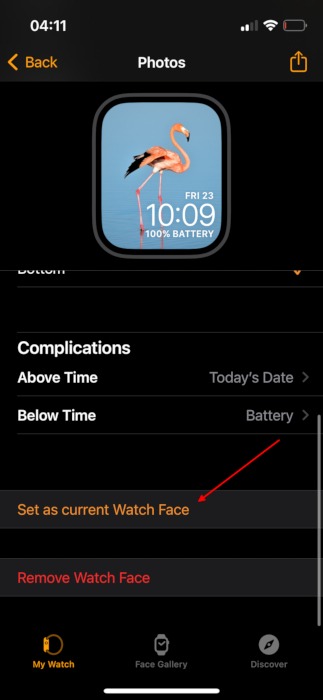
You don’t need to wear your watch to check its battery. Your iPhone can show real-time status—even when the watch is charging or out of reach.
Use the Watch App
- Open the Watch app on your iPhone.
- Tap the My Watch tab.
- Scroll down and select Battery.
- View:
– Apple Watch battery percentage
– Battery levels of connected devices (AirPods, iPhone)
– Battery Health status (if supported)
This method is perfect if your watch is off your wrist or you want to verify charging progress remotely.
Add iPhone Battery Widget
Get a glanceable view of all your Apple devices:
- Long-press your iPhone Home Screen.
- Tap the “+” in the top-left.
- Search for “Batteries”.
- Add the Batteries widget (small, medium, or large).
The widget displays live battery levels for your Apple Watch, AirPods, iPhone, and other accessories—all in one place.
✅ Pro Tip: Place the widget on your first Home Screen or Today View for instant access without unlocking your phone.
Use iPhone Control Center
You can also check your Apple Watch battery from your iPhone’s Control Center:
- Swipe down from the top-right corner (iPhone X and later).
- Look for the Apple Watch battery icon.
If it’s missing:
1. Go to Settings > Control Center.
2. Tap the + next to Battery.
3. Now it appears every time you open Control Center.
Ask Siri Hands-Free
No need to tap or swipe—just ask:
- On iPhone: Say “Hey Siri, what’s my Apple Watch battery?”
- On Apple Watch: Say “Hey Siri, battery”
Siri responds with the current percentage and may offer to open settings for more details.
✅ Ideal during workouts, cooking, or driving when your hands are full.
Check Battery Health and Maximum Capacity

Beyond current charge, it’s important to monitor long-term battery health—especially if your watch is over a year old.
Access Battery Health via iPhone
- Open the Watch app.
- Go to My Watch > Battery > Battery Health.
- See:
– Maximum Capacity: Current battery strength vs. original (e.g., 85%)
– Health Status: “Good,” “Normal,” or “Service Recommended”
This data syncs from your watch and reflects real-world aging.
View Health Directly on Apple Watch
You can also check battery health on the watch itself:
- Open Settings.
- Tap Battery > Battery Health.
- Review Maximum Capacity.
✅ Available on Apple Watch Series 3 and later, including Ultra and Ultra 2.
❌ Not supported on Series 0, 1, or 2.
Understand Maximum Capacity
- 100%: Like new
- 90–80%: Normal wear; no action needed
- Below 80%: Apple recommends replacement
- 70% or lower: Expect shorter life and performance issues
⚠️ If your battery drops below 80%, you may get a notification: “Battery health is significantly degraded.”
While the watch still works, runtime will be noticeably shorter.
Add Battery Complication to Watch Face
Want to see your battery without opening any menus? Add a battery complication:
- Long-press your watch face.
- Tap Edit.
- Swipe to Complication.
- Choose a ring or module spot.
- Select Battery.
- Pick device: Apple Watch, AirPods, or iPhone.
Now, your charge level appears right on the watch face—no taps required.
✅ Supported on:
– Modular
– Infograph
– Motion
– Utility
– Contour
– Breathe❌ Not supported on Time Travel, Solar, or Astronomy faces.
💡 Pro Tip: Use Modular Compact for a clean, info-rich layout with battery, date, and time.
Check Battery on Unpaired or Used Watch
If you’re testing or selling an Apple Watch without pairing:
- You can check current battery:
- Via Control Center (press Side Button)
- In Settings > Battery
- With a battery complication
- You cannot access Battery Health data unless paired.
🚫 The Battery Health section is grayed out or missing when unpaired.
Workaround: Temporary Pairing
To check health on a used watch:
1. Pair it with any compatible iPhone.
2. Open the Watch app.
3. Go to Battery > Battery Health.
4. Note the Maximum Capacity.
5. Unpair if needed.
✅ This helps verify battery condition before buying or selling.
Fix Common Battery Visibility Issues
Control Center Won’t Open
After watchOS 10, many users struggle because swiping up does nothing.
Solution:
– Press the Side Button instead.
– Check Settings > Accessibility > Side Button Click Speed.
– Set to Slow or Slowest to prevent SOS triggers and improve responsiveness.
Hard to Press Side Button?
Enable AssistiveTouch:
1. Go to Settings > Accessibility > AssistiveTouch.
2. Turn it on.
3. Use gestures (tap, double-tap, pinch) to open Control Center and check battery.
Ideal for users with limited hand mobility.
iPhone Widget Missing Apple Watch?
Ensure:
– Watch is paired and connected
– Bluetooth and Wi-Fi are on
– Watch is charged and within range
– Try restarting both devices
The widget only shows connected devices.
Optimize Apple Watch Battery Life
Enable Low Power Mode
Activates automatically at 20%, but you can turn it on manually:
1. Go to Settings > Battery > Low Power Mode.
2. Reduces haptics, background activity, and animations.
Great for extending life during long hikes or meetings.
Turn On Optimized Charging
Learns your routine and delays full charge until you need it:
1. Open Watch app > My Watch > Battery.
2. Enable Optimized Battery Charging.
✅ Reduces long-term battery aging—ideal for overnight charging.
Avoid Overcharging
While safe, leaving your watch plugged in for days can degrade the battery over time.
💡 Tip: Unplug once charged, or use a smart plug to auto-cut power.
Monitor App Battery Usage
Check Settings > Battery to spot high-drain apps—like GPS trackers or third-party fitness tools.
Limit or close them to preserve daily battery life.
Final Note: Checking your Apple Watch battery is faster than ever—just press the Side Button. Combine that with a battery complication, iPhone widget, or Siri for seamless monitoring. For long-term care, review Battery Health regularly and enable Optimized Charging to extend lifespan. With these tips, you’ll always know your charge level—and keep your Apple Watch powered when you need it most.





