You’re mid-workout, your phone is across the room, and you feel a gentle tap on your wrist. It’s your Apple Watch alerting you to an urgent message — but did you catch it in time? Knowing exactly how to see notifications on Apple Watch ensures you never miss a critical alert, whether it’s a text from a loved one, a calendar reminder for a meeting, or a breaking news update. The Apple Watch brings real-time alerts from your iPhone directly to your wrist, keeping you connected without needing to pull out your phone.
Notifications appear instantly when received — either as a compact banner or a full-screen alert — and remain stored in the Notification Center even after dismissal. A small red dot at the top of the watch face signals unread alerts, giving you a quick visual cue to check in. While alerts are automatic, effectively viewing and managing them requires knowing where to look and how to navigate the system. Unlike the iPhone, all detailed notification settings are controlled through the Watch app on your iPhone, not directly on the watch.
In this guide, you’ll learn how to access, read, respond to, and customize notifications on Apple Watch — including using Siri, clearing alerts, and troubleshooting common issues. Whether you’re tracking a marathon or managing a busy inbox, mastering notification control turns your Apple Watch into a powerful personal assistant.
Access Notification Center
The Notification Center is your central hub for all alerts on Apple Watch. This is where every message, email, calendar invite, and third-party app alert lands, even if you didn’t see it when it first arrived.
Open from Watch Face
To access your notifications:
- Stay on the watch face — do not open any apps.
- Swipe down from the top edge of the screen.
– A list of notifications appears, grouped by app.
– The red dot disappears only after you’ve viewed or cleared all unread alerts.
✅ Tip: If you’re inside an app, press the Digital Crown first to return to the watch face before swiping down.
Access During App Use
Even when using other apps, you can quickly check notifications:
- Touch and hold the top of the screen, then swipe down.
– Works in most apps, including Fitness, Music, and Weather.
– Exceptions include full-screen modes like Workout or Sleep tracking.
This shortcut lets you stay informed without losing your place in an active session.
Scroll and Navigate Notifications
Once in Notification Center:
- Scroll with your finger or rotate the Digital Crown.
- Each alert shows:
- App icon and name
- Message preview or summary
- Timestamp (e.g., “5 min ago”)
- Tap any notification to view full details or reply immediately.
❗ Note: Notifications stay in the list until manually dismissed — even after restarting your watch.
View and Respond to Alerts
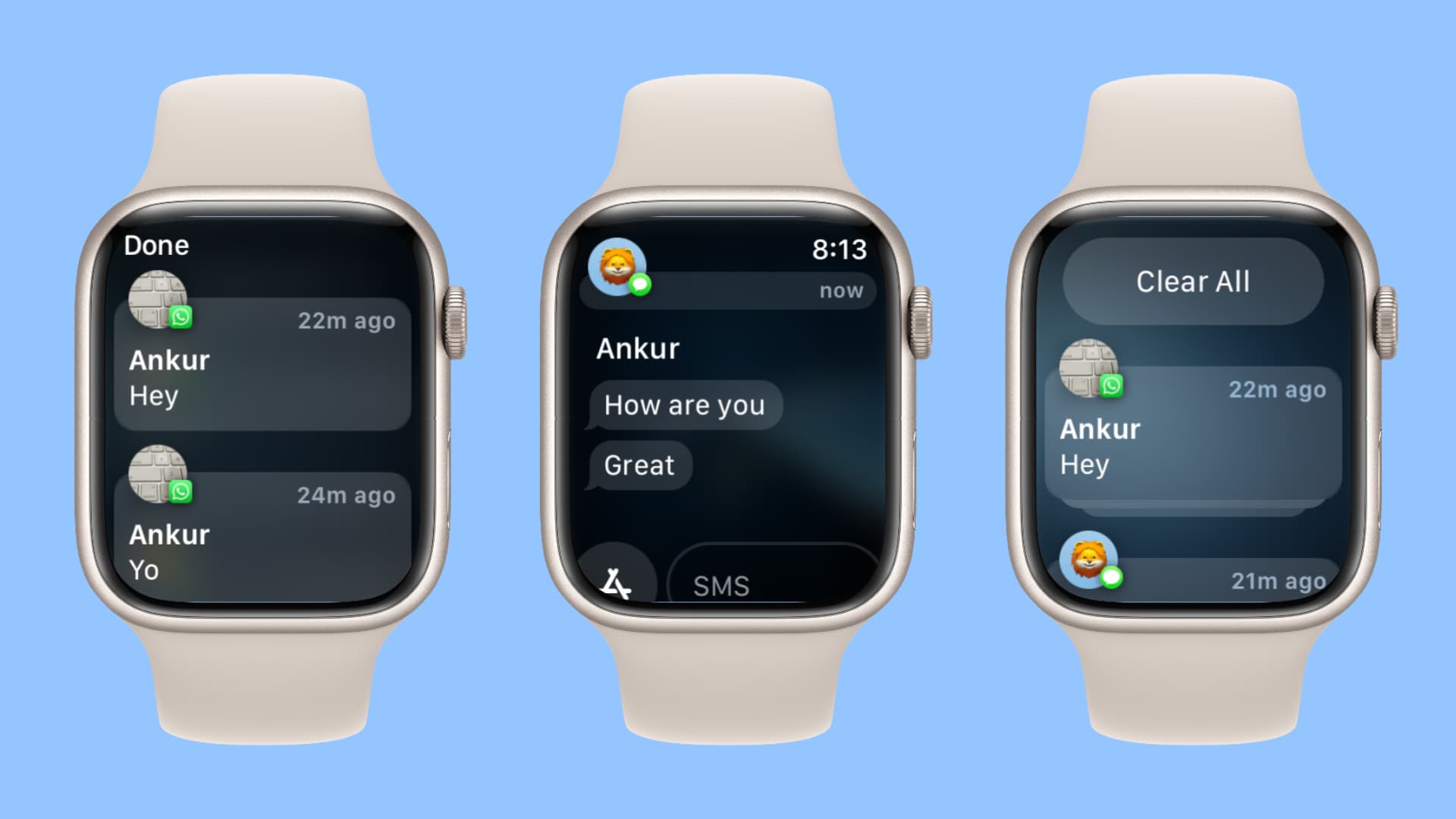
When a new alert arrives, your Apple Watch delivers both visual and haptic feedback. But knowing how to interact with it lets you respond fast — or silence it instantly.
See Incoming Notifications
As alerts arrive:
- Raise your wrist or tap the screen to wake the watch.
- Depending on your display settings:
– With Active Display: A small banner appears at the top.
– When screen is off: A full-screen alert appears. - You’ll also feel a haptic tap and may hear a chime (unless silenced).
Interact with Notification Content
After tapping a notification:
- Messages: Reply using:
- Dictation (speak your response)
- Handwriting (draw letters on screen)
- Predefined replies (e.g., “I’ll call you soon”)
- Calendar invites: Tap Accept or Decline
- Emails: Mark as read, delete, or reply (if supported)
- Media alerts: Control playback (play/pause/skip)
- Third-party apps: Open app or take quick action (e.g., navigate in Maps)
✅ Pro Tip: Swipe left on a message notification to reveal quick reply options without opening the full thread.
Dismiss or Clear Alerts
To remove a notification:
- While viewing it: Swipe down or tap Dismiss
- In Notification Center: Swipe left → Tap X
- To clear all: Scroll to the top → Tap Clear All
❗ Warning: Dismissing a notification only removes it from the watch — it remains on your iPhone.
Clear All Notifications Fast
Over time, notifications can pile up. Clearing them efficiently keeps your watch face clean and reduces distractions.
Use Clear All Button
- Swipe down to open Notification Center
- Scroll to the top of the list
- Tap Clear All
– Confirms with a brief animation
– Removes every notification at once
✅ Shortcut: Press Digital Crown → Swipe down → Tap Clear All
Why Red Dot Won’t Disappear
If the red dot remains after clearing:
- One or more notifications may still be unread
- Reopen Notification Center — if empty, force restart the watch:
- Press and hold side button + Digital Crown for 10 seconds
- Release when Apple logo appears
This often resolves syncing glitches that leave the indicator stuck.
Mute or Silence App Alerts

Not every app needs to buzz your wrist. You can temporarily silence specific apps directly from a notification.
Stop Repeating Alerts
While viewing a notification:
- Press the Digital Crown
- A three-dot menu appears
- Choose:
– Mute: Silence for 1 hour
– Turn Off: Disable alerts until re-enabled
– Silence: Dismiss current alert only
✅ Best for: Noisy group chats or non-urgent apps like social media.
Permanently Disable App Notifications
For full control, use the Watch app on iPhone:
- Open Watch app → Tap Notifications
- Find the app (e.g., Gmail, WhatsApp)
- Select:
– Never Show – blocks all alerts
– Show on iPhone Only – keeps alerts on phone
– Show on Apple Watch – enables delivery
❗ Limitation: You cannot customize alert sounds or delivery style per app on the watch — only on iPhone.
Use Siri to Read Notifications Aloud
When you can’t look at your watch, let Siri read them for you.
Activate Voice Reading
Say clearly:
“Hey Siri, read my notifications”
Siri will:
- Announce the app name (e.g., “Text from Mom”)
- Read the full message preview aloud
- Pause between alerts so you can respond or dismiss
✅ Works with: Apple Watch speaker, AirPods, or any connected Bluetooth headphones.
Requirements for Siri Access
Ensure:
– Siri is enabled on Apple Watch (Settings > Siri)
– Microphone access is allowed
– Audio device is paired (if using earbuds)
– Watch is charged and unlocked
❗ Note: Siri only reads notifications still in the Notification Center — dismissed alerts won’t be read.
Customize Notification Settings

While you see notifications on Apple Watch, how they appear depends on settings managed from your iPhone.
Set Global Notification Indicator
To hide or show the red dot:
- On iPhone, open Watch app
- Go to Notifications
- Toggle Notifications Indicator
– Off = no red dot ever
– On = red dot appears with unread alerts
✅ Use case: Disable during workouts or sleep to reduce visual clutter.
Manage App-by-App Alerts
For each app listed:
- Allow Notifications: Grants permission
- Show on Apple Watch: Enables wrist delivery
- Show on Lock Screen: Controls iPhone visibility
- Preview: Choose “Always,” “When Unlocked,” or “Never”
✅ Recommended: Enable Show on Apple Watch for high-priority apps like Messages, Calendar, and Mail.
Third-Party App Behavior
Apps like WhatsApp, Gmail, and Google Maps mirror iPhone alerts automatically when enabled.
No extra setup needed — just:
- Open Watch app on iPhone
- Scroll to the app under Notifications
- Tap and select Show on Apple Watch
Once enabled:
– All alerts appear on your wrist
– Actions like replying or navigating are supported if the app allows
❗ Limitation: Granular customization (e.g., custom sounds) must be done in the iPhone app settings, not on Apple Watch.
Enable Glances for Quick Updates
Though not true notifications, Glances offer a fast way to see time-sensitive info.
Access Glances
Swipe right from the watch face.
Common Glances include:
– Calendar (next event)
– Weather (current conditions)
– Activity (ring progress)
– Battery (percentage)
✅ Pro Tip: Some apps display mini-notifications here — e.g., a missed call or low battery warning.
Customize Available Glances
On iPhone, in Watch app:
- Tap My Watch tab
- Go to Glances
- Reorder or disable using Edit
❗ Note: Glances are being phased out — use watch face widgets (long-press face → tap +) instead.
Fix Missing Notifications
If alerts aren’t appearing, follow these steps.
Check Connection Status
Your Apple Watch needs a link to your iPhone:
- Bluetooth: Keep iPhone within 30 feet
- Wi-Fi: Enabled on both devices
- Cellular: Available on GPS + Cellular models when iPhone is off
✅ Test: Send yourself a text — if it arrives on iPhone but not watch, connection is the issue.
Disable Focus Modes
Silent alerts may be due to active modes:
- Do Not Disturb: Enabled via Control Center (crescent moon)
- Theatre Mode: Turns off screen and sound (mask icon)
- Silent Mode: Alerts vibrate only
To fix:
– Swipe up → Open Control Center
– Tap crescent moon, mask, or bell with slash to disable
Restart Devices
If notifications remain missing:
- Restart Apple Watch:
– Hold side button → Slide Power Off
– Wait 30 sec → Hold button to restart - Restart iPhone
- Re-pair if needed (Watch app > My Watch > unpair)
✅ Last resort: Reset all settings on Apple Watch (Settings > General > Reset)
Optimize for Daily Use
Tailor your notification experience to reduce digital fatigue.
Prioritize Important Alerts
Use Mirror iPhone Alerts selectively:
- Turn on Show on Apple Watch only for essential apps
- Set low-priority apps to Show on iPhone Only
✅ Example: Keep WhatsApp on, but disable Instagram alerts.
Reduce Battery Drain
Frequent notifications consume power due to:
- Screen wake-ups
- Haptic taps
- Wireless syncing
To save battery:
– Lower haptic intensity (Settings > Sounds & Haptics)
– Disable Prominent Haptics
– Use Silent Mode during downtime
Schedule Quiet Hours
Use Focus modes on iPhone:
- Open Settings > Focus > Do Not Disturb
- Set schedule (e.g., 10 PM – 7 AM)
- Allow exceptions (e.g., alarms, emergency contacts)
✅ Bonus: Syncs automatically to Apple Watch.
Final Note: Mastering how to see notifications on Apple Watch transforms it from a simple timepiece into a powerful personal assistant. By using the Notification Center, Siri, and iPhone-based settings, you gain full control over what reaches your wrist and how you respond. Whether you’re replying to messages on a run or silencing distractions during meetings, these tools help you stay informed — without feeling overwhelmed.