
You’ve probably searched “how to set screensaver on Apple Watch” after noticing your watch shows different visuals when idle—only to find out Apple Watch doesn’t have a traditional screensaver. Unlike desktops or TVs, your Apple Watch never fully blacks out. Instead, it uses smart display features like Always-On Display, Live Activities, and custom photo watch faces that mimic what users think of as a “screensaver.”
But here’s the good news: you can personalize your Apple Watch to show your favorite photos every time you raise your wrist—and stop it from switching screens during music playback or workouts. While Apple doesn’t call it a screensaver, you can create a dynamic, photo-based visual experience that feels just like one. This guide shows you how to set up a personalized display, disable intrusive automatic screen takeovers, and troubleshoot common syncing issues—so your Apple Watch stays visually consistent and uniquely yours.
Use a Photo Watch Face as Your Apple Watch “Screensaver”
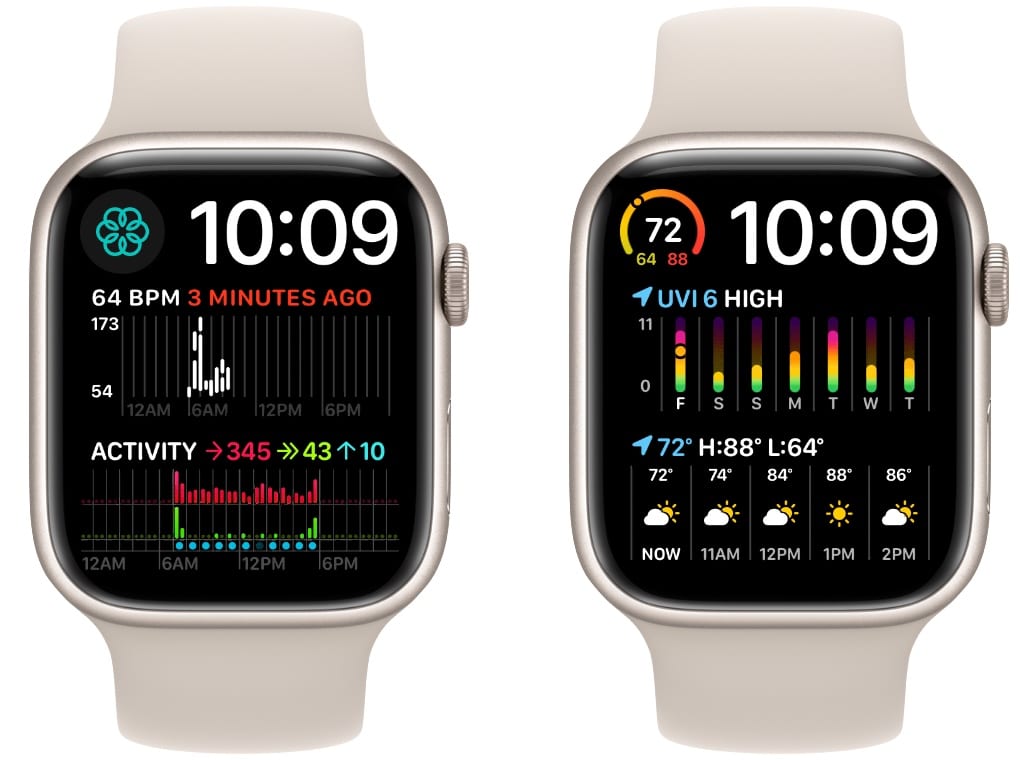
Since the Apple Watch doesn’t support animated or video screensavers, the best way to simulate one is by using the Photos watch face. This feature turns your watch into a rotating digital photo frame, displaying your favorite memories every time you glance at your wrist.
Select Photos from iPhone Favorites
The Photos watch face pulls images from your iPhone’s photo library. By default, it uses photos marked as Favorites, so start there:
- Open the Photos app on your iPhone.
- Browse to the image you want to appear on your watch.
- Tap the heart icon at the bottom to mark it as a Favorite.
- Repeat for 5–10 additional photos if you want a rotating gallery.
💡 Pro Tip: Add a mix of high-resolution, well-lit photos. Avoid dark, blurry, or heavily filtered images—they lose clarity on the small OLED screen.
If you prefer more control, create a dedicated album:
– Open Photos > Albums > + > New Album.
– Name it “Apple Watch” and add selected photos.
– Later, you’ll choose this album in the Watch app.
Install the Photos Watch Face from Your iPhone
Now, add the actual watch face:
- Open the Watch app on your iPhone.
- Tap Face Gallery at the bottom.
- Scroll down and select Photos.
- Tap Add to send it to your Apple Watch.
Wait a few seconds for it to sync. Once complete, press the Digital Crown on your Apple Watch and swipe left or right until you see the photo face.
Customize Time, Layout, and Photo Source
Make the face truly yours by adjusting key settings:
- In the Watch app, go to My Watch > Photos.
- Tap Customize.
- Adjust:
– Time position: Choose top, center, or bottom.
– Complications: Add useful widgets like weather, activity rings, or battery percentage. - Under Photo Collection, select your source:
– Favorites (default)
– Recents
– A custom album (like the one you created)
🔄 The photo changes each time you raise your wrist. No animation or video is supported—only still images.
⚠️ Note: Live Photos, GIFs, and videos won’t work. Only static images are compatible.
Stop Live Activity from Hijacking Your Watch Face
Many users complain: “Why does my Apple Watch keep changing screens by itself?”
It’s not a glitch—it’s Live Activity, a feature introduced in watchOS 9 that temporarily replaces your watch face during active tasks. While designed for convenience, it can feel like an unwanted “screensaver” takeover.
What Triggers Live Activity Overlays?
Your watch face gets replaced when:
– Music or podcast is playing (Spotify, Apple Music)
– Timer, stopwatch, or alarm is active
– Workout is in progress
– Ride-share is underway (e.g., Uber, Lyft)
These full-screen overlays show real-time data—like album art or a countdown timer—and are meant to give quick access without opening apps.
But if you’ve spent time curating a beautiful photo face, having it replaced without consent can be frustrating.
Disable Auto-Launch Live Activities
To stop automatic screen switching:
On iPhone:
- Open the Watch app.
- Go to General > Auto-Launch.
- Tap Live Activities Settings.
- Toggle off Auto Launch Live Activities.
✅ Result: Your watch face stays put. You can still access Live Activities manually by swiping left on the watch face or opening the relevant app.
Alternatively:
– Go to Smart Stack in the Watch app.
– Turn off Auto-Launch Live Activities.
This setting applies across all watch faces, so your preference is respected everywhere.
Customize Media Playback: Open Spotify Instead of Live Activity
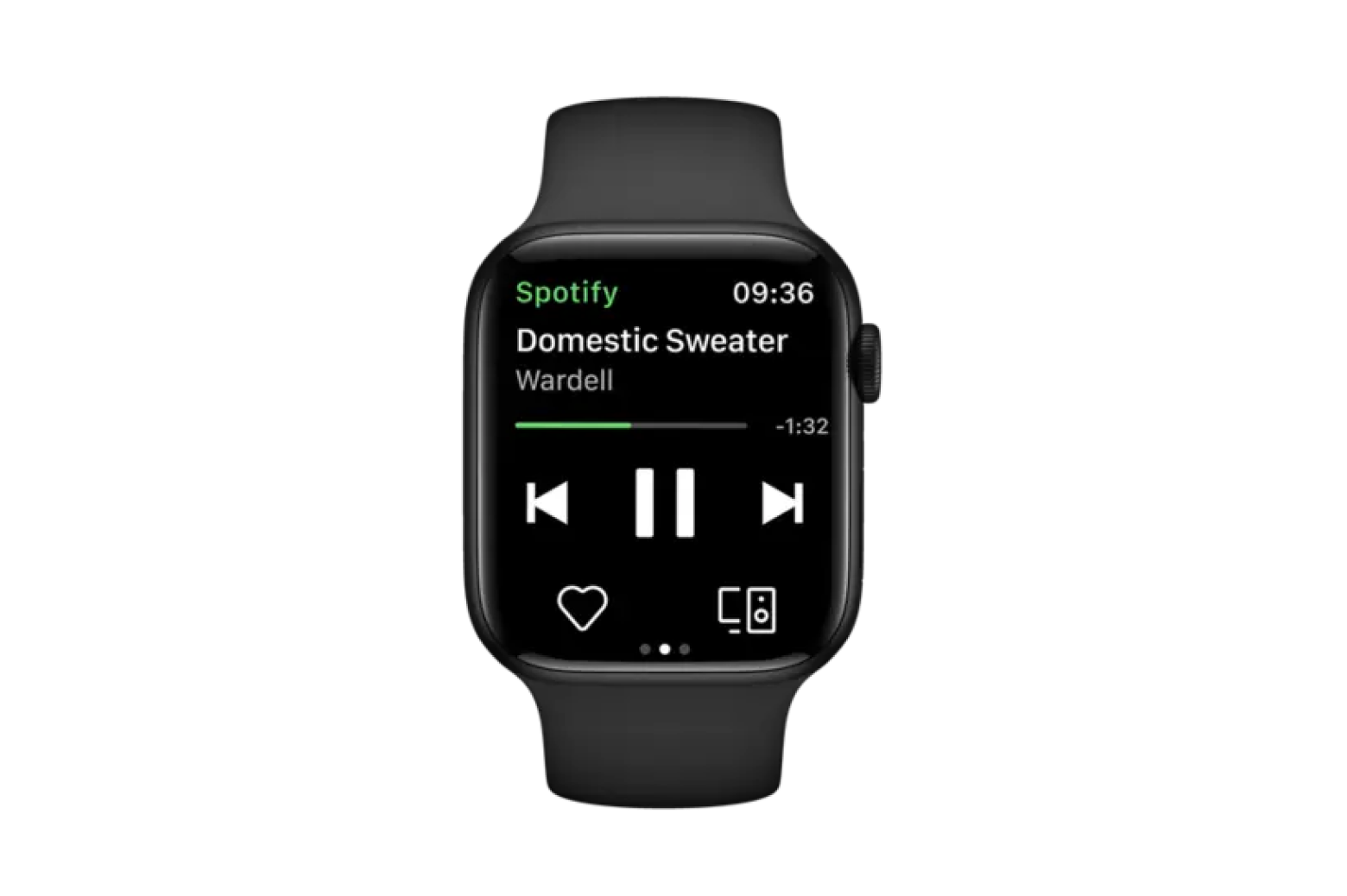
Even with Live Activity disabled, tapping a music complication might still open a full-screen view. To open the app directly:
- In the Watch app, tap Settings (gear icon).
- Go to Smart Stack.
- Under Media Apps, select App instead of Smart Stack.
Now, when you tap the music widget, it opens Spotify or Apple Music directly, not a Live Activity overlay.
⏯️ You keep full control: play, pause, skip—without losing your photo background.
Fix Common Photo Sync Issues
Sometimes your favorite photo doesn’t show up. Here’s how to fix it:
Why Isn’t My Photo Showing?
Check these:
– ✅ Is the photo marked as Favorite? (Required unless using a custom album)
– ✅ Did you select the correct photo source in the Watch app?
– ✅ Is the Photos watch face active on your Apple Watch?
To verify:
– Press the Digital Crown to go to the Home Screen.
– Swipe left/right to cycle through watch faces.
– Tap to select the Photos face.
Still Not Working? Try These Fixes
- Restart both devices:
– Restart your iPhone and Apple Watch. - Re-add the watch face:
– Delete the Photos face in the Watch app.
– Re-add it from Face Gallery. - Check storage:
– Low iPhone or Apple Watch storage can prevent photo sync.
📸 Reminder: Only still images are supported. Live Photos, GIFs, and videos will not appear.
Understand Always-On Display: Why Your Screen Never Fully Turns Off

If you own an Apple Watch Series 5 or later, your screen never fully turns off—it dims instead. This is Always-On Display (AOD).
What Happens When Your Wrist Is Down?
- Time appears in low brightness (grayed out)
- Background darkens
- Complications become subtle
- Screen wakes fully when you raise your wrist or tap it
This is normal behavior, not a bug. It’s designed for quick time checks without activating the display.
🔋 Battery Tip: If you want longer battery life, disable Always-On:
– Open Watch app > My Watch > Display & Brightness > Always On > Toggle off.
User Feedback: Why People Love or Hate Live Activity
Who Loves It?
- “I love seeing the album art pop up—it’s like a mini concert.”
- “Super helpful during workouts.”
- “Better than digging into apps.”
These users value functionality and real-time updates.
Who Hates It?
- “It ruins my custom photo face.”
- “Feels like Apple took control away.”
- “Why can’t I just see my picture?”
They want visual consistency, not automatic interruptions.
🎯 Bottom line: Apple built Live Activity for utility—but gives you the power to turn it off.
Compatibility: Check Your Model and watchOS
Not all features work on every Apple Watch. Here’s what you need:
| Feature | Required watchOS | Compatible Models |
|---|---|---|
| Live Activity Auto-Launch | watchOS 9+ | Series 4 and newer |
| Always-On Display | watchOS 5+ | Series 5, 6, 7, 8, 9, Ultra, Ultra 2 |
| Photos Watch Face | All versions | All Apple Watch models |
🔄 Update Tip: Keep both iPhone and Apple Watch updated to avoid syncing or compatibility issues.
Quick Reference: Control Your Apple Watch Visuals
| Goal | How to Do It |
|---|---|
| Set personal photo as background | Mark photo as Favorite → Add Photos watch face |
| Rotate through multiple images | Favorite several photos → Use Photos face |
| Stop screen from switching automatically | Disable Auto Launch Live Activities |
| Open Spotify instead of Live Activity | Watch app → Settings → Smart Stack → Media Apps → Select App |
| Return to watch face instantly | Press the Digital Crown |
| Fix missing photos | Confirm Favorite status → Restart devices → Re-sync face |
Final Tips for a Personalized Watch Experience
- Create a dedicated album: Name it “Apple Watch” and sync it for better control.
- Use high-contrast images: Bright, sharp photos look best on OLED.
- Limit complications: Too many widgets clutter the image. Keep it clean.
- Enable Shuffle: In Photos face settings, turn on Shuffle to randomize image order.
While Apple Watch doesn’t offer a classic screensaver, combining a custom photo face with disabled auto-launch settings gives you the best of both worlds: a stunning visual backdrop and no surprise screen takeovers.
Now, every time you raise your wrist, you’ll see your photos—exactly how you want them.




