
You’re in a meeting, trying to fall asleep, or simply prefer discreet notifications—your Apple Watch can deliver alerts without a single sound. By setting it to vibrate only, you silence all tones while keeping haptic taps active on your wrist. This mode is perfect for professionals, light sleepers, or anyone who values privacy and subtlety in their smartwatch experience.
Apple Watch is designed to notify you intelligently, but default settings don’t guarantee silence. Even with Silent Mode on, misconfigured alarms or mirrored iPhone alerts can still trigger loud chimes. The key to true vibration-only operation lies in combining Silent Mode, haptic customization, and cross-device settings—especially when it comes to alarms and Focus modes.
In this guide, you’ll learn exactly how to configure your Apple Watch for silent, vibration-only alerts—from notifications and calls to wake-up alarms. We’ll also cover common pitfalls, troubleshooting tips, and pro strategies to ensure your watch stays quiet and reliable.
Enable Silent Mode on Apple Watch
Silent Mode is the foundation of any vibration-only setup. It disables all sounds while preserving haptic feedback—if configured correctly.
Activate via Control Center
- Swipe up from the watch face to open the Control Center.
- Tap the bell icon with a slash to enable Silent Mode.
- When the icon turns red, sound is off and vibrations remain active.
✅ Pro Tip: This is the fastest way to mute your watch during meetings or quiet moments. No need to dive into settings—just one tap and you’re silent.
Verify Haptic Alerts Are Active
Even in Silent Mode, your watch won’t vibrate if haptics are disabled.
- Open Settings on your Apple Watch.
- Go to Sound & Haptics.
- Ensure Haptic Alerts is turned on.
- Set Haptic Strength to Prominent for stronger, more noticeable taps.
⚠️ If you barely feel the vibration, switching to Prominent often resolves weak feedback. The watch will give you a real-time preview—test it now to feel the difference.
Configure Settings from iPhone

For full control, use the Watch app on your iPhone. Changes sync automatically to your Apple Watch and offer more detailed options.
Turn On Silent Mode Remotely
- Open the Watch app on your iPhone.
- Tap My Watch > Sounds & Haptics.
- Toggle Silent Mode on.
- Confirm Haptic Alerts is enabled.
This ensures your watch stays in silent mode even after a restart or accidental toggle.
Enable Cover to Mute
Use your hand to silence the watch instantly—no swiping required.
- In Sounds & Haptics, turn on Cover to Mute.
- When you cover the display with your palm for 3 seconds, sound mutes and vibrations stay on.
✅ Ideal for sudden quiet situations—like entering a library or a sleeping baby’s room. It’s one of the most underused but powerful features for maintaining discretion.
Customize App Notification Settings
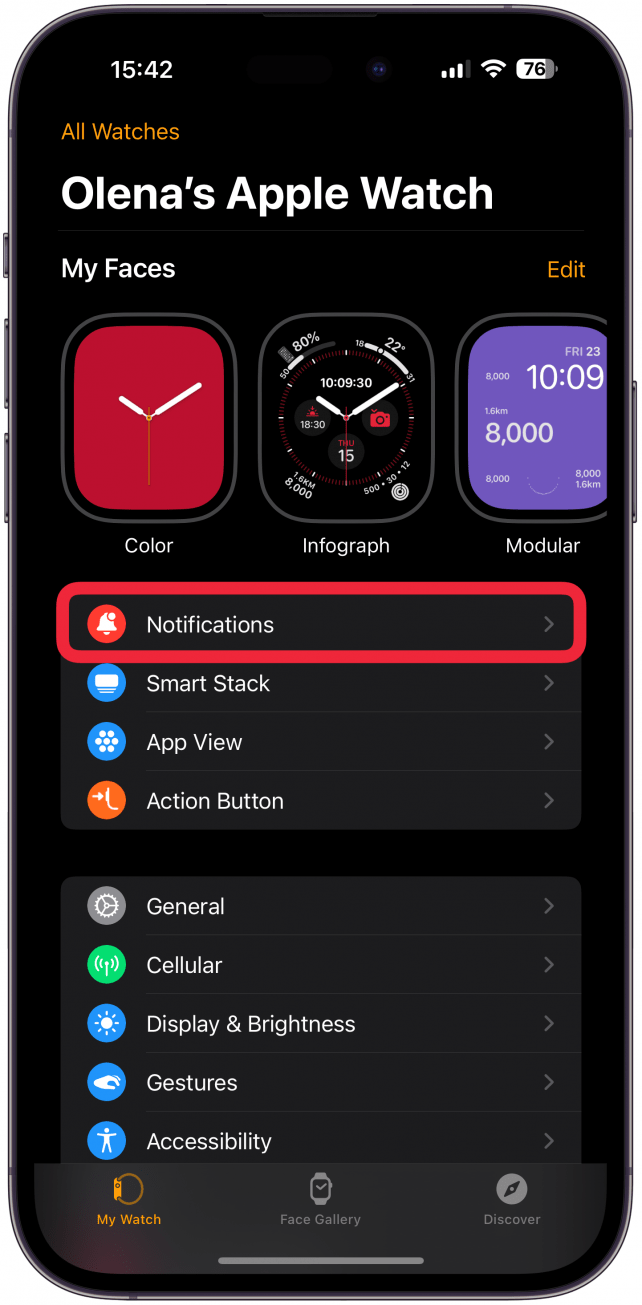
Not every app should alert the same way. Tailor which apps deliver silent vibrations and prevent unwanted sounds.
Set Apple Apps to Vibrate Only
- Open the Watch app on iPhone.
- Go to Notifications > Notification Apps.
- Select an app (e.g., Messages, Mail, Phone).
- Choose Custom.
- Turn off Sound, leave Haptic on.
✅ Result: You’ll feel a tap when a message arrives—no chime, no buzz, just a discreet nudge.
Repeat this for key apps like Calendar, Reminders, and Phone to ensure consistent silent alerts.
Manage Third-Party App Alerts
You can’t fully customize third-party app alerts (like WhatsApp or Slack) directly on the watch, but you can control them through your iPhone.
- In Watch app > Notifications, scroll to Mirror iPhone Alerts From.
- Toggle on only the apps you want to receive alerts from.
- On your iPhone, go to Settings > Notifications > [App].
- Disable Sound, enable Haptics.
❗ If the iPhone plays a sound, the watch may try to too—unless Silent Mode is active. Muting the sound at the iPhone level ensures mirrored alerts stay silent.
Make Alarms Vibrate Only (No Sound)
Want to wake up without disturbing your partner? Set your alarm to tap your wrist—not blast sound.
Create Alarms on Apple Watch
This is the most reliable method for silent alarms.
- Open the Alarm app directly on the Apple Watch.
- Tap + and set your time.
- Ensure Silent Mode is on.
✅ The watch will tap your wrist instead of making noise. This is Apple’s intended behavior when Silent Mode is active.
Delete Matching iPhone Alarms
If you have the same alarm on your iPhone, it may ring loudly—even if your watch is set to vibrate.
- Open the Clock app on your iPhone.
- Go to Alarms.
- Delete or disable any duplicate alarms.
⚠️ This is the #1 cause of loud wake-ups: the iPhone alarm is active while the watch vibrates. Eliminate the iPhone alarm to avoid being startled.
Disable iPhone Alarm Sound
If you must use iPhone alarms (e.g., for backup), silence them:
- On iPhone, go to Settings > Notifications > Clock.
- Under Alarms, turn off Sound.
- Keep Haptics enabled.
✅ Now, even if the iPhone triggers the alarm, it will vibrate only—keeping your mornings quiet.
Fix Inconsistent Alarm Behavior

Some users report one alarm being louder than others—often due to volume settings or software glitches.
Reset “Change with Buttons” Setting
- On iPhone, go to Settings > Sounds & Haptics.
- Toggle Change with Buttons off, then back on.
- This resets volume memory for alerts.
💬 Verified: This fix resolves erratic alarm volumes caused by historical settings, especially after iOS updates.
Keep Watch Unlocked and Nearby
A locked watch or poor connection may force the iPhone to take over.
🔐 User Tip: Unlock your Apple Watch before bed. If the watch is locked, the iPhone may play the alarm sound even if the watch is set to vibrate.
Adjust Focus and Sleep Settings
Do Not Disturb or Sleep Mode can override vibration settings—silencing even silent alarms.
Allow Vibrations in Sleep Focus
- Open Health app on iPhone.
- Tap Browse > Sleep > Schedule & Alarms.
- Edit your Sleep Focus.
- Under Notifications, allow your alarm app.
- Ensure Vibrate is enabled.
❌ If “Vibrate” is off here, your watch won’t tap—even in Silent Mode. This setting overrides all others.
Troubleshoot No Vibration Issues
If your watch isn’t vibrating, check these common causes.
Haptic Alerts Are Off
- On Apple Watch, go to Settings > Sound & Haptics.
- Confirm Haptic Alerts is on.
Watch Is in Power Reserve
In Power Reserve mode, all alerts are disabled.
🔋 Exit Power Reserve by charging and pressing the side button.
Low Power Mode Limits Haptics
In Low Power Mode, some vibrations may be reduced or skipped.
🔋 Consider disabling Low Power Mode overnight if you rely on silent alarms.
Software or Hardware Problem
If nothing works:
- Restart your Apple Watch.
- Update watchOS to the latest version.
- As a last resort, erase all content and settings (Settings > General > Reset).
Test Your Vibration Setup
After configuring, verify it works.
Send a Test Notification
- Send yourself an iMessage from your iPhone.
- Check if you feel a tap.
- If not:
– Increase Haptic Strength to Prominent.
– Confirm Silent Mode is active.
– Ensure Cover to Mute isn’t blocking alerts.
Check Alarm Vibration
- Set a test alarm for one minute from now.
- Wait for the tap.
- If no vibration, review:
– Alarm created on watch, not iPhone.
– Haptic Alerts enabled.
– Sleep Focus allows vibrations.
Optimize for Real-World Use
Make your vibrate-only setup reliable in daily life.
Use Prominent Haptics for Better Detection
- On Apple Watch, go to Settings > Sound & Haptics > Haptics.
- Select Prominent.
- Feel the stronger tap.
✅ Especially helpful if you wear the watch loosely or have sensory needs.
Keep iPhone Locked, Watch Unlocked
Per user reports:
“Your watch needs to be unlocked and the iPhone needs to be locked. My phone always plays sounds when the watch is locked.”
🔐 Unlock your Apple Watch before bed for consistent silent alarms.
Sync Settings Across Devices
Always verify:
- Silent Mode is on (watch and iPhone).
- Haptic Alerts is enabled.
- No conflicting alarms on iPhone.
- Focus modes allow vibrations.
🔄 Mismatched settings are the top cause of unexpected sounds.
Summary: Vibration-Only Checklist
| Task | Where to Do It | Done? |
|---|---|---|
| Enable Silent Mode | Watch Control Center or Settings | ✅ |
| Turn on Haptic Alerts | Apple Watch > Sound & Haptics | ✅ |
| Set Haptics to Prominent | Sound & Haptics > Haptics | ✅ |
| Create Alarms on Apple Watch | Alarm app (on watch) | ✅ |
| Delete iPhone Alarms | Clock app on iPhone | ✅ |
| Disable iPhone Alarm Sound | iPhone Settings > Notifications > Clock | ✅ |
| Enable Cover to Mute | Watch app (iPhone) > Sounds & Haptics | ✅ |
| Allow Vibrations in Sleep Focus | Health app > Sleep > Focus | ✅ |
| Customize App Notifications | Watch app > Notifications > [App] > Custom | ✅ |
Your Apple Watch can be a truly silent companion—with the right settings. Silent Mode alone isn’t enough. Combine it with proper alarm creation, haptic strength, and Focus permissions to ensure every alert comes through as a tap, not a tone. Follow this guide, and you’ll never be startled by a loud alarm again.





