
You’re in the middle of boiling pasta, deep into a high-intensity interval training (HIIT) session, or trying to stay focused with the Pomodoro technique—knowing how to set a timer on Apple Watch can make all the difference. With its intuitive interface, Siri integration, and smart complications, your Apple Watch turns time management into a seamless wrist-based experience.
Whether you need a 30-second reminder or a full 24-hour countdown, Apple Watch makes it fast and effortless to start, manage, and customize timers. No need to unlock your phone or fumble through apps. In this guide, you’ll learn every way to set a timer—using the Timer app, Siri, or a watch face widget—plus how to run multiple timers, label them for clarity, adjust alerts, and troubleshoot common issues.
Start a Timer from the Timer App
Open the Timer App from the Home Screen
To launch the Timer app:
– Press the Digital Crown to return to your app grid.
– Look for the orange hourglass icon—this is the Timer app.
– Tap it to open.
Visual cue: Don’t confuse it with the Stopwatch (white stopwatch icon) or Alarm app (bell icon). The Timer app is specifically for countdowns.
Once opened, you’ll see a list of preset durations like 1 minute, 5 minutes, or 1 hour. These are perfect for quick use without extra steps.
If you’re using List view, scroll alphabetically until you find “Timer.” The app is always available, no download required.
Use Presets for Instant Timing
For common tasks like soft-boiling eggs or taking a short break:
– Open the Timer app.
– Tap any preset:
– 30 seconds
– 1, 3, 5, 10, 15, 30 minutes
– 1 or 2 hours
– The timer starts immediately.
After it ends, tap Restart to run the same duration again—ideal for recurring tasks.
Time saved: This is the fastest method for everyday timing needs.
Create a Custom Timer for Exact Durations
Need precision? Set a custom timer down to the second:
1. Open the Timer app.
2. Scroll down and tap + or Add Timer.
3. Adjust time using:
– The Digital Crown to spin through hours, minutes, and seconds
– Or swipe up/down on each number field
4. Example: Set 3 minutes and 1 second for perfect soft-boiled eggs.
5. Tap Start.
You can set timers up to 24 hours long. This is useful for laundry, slow-cooked meals, or long meditation sessions.
Use Siri for Hands-Free Timer Setup
Activate Siri and Set a Timer by Voice
When your hands are full—like when chopping vegetables or lifting weights—use Siri:
– Say:
“Hey Siri, set a timer for 10 minutes.”
– Or:
“Siri, start a 3-minute egg timer.”
Siri confirms and begins the countdown instantly.
It supports natural language, so you can say:
– “Set a timer for an hour and 15 minutes.”
– “Start a 45-second countdown.”
– “Set a 20-minute pasta timer.”
Best for: Cooking, workouts, and multitasking where touching your watch isn’t practical.
Label Timers for Multiple Tasks
To keep track of several activities:
– Say:
“Set a 12-minute pizza timer.”
– Or:
“Start a 5-minute cool-down timer.”
Siri creates a labeled timer (e.g., “Pizza”) that appears in the Timer app. This makes it easy to identify which timer is which—especially helpful when running multiple at once.
Add the Timer Widget for One-Tap Access
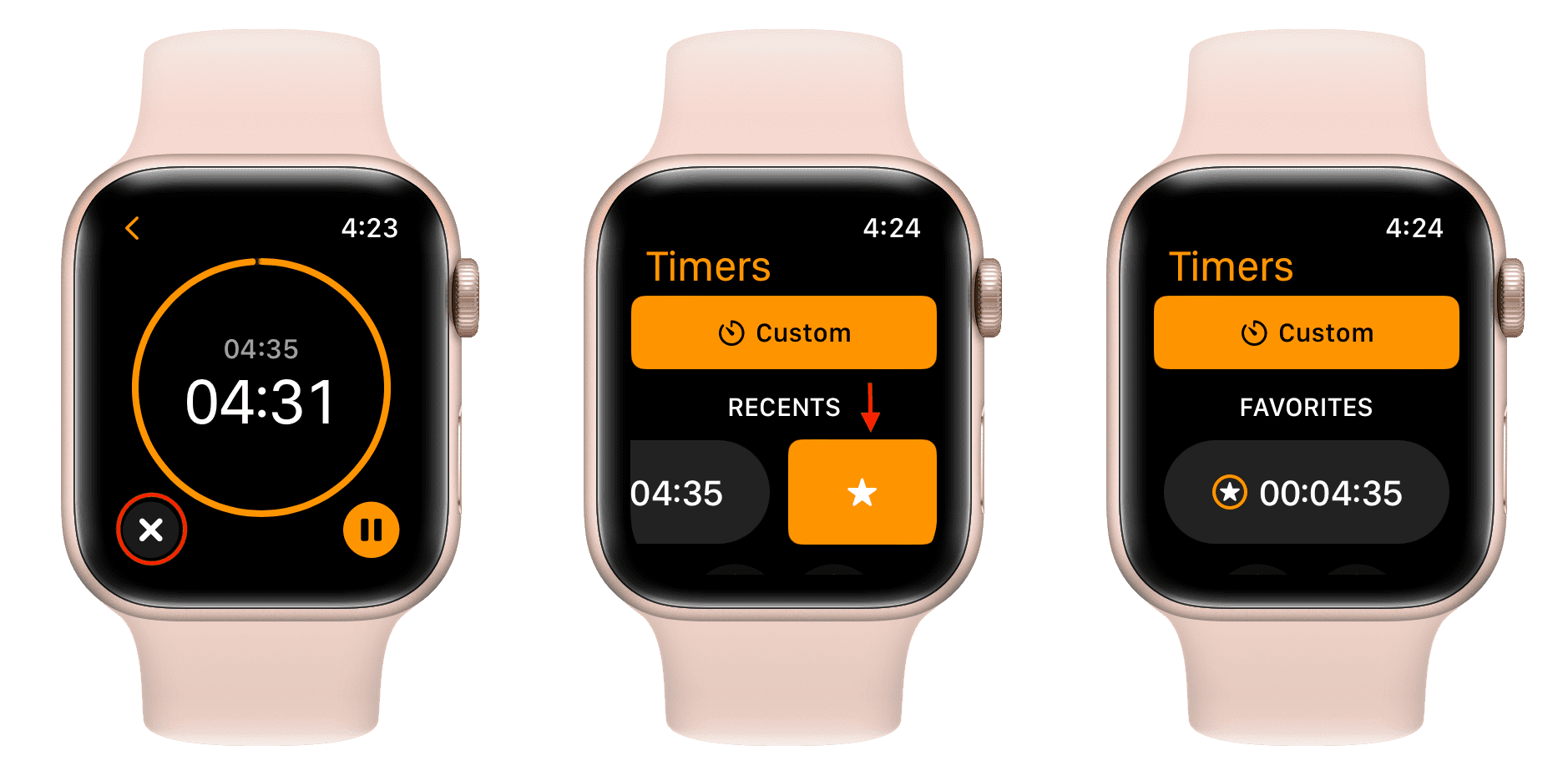
Enable the Timer Widget on Your Watch Face
Skip opening the app entirely by adding a Timer complication:
1. On your watch face, long-press to enter edit mode.
2. Tap Edit.
3. Tap the + icon to add a new complication.
4. Scroll and select Timers.
5. Choose your preferred display:
– Quick buttons (1, 3, 5, 10, 15 min)
– Up to three active timers
– Last used timer with restart option
6. Tap Done.
Now, swipe down from the top of your watch face to access the widget instantly.
Pro tip: Enable Double Tap in Settings > Accessibility > Touch > Double Tap. Then, double-tap your wrist to jump straight to the Timer widget—no swiping needed.
Run and Manage Multiple Timers

Start More Than One Timer
Apple Watch supports multiple concurrent timers:
1. Start your first timer (e.g., for rice).
2. Tap the back arrow to return to the Timers list.
3. Tap + to create a second timer (e.g., for broccoli).
4. Both run independently and appear in the list.
Each timer has its own controls: Pause, Resume, Cancel, or Loop after completion.
Expert tip: Use labeled Siri commands like “Set a 7-minute egg timer” so you know which is which.
Control a Running Timer
While counting down:
– Tap ⏸️ Pause to stop temporarily.
– Tap ▶️ Play to resume.
– Tap ❌ X to cancel.
– After it finishes, tap Loop to automatically restart.
Note: Looping only becomes available after the timer ends.
Customize Your Timer Presets
Edit, Reorder, and Delete Saved Timers
Make your Timer app work faster for your routine:
1. Open the Timer app.
2. Scroll down and tap Edit.
3. To:
– Delete a custom timer: Tap the red minus (-), then Delete
– Reorder timers: Press and hold the three-line icon, then drag
– Pin favorites: Move frequently used timers (like 25-minute work blocks) to the top
4. Tap Done.
Limitation: You can’t delete default presets (like 5 min), but you can reorder them.
Adjust How Your Timer Alerts You
Ensure You Hear and Feel the Alert
When the timer ends:
– You’ll feel a strong haptic pulse.
– If Silent Mode is off, a chime sounds.
To check settings:
1. Swipe up from the watch face to open Control Center.
2. Make sure the bell icon is not slashed (Silent Mode off).
3. Adjust the volume slider to increase sound.
Use case: Turn on Silent Mode during meetings—only vibration will alert you.
Customize Sound and Haptics
Fine-tune alert strength:
– On Apple Watch, go to:
Settings > Sounds & Haptics
– Adjust:
– Alert Volume
– Haptic Strength
– Prominent Haptic (stronger pulse)
Tip: Enable Prominent Haptic if you often miss alerts during workouts or noisy environments.
Use Advanced Timer Features
View Timer on Always On Display
On Apple Watch Series 5 and later:
– The timer updates once per second, even when your wrist is down.
– The screen dims but remains visible.
– Enable it via:
Settings > Display & Brightness > Always On Display → On
Perfect for: Monitoring cooking or workouts without flicking your wrist.
Sync Timers Between Apple Watch and iPhone
Timers started on one device appear on the other:
– Open Clock app > Timer tab on iPhone to:
– See active timers
– Pause or stop them remotely
– Same works in reverse—start a timer on iPhone, monitor it on your wrist.
Use when: Your watch is charging or out of reach.
Optimize Timer Use for Real Tasks
Cooking Made Easy
- Say:
“Hey Siri, set a 7-minute soft-boil egg timer.” - Label it so you know what it’s for.
- Use haptics to avoid kitchen noise.
Boost Focus with Pomodoro
- Create:
- 25-minute work timer
- 5-minute break timer
- Use Loop after each cycle.
- Keep both timers ready in the app.
Interval Workouts
- Set:
- 30 seconds (work)
- 30 seconds (rest)
- Start one, then the other—alternate manually or use Siri to label each.
Silent Meditation Timer
- Enable Silent Mode.
- Set a 10-minute timer.
- Rely on subtle haptics to end your session peacefully.
Laundry or Cleaning Reminders
- Set a 45-minute timer.
- Let haptics alert you—no need for sound.
Fix Common Timer Issues
Timer Didn’t Ring?
Check:
– Silent Mode is off (no slash through bell icon)
– Volume is turned up
– Do Not Disturb isn’t active
– Haptic alerts are enabled
Quick fix: Open Control Center and disable Silent Mode.
Widget Missing?
- The Timer widget may not appear if:
- It’s not added to your current watch face
- The face has no available complication slots
- Fix: Edit your watch face and add the Timers complication.
Timer Not Syncing to iPhone?
Ensure:
– Bluetooth is on
– Apple Watch is connected to iPhone
– Both devices have Wi-Fi or cellular signal
– Restart both devices if syncing fails
Note: Sync works best when both devices are nearby and unlocked.
Maximize Timer Efficiency
Restart Last Used Timer
- The most recent timer appears at the top of the list.
- Tap it anytime to restart instantly—no need to re-enter time.
Navigate Faster with Digital Crown
- Rotate the Digital Crown to scroll through apps.
- Land on the orange hourglass to open Timer quickly.
Use Without Opening App
- Once started, the timer runs in the background.
- Check it anytime by opening the app or viewing notifications.
No Need to Close
- There’s no “close” function.
- Press the Digital Crown or tap outside to exit.
- Timer continues running.
Summary: 5 Ways to Set a Timer
| Method | Steps | Best For |
|---|---|---|
| Preset Tap | Open Timer → Tap 5 min → Start | Speed and simplicity |
| Custom Timer | Add Timer → Set 3:01 → Start | Precision (e.g., eggs) |
| Siri Voice | “Set a 10-minute pasta timer” | Hands-free cooking |
| Watch Face Widget | Tap widget → Start | Instant access |
| Labeled + Multiple | Use Siri with name → Start another | Managing several tasks |
Key Timer Specs and Limits
- Max duration: 24 hours
- Min increment: 1 second
- Simultaneous timers: Unlimited (system-dependent)
- Accuracy: Syncs with system clock—highly reliable
- Battery use: Minimal—even during long countdowns
- Supported models: Apple Watch Series 1 and later
Note: Timers continue in Power Reserve mode if already running, but you can’t start new ones.
Knowing how to set a timer on Apple Watch puts powerful time management at your fingertips. Whether you’re cooking, working out, or staying productive, use presets for speed, labels for clarity, and haptics for discretion. With Siri, widgets, and multi-timer support, you’ll never miss a beat—or a boiled egg—again.




