

You’re cooking, your hands are covered in flour, and you need to set a timer. Or you’re mid-run and want to check your pace—without stopping. That’s where Siri on Apple Watch comes in. With just your voice or a simple flick of the wrist, you can control your world without touching your phone. Siri transforms your Apple Watch into a powerful, always-available assistant. Whether you’re new to the device or want to master voice commands, this guide covers every way to activate, customize, and use Siri effectively—complete with real-world tips and troubleshooting steps. You’ll learn how to speak naturally, avoid common mistakes, and unlock advanced features like home automation and accessibility tools.
Activate Siri Without Saying a Word

The fastest way to use Siri is without speaking at all—just raise your wrist.
Use Raise to Speak for Instant Access
Lift your wrist and start speaking immediately—Siri begins listening the moment the screen turns on. You don’t need to wait for a blur or animation. The microphone is active for about 7 seconds, giving you plenty of time to issue your command.
Pro Tip: Lower your wrist after speaking. Siri continues processing in the background and will tap your wrist when the task is complete.
If you find yourself accidentally triggering Siri while checking the time, disable this feature:
– Open Settings → Siri → Turn off Raise to Speak
This gives you full control over when Siri activates.
Talk to Siri Anytime, Anywhere
No need to touch your watch—just speak.
Say “Hey Siri” or “Siri” to Wake It Up
Say “Hey Siri” or simply “Siri” followed by your request. On newer Apple Watch models, you can even trigger Siri through fabric—perfect when wearing gloves or a jacket sleeve.
Note: Saying just “Siri” (without “Hey”) only works in select languages and regions.
To enable voice activation:
– Go to Settings → Siri → Turn on Listen for “Hey Siri”
– Follow the setup steps to train your voice
Once enabled, Siri listens even when your watch is face-down or covered.
Press the Digital Crown for Guaranteed Response
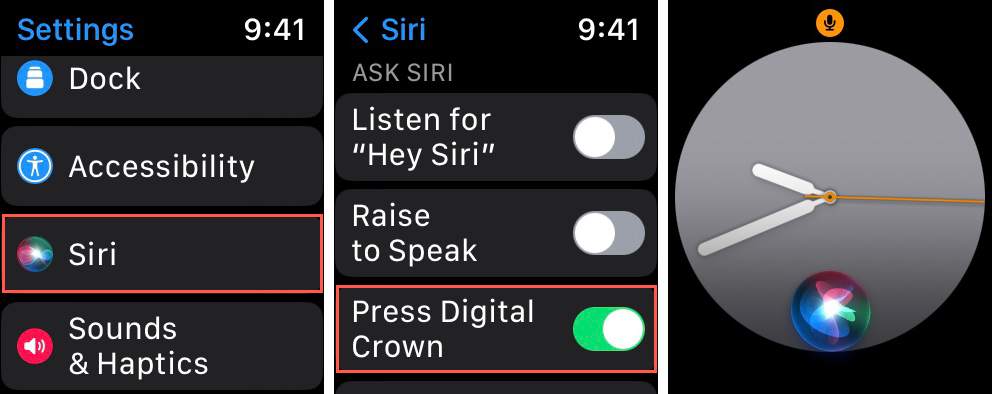
When voice commands fail, use the physical button.
Hold the Crown to Force Activation
Press and hold the Digital Crown until you see the pulsing waveform. Then speak your request. This method bypasses voice detection and ensures Siri is listening—ideal in noisy environments.
Best for: Gyms, busy streets, or when “Hey Siri” isn’t responding.
If you often press the crown by accident:
– Go to Settings → Siri → Turn off Press Digital Crown
This prevents unintended activations.
Speak Like a Pro: Get Siri to Understand You
Your speaking style makes a big difference in accuracy.
Use Full, Natural Sentences
Siri understands context best with complete phrases:
– ✅ “Set a timer for 10 minutes”
– ✅ “Remind me to call Mom when I get home”
– ❌ “Timer… uh… five… minutes?”
Avoid pauses, filler words (“um,” “like”), or fragmented speech.
Speak Clearly, Not Slowly
Surprisingly, speaking too slowly can confuse Siri. Use a natural, conversational pace:
– ✅ “Play jazz music from Apple Music”
– ❌ “Play… (pause)… jazz… (pause)… music…”
DO:
– Speak in one continuous sentence
– Enunciate clearly
– Lower your wrist after speaking
DON’T:
– Stare at the screen waiting for feedback
– Repeat commands immediately
– Assume failure without feeling for haptics
Fix Siri When It Won’t Respond
Troubleshoot common issues in seconds.
Check Your Internet Connection
Siri needs internet to work. Your Apple Watch connects via:
– Paired iPhone (Bluetooth/Wi-Fi)
– Direct Wi-Fi
– Cellular (on LTE models)
If your iPhone is out of range or has poor signal, Siri may fail.
Warning: Using Siri over cellular may incur data charges.
Force Siri to Listen with Hidden Tricks
If voice activation fails:
– Cover the screen with your hand, then double-tap the display
– Flick your wrist sharply to trigger raise-to-speak
These tricks bypass sensor lag and force the microphone to activate.
Restart or Re-pair Your Watch
If Siri remains unresponsive:
– Restart your Apple Watch
– Re-pair it via Watch app → My Watch → General → Reset
This clears glitches and restores normal function.
Customize How Siri Talks Back to You
Tailor responses to fit your lifestyle.
Choose When Siri Speaks Aloud
Set audio behavior:
– Open Settings → Siri → Siri Responses
– Select:
– Always: Spoken every time
– When Silent: Only in silent mode
– Only with Headphones: Audio via Bluetooth
Perfect for quiet offices or public transit.
Change Siri’s Language and Voice
Personalize your assistant:
– Go to Settings → Siri → Language
– Tap Siri Voice to pick dialect and gender
Voice options vary by language—choose one that feels natural to you.
See What You Say: Enable Siri Captions
Get text confirmation of your commands.
Turn On Visual Feedback
For clarity in noisy areas:
– Open Settings → Siri → Siri Responses
– Toggle on:
– Always Show Siri Captions (displays responses as text)
– Always Show Speech (shows what you said)
Use case: In a loud cafe, see your command transcribed before Siri acts.
This is also helpful for hearing accessibility.
Make Siri Work for Everyone

Use inclusive tools for better access.
Type to Siri Instead of Speaking
Speak with your fingers, not your voice.
Enable:
– Open Settings → Accessibility → Siri
– Turn on Type to Siri
After activation, a keyboard appears—type your request and send.
Perfect for: Speech impairments, quiet meetings, or public use.
Adjust Siri’s Listening Time
Give yourself more time to speak:
– Go to Accessibility → Siri → Siri Pause Time
– Choose: Normal, Longer, or Longest
Helpful if you need extra time to phrase your request.
Protect Your Privacy: Delete Siri History
Control your voice data.
Understand Apple’s Data Policy
Apple keeps Siri requests for up to 2 years to improve services:
– First 6 months: Linked to random identifier
– After 6 months: Disassociated from identity
No recordings are tied to your Apple ID.
Erase Your Siri Data Anytime
Delete history in seconds:
– Open Settings → Siri → Siri History
– Tap Delete Siri History
You’ll feel a haptic tap confirming deletion.
Privacy Tip: Do this regularly if you’re concerned about voice data storage.
Master the Most Useful Siri Commands
Unlock productivity, fitness, and smart home control.
Set Timers and Alarms Hands-Free
- “Set a timer for 3 minutes”
- “Change the timer to 5 minutes”
- “Wake me up in 20 minutes”
- “Set an alarm for 7 a.m. tomorrow”
Works during workouts—just say, “What time is it?”
Send Messages and Make Calls
Stay connected without touching your watch:
– “Tell Alex I’m running late”
– “Reply to Sam: ‘Sounds good!’”
– “Call Dr. Lee”
– “Send a message to Team Channel: ‘Meeting starts now’”
Replies use your default app unless specified.
Control Music and Media
Manage entertainment on the go:
– “Play music”
– “Skip this song”
– “Pause playback”
– “Play jazz from Apple Music”
Works with Bluetooth headphones.
Find Nearby Places
Get local info instantly:
– “Where’s the closest coffee shop?”
– “Show me pharmacies near me”
– “Find movie theaters nearby”
– “How far to the airport?”
Uses Apple Maps and location services.
Start and Manage Workouts
Begin fitness sessions with your voice:
– “Start an outdoor run”
– “Pause my workout”
– “Resume workout”
Siri logs activity in the Fitness app.
Automate Your Home
Control smart devices with natural language:
– “Turn on the living room lights”
– “It’s too dark in the kitchen” → Triggers lighting
– “I’ve guests” → Sets lights, music, AC
– “I want to watch TV” → Powers on TV, dims lights
– “It’s freezing in here” → Turns on heat at full power
Requirement: Set up via Shortcuts app or HomeKit.
Optimize Siri for Daily Use
Boost reliability and speed with smart habits.
Trust the Haptics
Siri communicates through taps:
– Single tap: Command received
– Double tap: Error or failed action
You don’t need to watch the screen—feel the feedback.
Avoid Common Mistakes
Don’t:
– Wait for visual blur before speaking
– Keep staring at the watch after speaking
– Assume Siri failed if silent
– Use fragmented speech
Do:
– Speak in full sentences
– Lower wrist immediately
– Feel for tap confirmation
– Ensure connectivity
Improve Success Rate
Under good conditions, Siri succeeds over 92% of the time. Failures usually stem from:
– Poor internet
– Background noise
– Hesitant speech
Once you trust the system, reliance grows fast.
Final Note: Siri on Apple Watch isn’t just convenient—it’s a paradigm shift in how we interact with technology. By mastering activation methods, speaking naturally, customizing responses, and using accessibility tools, you turn your wrist into a command center. Whether setting timers, messaging, or automating your home, Siri works best when you raise, speak, lower, and feel the tap. With cellular independence and future third-party integrations on the horizon, Siri is poised to become an indispensable part of daily life. Start using it today—the future is already on your wrist.





