
You’ve just unboxed your Apple Watch, and now you’re ready to take control of your fitness journey. One of the most powerful tools right out of the box is the Activity app—your personalized fitness dashboard that tracks movement, exercise, and daily standing in real time. Whether you’re aiming to close your rings every day or training for a personal best, knowing how to set up activity on Apple Watch correctly ensures you get accurate data, meaningful insights, and lasting motivation.
Setting up Activity is simple: during initial pairing, your Apple Watch prompts you to configure the three iconic rings. But if you skipped this step—or want to fine-tune your goals later—you can activate and customize everything in minutes. This guide walks you through activating Activity tracking, understanding each ring, starting workouts manually, syncing with third-party apps, and using advanced features like trends, awards, and challenges. You’ll also learn best practices for accuracy, troubleshooting common issues, and staying motivated long-term.
Let’s get your rings spinning—and keep them spinning.
Activate Activity Tracking on Apple Watch
If you didn’t complete the setup during initial pairing, don’t worry—you can enable Activity tracking anytime.
Open the Activity App and Get Started
- On your Apple Watch, tap the Activity app icon (it looks like three colored rings).
- Use the Digital Crown to scroll through descriptions of the Move (red), Exercise (green), and Stand (blue) rings.
- Tap Get Started to begin tracking.
Once activated, your Apple Watch starts collecting data automatically using motion sensors, heart rate, and personal metrics like age, weight, and height. Just wear it throughout the day—walking, working, or cleaning—and it will begin filling your rings.
Tip: If you don’t see the Activity app on your home screen, press the Digital Crown to open the app grid and search for “Activity.”
Understand What Each Activity Ring Measures
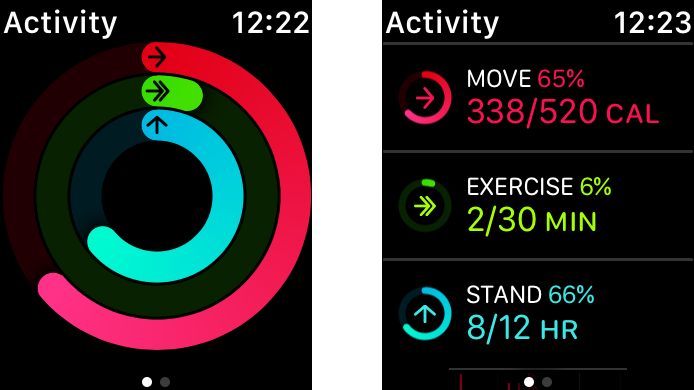
The three-ring system is the heart of Apple Watch’s fitness tracking. Each ring represents a different type of daily movement, and closing all three means you’ve met your personalized goals.
Move Ring (Red): Track Active Calories Burned
The red Move ring measures active calories—the energy you burn above your resting metabolic rate.
- Your goal is set based on your profile and initial activity level.
- Activities like brisk walking, gardening, or dancing contribute.
- Only active calories count—not total calories.
Pro Tip: A 20-minute brisk walk often closes a moderate Move goal. The faster and longer you move, the more you earn.
Exercise Ring (Green): Log Brisk Activity
The green Exercise ring tracks time spent in moderate to vigorous activity—anything that raises your heart rate significantly.
- Counts any session of at least 1 minute where intensity meets exercise level.
- Running, cycling, stair climbing, or a Workout app session all qualify.
- Default goal is 30 minutes/day, but you can adjust it.
Warning: Casual strolling won’t count. Your heart rate must rise consistently.
Stand Ring (Blue): Break Up Sedentary Time
The blue Stand ring encourages you to stand and move for at least one minute in 12 different hours of the day.
- You’ll get hourly Stand reminders if you’ve been sitting too long.
- For wheelchair users, this becomes the Roll ring, tracking rolling activity.
Key Insight: You don’t need to walk—just stand, shift your weight, and stay active.
View Daily Progress and Weekly Summary
Check your rings anytime to see how close you are to closing them.
Access Real-Time Activity Dashboard
- Open the Activity app.
- Turn the Digital Crown to scroll through:
– Active calories
– Exercise minutes
– Stand hours
– Steps, distance, flights climbed
An overlapping ring means you’ve exceeded your goal in that category.
Pull Up Weekly Summary
- In the Activity app, tap the chart icon (top-right).
- Review:
– Daily ring completion
– Weekly averages
– Consistency over time
Use this to spot dips—like low activity on weekends—and adjust your routine accordingly.
Adjust Your Activity Goals as Fitness Improves
Your goals don’t have to stay fixed. As you get fitter, update them to stay challenged.
Change Goals Directly on Apple Watch
- Open Activity.
- Swipe up and tap Change Goals.
- Use the Digital Crown to adjust:
– Move (calories)
– Exercise (minutes)
– Stand (hours) - Tap Update.
Modify via iPhone for More Control
- Open the Watch app on iPhone.
- Go to My Watch > Activity.
- Tap:
– Change Move Goal
– Change Exercise Goal
– Change Stand Goal
Best Practice: Increase goals gradually. A sudden jump can be discouraging.
Start Workouts Manually for Accurate Tracking
While Apple Watch detects movement automatically, starting workouts manually gives richer data.
Launch a Workout Session
- Open the Workout app.
- Scroll to select:
– Running
– Cycling
– Swimming
– Yoga
– HIIT
– Weight Training
– Other - Tap Start.
Wait for the 3-second countdown, then begin.
Time Estimate: Takes less than 15 seconds to launch.
What Apple Watch Tracks During Workouts
- Duration and heart rate
- Active vs. total calories
- Distance and pace (outdoor/indoor)
- Elevation gain (flights climbed)
After finishing, swipe left to save or discard the session.
Pro Tip: For swimming, enable Water Lock before entering water. Turn the Digital Crown afterward to unlock and clear water.
Why Manual Workouts Beat Auto-Detection
Auto-detection is helpful, but manual tracking delivers superior results.
Benefits of Starting Workouts Manually
✅ Detailed post-workout summary in Fitness app
✅ Heart rate zone analysis (light, moderate, vigorous)
✅ Full credit toward Exercise ring
✅ Syncs completely with Apple Health and third-party apps
Example: A manually started run shows pace splits, elevation, and GPS route. Auto-detected walks only log time and calories.
Limitations of Auto-Detection
- Prompts only after 10+ minutes of brisk movement.
- Less precise metrics.
- No GPS data unless Workout was started.
Fix: Always start structured workouts manually—especially runs, cycles, and strength sessions.
Optimize for Strength and Circuit Training
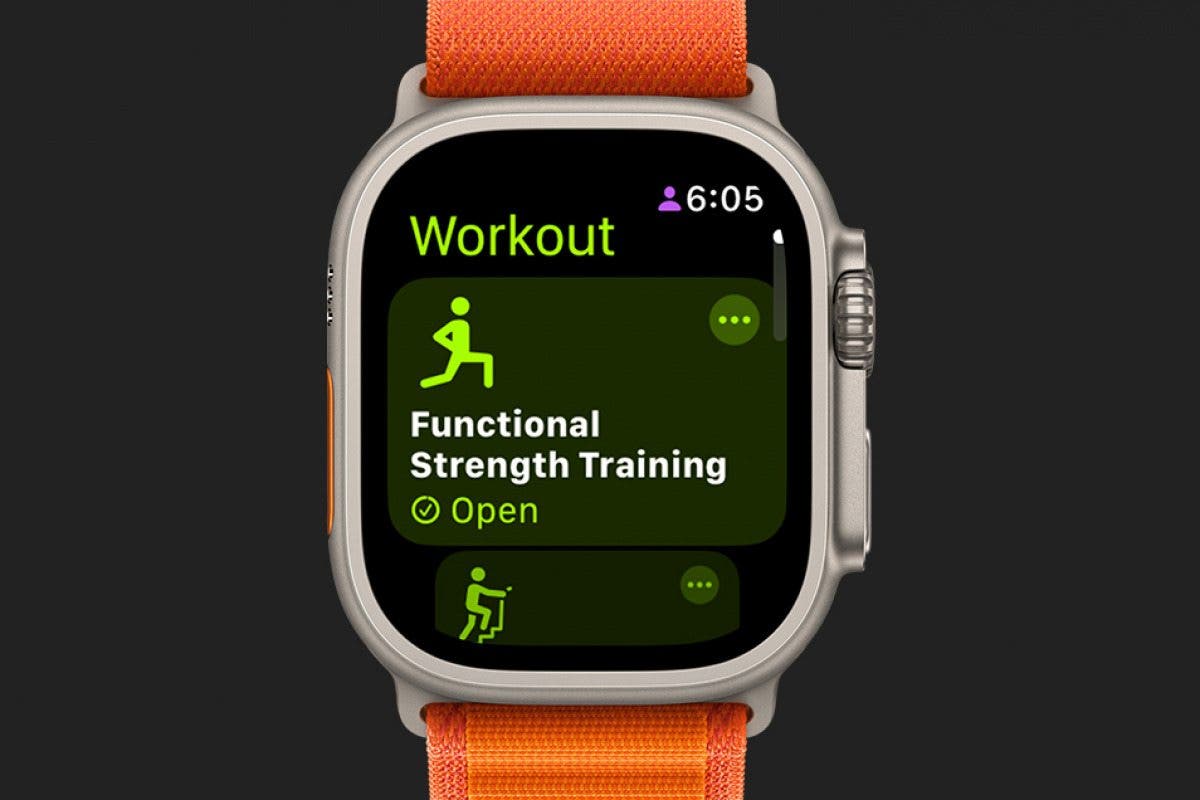
Weightlifting and HIIT need the right settings for accurate tracking.
Use “Weight Training” Mode
- In Workout app, select Weight Training.
- Start and leave it running.
Apple Watch automatically:
– Detects active sets vs. rest
– Tracks total time
– Estimates calories burned
No need to pause between sets.
Expert Note: Rep counting isn’t supported, but heart rate and duration provide solid insights.
Track Hybrid or Unlisted Workouts
For circuit training or bootcamp classes:
- Choose Other as workout type.
- Name it (e.g., “Full Body Burn”).
- Start tracking.
You’ll still get:
– Time
– Heart rate
– Calories
– Intensity data
Shortcut: Save frequently used “Other” workouts for one-tap access.
Sync With Third-Party Fitness Apps
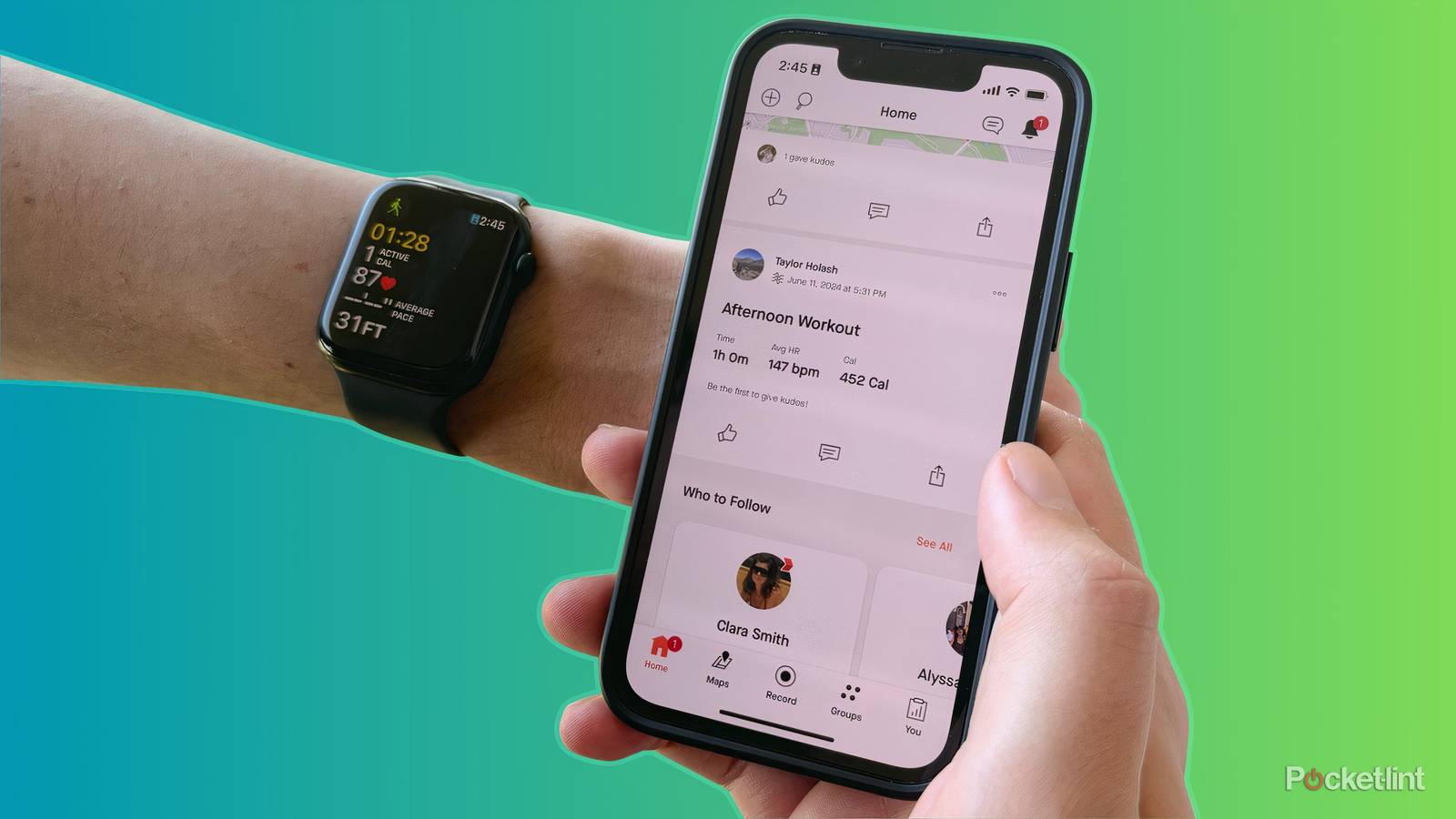
Boost functionality with apps from the App Store.
Top Recommended Apps
- Strong: Rep tracking and set timers for lifting
- Nike Training Club: Guided strength and mobility workouts
- Strava: GPS tracking and performance analytics
- MapMyWorkout: Route logging and voice feedback
- Headspace / Calm: Meditation minutes synced to Mindfulness
Enable Health Permissions
- On iPhone: Settings > Privacy & Security > Health > Apps
- Select your app (e.g., Strava)
- Toggle on access for:
– Workouts
– Heart Rate
– Active Energy
– Distance
Note: Some apps require premium subscriptions for full Apple Watch support.
Add Quick Access to Workouts
Launch workouts faster with a watch face complication.
Add Workout Shortcut
- Press side button to view watch faces.
- Long-press to enter edit mode.
- Tap Edit, then choose a complication.
- Select Workout.
- Tap Set.
Now, tap the complication to open the Workout app instantly.
Time-Saver: Cuts workout start time by 5+ seconds.
Enable Activity Reminders and Coaching
Stay motivated with smart alerts and personalized tips.
Types of Notifications
- Stand Reminders: Hourly prompts to stand
- Move Updates: “You’re close to closing your Move ring!”
- Exercise Alerts: “Only 5 minutes left to reach your goal.”
- Daily Coaching: Custom tips like “Walk 0.3 miles more today.”
- Weekly Summary: Every Monday, review last week’s performance
Manage Notifications
On iPhone:
1. Open Watch app > My Watch > Activity
2. Toggle on/off:
– Stand Reminders
– Exercise Reminders
– Daily Coaching
On Apple Watch:
– Open Settings > Activity to disable Daily Coaching temporarily.
Pro Tip: Keep reminders on—they boost accountability.
Review Long-Term Trends and Earn Awards
After 6+ months of data, Apple shows fitness trends in the Fitness app.
Access Trends
- Open Fitness app on iPhone.
- Tap Trends.
- Compare last 90 days vs. last 365 days.
Monitored Metrics
- Active calories
- Exercise minutes
- Stand hours
- Walking distance
- Cardio fitness (VO2 max)
- Pace
Trend Symbols
- ↗️ Upward arrow: Maintaining or improving
- ↘️ Downward arrow: Decline detected
If a drop occurs, you’ll get personalized coaching to improve.
Requirement: Wear Apple Watch consistently for at least 6 months.
Check Your Activity Awards
On Apple Watch:
1. Open Activity app.
2. Tap the trophy icon.
3. Browse:
– Monthly Challenges
– Personal Records
– Streaks
– Competition Wins
On iPhone: Open Fitness app > Awards
Some awards can be earned repeatedly—perfect for long-term motivation.
Compete With Friends and Use Siri
Turn fitness into friendly competition.
Start a 7-Day Challenge
- Open Activity app.
- Swipe left to see friends’ rings.
- Tap a contact > Challenge.
Results appear automatically after 7 days.
Add Friends
On iPhone:
1. Open Fitness app.
2. Tap Sharing tab.
3. Tap + to invite contacts.
Requirement: Both users need Apple ID and iMessage enabled.
Motivation Boost: Social challenges increase weekly activity by 20–30%.
Use Siri to Check Activity
Get updates hands-free:
- “How are my Activity rings?”
- “Did I close my Move ring?”
- “Show me my weekly summary.”
Pro Tip: Use Siri while driving or cooking to stay informed.
Maintain Accuracy With Best Practices
Ensure reliable tracking with proper wear and calibration.
Wear It Right
- Snug fit, one finger above wrist bone.
- Tight enough for skin contact, not too tight.
- Wear during workouts for accurate heart rate.
Warning: Loose fit leads to undercounted calories.
Keep It Charged and Updated
- Charge nightly or maintain 30%+ battery.
- Install latest watchOS updates.
- Enable Always-On Display for easy checks.
Calibrate for Better Distance
- Go outdoors with GPS.
- Start a walk or run in Workout app.
- Run for at least 20 minutes over varied terrain.
- Repeat monthly.
Result: Indoor distance tracking becomes more accurate.
Final Tips for Optimal Activity Tracking
✅ Start every workout manually—especially runs, lifts, and HIIT
✅ Use “Weight Training” or “Other” for strength and hybrid sessions
✅ Adjust goals monthly as fitness improves
✅ Wear snugly and charge nightly
✅ Sync with Strong, Strava, or NTC for deeper insights
✅ Review Trends every few months
✅ Turn on Daily Coaching for motivation
✅ Challenge friends weekly
✅ Check awards to celebrate streaks
✅ Ask Siri for quick updates
By mastering how to set up activity on Apple Watch, you turn a smartwatch into a powerful fitness partner. Close those rings, beat your records, and build habits that last.





