
If you’re using your Apple Watch to track workouts but still guessing whether you’re pushing too hard or not hard enough, you’re missing one of its most powerful fitness tools: heart rate zones. Introduced with watchOS 9, this feature gives real-time feedback on your effort level during cardio sessions, helping you train smarter—not harder. But here’s the catch: heart rate zones don’t always appear automatically, even if your watch is fully updated. Many users start a walk or run only to find no zone data on screen, leaving them in the dark about intensity.
The good news? Fixing this is simple. Whether you want to optimize fat-burning walks, nail your interval training, or review post-workout performance, the Apple Watch delivers—if configured correctly. This guide shows you exactly how to enable, customize, and interpret heart rate zones so you can train with precision. We’ll walk through every step—from setting up real-time display to troubleshooting missing data—based on official Apple functionality and user-tested workflows.
Enable Heart Rate Zones in Workout Settings
Before you can see heart rate zones during exercise, you must ensure they’re activated in your Apple Watch settings. While zones are enabled by default on newer models, it’s worth double-checking to avoid confusion later.
Check Heart Rate Zone Mode
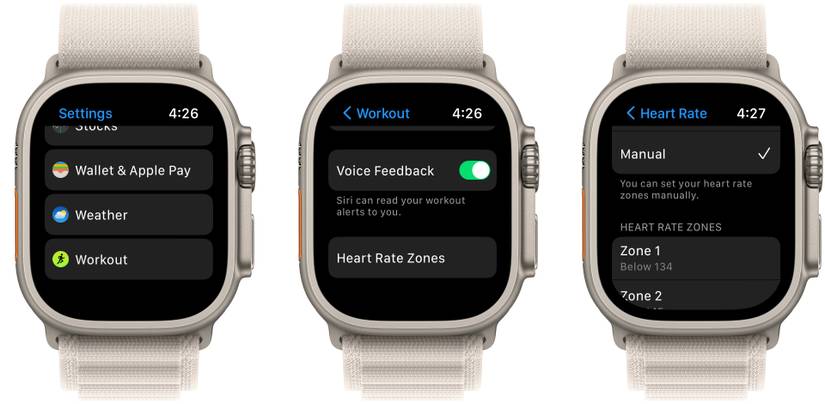
- Open the Settings app on your Apple Watch.
- Scroll down and tap Workout.
- Tap Heart Rate Zones.
- Confirm the toggle at the top is set to Auto.
When set to Auto, Apple calculates your zones monthly using the Heart Rate Reserve (HRR) method, which considers your age, resting heart rate, and health data from the iPhone’s Health app. This ensures your zones adapt as your fitness improves.
⚠️ Warning: If “Manual” is selected, your zones won’t update automatically. You’ll need to manually adjust them over time to stay accurate.
Also, make sure your birthdate is entered in the Health app on iPhone, as Apple uses it to estimate your maximum heart rate (Max HR), which forms the foundation of zone calculations.
Use Supported Cardio Workouts for Real-Time Zones
Not all workouts show heart rate zones in real time. Only cardio-focused activities support live zone tracking. If you’re doing a general “Outdoors Walk (Open Goal),” you might not see your zone—even though it’s being recorded.
Supported Workout Types
These activities do display real-time heart rate zones:
- Outdoor Run
- Indoor Run
- Outdoor Walk
- Indoor Walk
- Cycling (indoor/outdoor)
- Elliptical
- Rowing
- HIIT
- Stair Stepper
- Functional Strength Training
❌ Avoid Open Goal walks for real-time feedback—they often don’t show zones live, even if you’ve customized the display.
For reliable on-screen zone tracking, choose Outdoor Run or HIIT when walking for fitness, especially if you need constant feedback.
Customize Workout Display to Show Heart Rate Zones
Even with a supported workout, heart rate zones won’t appear unless you’ve manually added them to your display. By default, only metrics like time and heart rate are visible.
Edit Workout Views on Apple Watch
- Open the Workout app.
- Turn the Digital Crown to scroll to your preferred workout (e.g., Outdoor Walk).
- Tap the More button (three dots).
- Tap Edit.
- Select Workout Views > Edit Views.
- Scroll down and tap Include next to:
– Heart Rate
– Heart Rate Zone - Go back and tap Edit under Metric 1 or Metric 2.
- Set one to Heart Rate Zone for top-screen visibility.
- Tap Done.
Now, when you start a workout, your current zone will appear—either front and center or just a swipe down away.
✅ Pro Tip: Set Heart Rate Zone as Metric 1 so it’s instantly visible without swiping.
View Heart Rate Zones During Exercise
Once configured, accessing your zone mid-workout takes seconds.
Access Zones on Active Screen
- Start a supported workout (e.g., Outdoor Run).
- Swipe down on the workout screen.
- Your current heart rate and zone label will appear (e.g., “Zone 2 – Light”).
- Swipe left or right to cycle through pace, distance, or calories.
The zone updates instantly as your effort changes. For example, if your heart rate crosses 70% of Max HR, you’ll jump from Zone 2 to Zone 3 in real time.
🔍 Visual Cue: A sudden spike or drop in zone indicates effort change. If it doesn’t update, check for poor sensor contact—clean the back of your watch and ensure a snug fit.
Understand the Five Heart Rate Zones
Apple divides effort into five scientifically backed zones based on percentages of your maximum heart rate (Max HR).
Zone 1: Very Light (50–60% Max HR)
Used for warm-ups, cool-downs, or recovery days. Promotes circulation and recovery without strain. Ideal after intense workouts.
Zone 2: Light (60–70% Max HR)
Known as the “fat-burning zone” because your body uses more fat than carbs for fuel. Perfect for long, steady cardio like brisk walks or light jogs.
🕒 Ideal Session: 45-minute walk with heart rate steady at 60–70% of Max HR.
Zone 3: Moderate (70–80% Max HR)
Improves cardiovascular endurance. You can talk in short sentences but not sing. Common in tempo runs or moderate cycling.
Zone 4: Hard (80–90% Max HR)
Boosts anaerobic threshold and speed. Breathing is heavy; conversation is difficult. Best for hill climbs or intervals.
Zone 5: Maximum (90–100% Max HR)
All-out effort, sustainable for brief bursts. Used in sprints or HIIT. Limit to 5–10% of weekly training to avoid overtraining.
⚠️ Caution: Prolonged time in Zone 5 increases injury risk. Use sparingly.
Find and Verify Your Maximum Heart Rate
Your Max HR sets the ceiling for all zones. Apple estimates it using the formula:
220 – Age
But you can verify or update it.
View Max HR on iPhone
- Open the Apple Watch app.
- Tap My Watch > Workout > Heart Rate Zones.
- Scroll down to Max Heart Rate.
View Max HR on Apple Watch
- Go to Settings > Workout > Heart Rate Zones.
- Swipe down to see estimated Max HR.
🔄 Note: This value updates automatically on the first day of each month in Auto mode.
Manually Set Custom Heart Rate Zones (For Advanced Users)
Athletes with lab-tested data (like lactate threshold) can override Apple’s default zones.
Switch to Manual Mode
On iPhone:
- Open Apple Watch app > Workout > Heart Rate Zones.
- Tap Manual.
- Enter BPM values for each zone ceiling:
– Zone 1 Up To: ___ bpm
– Zone 2 Up To: ___ bpm
– Zone 3 Up To: ___ bpm
– Zone 4 Up To: ___ bpm - Tap Done.
On Apple Watch:
Same path: Settings > Workout > Heart Rate Zones > Manual
💡 Expert Tip: If your lactate threshold is at 165 bpm, set Zone 4 to end at 165 to align training zones with performance data.
Review Heart Rate Zones After Your Workout
Even if zones don’t show live, Apple records the data. You can analyze it later in the Fitness app.
Check Post-Workout Zone Breakdown
- Open the Fitness app on iPhone.
- Tap Summary > select workout date.
- Tap the workout entry.
- Swipe down to Heart Rate graph.
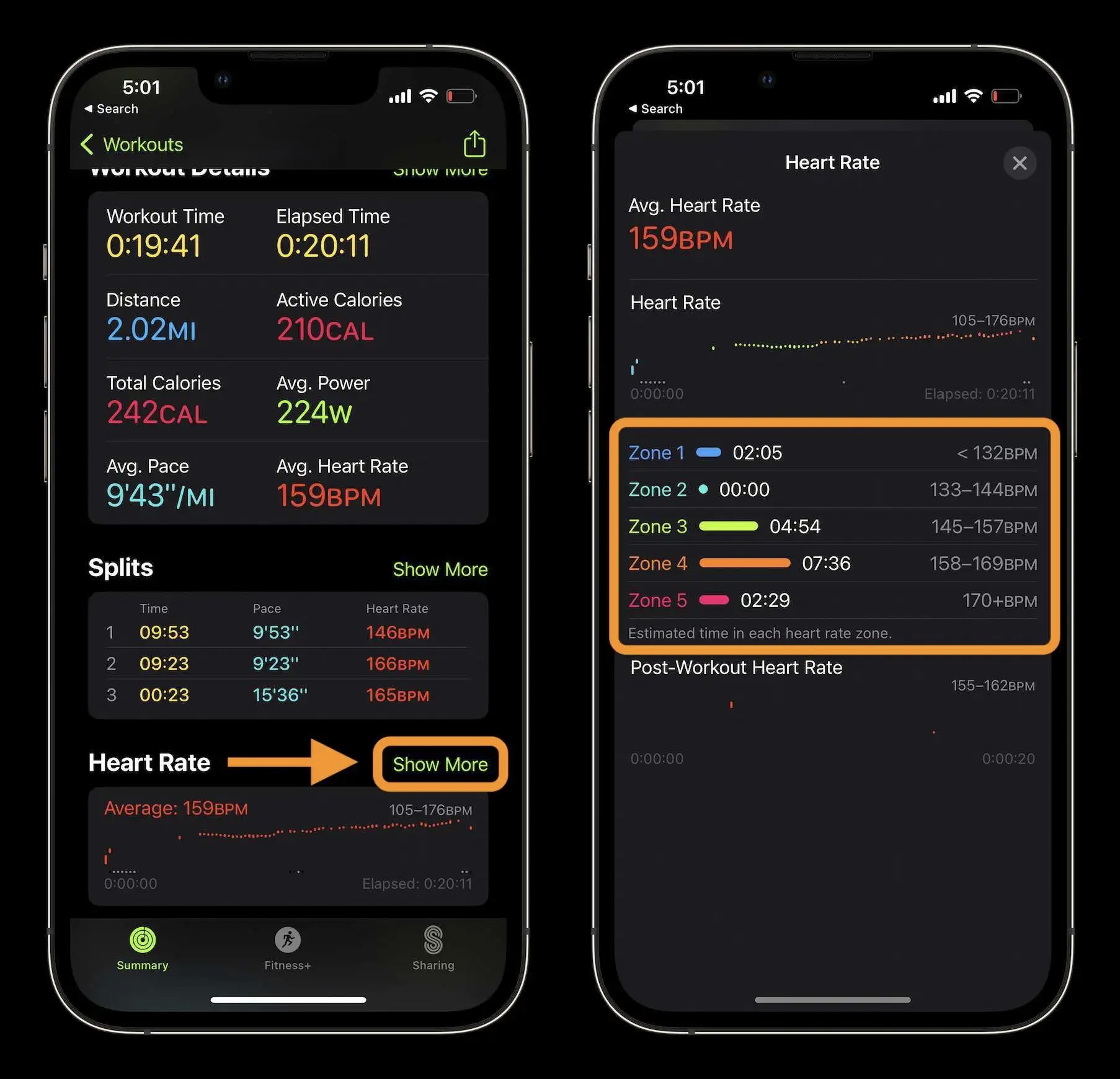
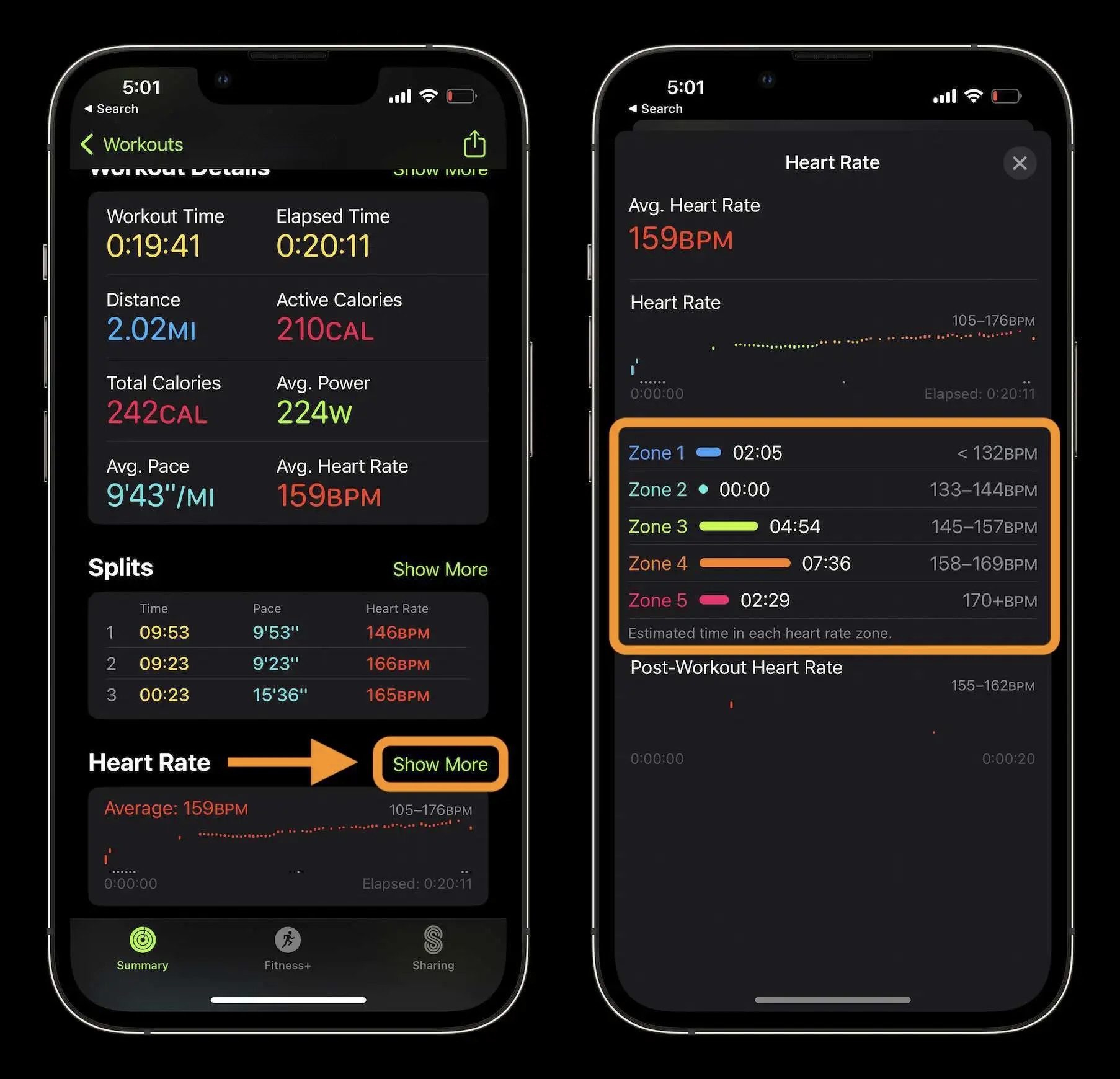
- Tap Show More.
- View:
– Time spent in each zone
– Color-coded timeline of effort distribution
📈 Use Case: Spent 80% of your walk in Zone 1? Great for recovery. But if you aimed for Zone 2, you might need to pick up the pace next time.
Fix Common Issues With Missing Zones
Problem: No Zone During Walk Workouts
- Cause: Default view excludes zone metric.
- Fix: Edit Workout Views and include Heart Rate Zone.
✅ Workaround: Use Outdoor Run for walks if real-time feedback is essential.
Problem: Can’t Tap “More” or “Edit”
- Causes: Outdated software, frozen interface, or app glitch.
- Solutions:
- Update to watchOS 9+
- Restart Apple Watch
- Force quit Workout app (press side button > swipe up)
Problem: Zones Not Updating Monthly
- Cause: Manual mode is active.
- Fix: Return to Heart Rate Zones and select Auto.
Optimize Training With Zone Data
Heart rate zones aren’t just numbers—they’re training tools.
Burn Fat Efficiently
Spend 30–60 minutes in Zone 2 during walks or jogs. This effort maximizes fat oxidation and builds endurance.
Build Aerobic Capacity
Alternate Zone 3 (moderate) and Zone 4 (hard):
– 5 minutes Zone 3
– 2 minutes Zone 4
– Repeat 4x
Improves VO₂ max and stamina.
Prevent Overtraining
If most workouts are in Zone 4–5, you’re likely overreaching. Balance with Zone 1–2 recovery sessions.
🧠 Expert Insight: “Train your aerobic system, not just your muscles,” says trainer Erin Carr. Heart rate zones make that possible.
Final Checklist: Show Heart Rate Zones Successfully
Before your next workout:
- [ ] Running watchOS 9 or later
- [ ] iPhone on iOS 16 or newer
- [ ] Birthdate entered in Health app
- [ ] Workout type supports real-time zones
- [ ] Workout Views edited to include Heart Rate Zone
- [ ] Heart Rate Zone set as Metric 1 or 2
- [ ] Auto mode enabled (unless using custom zones)
Check all boxes? You’ll see your zone the moment you start exercising.
By taking just a few minutes to configure your Apple Watch, you unlock real-time, science-backed feedback that transforms your training. No more guessing—just precise, personalized effort tracking every time you move.




