
You’re out for a run with just your Apple Watch on your wrist—no phone, no bag—when a call comes in. You miss it. Later, you tap “Call Voicemail” on your watch, only to hear a robotic voice say: “The person you’ve called does not have a voicemail box set up.” Frustration sets in. You paid for cellular service, so why isn’t voicemail working?
Here’s the reality: you can’t set up voicemail directly on the Apple Watch. Unlike the iPhone, there’s no built-in setup wizard or native configuration screen. Instead, voicemail depends entirely on your carrier, plan type, and how your number is configured. This guide cuts through the confusion with real-world tested steps to get your Apple Watch voicemail working—whether you’re using it with an iPhone or as a standalone device.
Confirm Your Plan Supports Independent Voicemail
Before touching any settings, verify your cellular plan actually allows voicemail on the watch.
Standalone vs. Shared Number: What Works?
- Standalone Plan (Best Option): Your Apple Watch has its own phone number and cellular service. This setup can support a dedicated voicemail box—but only if your carrier enables it.
- Shared Number (e.g., AT&T NumberSync, Verizon Number Share): Calls ring both devices, but voicemail routes to the iPhone. If the phone is off or out of range, missed calls may go unanswered.
⚠️ Critical Insight: Even with a standalone plan, voicemail isn’t automatically activated. Many users pay extra for service that doesn’t work until the carrier manually provisions it.
Which Carriers Support Voicemail?
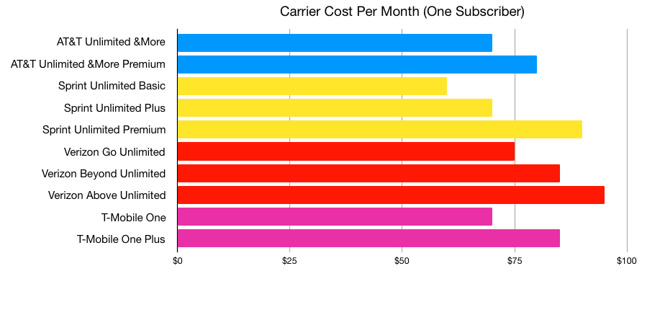
| Carrier | Voicemail Support | Plan Required |
|---|---|---|
| Verizon | ✅ Yes (with activation) | Standalone Unlimited (+$8) |
| AT&T | ❌ No (routes to phone) | NumberSync only |
| T-Mobile | ✅ Possible | Magenta MAX or equivalent |
| MVNOs | ❌ Rarely | Often no Apple Watch support |
📌 Tip: If setting up a watch for a child or someone without a phone, avoid AT&T NumberSync—it won’t provide independent voicemail.
Set Up Voicemail Using Your Paired iPhone
If your Apple Watch shares a number with an iPhone, this is the fastest way to enable voicemail.
Access Voicemail Settings on iPhone
- Open the Phone app on your paired iPhone.
- Tap the Voicemail tab (bottom right).
- Tap Greeting.
- Choose:
– Default: Uses your carrier’s standard message.
– Custom: Record a personal greeting (e.g., “Hi, this is Alex. Leave a message.”). - Tap the ✓ (Checkmark) to save.
Now, when calls to your shared number go unanswered—whether on iPhone or Apple Watch—they’ll go to this voicemail box.
🔊 Test It: Call your number from another phone and hang up after the greeting plays. If it works, you’ll hear your voicemail message.
Limitations of This Method
- Only sets up iPhone-linked voicemail, not independent watch voicemail.
- Won’t work if the watch has a unique number.
- Wi-Fi Calling disables voicemail setup on shared-number watches.
Activate Voicemail Without an iPhone
No iPhone? No problem—but you’ll need to take manual control.
Call Your Apple Watch to Initialize Voicemail
This method forces your carrier’s system to recognize the number and prompt setup.
Step-by-Step:
- Use another phone (a friend’s or spare device).
- Dial your Apple Watch’s phone number.
- Let it ring until it goes to voicemail.
- When the greeting starts (or silence plays), press * or #.
- If prompted:
– Enter a voicemail password (try 0000, 1111, or your PIN).
– Follow voice prompts to set a new password and record a greeting.
💡 Pro Tip: If nothing happens, your carrier hasn’t provisioned a voicemail box. Move to the next step.
Contact Carrier Support to Enable Voicemail

For standalone Apple Watches, this is often the only way to get voicemail working.
Verizon: How to Get Voicemail Activated
Many users are told voicemail isn’t supported—until they push further.
What to Say to Support:
“I have an Apple Watch with a standalone cellular plan. I need a dedicated voicemail box provisioned for its number. Please confirm that voicemail service is enabled at the network level and assign the correct voicemail number.”
Ask the rep to:
– Verify voicemail provisioning.
– Check if the voicemail number is set (usually your own number).
– Test by calling the watch and leaving a message.
📞 User Report: One parent spent 4 hours with Verizon before a supervisor activated voicemail in under 3 minutes.
AT&T: Limited Voicemail Options
- NumberSync ties all voicemail to the primary iPhone.
- No standalone voicemail for Apple Watch.
- If Wi-Fi Calling is on, voicemail setup may be blocked entirely.
🛑 Warning: AT&T’s official support confirms voicemail must be set up on the iPhone—not the watch.
T-Mobile and MVNOs
- T-Mobile: Likely supports standalone voicemail, but reps may not know how to enable it.
- Mint Mobile, Visible, etc.: Most do not support Apple Watch cellular, so voicemail is unlikely.
Use the Phone App on Apple Watch to Access Voicemail
Once voicemail is active, your Apple Watch lets you listen to messages—but not set them up.
Play Voicemail Messages
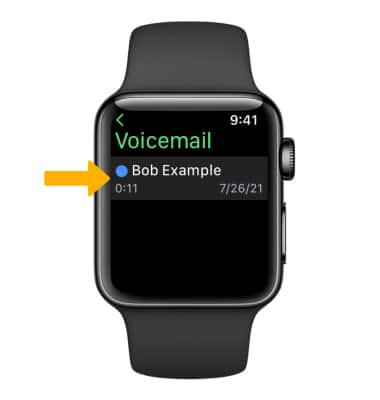
- On your Apple Watch, open the Phone app.
- Tap Voicemail.
- Select a message and tap Play.
You’ll hear the message through the speaker or connected Bluetooth headphones.
What You Can’t Do on the Watch
- ❌ Record or change your greeting
- ❌ Set or reset your password
- ❌ View voicemail settings
🔒 All configuration must happen via iPhone or carrier system.
Troubleshoot Common Voicemail Issues
“Call Voicemail” Dials and Disconnects
Why It Happens:
- Voicemail box not provisioned.
- Number not linked to a voicemail service.
Fix:
- Call your Apple Watch from another phone.
- Let it ring to voicemail.
- Press * or # to trigger setup.
- If no response, contact carrier to enable service.
“No Voicemail Box Set Up” Message
What Callers Hear:
“The person you’ve called does not have a voicemail box set up.”
Causes:
- Carrier hasn’t activated voicemail.
- Plan doesn’t include voicemail.
- Watch was never initialized.
Solution:
- Confirm your plan includes voicemail.
- Call your number from another device and follow prompts.
- Escalate to carrier tech support—frontline reps often lack training.
Forgotten Voicemail Password
Can’t Reset on Watch or iPhone?
You’ll need carrier help.
Steps:
- Call your carrier’s customer service.
- Verify account ownership.
- Request a voicemail password reset.
- Follow new prompts to set a password by calling your number.
📌 Note: Some carriers reset this at the SIM level—may require reactivation.
Set Up Voicemail for Kids Using Family Setup
Parents using Family Setup face unique challenges.
Key Facts:
- Apple Watch can have its own plan via Family Setup.
- Child doesn’t need an iPhone.
- But voicemail isn’t automatic—must be enabled by carrier.
How to Succeed:
- Use Verizon or T-Mobile (AT&T won’t work).
- Choose a standalone unlimited plan.
- Call support and demand voicemail provisioning.
- Test by having a family member call and leave a message.
🎯 Real-World Case: A teen missed job interview callbacks because voicemail wasn’t set up. After carrier activation, messages started coming through.
Model and Software Requirements
Supported Apple Watches
- Apple Watch Series 3 (GPS + Cellular) and later
- Apple Watch SE (1st & 2nd gen, cellular)
- Apple Watch Ultra, Ultra 2
- Apple Watch Series 9, 10
System Requirements
- watchOS 7 or later
- iOS 14 or later (for Family Setup)
- Active cellular plan with carrier support
🔄 Update Tip: Always update to the latest watchOS—Apple occasionally improves carrier integration.
Prevent Future Voicemail Failures
Maintenance Tips
- ✅ Test monthly: Have someone call and leave a message.
- ✅ Write down your voicemail password—store it securely.
- ✅ Avoid Wi-Fi Calling if using AT&T NumberSync.
- ✅ Keep carrier account info handy for support calls.
When to Reset
If voicemail stops working:
1. Restart your Apple Watch.
2. Reset network settings (Settings > General > Transfer or Reset > Reset > Reset Network Settings).
3. Re-pair with iPhone if needed.
4. Call carrier to reconfirm voicemail status.
Final Checklist: Get Voicemail Working
✅ Confirm your plan supports standalone voicemail
✅ Use Verizon or T-Mobile (avoid AT&T NumberSync)
✅ Call your Apple Watch from another phone to initialize
✅ Contact carrier and demand voicemail provisioning
✅ Test by having someone leave a message
✅ Record a custom greeting via phone prompts
🛎️ Bottom Line: Apple builds the hardware. Your carrier controls the voicemail. Don’t assume it works—verify, activate, and test.
Final Note: Setting up voicemail on Apple Watch isn’t plug-and-play. It takes patience, the right plan, and often, a firm conversation with your carrier. But once it’s live, you’ll never miss an important call again—even without a phone in your pocket.




