
If your Apple Watch isn’t vibrating when you receive a text, you’re not imagining things—and it’s likely not broken. The issue usually lies in how Apple’s ecosystem manages notifications across devices. By default, your iPhone takes priority when unlocked, meaning your watch stays silent even if it’s on your wrist. But with a few targeted settings changes, you can ensure your Apple Watch vibrates reliably for every incoming message.
The key is understanding that Apple doesn’t offer a “vibrate for every text” toggle—instead, it uses smart routing to avoid alert overload. That means if your iPhone is awake, the notification goes there, not to your wrist. However, by customizing haptics, adjusting notification behavior, and managing device states, you can make your watch the go-to alert device. This guide walks you through every step—from basic haptic settings to advanced troubleshooting—so you never miss a buzz again.
Enable Haptic Alerts on Apple Watch
Before diving into complex fixes, confirm the foundation: haptics are turned on. If this setting is disabled, your Apple Watch won’t vibrate for any alerts, including texts.
Turn On Haptic Alerts
Go to your Apple Watch and open the Settings app. Scroll down and tap Sounds & Haptics. Make sure Haptic Alerts is toggled on. This setting controls whether your watch delivers physical feedback for notifications, alarms, and timers.
If it’s off, enable it immediately. Many users report their vibration issues were resolved simply by turning this switch back on—especially after accidental toggles in Control Center.
Choose Prominent Haptics for Stronger Taps
Even with haptics enabled, the default vibration might be too subtle. To make alerts more noticeable, switch to Prominent Haptics.
In the same Sounds & Haptics menu, tap Haptics and select Prominent. This setting adds a double-tap pattern: a light pre-pulse followed by a stronger main vibration. It’s especially effective if you’re in a noisy environment, wearing the watch loosely, or tend to miss alerts.
Pro Tip: Prominent Haptics uses slightly more battery, but the trade-off in alert reliability is worth it for most users.
You can also adjust haptic strength from your iPhone:
– Open the Watch app.
– Tap My Watch > Sounds & Haptics.
– Drag the Haptic Strength slider all the way to the right for maximum feedback.
Remember: the Taptic Engine works best with direct skin contact. If your watch is too loose or worn over clothing, vibrations may be weak or undetectable.
Customize Messages Notification Settings
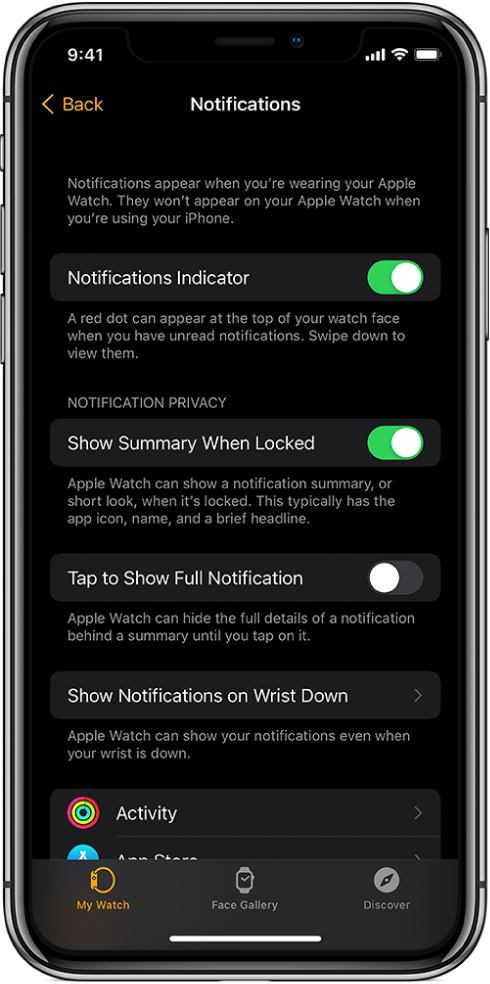
Even with haptics enabled, your Apple Watch may stay silent if notifications are set to mirror your iPhone. That’s the default behavior—and it’s the most common reason users miss text vibrations.
Switch from Mirror iPhone to Custom
By default, the Messages app on your Apple Watch follows your iPhone’s notification rules. So if your phone handles the alert, your watch won’t vibrate.
To change this:
– Open the Watch app on your iPhone.
– Tap the My Watch tab.
– Scroll down and tap Notifications.
– Select Messages.
– Change the setting from Mirror iPhone to Custom.
Now your Apple Watch can generate its own alerts, independent of your phone.
Enable Haptic Feedback for Messages
Under the Custom settings for Messages:
– Tap Alerts.
– Ensure Haptic is selected.
This ensures that every incoming text triggers a vibration. You can also enable Show on Lock Screen and Badge App Icon for visual cues, but for vibration-only users, Haptic is the critical setting.
User Experience: One user reported, “After switching to Custom and enabling Haptic, I finally felt the buzz during a meeting when my phone was face-down.”
This change makes your Apple Watch an active notification device—not just a passive mirror.
Disable Silent and Mute Modes
Silent Mode doesn’t stop haptics, but it can create confusion—especially if you expect a sound along with the vibration. Worse, accidental muting can make you think alerts aren’t coming through.
Check Silent Mode on Apple Watch
Swipe up from the watch face to open Control Center. Look for the bell icon with a slash. If it’s red, Silent Mode is active.
Tap it to disable. This won’t stop vibrations, but it clears up confusion if you’re expecting sound.
Prevent Accidental Muting with Cover to Mute
Apple Watch has a gesture called Cover to Mute: placing your palm over the screen silences alerts and turns off the display.
To check or disable it:
– On Apple Watch: Settings > Gestures > Cover to Mute.
– Toggle it on if you want this feature, or off if you often rest your hand on a desk or table.
Note: Cover to Mute does not silence alarms. This ensures you won’t miss important wake-up alerts.
If you frequently cover the screen unintentionally, turning this off can prevent missed notifications.
Lock iPhone to Route Alerts to Watch
This is the most effective and often overlooked fix. Apple’s system routes notifications to the device you’re actively using.
Why Locking iPhone Matters
If your iPhone is unlocked—even if it’s just sitting on your desk—texts go to the phone, not the watch. Your Apple Watch won’t vibrate.
To fix this: lock your iPhone. Press the side button or wait for auto-lock. Once locked, your Apple Watch becomes the default alert device.
“Lock your phone when you’re not looking at it. Bonus, you’ll get more battery life.” — Verified user
Apple doesn’t allow duplicate alerts by design. So while there’s no setting to “always vibrate on watch,” locking your phone is the closest workaround.
Best Practices for Notification Routing
- Make it a habit to lock your iPhone after use.
- Avoid leaving your phone unlocked on a desk while expecting watch alerts.
- Keep Bluetooth and Wi-Fi active for seamless syncing.
No software setting overrides this behavior. It’s built into how Apple’s ecosystem works.
Adjust Alert Volume and Sound Settings
While the goal is vibration, sound settings can indirectly affect alert delivery—especially with dynamic features like auto-volume adjustment.
Set Alert Volume on Apple Watch
Go to Settings > Sounds & Haptics > Alert Volume. Use the Digital Crown to adjust.
If you want vibration only:
– Enable Silent Mode (bell with slash in Control Center).
– Or turn Alert Volume all the way down.
Your watch will still vibrate—haptics work independently of sound.
Disable Auto-Adjust Volume
watchOS 26+ includes Automatically Adjust Volume, which changes alert loudness based on surroundings.
To set a consistent level:
– In Sounds & Haptics, tap Level.
– Choose Louder, Default, or Quieter.
– Turn off Automatically Adjust Volume to lock your preference.
This ensures your haptics aren’t being influenced by audio adjustments.
Fix Do Not Disturb and Focus Mode Conflicts
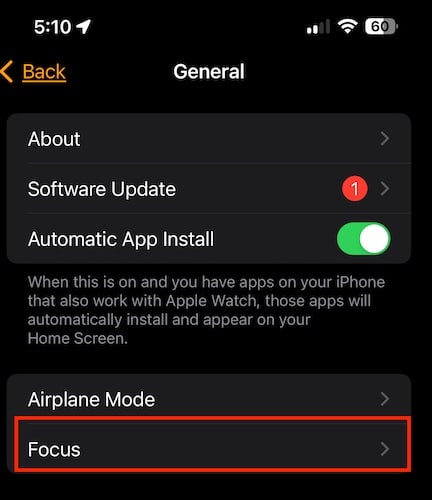
These modes can silence or redirect alerts—even if haptics are enabled.
Check Do Not Disturb Status
On your Apple Watch, open Control Center and look for the crescent moon icon. If active, your watch won’t vibrate for most notifications.
To disable:
– Tap the moon icon in Control Center.
– Or go to Settings > Do Not Disturb and toggle it off.
You can also manage this from your iPhone:
– Open Watch app > My Watch > Do Not Disturb.
– Adjust schedule or manual activation.
Review Active Focus Modes
Focus modes (Sleep, Work, Personal) can block or limit notifications.
To check:
– On iPhone: Watch app > My Watch > Focus.
– Tap each mode and ensure Messages is allowed.
You can also:
– Allow Favorites to bypass Focus filters.
– Set Workout or Home Focus to permit message alerts.
Pro Tip: Use Focus filters to let urgent texts through while muting less important apps.
If a Focus mode is active and blocking Messages, your watch won’t vibrate—no matter how strong your haptics are.
Restart Devices to Fix Sync Glitches
Sometimes, software glitches prevent notifications from syncing properly.
Restart Apple Watch
- Press and hold the side button until the Power Off slider appears.
- Drag to power off.
- Wait 10 seconds, then press and hold the side button to restart.
Restart iPhone
Hold the side button and a volume button until the power slider appears. Slide to power off, then restart.
After rebooting:
– Open the Watch app on iPhone.
– Confirm your watch reconnects.
– Send a test text from another device.
This often resolves notification delays or missing haptics after updates or prolonged use.
Update iOS and watchOS

Outdated software can cause inconsistent alert behavior.
Check iPhone for Updates
- Go to Settings > General > Software Update.
- Install any available iOS updates.
Update Apple Watch
- On Apple Watch: Settings > General > Software Update.
- If prompted, install the update over Wi-Fi.
Ensure your watch is charged and near your iPhone during the update.
Note: Apple frequently improves notification reliability in new watchOS versions. Staying updated prevents known bugs.
Reset Notification Settings (Last Resort)
If nothing works, reset system settings.
Reset All Settings on iPhone
Go to:
– Settings > General > Transfer or Reset iPhone > Reset > Reset All Settings.
This clears notification permissions, Bluetooth pairings, and sound settings—but keeps your data. After reset:
– Re-pair your Apple Watch.
– Reconfigure haptic and message settings.
Unpair and Re-pair Apple Watch
If issues persist:
– Open Watch app > My Watch > tap (i) next to your watch > Unpair Apple Watch.
– Follow setup steps to re-pair.
Only use this if other fixes fail—it takes 10–15 minutes.
Optimize Device Fit and Skin Contact
Even perfect settings won’t help if your watch isn’t on your wrist properly.
Wear Watch Snugly
The Taptic Engine needs direct skin contact. If the watch is loose or worn over clothing, you may not feel vibrations.
“For the best haptic results, the back of your Apple Watch needs skin contact.” — Apple Support
Use a snug, comfortable fit. Try the Classic Buckle, Sport Band, or Solo Loop for consistent contact.
Test Vibration with Find My
After adjustments, verify haptics work:
– On iPhone, open Find My.
– Select your Apple Watch.
– Tap Play Sound.
Your watch should vibrate and beep. If it doesn’t, check settings or consider service.
Summary: Checklist for Reliable Text Vibrations
| Step | Action |
|---|---|
| 1 | Enable Haptic Alerts on Apple Watch |
| 2 | Set Prominent Haptics for stronger taps |
| 3 | In Watch app > Notifications > Messages, choose Custom and enable Haptic |
| 4 | Lock iPhone when not in use |
| 5 | Disable Do Not Disturb or restrictive Focus modes |
| 6 | Ensure skin contact with a snug band |
| 7 | Restart both devices if alerts lag |
| 8 | Update to latest iOS and watchOS |
Final Note: Apple doesn’t offer a setting to force every text to vibrate on the Apple Watch regardless of iPhone state. The system is designed to prevent alert fatigue. But by locking your phone and customizing notifications, you can make your watch the primary alert device. If no haptics work—even for alarms or timers—contact Apple Support. The Taptic Engine may need service.





