
Your Apple Watch screen is frozen on a minimal clock display—no taps, swipes, or notifications work. You haven’t broken it. What you’re seeing is Power Reserve mode, a built-in emergency feature that activates when your Apple Watch battery drops below 10%. In this state, the watch shuts down nearly all functions to preserve just enough power to show the time for up to 72 hours. While useful in a pinch, it’s not designed for regular use—and there’s no simple “turn off” button inside the settings.
The good news? Exiting Power Reserve doesn’t require technical skills or data loss. You won’t lose apps, health metrics, or personalized watch faces. The only way out is to restart your Apple Watch, either manually or via a force restart after charging. Whether your device still has a sliver of power or is completely dead, this guide walks you through every step to restore full functionality. You’ll also learn how to avoid triggering Power Reserve unnecessarily and why Low Power Mode (available on watchOS 9+) is often a smarter choice for extending battery life.
Let’s get your Apple Watch back online.
Restart Your Apple Watch to Exit Power Reserve
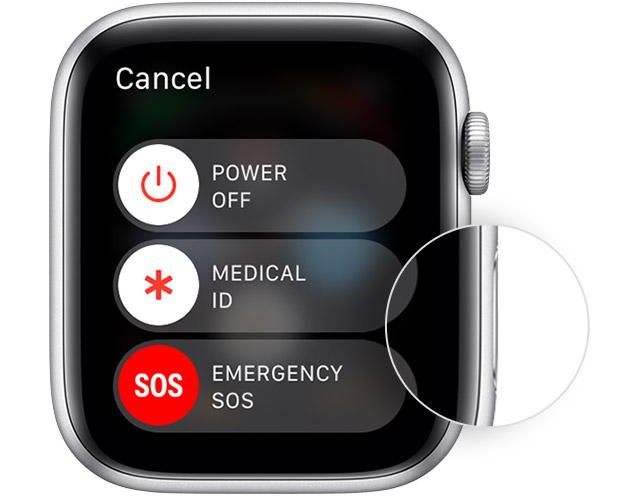
Hold Side Button Until Apple Logo Appears
If your Apple Watch is in Power Reserve but still shows the time, it has enough residual charge to restart. Since there’s no menu option to disable Power Reserve, a restart is the only way to exit.
- Press and hold the side button (located below the Digital Crown) for 10 to 15 seconds.
- Keep holding until you see the Apple logo appear on the screen.
- Release the button and allow the watch to reboot—this typically takes 10–30 seconds.
- Once the home screen loads, your watch returns to normal operation.
✅ Your apps, settings, and health data remain intact. If you use a passcode, you’ll need to enter it after the restart.
This method works across all Apple Watch models, including Series 1 through Ultra 2 and Apple Watch SE. It’s the fastest way to regain full access when your watch isn’t fully drained.
Why a Restart Is Mandatory
Unlike regular features, Power Reserve suspends the operating system. It’s not a setting you can toggle off—it’s a low-power hibernation state. Think of it like shutting down a computer to save energy: you can’t wake it with a mouse click. You must reboot the system to reload the OS and restore interactivity.
There is no hidden switch in Settings or Control Center. Searching for a “Turn Off Power Reserve” option will only waste time. The only reliable exit is a restart.
Revive a Completely Dead Apple Watch
Charge Before Any Restart Attempt
If your Apple Watch screen is pitch black and unresponsive, the battery is fully depleted. You can’t restart it without power.
- Place the watch on its magnetic charger.
- Allow it to charge for at least 30 minutes.
- Watch for the red lightning bolt icon—this means it’s charging but still too low to turn on.
- After sufficient charge, the watch may power on automatically.
⚠️ Don’t assume it’s broken if nothing happens immediately. A deeply drained battery can take several minutes to respond.
Force Restart After Charging
If the watch still won’t start after charging:
– While connected to the charger, press and hold both the side button and Digital Crown for 6 to 10 seconds.
– Keep holding until the Apple logo appears.
– Release both buttons and wait for the system to boot.
This force restart is safe and effective for watches stuck in Power Reserve after full discharge. Many users report this method works when a standard restart fails—especially if Power Reserve was manually enabled.
🔌 Pro Tip: Charging during the force restart increases success. The added power helps the system respond faster.
Manually Enable or Exit Power Reserve

Activate Power Reserve via Control Center
You can manually enter Power Reserve to stretch battery life:
1. Swipe up from the watch face to open Control Center.
2. Tap the battery percentage icon.
3. Select Power Reserve and confirm.
The screen immediately switches to time-only mode. All apps, touch input, and notifications are disabled.
Exit Without a Toggle: Restart Is Required
There is no disable option for Power Reserve. Once activated—manually or automatically—you must restart to regain full functionality.
❌ Don’t waste time hunting for a settings toggle. Restarting is the only way out.
Troubleshoot a Non-Responsive Apple Watch
Use Force Restart When Stuck
If your watch flickers or shows no response:
– Press and hold both the side button and Digital Crown for 6–10 seconds.
– Wait for the Apple logo.
– Release and let it reboot.
This clears temporary software glitches and forces the system to reload.
💡 Use this when: Your watch won’t turn on after charging, or it’s been in Power Reserve for hours.
Verify Your Charging Setup
Before assuming hardware failure:
– Try a different USB port or power adapter.
– Clean the back of the watch and charger—dust can block the magnetic connection.
– Ensure a secure snap—you should hear a click when attaching.
A poor connection is a leading cause of failed restarts.
Know the Difference: Low vs. Power Reserve
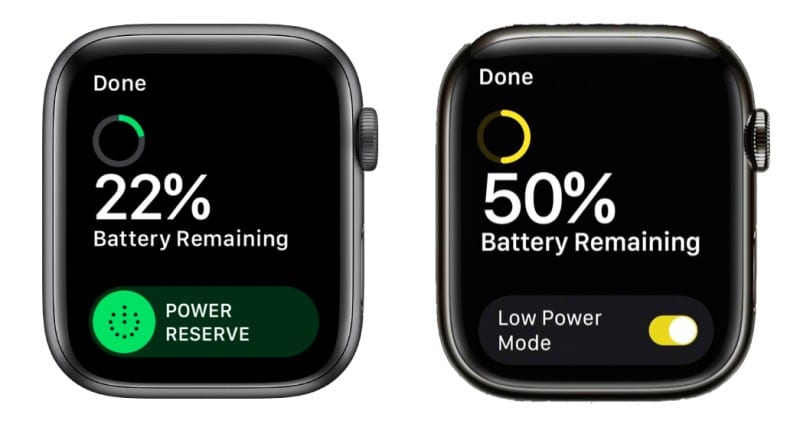
Low Power Mode Keeps Your Watch Functional
Introduced in watchOS 9, Low Power Mode is a smarter alternative:
| Feature | Power Reserve Mode | Low Power Mode |
|---|---|---|
| Activation | ~10% battery or manual | 20% battery or manual |
| Functionality | Time only | Full apps, notifications, health tracking |
| Exit Method | Restart required | Turns off automatically when charged |
| Best For | Emergencies | Long trips, workouts, travel |
🔄 Low Power Mode reduces background activity, disables auto-brightness, and limits haptics—but you can still use Siri, receive alerts, and track workouts.
When to Use Power Reserve
Reserve it for true emergencies:
– Lost on a hike and need to conserve battery.
– No charger access for hours.
– Traveling and want to extend standby time.
For daily use, enable Low Power Mode in Settings > Battery > Low Power Mode.
Prevent Unwanted Power Reserve Triggers
Charge Nightly to Stay Above 10%
Most Apple Watches last 18–36 hours on a full charge. Plug in every night to avoid low-battery surprises.
⏰ Set a bedtime reminder in the Health app to build the habit.
Enable Auto Low Power at 20%
Avoid last-minute battery panic:
– Go to Settings > Battery > Low Power Mode.
– Toggle on “Auto” to activate at 20%.
This gives you hours of extended use without losing functionality.
Monitor Battery Health
Check Settings > Battery > Battery Health (watchOS 8+). If Maximum Capacity is below 80%, consider a battery service. Degraded batteries drain faster and may trigger Power Reserve unexpectedly.
Optimize Battery Usage Daily
Reduce Screen Power Drain
The display is the biggest battery hog:
– Lower brightness: Swipe up > drag the sun icon down.
– Disable Always-On Display: In Settings > Display & Brightness > Always On.
– Shorten wake time: Set to 15 seconds.
Limit Background Activity
Stop apps from siphoning power:
– Disable Background App Refresh in Settings > General > Background App Refresh.
– Turn off unnecessary notifications.
– Use theatre mode during sleep or meetings.
Keep Software Updated
New watchOS versions include battery optimizations. Update via iPhone > Watch app > General > Software Update.
Real-World Tips From Users
- After exiting Power Reserve, Heart Rate monitoring or Workout auto-start may need re-enabling.
- Many found force restart (side + Crown) was the only way to revive a fully dead watch.
- 30-minute charge rule: Success rates improve significantly after half an hour of charging.
Technical Facts to Remember
- Every Apple Watch—from Series 1 to Ultra 2 and SE—supports Power Reserve.
- No data loss occurs when entering or exiting.
- Boot time: 10–30 seconds, depending on model.
Summary: Turn Off Power Reserve in 5 Steps
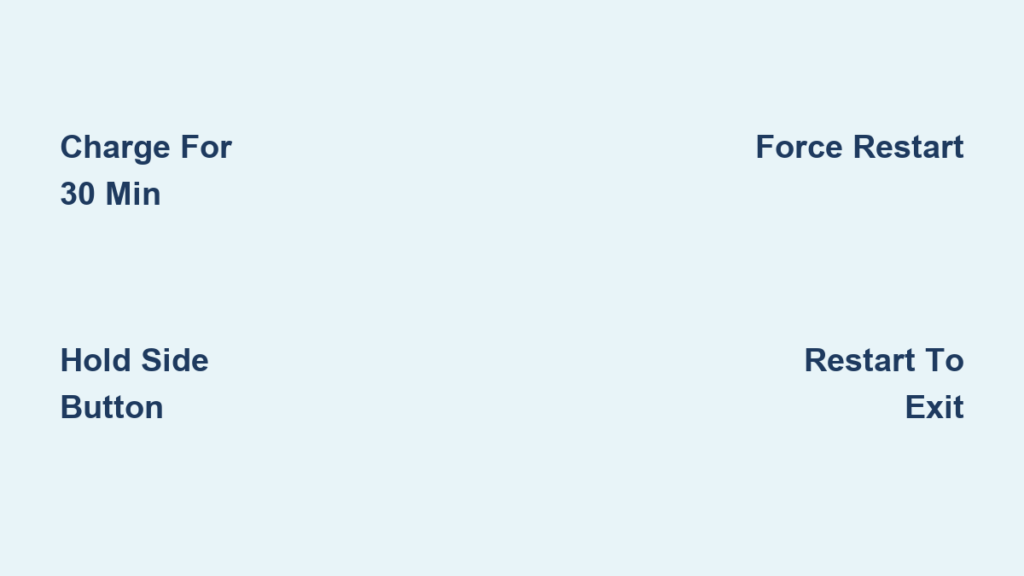
- Charge if Dead: Connect for 30 minutes if screen is black.
- Restart Normally: Hold side button until Apple logo appears.
- Force Restart if Needed: Hold side + Crown for 6–10 seconds.
- Enter Passcode: Unlock if enabled.
- Resume Use: All apps and settings return automatically.
✅ Done. Your Apple Watch is now fully functional.
Final Note: Power Reserve is a lifesaver for emergency timekeeping—but not for daily use. Use Low Power Mode instead to extend battery without losing access. With regular charging and smart settings, you can avoid Power Reserve entirely and keep your Apple Watch working when you need it most.




