
Your Apple Watch screen suddenly goes dark. You raise your wrist—nothing. You press the side button, and only a stark, isolated time appears on a black background. No apps, no notifications, no taps or haptics. You’re in Power Reserve mode, and now you’re wondering: How do I get my watch back?
Power Reserve is Apple’s emergency battery-saving state, triggered when your Apple Watch battery drops below 1%. It shuts down almost every function—no calls, messages, heart rate tracking, or GPS—leaving only the time visible when you press the side button. This mode can preserve that minimal display for up to 72 hours, making it useful during travel or power outages.
But here’s the catch: there’s no setting, toggle, or app to disable Power Reserve. You can’t swipe it away or tap it off. The only way to exit Power Reserve is to restart your Apple Watch—and that might require charging first if the battery is completely drained.
The good news? This process is safe, quick, and won’t erase your data. This guide walks you through every step to exit Power Reserve, troubleshoot startup issues, avoid accidental activation, and use smarter battery-saving options instead.
Restart Your Apple Watch to Exit Power Reserve

The only way to disable Power Reserve mode is to restart your Apple Watch. Once rebooted, the system resumes normal operation with all apps, settings, and connectivity restored.
Normal Restart Procedure
If your Apple Watch displays the time—even briefly—it likely has enough residual power to restart.
- Press and hold the side button (the one below the Digital Crown).
- Keep holding for 10–15 seconds until the Apple logo appears.
- Release the button and wait for your watch face to return.
✅ No data is lost. All health metrics, apps, and customizations remain intact.
Visual cue: When successful, you’ll see the Apple logo, followed by your usual watch face.
Pro tip: Don’t confuse this with turning your watch off. In Power Reserve, the device isn’t fully off—it’s in a minimal power state. A restart wakes it back into full functionality.
Charge Before Restarting if Battery Is Fully Depleted
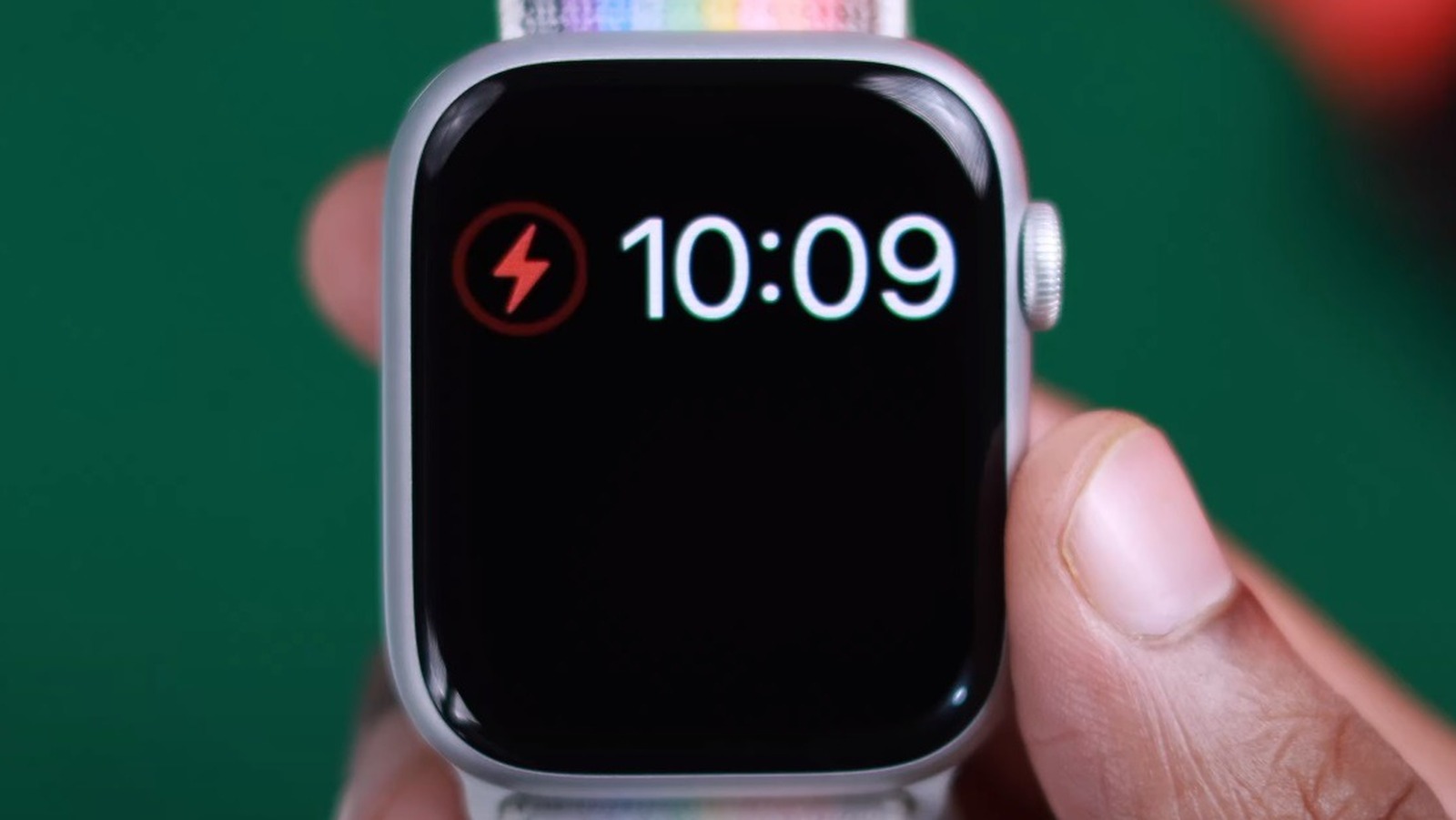
If your Apple Watch shows a red lightning bolt alongside the time, the battery is too low to power on. You must charge it before attempting a restart.
Steps to Power On After Deep Discharge
- Attach the magnetic charger to the back of your Apple Watch.
- Plug the charger into a wall adapter or powered USB port.
- Wait at least 30 minutes to build a sufficient charge.
– The red lightning bolt may appear, then vanish as charging progresses. - After charging:
– Press and hold the side button.
– If the Apple logo appears, release and wait for boot-up.
– If nothing happens, try a force restart.
⚠️ Use the original Apple magnetic charger. Third-party cables may not deliver consistent power, delaying or preventing recovery.
Expert note: Some Apple Watch models require 5–10% charge before they can restart. Don’t unplug too soon—even if the screen doesn’t respond immediately.
Force Restart an Unresponsive Apple Watch
If your watch remains stuck in Power Reserve despite charging, a force restart can resolve software freezes or unresponsive states.
How to Force Restart
- Simultaneously press and hold:
– The side button
– The Digital Crown - Hold both for 6–10 seconds.
- Release when the Apple logo appears.
✅ This is a safe, non-destructive process. It does not erase data or reset your settings.
When to use this method:
– Watch shows time but ignores button presses
– Charging completes but device won’t power on
– Screen flickers or freezes during boot
Visual confirmation: The Apple logo confirms the system is restarting. Wait 30–60 seconds for full boot.
Understand How Power Reserve Activates

You can’t disable Power Reserve permanently—it’s a built-in safety feature. But knowing how it activates helps prevent accidental entry.
Automatic Trigger Conditions
- Battery drops below 1%
- No charging detected
- System forces shutdown to preserve minimal power for timekeeping
Manual Activation via Control Center
Even with moderate battery, you can accidentally trigger Power Reserve.
Steps that lead to activation:
1. Swipe up from the watch face → opens Control Center
2. Tap the battery percentage icon
3. Tap Power Reserve (appears if battery is low)
4. Confirm → watch immediately enters time-only mode
❗ No confirmation prompt appears in most versions—tap once, and you’re in.
User tip: Teach family members or shared users about this hidden button. Accidental activation is a top reason for “my Apple Watch is broken” support calls.
Avoid Accidental Power Reserve Entry
Prevention beats troubleshooting. These steps reduce the risk of unintentional activation.
Limit Access to Power Reserve
While you can’t remove the option, you can avoid triggering it:
- Avoid swiping into Control Center when battery is low unless necessary.
- Don’t tap the battery icon unless checking status.
- Use Low Power Mode instead (available in watchOS 9+) for controlled battery savings.
Low Power Mode benefits:
– Turns battery icon yellow
– Disables Wake on Wrist Raise, background refresh, and haptics
– Keeps apps, notifications, and health tracking active
✅ Use Low Power Mode daily—reserve Power Reserve for emergencies.
Troubleshoot Failed Restart Attempts
Sometimes, even after charging and pressing buttons, your Apple Watch won’t exit Power Reserve. Here’s how to fix common issues.
Issue: No Response After Charging
Possible causes:
– Faulty charging cable or adapter
– Dirty charging contacts
– Software freeze
Solutions:
1. Clean the back of the watch and charger magnets with a dry, lint-free cloth.
2. Try a different power source.
3. Use only Apple-certified charging equipment.
4. After 30 minutes of charging, attempt a force restart.
✅ Success sign: Red lightning bolt disappears, Apple logo appears on restart.
Issue: Power Reserve Activates Too Early
Some users report entering Power Reserve at 5–10% battery, indicating a calibration problem.
Fix battery misreading:
1. Fully charge your Apple Watch to 100%.
2. Use it normally until it shuts down or reaches 0%.
3. Repeat this 2–3 times to recalibrate the battery sensor.
4. Update to the latest watchOS version.
Also try:
– Restart both Apple Watch and paired iPhone
– Unpair and re-pair the watch (backup first)
🔄 Recalibration often resolves phantom low-battery triggers.
Issue: Screen Stays Black After Charging
If the watch shows no light at all, even after charging:
- Hold the side button for 15 seconds—sometimes it takes longer to wake.
- Try a force restart (side button + Digital Crown).
- If still unresponsive, contact Apple Support—possible battery or logic board failure.
⚠️ Hardware issues are rare but possible after drops, water exposure, or battery swelling.
Know the Difference: Power Reserve vs Low Power Mode
Understanding these two modes prevents misuse and reduces panic when battery runs low.
Power Reserve Mode
- Available on all models
- Only shows time—everything else disabled
- Activated automatically below 1% or manually in Control Center
- No UI interaction possible until restart
- Cannot be scheduled or customized
Low Power Mode (watchOS 9+)
- Manual toggle only—no automatic activation
- Reduces power use but keeps core features
- Disables:
- Wake on Wrist Raise
- Haptic feedback
- Background app refresh
- Battery icon turns yellow
- Can be turned off anytime in Settings or Control Center
✅ Use Low Power Mode first. Reserve Power Reserve for emergencies.
Manage Battery Settings Proactively
Don’t wait for critical battery levels. Use built-in tools to extend battery life and avoid Power Reserve entirely.
Enable Optimized Battery Charging
This feature learns your daily routine and delays charging past 80% until you need it—reducing wear and tear.
How to enable:
1. Open Settings on your Apple Watch
2. Tap Battery
3. Select Battery Health
4. Turn on Optimized Battery Charging
🔋 This extends long-term battery lifespan and reduces degradation.
Monitor Battery Usage
Check which apps drain power the most.
Steps:
1. Go to Settings > Battery
2. View Battery Usage by App
3. Force quit or uninstall high-drain apps
Tip: Background heart rate checks, GPS tracking, and third-party complications are common culprits.
Prevent Future Power Reserve Activation
A few simple habits ensure your Apple Watch stays functional—even on low battery.
Daily Best Practices
- Charge nightly—aim for 80–100% each morning
- Turn on Low Power Mode when below 20%
- Disable unnecessary complications (e.g., live activity, frequent updates)
- Limit background app refresh in Settings
Emergency Readiness
If you rely on Power Reserve for backup timekeeping:
– Know how to restart your watch
– Keep the charger accessible
– Inform others how to avoid accidental activation
🕒 Power Reserve can keep time for up to 72 hours—ideal for travel or power outages.
When to Contact Apple Support
If none of the above steps work, professional help may be needed.
Signs of Hardware Failure
- Watch won’t charge despite using known-good cable
- No Apple logo appears after 10+ minute force restart
- Screen remains permanently black or flickers
- Battery swells or emits heat
Next steps:
1. Visit apple.com/support
2. Use the Apple Support app on your iPhone
3. Schedule a Genius Bar appointment or mail-in repair
🛠️ Out-of-warranty battery service starts at $69–$79 (USD) if capacity is below 80%.
Summary: Exit Power Reserve in 3 Steps
-
Check display:
– Time visible? → Restart with side button
– Red lightning bolt? → Charge for 30 minutes first -
Restart:
– Normal: Hold side button until Apple logo
– Unresponsive: Force restart (side button + Digital Crown) -
Prevent recurrence:
– Use Low Power Mode instead
– Charge nightly
– Avoid tapping battery icon in Control Center
✅ No data is lost during Power Reserve or restart.
Final Tips for Apple Watch Battery Management
- Power Reserve is not a setting—it’s an emergency state.
- You can’t disable it permanently—but you can avoid triggering it.
- Restart is the only exit method—no hidden menu or iPhone command.
- Low Power Mode is your daily tool—use it early when battery drops.
Keep your Apple Watch updated, charge it regularly, and treat Power Reserve as a last resort—not a feature. With the right habits, you’ll rarely see that lonely clock screen again.





