
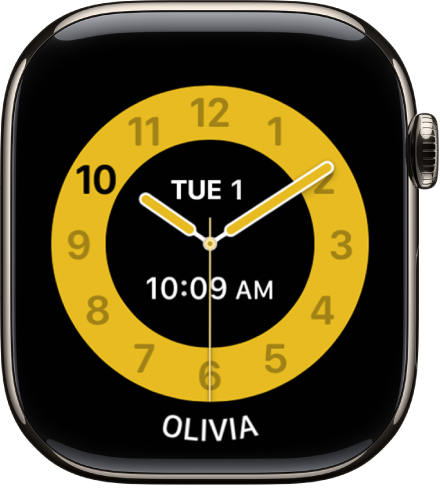
If your child’s Apple Watch suddenly locks down apps during a holiday or weekend, they’re likely in School Time mode—a built-in focus feature designed to minimize distractions during school hours. While helpful on regular school days, this restriction can be frustrating when it blocks access to games, messages, or music on days off. The real challenge? You can’t turn off School Time remotely unless you’re near the watch. Even with both devices connected to the internet, Apple requires a Bluetooth connection between the parent’s iPhone and the child’s Apple Watch to disable the mode.
This limitation catches many parents off guard, especially during travel, split custody schedules, or unexpected school closures. But if you have access to the child’s watch or can get within range, disabling School Time is quick and simple. In this guide, you’ll learn how to turn off School Time using the parent’s iPhone, why remote control doesn’t work over Wi-Fi or cellular, and practical strategies to avoid disruptions on non-school days.
You’ll also discover how to let your child end School Time themselves, how to schedule breaks in advance, and what Apple needs to fix to make family management more flexible.
Disable School Time via Parent’s iPhone
The most reliable way to turn off School Time is through the Watch app on the parent’s iPhone, but it only works when the child’s Apple Watch is nearby.
Steps to Turn Off School Time
- Open the Watch app on your iPhone.
- Tap “All Watches” in the top-left corner (if managing multiple devices).
- Select your child’s Apple Watch from the list.
- Tap the “i” (info) icon next to the watch name.
- Scroll down and tap “School Time”.
- Toggle the switch to off.
Once disabled, the restriction lifts instantly on the watch. No restart or confirmation is needed.
Important: This change only syncs if the child’s Apple Watch is within Bluetooth range (approximately 30 feet) of your iPhone. Even if both devices are online via Wi-Fi or cellular data, Apple does not sync School Time settings through iCloud.
Why You Can’t Turn Off School Mode Remotely
Despite having internet-connected devices, Apple does not allow remote School Time management over the internet. This is one of the most common pain points for parents using Apple’s family setup.
Bluetooth Is Required for Syncing
- The Watch app relies on direct Bluetooth communication to push updates to the child’s watch.
- Changes made in Screen Time or School Time do not sync via iCloud like other parental controls.
- Even with a cellular Apple Watch, the parent’s iPhone must be physically close to apply changes.
This design enhances security by ensuring only an authorized adult nearby can modify restrictions. However, it creates real-world issues when parents are away.
Real Parent Experiences
One parent shared:
“I was on a business trip across the country and couldn’t disable School Time on a snow day. My son couldn’t use his watch all afternoon because we weren’t in the same state.”
Another said:
“It’s unbelievable that two devices connected to the internet can’t communicate this one thing. Apple really needs to fix this.”
Apple’s current system assumes the parent and child are together—making it impractical for modern, mobile families.
Workarounds When Out of Range
Since true remote disabling isn’t possible, proactive planning is essential.
Schedule Off-Days in Advance
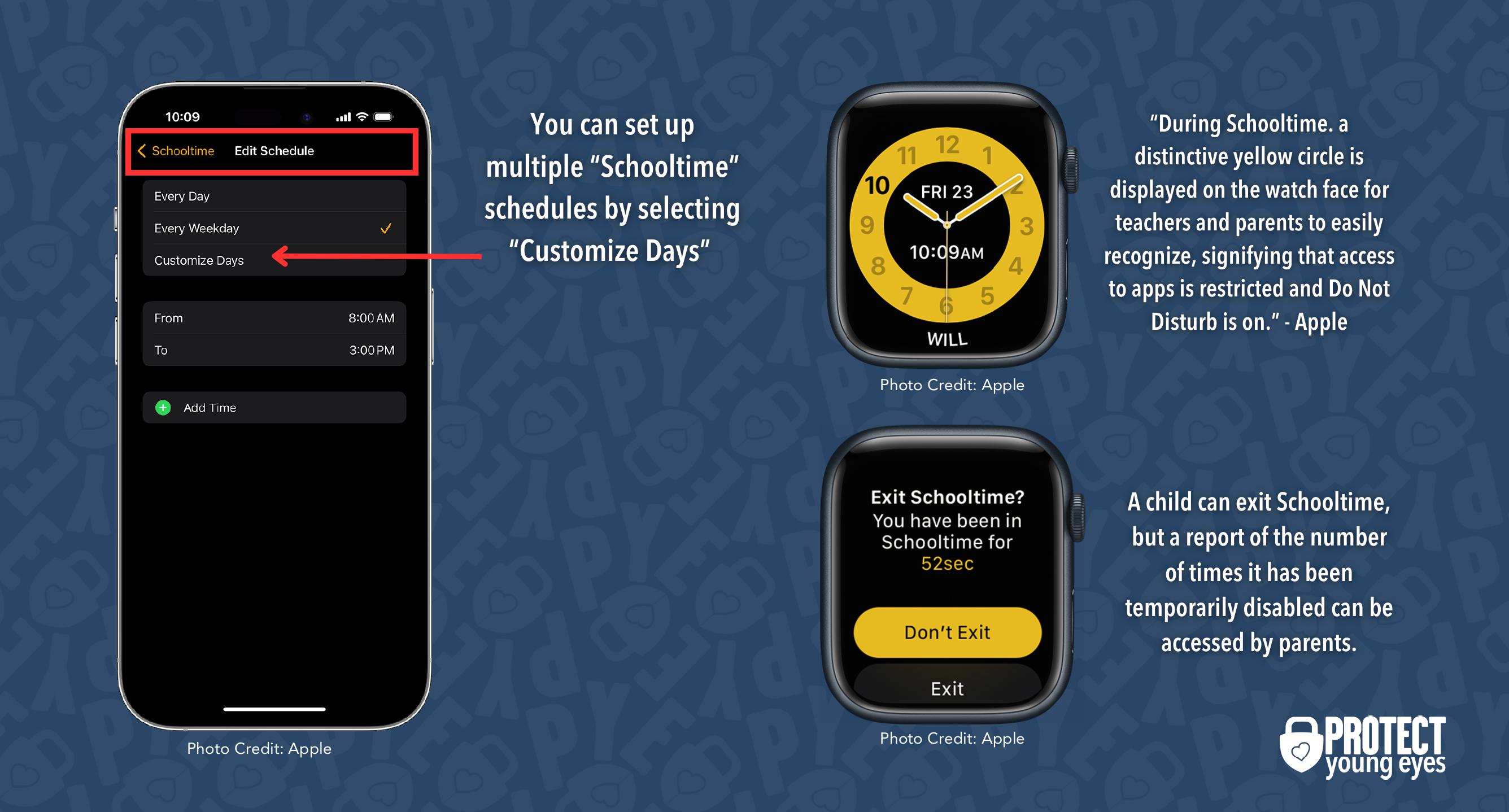
Prevent School Time from activating on known non-school days by adjusting the schedule ahead of time.
How to Edit the School Time Schedule
- Open the Watch app on your iPhone.
- Go to your child’s watch → School Time.
- Choose “Scheduled” or “Custom Schedule”.
- Disable activation for holidays, weekends, half-days, or breaks.
For example, turn off School Time every Friday at 2 PM or during summer vacation.
Pro Tip: Sync your school district’s calendar with your family’s shared calendar and set reminders to update Apple Watch settings before breaks.
Let Child End School Time Manually
If you trust your child, you can allow them to disable School Time themselves.
How to Enable Manual Disable
- On your iPhone, open the Watch app.
- Go to your child’s watch → Screen Time.
- Toggle on “Allow Ending School Time”.
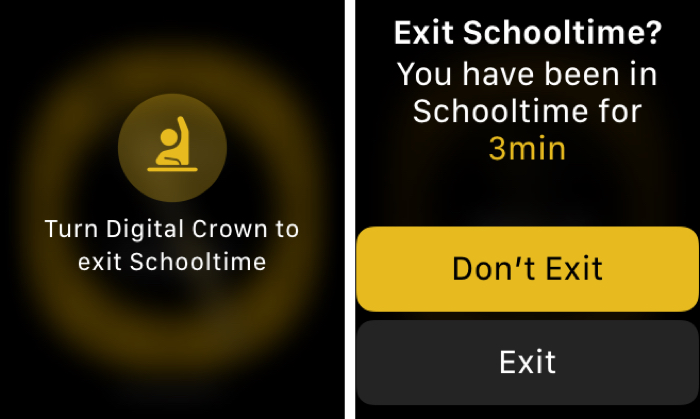
Once enabled, your child can:
- Swipe up on the watch face to open Control Center.
- Long-press the School Time icon (a book symbol).
- Tap “End” to disable it for the day.
⚠️ This option only appears if you’ve granted permission. By default, it’s often turned off for younger children.
Limitations of Apple’s Current System
Apple’s School Time feature offers strong focus tools but lacks modern remote management capabilities.
No Internet-Based Remote Control
| Feature | Available? |
|---|---|
| Disable via iPhone over Wi-Fi | ❌ |
| Remote control via cellular | ❌ |
| Web dashboard (iCloud.com) | ❌ |
| Automation based on calendar events | ❌ |
| Location-based triggers (e.g., leaving school) | ❌ |
Even with a cellular Apple Watch, internet connectivity does not enable remote School Time control. Bluetooth remains mandatory.
Security vs. Usability Trade-Off
Apple likely requires Bluetooth to prevent unauthorized access—ensuring only a physically present parent can modify settings. While this adds a layer of security, it sacrifices convenience for families on the go.
Best Practices for Parents
Avoid last-minute frustrations by planning ahead and adjusting settings proactively.
1. Plan for Holidays and Breaks
- Disable School Time before leaving home or traveling.
- Update the custom schedule to exclude snow days, early dismissals, or summer breaks.
2. Enable Child’s Manual Override
Grant temporary freedom when appropriate:
- Allow manual ending during field trips or after-school activities.
- Re-enable restrictions later when back in range.
🔐 Use judgment: younger children may need tighter controls.
3. Keep Devices in Range Before Adjusting
Always bring the child’s Apple Watch within Bluetooth range before making changes.
- Do updates during evening sync-ups or before school drop-off.
- Consider syncing at night when both devices are at home.
4. Use Shared Calendar as Reminder
Link school events to a family calendar and set alerts:
- “Disable School Time – Spring Break Starts”
- “Holiday – No School – Update Watch Settings”
This ensures you don’t forget to adjust settings in advance.
Troubleshooting Common Issues
School Time Won’t Turn Off
- Check Bluetooth connection: Ensure both devices are close and awake.
- Restart both devices: Sometimes fixes sync issues.
- Update software: Make sure both iPhone and Apple Watch run the latest iOS and watchOS.
Child Can’t See “End” Option
- Go to Screen Time settings on your iPhone.
- Confirm “Allow Ending School Time” is toggled on.
- If still missing, try re-pairing the watch or resetting Screen Time settings.
Settings Revert After Sync
- This may happen if the schedule is still active.
- Double-check the Custom Schedule—ensure the current day/time isn’t set to auto-enable.
What Apple Needs to Improve
Parents are calling for:
- Remote disable via iCloud – Let parents turn off School Time from anywhere.
- Web-based management portal – Like Google Family Link or iCloud Screen Time.
- Calendar integration – Automatically suspend on school holidays.
- Location-aware activation – Turn off when child leaves school campus.
Until then, families must adapt to Bluetooth dependency.
Summary: Key Takeaways
| Action | Possible? | Notes |
|---|---|---|
| Turn off School Time remotely via internet | ❌ | Requires Bluetooth |
| Disable using parent’s iPhone | ✅ | Must be in range |
| Child ends School Time manually | ✅ | If allowed by parent |
| Pre-schedule off-days | ✅ | Best workaround |
| Use web browser to manage | ❌ | No iCloud dashboard |
Final Note
Turning off School Mode on Apple Watch is straightforward if you’re near the device. Use the parent’s iPhone, open the Watch app, and toggle off School Time under the child’s watch settings. But if you’re apart—on a trip or busy elsewhere—you’re out of luck unless you’ve pre-scheduled exceptions or allowed manual disable.
Until Apple adds true remote management, planning ahead is your best tool. Update schedules before holidays, empower older kids to end School Time when appropriate, and always sync settings while devices are together.
For now, School Time offers great focus support—but poor flexibility. Stay proactive, and you’ll avoid the frustration of a locked-down watch on a day off.





