
You’re mid-conversation on your Apple Watch, but the voice on the other end is muffled or too quiet. Maybe you’re walking outside, in a busy café, or just can’t make out what’s being said. The good news: adjusting volume during a call is fast and simple—all you need is the Digital Crown. Unlike the iPhone, the Apple Watch doesn’t offer a touch-based volume slider during calls, so knowing the right method makes all the difference. In this guide, you’ll learn how to instantly increase call volume, switch to louder devices like AirPods or your iPhone, and troubleshoot when sound remains too low. Whether you’re using a GPS-only or cellular Apple Watch, these steps work across all models and watchOS versions.
Use the Digital Crown to Adjust Volume
The only real-time way to turn up volume during an Apple Watch phone call is by turning the Digital Crown, the rotating dial on the side of your watch. This physical control delivers immediate feedback with no delay or menu navigation.
Turn Crown Up for Louder Audio
While on a call, rotate the Digital Crown upward (toward the top of the watch). Each click increases the speaker volume slightly, and you’ll hear the change instantly. Keep turning until the level feels comfortable—especially helpful in noisy environments where clarity matters.
Pro Tip: Turn slowly. Small increments give you better control and prevent sudden loud bursts that could startle you or others nearby.
Turn Crown Down to Lower Volume
If the sound becomes too loud, simply rotate the Digital Crown downward. It reduces volume step by step, just like increasing it. While there’s no risk of damaging the speaker, Apple limits maximum output to protect hearing and preserve battery life.
No On-Screen Volume Slider
Unlike on the iPhone, you cannot swipe or tap to adjust volume during a call on Apple Watch. There’s no visual volume bar on the screen. The Digital Crown is the only supported method for changing audio levels in real time. This design keeps the interface clean and ensures quick access without distractions.
Mute or Unmute Your Microphone
While this won’t make the other person louder, controlling your microphone improves call quality—especially in noisy settings.
Tap to Mute During Call
On the active call screen, tap the microphone icon (🔇). When muted, a red line appears over the icon. This silences your end of the conversation, which is useful if you’re in a loud environment or need temporary privacy.
Tap Again to Unmute
Tap the same icon to reactivate your microphone. There’s no confirmation tone, so watch the icon: if the red line disappears, your mic is live again.
Warning: Muting only affects your outgoing audio. It does not change how loud you hear the other person. For that, you still need to use the Digital Crown.
Switch Call to iPhone for Louder Audio
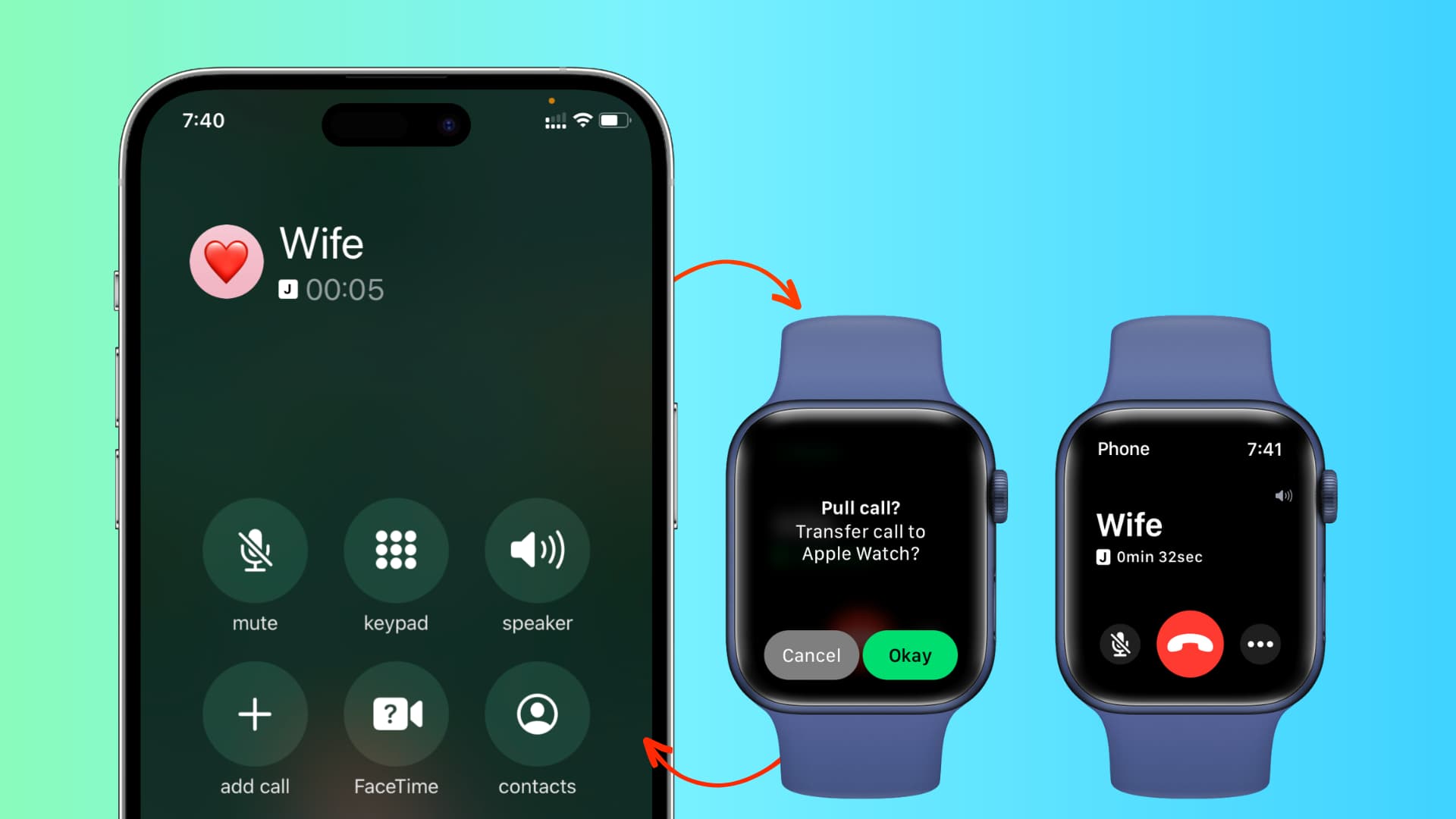
If the Apple Watch speaker isn’t loud enough, transferring the call to your iPhone gives you access to a much stronger speaker and more audio options.
Tap Green Banner on iPhone
While the call is active on your Apple Watch, unlock your iPhone. A green call banner will appear at the top of the screen. Tap it to instantly transfer the call from your wrist to your phone.
Use iPhone’s Speaker or Headphones
Once transferred, you can:
– Use the iPhone’s built-in speaker (significantly louder than the watch)
– Plug in wired headphones
– Route audio to Bluetooth speakers or earbuds
This is ideal for long conversations, conference calls, or any situation where clarity and volume are critical.
Connect Bluetooth Headset for Better Sound
For private, high-volume listening, pairing a Bluetooth audio device during the call is the best solution.
Open Audio Routing Menu
During a call, tap the audio icon (usually a speaker or triangle symbol) on the call screen. A list of available devices appears, including any previously paired Bluetooth headsets.
Select Your Bluetooth Device
Choose from:
– AirPods
– AirPods Pro
– AirPods Max
– Other paired Bluetooth headphones
Once selected, audio routes through the chosen device. You can then control volume using either the Digital Crown (adjusts output on the connected device) or the headset’s own controls.
Expert Note: If your AirPods are paired with your iPhone, they automatically connect to your Apple Watch when nearby—no extra setup needed.
Enter Keypad Numbers During Calls
Some calls require input, like entering a PIN or navigating an automated phone system.
Tap Keypad Icon on Call Screen
During a standard phone call, tap the Keypad icon. A numeric pad appears directly on the watch face.
Press Digits to Send Tones
Tap numbers 0–9, *, or # to send audible tones. This is useful for:
– Accessing voicemail
– Joining conference calls
– Navigating customer service menus
Limitation: The keypad is not available during FaceTime audio calls, only regular cellular or Wi-Fi calls.
Enable Hold Assist for Smarter Call Management
Hold Assist doesn’t increase volume, but it improves your overall call experience—especially when stuck on hold.
Activate Hold Assist Automatically
When your Apple Watch detects hold music or messaging, it may display a Hold notification. Tap Hold to let the watch wait for you while muting background noise.
Get Notified When Agent Returns
Your Apple Watch listens to the line and alerts you the moment a live person returns. It even provides a transcript of what was said during the hold period, so you don’t miss important updates.
Requirements for Hold Assist
- Paired iPhone nearby
- iPhone 12 or newer (including iPhone SE 3rd generation)
- Latest versions of iOS and watchOS
- Supported region and language
For full details, visit Apple’s iOS Feature Availability page.
Why Apple Watch Call Volume Is Limited
Even with the Digital Crown turned all the way up, the speaker may seem quiet—especially in loud settings. This isn’t a defect; it’s by design.
Hardware Constraints
- Tiny internal speaker due to compact size
- Low power draw to extend battery life
- Sound projection limited by watch form factor
Because of these factors, maximum volume is intentionally capped. The speaker is optimized for clarity at close range—not for shouting over traffic or wind.
No Pre-Set Volume Options
There’s no setting to adjust call volume before answering. Unlike ringtones or media, call audio starts at a default level and must be adjusted mid-call using the Digital Crown.
Troubleshoot Low Volume Issues
If the speaker sounds quieter than usual, try these fixes.
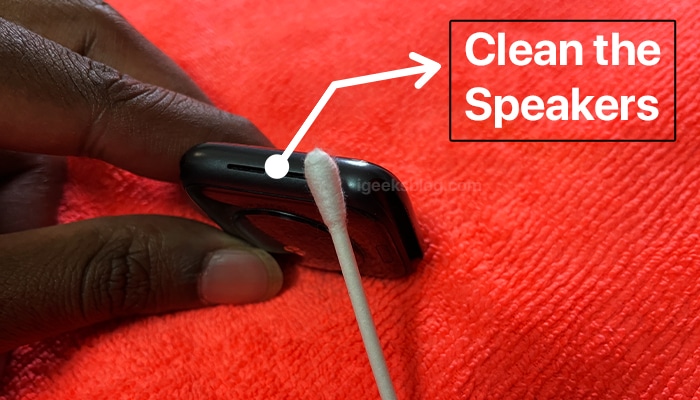
Clean the Speaker Grill
Dust, lint, or pocket debris can block the speaker. It’s located on the bottom edge of the watch, near the charging pins.
Fix: Gently brush the area with a dry, soft-bristled toothbrush. Avoid liquids or compressed air, which could damage internal components.
Restart Your Apple Watch
A quick restart can resolve temporary audio glitches.
- Press and hold the side button until the Power Off slider appears.
- Swipe to power off.
- Wait 30 seconds, then press and hold the side button to turn it back on.
Check Bluetooth Connection
If using a headset, ensure it’s properly connected. A weak or unstable Bluetooth link can cause low or choppy audio.
Tip: Go to Settings > Bluetooth on your Apple Watch to verify your device’s connection status.
Update watchOS and iOS
Outdated software can cause audio bugs.
- On iPhone: Open Watch app > General > Software Update
- On Apple Watch: Settings > General > Software Update
Install any available updates to ensure compatibility and fix known issues.
Reset All Settings (Last Resort)
If volume problems persist:
1. Open Settings > General > Reset on Apple Watch
2. Tap Erase All Settings
3. Re-pair your devices and reconfigure preferences
This restores default audio behavior without deleting personal data.
Best Ways to Hear Calls More Clearly
When the built-in speaker falls short, use these proven strategies.
Wear AirPods Before Answering
Pair your AirPods in advance. When a call comes in, audio automatically routes to them if connected.
Pro Tip: With AirPods in, you can double-tap to answer—no need to touch your watch.
Use iPhone in Noisy Areas
In loud environments, transfer the call to your iPhone and use speakerphone or headphones for better clarity.
Keep Speaker Unblocked
Avoid covering the bottom of the watch with your hand or placing it on soft surfaces like couches or pockets during calls—this muffles the sound.
Summary: How to Increase Call Volume
| Method | How to Use | Best For |
|---|---|---|
| Digital Crown | Turn upward during call | Quick, real-time adjustment |
| Switch to iPhone | Tap green banner on iPhone | Louder speaker, longer calls |
| Connect AirPods | Tap audio icon, select device | Privacy, noise reduction, higher volume |
| Use Bluetooth Headset | Pair and select in call | Hands-free, high-fidelity audio |
| Clean Speaker | Brush bottom grill gently | Restoring normal speaker output |
Final Recommendations
The Digital Crown is your go-to tool for turning up volume during Apple Watch calls. It’s fast, reliable, and the only direct method available. But when clarity or loudness is critical, switch to AirPods or your iPhone for a better experience. Remember, the Apple Watch speaker has physical limits—don’t expect it to match larger devices. For ongoing issues, keep software updated, clean the speaker regularly, and consider resetting settings if audio behaves abnormally. With these tips, you’ll never miss a word during your next call.





