
You’re settling into bed after a long day, hoping to unwind and get some quality rest—only for your Apple Watch to buzz with a late-night message or social media alert. If this sounds familiar, Sleep Focus is the feature you need to reclaim your peace. Designed to minimize distractions during your wind-down hours, Sleep Focus silences non-essential notifications, dims the screen, and creates a calmer digital environment. The best part? You can turn on Sleep Focus on your Apple Watch in seconds—right from your wrist.
Sleep Focus is part of Apple’s broader Focus system, which lets you filter interruptions based on what you’re doing. When activated, only critical alerts—like calls from emergency contacts or urgent reminders—will reach you. Plus, your status syncs across your iPhone and other Apple devices, so friends and family know you’re offline for the night. Whether you activate it manually or set it on a schedule, Sleep Focus helps protect your rest and supports better sleep hygiene.
In this guide, you’ll learn how to turn on Sleep Focus from your Apple Watch, set up automatic schedules, customize allowed contacts and apps, and troubleshoot common issues—so you can sleep soundly without digital disturbances.
Activate Sleep Focus From Control Center
The fastest way to enable Sleep Focus is directly from your Apple Watch using Control Center. This method requires no phone access and takes just a few taps.
Open Control Center
To begin, press and hold the side button on your Apple Watch until Control Center appears. If no Focus mode is active, you’ll see a grayed-out crescent moon icon (Do Not Disturb). If another Focus—like Work or Personal—is already on, its corresponding icon will be highlighted.
Tap the Focus Icon
In Control Center, tap the Focus button, which looks like a half-moon with a dot in the center. A list of available Focus modes will appear, including Sleep, Do Not Disturb, Work, and any custom ones you’ve created.
Scroll through the list or tap to select Sleep. This triggers the activation menu.
Choose Duration
After selecting Sleep Focus, you’ll be prompted to choose how long it should remain active:
- For 1 hour – Ideal for short relaxation periods
- Until Tomorrow Morning – Best for overnight use (syncs with your Bedtime schedule if set)
- Until Custom Time – Set a specific end time
- Indefinitely – Stays on until manually turned off
Selecting “Until Tomorrow Morning” automatically aligns with your bedtime routine if configured in the Health app. Once confirmed, Sleep Focus activates instantly.
A crescent moon icon will now appear at the top of your watch face, signaling that Sleep Focus is active. Your notifications are silenced, and your display dims to reduce nighttime stimulation.
Set a Sleep Focus Schedule Automatically
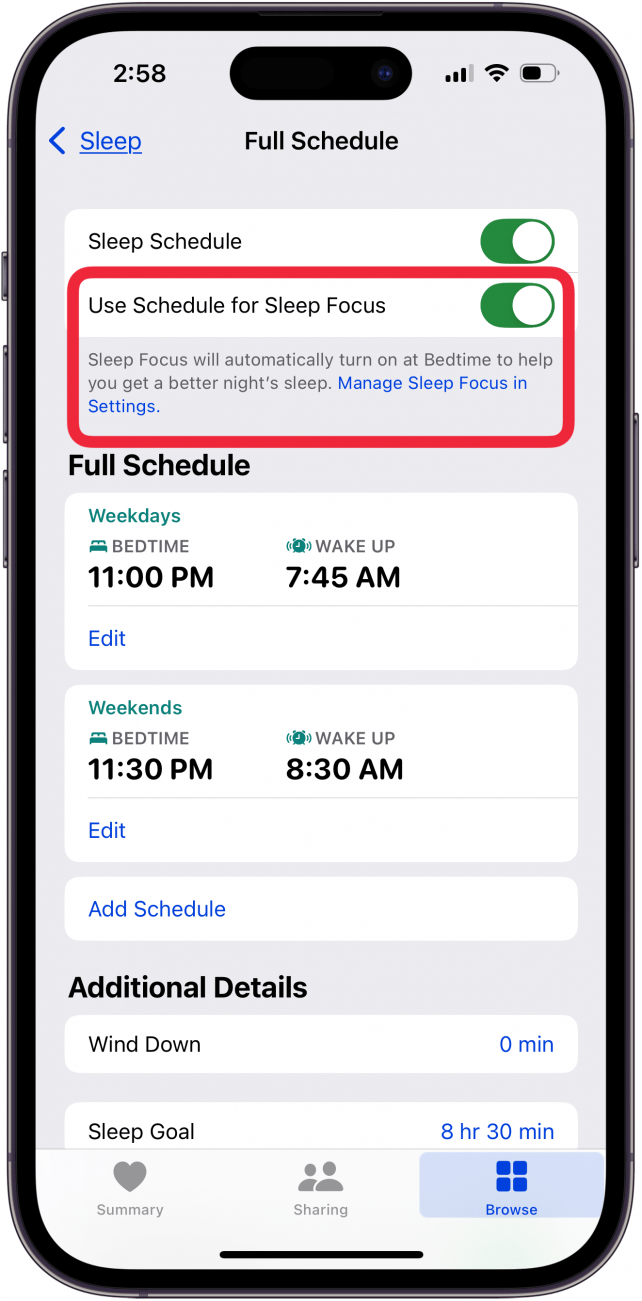
Instead of remembering to turn on Sleep Focus every night, you can schedule it to activate automatically—ensuring consistent, uninterrupted rest.
Link to Bedtime Routine
For seamless automation, connect Sleep Focus to your Bedtime schedule in the Health app:
- On your iPhone, open the Health app.
- Tap Browse > Sleep > Full Schedule & Options.
- Set your desired bedtime and wake-up time.
- Toggle on Track Sleep with Apple Watch.
Once enabled, Sleep Focus will automatically turn on at your scheduled bedtime and disable when you wake up.
Create a Custom Schedule on Apple Watch
You can also set a Sleep Focus schedule directly from your wrist:
- Open the Settings app on your Apple Watch.
- Tap Focus > Sleep.
- Tap Add New under Schedules.
- Set From and To times (e.g., 10:00 PM to 7:00 AM).
- Choose the days of the week you want it active.
- Tap the back arrow to save.
Now, your Apple Watch will enter Sleep Focus each night without any action required.
Customize What Gets Through During Sleep Focus

Just because you’re sleeping doesn’t mean you want to be completely unreachable. You can allow specific people, apps, and alerts to bypass Sleep Focus.
Allow Emergency Contacts
To ensure important calls come through:
- On your iPhone, go to Settings > Focus > Sleep > People.
- Tap Allow Notifications From.
- Select contacts like Favorites, Family, or individual emergency contacts.
Anyone added here can still call or message you—even during Sleep Focus.
Permit Essential Apps
Some apps need to alert you at night, such as sleep trackers, medication reminders, or home security systems.
- Go to Settings > Focus > Sleep > Apps.
- Tap Allow Notifications From.
- Choose apps like Health, Sleep Cycle, or Smart Alarm.
These apps will continue to send notifications during Sleep Focus.
Enable Time-Sensitive Notifications (Optional)
Apple allows time-sensitive notifications to bypass Focus modes if marked as urgent. To enable this:
- Go to Settings > Focus > Sleep.
- Toggle on Time-Sensitive Notifications.
Use this setting carefully—while it can deliver important alerts, it may also let in non-critical notifications that disrupt sleep.
Change Watch Face When Sleep Focus Activates

Reduce visual stimulation at night by assigning a minimalist, calming watch face that appears automatically when Sleep Focus turns on.
Assign a Sleep-Friendly Watch Face
To set a custom face:
- On your iPhone, open Settings > Focus > Sleep.
- Scroll down to Customize Screens.
- Tap Choose under the Apple Watch image.
- Select a watch face like Simple, Activity Analog, or Solar.
- Tap Done.
Now, every time Sleep Focus activates, your watch face changes to your chosen design—helping signal to your brain that it’s time to wind down.
Pro Tip: Choose Dark, Minimalist Designs
Opt for watch faces with dark backgrounds and minimal elements. These reduce blue light exposure and support melatonin production, making it easier to fall asleep.
Troubleshoot: Sleep Focus Won’t Turn On
Sometimes, Sleep Focus doesn’t activate as expected. Here’s how to fix common issues.
Sleep Option Missing in Control Center?
If you don’t see Sleep in the Focus list:
- Make sure Sleep tracking is set up in the Health app.
- Check that Focus settings are synced between devices.
- On iPhone, go to Settings > Focus and ensure Sleep Focus exists. If not, recreate it.
Scheduled Sleep Focus Not Activating?
Check these settings:
- Is the schedule Enabled?
- Is Share Across Devices turned on in Focus settings?
- Are Screen Time restrictions blocking Focus?
Also, ensure your Apple Watch isn’t in Theater Mode or Do Not Disturb, as these can override Focus schedules.
Notifications Still Coming Through?
Even in Sleep Focus, some apps may bypass restrictions. To fix:
- Review app notification settings in Settings > Notifications.
- Disable “Bypass Do Not Disturb” for specific apps or message threads.
This ensures only truly important alerts get through.
Turn Off or End Sleep Focus Early
Need to exit Sleep Focus before your scheduled time? You can disable it anytime.
Exit From Control Center
- Press the side button to open Control Center.
- Tap the Focus icon (now highlighted).
- Tap Turn Off or select None.
The crescent moon disappears, and normal notifications resume.
Temporarily Disable a Schedule
If you’re staying up late:
- On Apple Watch, go to Settings > Focus > Sleep.
- Tap your schedule.
- Toggle off Enabled.
You can re-enable it later without losing your settings.
Create a Custom Pre-Sleep Focus
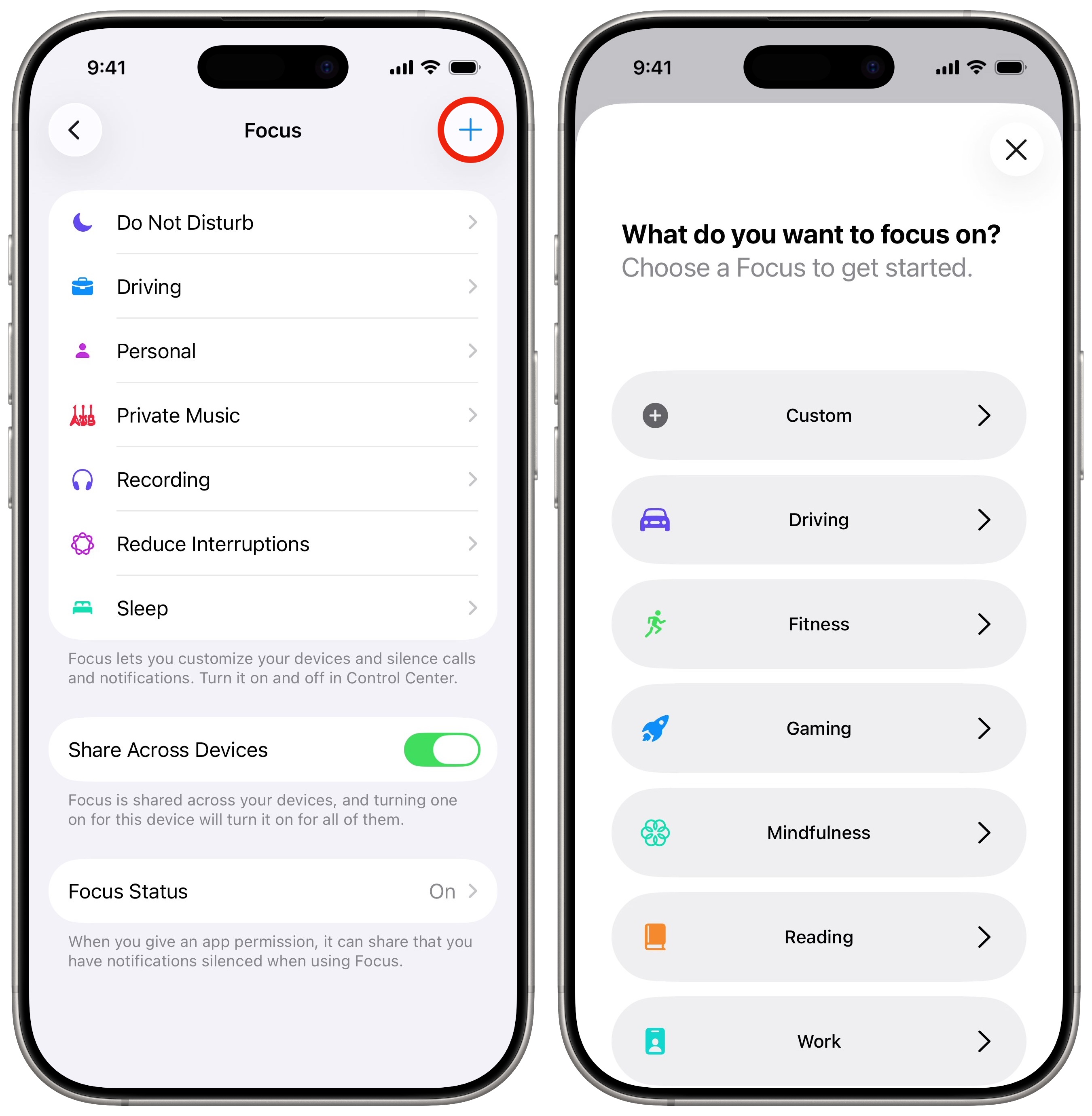
For deeper wind-down support, create a Custom Focus called “Wind Down” that activates 30 minutes before Sleep Focus.
Steps to Create a Wind-Down Focus
- On iPhone, go to Settings > Focus > +.
- Choose Custom, name it “Wind Down”, and pick a calming icon (like a candle).
- Under People & Apps, allow only relaxing content—like meditation or audiobook apps.
- Set a schedule to start 30 minutes before bedtime.
- Optionally, link it to a calming playlist or dim your watch brightness via Shortcuts.
This creates a smooth transition from daytime activity to nighttime rest.
Share Focus Status With Others
Let your contacts know you’re sleeping so they don’t worry about unanswered messages.
Enable Status Sharing
- On iPhone, go to Settings > Focus > Sleep.
- Toggle on Share Across Devices.
When active, your iMessage status will show you’re in Sleep Focus, helping manage expectations.
Note: Recipients need iOS 15 or later to see your status.
Maintain Better Sleep Habits With Automation
Take Sleep Focus further by pairing it with Shortcuts automations.
Use Shortcuts for Nighttime Rituals
Create an automation that:
- Plays white noise when Sleep Focus starts.
- Dims watch brightness.
- Logs your bedtime in a journal app.
Example:
– Trigger: Sleep Focus turns on.
– Action: Play “Rain Sounds” on AirPods.
This turns Sleep Focus into a full bedtime ritual—supporting deeper, more consistent rest.
Final Note: Turning on Sleep Focus on Apple Watch is a simple but powerful step toward better sleep and digital wellness. Whether activated manually or on a schedule, it helps you disconnect from distractions and prioritize rest. By customizing allowed contacts, apps, and even your watch face, you can tailor the experience to your needs. Combine it with automation and status sharing for a smarter, more peaceful night. Start tonight—your future well-rested self will thank you.





