
You’re lacing up for a morning run, Apple Watch on your wrist, AirPods in your ears—no phone in sight. But when you hit play, nothing happens. Your AirPods aren’t connected. It’s a common frustration, but the fix is simpler than you think. Whether you’re using AirPods Pro, standard AirPods, or AirPods Max, connecting them to your Apple Watch is fast and seamless—if you know how.
Good news: if your AirPods are already paired with your iPhone, they’ll automatically connect to your Apple Watch. That’s the magic of Apple’s ecosystem. But when things go wrong—maybe after a software update, a reset, or a fresh setup—knowing how to manually pair and manage your connection becomes essential. This guide walks you through every method, troubleshooting tip, and pro trick to keep your AirPods linked and your audio flowing—no iPhone required.
Let’s get your AirPods working flawlessly with your Apple Watch.
Automatic Connection: Why Your AirPods Just Work
How Auto-Pairing Works Across Apple Devices
If your AirPods are set up with your iPhone, they automatically appear as an audio option on your Apple Watch. No extra steps. No manual pairing. This seamless integration happens because both devices are signed into the same Apple ID and linked via iCloud. The moment you put your AirPods in your ears, your watch detects them and connects.
The secret behind this smooth experience? The H1 chip inside every AirPod model. It enables instant switching between Apple devices, so when you start a workout on your Apple Watch, audio playback transfers from your iPhone to your watch—without skipping a beat.
Requirements for Auto-Connection
For this magic to work, four conditions must be met:
– Same Apple ID on iPhone and Apple Watch
– Bluetooth enabled on both devices
– AirPods within 30 feet (10 meters) of your watch
– Devices running the latest versions of iOS and watchOS
If any of these fail—say, you’re using a different Apple ID or your software is outdated—the automatic link breaks. In that case, you’ll need to manually reconnect.
Audio Handoff: When and How It Switches
Apple’s audio handoff ensures your AirPods always play sound from the most relevant device. For example:
– You’re listening to a podcast on your iPhone → audio plays through AirPods
– You start a run on your Apple Watch → music shifts to the watch, still through your AirPods
– A call comes in → routing switches back to the iPhone
This transition happens in under three seconds, and you don’t need to disconnect or re-pair. The system handles it automatically.
Pro Tip: To stop automatic switching, go to iPhone Settings > Bluetooth > AirPods > Connect to This iPhone > When Last Connected to This iPhone.
Manual Pairing: When Auto-Fail, Do It Yourself
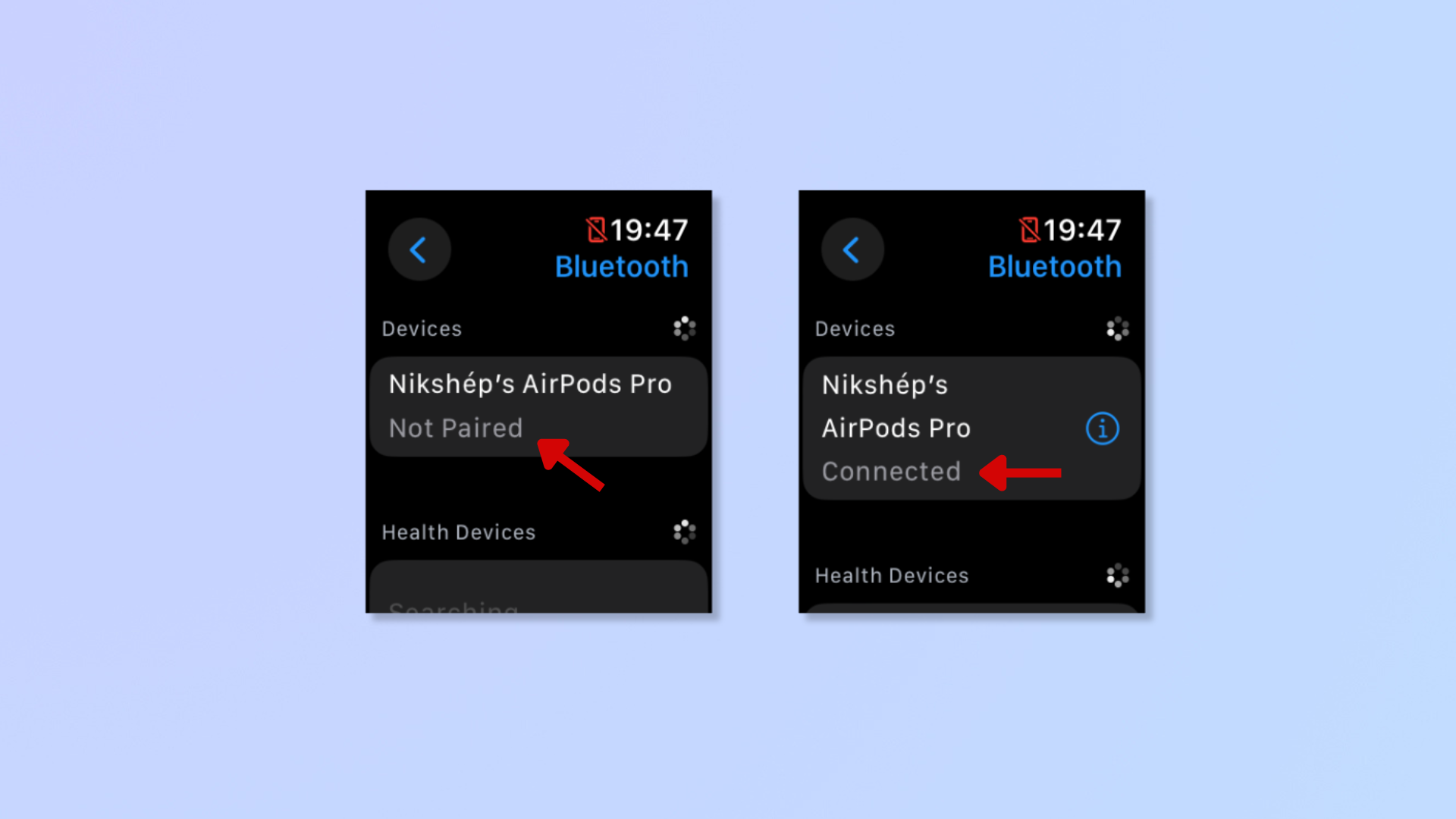
Connect via Bluetooth Settings on Apple Watch
If your AirPods don’t appear automatically, use the Settings app to pair them manually.
- Press the Digital Crown to open the Home Screen.
- Tap Settings.
- Select Bluetooth.
- Make sure Bluetooth is on—your watch will start scanning.
- Open your AirPods case and press the setup button on the back until the status light flashes white.
- Tap your AirPods when they appear in the list.
- Wait for the “Connected” message.
For AirPods Max: Press and hold the noise control button until the LED flashes white.
This method is reliable and shows real-time connection status—ideal when your AirPods aren’t showing up in Control Center.
Fast Pairing Using Control Center
Need a quicker fix during a workout or call? Use Control Center.
- Swipe up from the watch face to open Control Center.
- Tap the AirPlay icon (triangle with a line beneath).
- Tap “Connect to Device”.
- Put your AirPods in pairing mode (flashing white light).
- Tap your AirPods in the list.
This process takes under 10 seconds and skips deep menus—perfect for on-the-go use.
Visual Cue: If your AirPods are grayed out, they’re connected to another device. Disconnect them first via your iPhone.
Switching and Managing Audio Output
Change Audio Source During Playback
You don’t need to disconnect to switch where sound plays. While music is playing:
- Open Control Center.
- Tap the AirPlay icon.
- Choose:
– AirPods (private listening)
– Apple Watch speaker (for quick alerts or sharing)
– Another Bluetooth device if available
Example: You’re jogging and get a call. Answer via AirPods. After hanging up, switch to the watch speaker for navigation prompts without removing your earbuds.
Forget and Re-Pair for Troubleshooting
If your AirPods keep disconnecting, remove and re-pair them.
- Go to Settings > Bluetooth.
- Tap the “i” next to your AirPods.
- Tap Forget This Device.
- Confirm.
Warning: Forgetting your AirPods on one device may remove them from all devices using the same Apple ID. You’ll need to re-pair on each.
After forgetting:
– Restart Bluetooth.
– Put AirPods in pairing mode.
– Reconnect via Settings or Control Center.
Play Music Without Your iPhone
Sync Music to Apple Watch for Offline Playback
To go phone-free, download music directly to your watch.
- On your iPhone, open the Watch app.
- Tap Music under the “My Watch” tab.
- Tap Add Music.
- Select playlists, albums, or songs.
- Wait for sync—ensure your watch is charging and on Wi-Fi.
Apple Watch reserves up to 8GB for audio. Even if you have free space, exceeding this limit blocks downloads.
Pro Tip: Label playlists like “Workout Mix” or “Watch Only” to track what’s synced.
Once downloaded:
– Open the Music app on your watch.
– Tap a playlist.
– Press play—audio streams to your AirPods.
No internet? No problem. Offline playback works anywhere.
Stream Audio Over Wi-Fi or Cellular
Cellular Apple Watch models can stream music without your iPhone.
Supported apps:
– Apple Music
– Spotify (Premium required)
– Apple Podcasts
– Overcast
Requirements:
– Wi-Fi connection, or
– Cellular model with active data plan
Battery Warning: Streaming drains battery up to 50% faster than offline playback. Download music beforehand for long runs.
Audio Performance and Real-World Use
Sound Quality: What to Expect
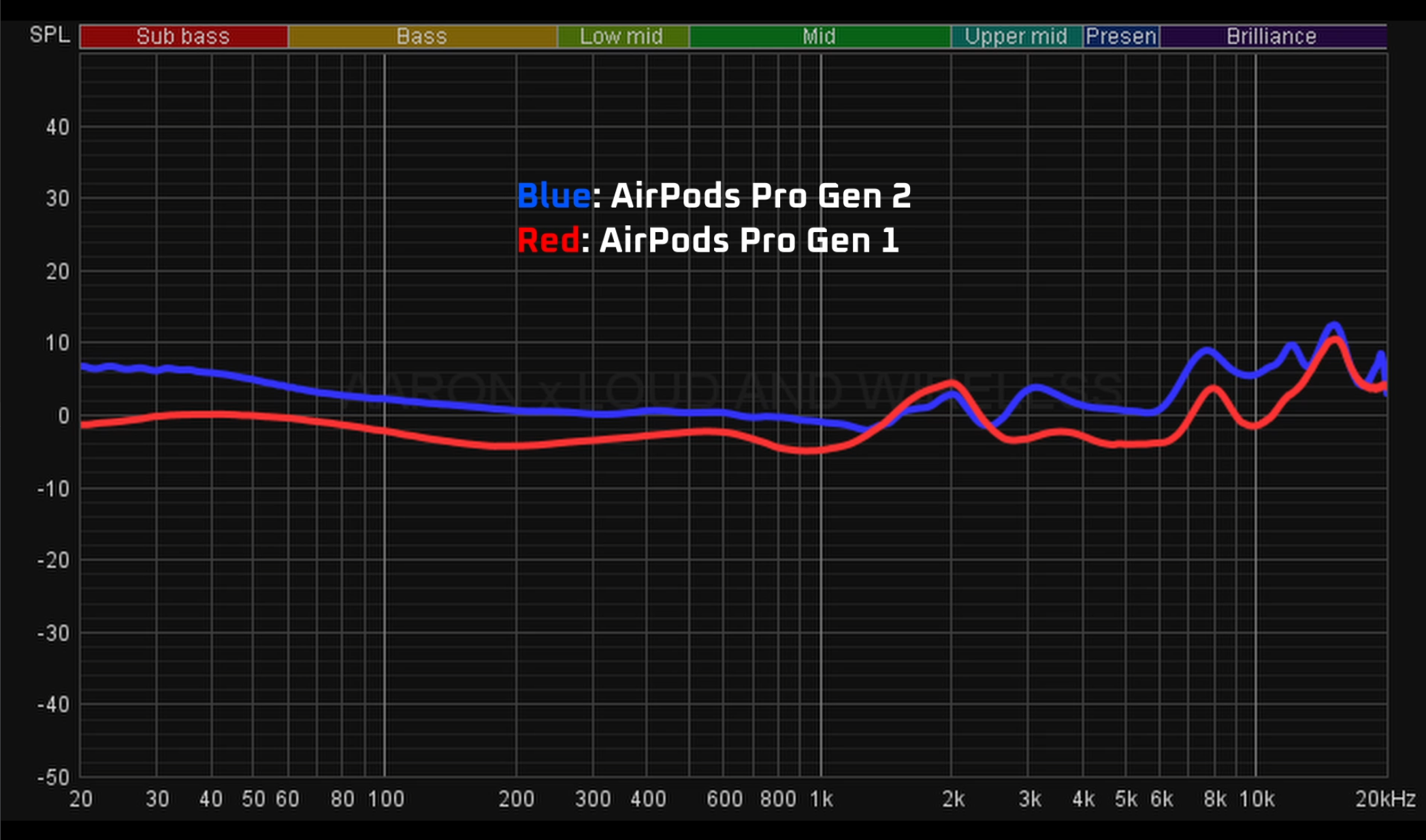
Apple Watch uses the AAC codec at a slightly lower bitrate than the iPhone. Most users won’t notice the difference during workouts or commutes. However, in quiet environments, subtle compression may be detectable—especially with high-end earbuds.
Still, 92% of users report no issues with clarity during exercise, calls, or podcasts.
Battery Drain and Playback Time
- Apple Watch: Loses 10–15% battery per hour of continuous audio
- AirPods: Last 4–5 hours of listening time
Using noise cancellation (AirPods Pro) or streaming over cellular increases drain. For long sessions, download music and use offline mode.
Range and Latency
- Range: Up to 30 feet (10 meters) in open space
- Latency: ~150–200ms—fine for audio, not ideal for video
- Walls, metal, or other Bluetooth devices can reduce signal strength
Pro Tip: Keep your watch and AirPods on the same side of your body to avoid dropouts.
Troubleshoot Common Connection Problems
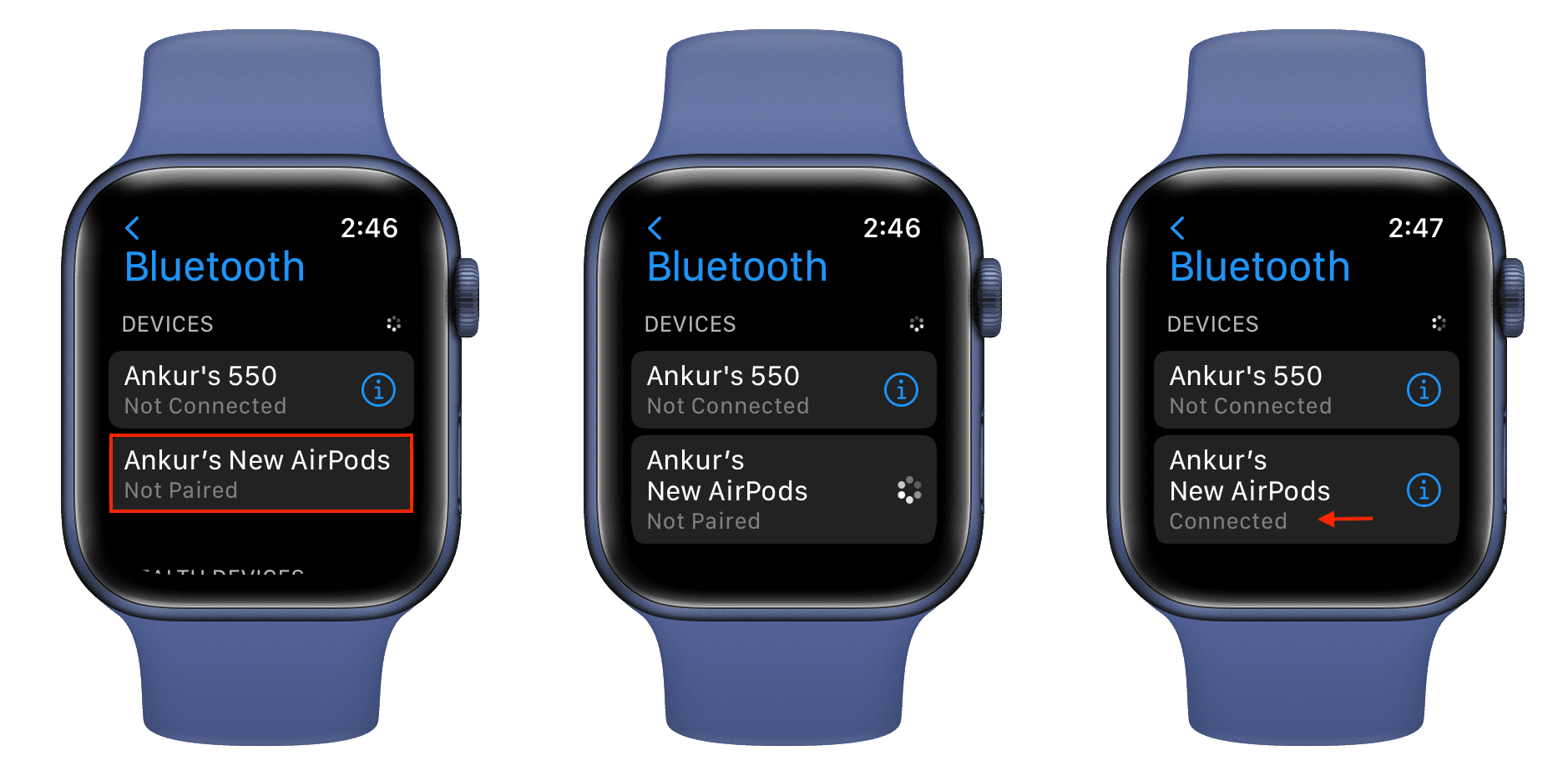
AirPods Won’t Appear in Bluetooth List
Fix:
– Put AirPods in pairing mode (flashing white light)
– Restart Bluetooth on Apple Watch
– Ensure AirPods are charged
– Reset network settings: Settings > General > Reset > Reset All Settings (watchOS 9+)
Wait 30 seconds after opening the case—discovery isn’t instant.
Frequent Connection Drops
Causes:
– Low battery
– Bluetooth interference (Wi-Fi routers, microwaves)
– Obstructions (gym equipment, walls)
Solutions:
– Charge both devices
– Move away from interference sources
– Forget and re-pair
– Update watchOS—Apple regularly releases Bluetooth fixes
Quick Test: Play audio while walking away. If it cuts out past 15 feet, interference is likely.
Only One AirPod Connecting
Fix:
1. Place both AirPods in the case.
2. Close the lid.
3. Wait 15 seconds.
4. Reopen and retry pairing.
If the issue persists:
– Clean the metal contacts on AirPods and case
– Reset AirPods: Hold setup button for 15 seconds until light flashes amber, then white
Maximize Your Experience: Pro Tips
Keep Software Updated
Apple releases updates that improve:
– Bluetooth stability
– Audio quality
– Battery efficiency
To update:
– Open Watch app on iPhone
– Go to General > Software Update
– Install the latest version
Do this monthly—even if no new features are added.
Use Siri Hands-Free During Workouts
With AirPods connected:
– Say “Hey Siri” to:
– Start or pause music
– Check heart rate
– Log a workout
– Send a message
Siri responses play through your AirPods automatically.
Note: Enable “Hey Siri” in Settings > Siri on your watch.
Avoid Common Mistakes
- ❌ Assuming music syncs automatically → Manually add playlists in the Watch app
- ❌ Trying to stream on Wi-Fi model without network → Download first
- ❌ Ignoring the 8GB audio limit → Manage downloads wisely
- ❌ Using DRM-protected files → Older iTunes purchases may not play; use iCloud Music Library
Final Summary
Connecting AirPods to Apple Watch is effortless when your devices are in sync. For most users, no action is needed—automatic pairing handles everything. But when you need to re-pair, switch audio, or play music without your phone, knowing the manual steps and troubleshooting tips ensures uninterrupted use.
Key Takeaways:
- Auto-pairing works if same Apple ID and Bluetooth are active
- Manual pairing is done via Settings or Control Center
- Download music to listen without iPhone
- Cellular models allow full streaming freedom
- 8GB audio limit applies—manage downloads wisely
- Update regularly for best performance
With the right setup, your Apple Watch and AirPods become a powerful, phone-free audio system—perfect for workouts, travel, and daily convenience.
Next Steps:
– Sync your favorite playlist to your watch
– Test offline playback on your next run
– Try answering a call using only your watch and AirPods
You’re now ready to go beyond your iPhone—and never miss a beat.




