
You’ve just set up your new iPhone, excited to sync your Apple Watch—only to be met with a frustrating message: “This Apple Watch is already paired” or a demand for an old Apple ID password you no longer have access to. If you’ve sold, lost, or given away your old iPhone but still own your Apple Watch, you’re not alone. Thousands of users face this exact problem every year.
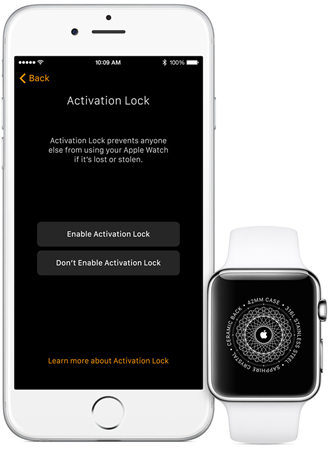
The root cause? Activation Lock—a built-in security feature designed to prevent theft. Much like iPhones, Apple Watches are tied to the Apple ID used during their initial setup. Even if you reset the watch, it remains linked to that account unless properly unpaired and removed from iCloud. Without completing this process, your watch can’t pair with a new iPhone.
The good news: you don’t need the old phone to unpair your Apple Watch. Apple provides secure, remote methods to erase the device and remove it from your account—whether the watch is online, offline, or even powered off.
This guide walks you through step-by-step solutions to unpair your Apple Watch from an inaccessible old phone, bypass Activation Lock, fix common pairing errors, and successfully connect your watch to your new iPhone. We’ll cover the most effective methods—using iCloud, the Find My app, direct reset options, and what to do when nothing seems to work.
Let’s get your Apple Watch back in action.
Remotely Unpair Apple Watch via iCloud
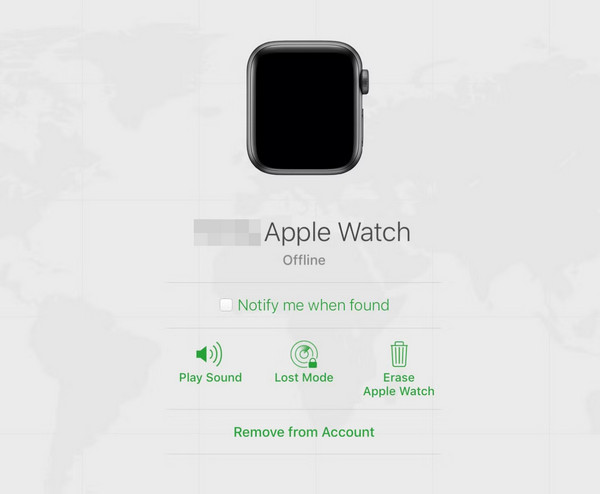
When you no longer have the original iPhone, iCloud.com is your primary tool for unpairing. This method allows you to remotely erase the watch and remove it from your Apple ID, permanently disabling Activation Lock.
Sign In to iCloud with the Original Apple ID
Open any web browser and go to icloud.com. You must sign in with the Apple ID that was used to set up the old iPhone and pair the Apple Watch. Using a different account won’t work—this is the key to unlocking the device.
After logging in, click Find iPhone (or Find, depending on your region). This launches Apple’s device tracking system, which manages all your registered Apple devices.
Locate Your Apple Watch in Find My
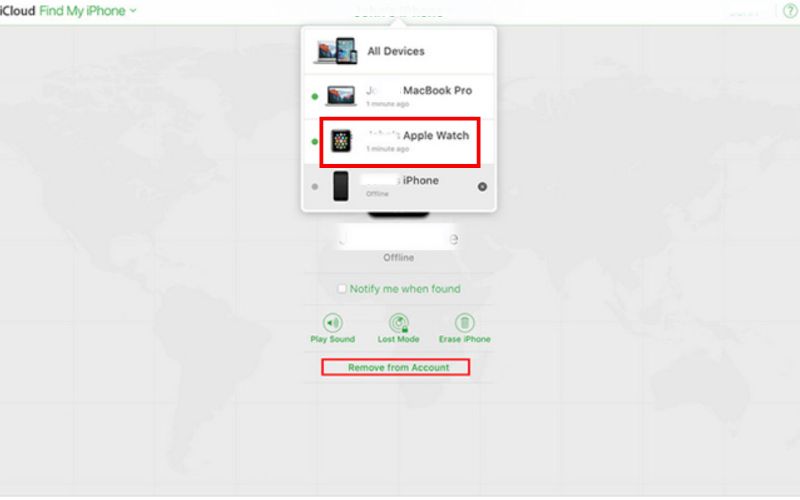
At the top of the screen, select All Devices. A dropdown menu will appear listing every Apple product linked to your account. Scroll through until you find your Apple Watch—it may show the model (e.g., “Apple Watch Series 6”) and its last known location.
Click on the watch entry to open its device details.
Erase and Remove from Account
With the watch selected, click Erase Apple Watch. Confirm the action when prompted. This sends a remote command to wipe all data, apps, health info, and pairing history—even if the watch is turned off or out of range.
Once the erase is confirmed (you’ll see a notification), do not stop here. Click the X next to the device name and select Remove from Account.
✅ This step is critical. Skipping removal leaves Activation Lock active. The watch may appear factory reset, but it will still require the old Apple ID and password during setup.
After removal, your Apple Watch becomes a clean, unlinked device—ready to pair with any iPhone.
Pro Tip: If the watch is offline, the erase command will execute the next time it connects to Wi-Fi or Bluetooth. You can proceed with removal immediately after confirming the erase request.
Force Reset Apple Watch Without Access to iPhone
If you can’t sign in to iCloud or the remote erase fails, you can manually reset the watch directly from the device. This wipes all content locally but does not disable Activation Lock on its own.
Restart and Enter Erase Mode
Press and hold the Side button and Digital Crown together for 10–15 seconds. Release when the Apple logo appears—this is just a restart.
Now, press and hold the Side button again, but this time keep holding for about 20 seconds. Don’t release when the power-off slider appears. Wait until a red Erase Apple Watch option shows up on screen.
Confirm Full Factory Reset
Tap Erase All Content and Settings. If a passcode is set, enter it when prompted. The watch will begin erasing—this can take 5–10 minutes.
When complete, it reboots to the initial setup screen showing language and region choices.
⚠️ Important: A local reset does not remove the device from your iCloud account. You must still log in to iCloud.com and remove the watch under Find My to disable Activation Lock. Otherwise, pairing will fail with an Activation Lock prompt.
Use Find My App on Another Apple Device
If you have access to a different iPhone, iPad, or Mac signed into the same Apple ID, use the Find My app—it’s faster and more intuitive than the web version.
Open Find My and Select Your Watch
On the new device, open the Find My app and tap the Devices tab at the bottom. Scroll through the list and locate your Apple Watch.
Tap the device name to view its status—online, offline, or last known location.
Erase and Remove from Account
Tap Erase This Device, then confirm. The system will remotely wipe the watch.
After erasure completes, tap Remove from Account. This severs the iCloud connection and disables Activation Lock.
✅ Success: The watch is now free to pair with your new iPhone using your current Apple ID.
Fix Common Pairing Issues After Reset
Even after resetting, many users report pairing failures—either the iPhone doesn’t detect the watch or blocks setup with “Activation Lock enabled.” Here’s how to fix it.
Soft Reset Both Devices
Start fresh:
- Apple Watch: Hold Side button + Digital Crown for 10 seconds until the Apple logo appears.
- iPhone: Press Volume Up, then Volume Down, then hold the Side button until the Apple logo shows.
Wait for both devices to restart fully.
Reinstall the Apple Watch App
On your new iPhone, delete the Apple Watch app. Then, go to the App Store and reinstall it. This clears any corrupted pairing data that might block recognition.
Restart the iPhone after reinstalling.
Update iOS and watchOS
Ensure compatibility:
- On iPhone: Go to Settings > General > Software Update and install any available updates.
- If the Apple Watch is in setup mode, it will automatically check for the latest watchOS. Allow updates if prompted.
Outdated software is a common cause of failed pairing.
Complete Pairing with Your New iPhone
Now that the watch is clean and free of Activation Lock, finalize the setup.
Start the Pairing Process
Turn on the Apple Watch. Bring it close to your new iPhone. Wait for the pairing animation to appear on the iPhone screen.
Tap Continue, then use the camera to scan the swirling pattern on the watch.
Follow the prompts. When asked to sign in with an Apple ID, use your current account—not the old one.
Restore from Backup (Optional)
If you have an iCloud backup of your watch, you’ll be prompted to Restore from Backup. This brings back apps, settings, and health data.
“If there’s a backup attached to your iCloud, it will restore from that.” – Verified user experience
If no backup exists, choose Set Up as New Apple Watch.
Resolve Lingering Activation Lock Errors
If the watch still asks for the old Apple ID and password, Activation Lock is still active. This means the device was erased but not removed from the iCloud account.
Return to iCloud.com and Remove the Device
Go back to icloud.com/#find. Sign in with the original Apple ID. Under All Devices, find your Apple Watch.
If it’s still listed, select it and click Remove from Account.
✅ Once removed, restart the pairing process. The watch should now accept your current Apple ID.
Contact Apple Support When Stuck
If all else fails, Apple Support can help, especially if you lack access to the old Apple ID.
Reach Out via Phone or Website
- Call: (800) MY–APPLE (800–692–7753)
- Visit: support.apple.com/repair
Explain: “I need to unpair my Apple Watch from a missing iPhone and can’t complete setup.”
Visit a Genius Bar with Proof of Purchase
Schedule an appointment at an Apple Store. Bring:
– The Apple Watch
– Proof of purchase (receipt, box, or original email)
Apple may verify ownership and manually release the device from the old account.
⚠️ Note: Apple may refuse to remove Activation Lock without proof of purchase, especially in suspected theft cases.
Unpairing Success Checklist
Use this checklist to ensure no step is missed:
| Step | Action | Status |
|---|---|---|
| 1 | Erased Apple Watch via iCloud.com | ✅ / ❌ |
| 2 | Removed watch from iCloud account | ✅ / ❌ |
| 3 | Performed force reset (if iCloud failed) | ✅ / ❌ |
| 4 | Reinstalled Apple Watch app on new iPhone | ✅ / ❌ |
| 5 | Soft reset both devices | ✅ / ❌ |
| 6 | Attempted pairing with new iPhone | ✅ / ❌ |
| 7 | Resolved Activation Lock via iCloud removal | ✅ / ❌ |
| 8 | Contacted Apple Support (if unresolved) | ✅ / ❌ |
Most common failure point: Skipping Remove from Account after erasure. Always complete this final step.
Final Note: Unpairing your Apple Watch without the old phone is safe, fast, and fully supported—when done correctly. The golden rule: Erase → Remove from Account → Pair. The entire process takes 10–20 minutes. By using iCloud or the Find My app, you retain full control—even without the original device. Once freed, your Apple Watch will sync seamlessly with your new iPhone, restoring notifications, fitness tracking, and app access.





