
Is your Apple Watch showing a persistent notification to update—or worse, failing to sync with your iPhone? You’re not alone. Updating your Apple Watch is essential for unlocking new features, improving performance, and ensuring your health data stays secure. With watchOS 26 now officially released in September 2025, millions of users are preparing their devices for the latest upgrade. Whether you own an Apple Watch Series 6, SE (2nd gen), or Ultra, this guide walks you through every step of the update process—directly from your iPhone or the watch itself. You’ll also learn how to troubleshoot common errors like “not enough storage,” stalled downloads, and beta profile conflicts. By the end, you’ll know exactly how to update Apple Watch safely, efficiently, and without losing any data.
Confirm Your Apple Watch Can Run watchOS 26
Before attempting any update, verify that your device supports watchOS 26—Apple’s latest operating system.
Check Your Apple Watch Model
Only newer models are compatible with watchOS 26:
– Apple Watch Series 6 and later
– Apple Watch SE (2nd generation) and later
– Apple Watch Ultra and later
If you have an older model (e.g., Series 5 or SE 1st gen), it will receive the most recent version it supports, but not watchOS 26. Even on supported models, some advanced features—like enhanced ECG readings or new sleep stage analysis—may be unavailable due to hardware limitations.
Verify iPhone Compatibility and iOS Version
Your iPhone must meet minimum requirements to install watchOS 26:
– iPhone 11 or later, or iPhone SE (3rd generation) or later
– Must be running iOS 26 or newer
To check your iOS version:
1. Open Settings > General > Software Update on your iPhone.
2. Install any available updates.
Critical: An outdated iOS version will block the watchOS update. Always update your iPhone first.
Prepare Your Devices for a Smooth Update
A failed update can leave your Apple Watch unusable—avoid this by preparing properly.
Pre-Update Checklist
- Charge your Apple Watch to at least 50% and keep it on the charger.
- Update your iPhone to iOS 26.
- Connect both devices to a strong Wi-Fi network.
- Keep your iPhone within 3 feet of your Apple Watch during the process.
- Do not close the Apple Watch app or restart either device mid-update.
- Allow 30 minutes to over an hour for completion—ideal to update overnight.
Pro Tip: Tap “Update Tonight” when prompted to schedule the update automatically. Just make sure both devices are charging and connected to Wi-Fi.
Update Apple Watch Using iPhone (Best Method)

The most reliable way to update your Apple Watch is through the Apple Watch app on your paired iPhone.
Step-by-Step: iPhone-Based Update
- Open the Apple Watch app on your iPhone.
- Tap the My Watch tab at the bottom.
- Navigate to General > Software Update.
- If an update is available, tap Download and Install.
- Enter your iPhone or Apple Watch passcode when prompted.
Monitor Progress
- Your Apple Watch will display a rotating progress wheel and may restart once or twice.
- Keep it on the charger throughout.
- Do not use the watch until the update completes.
Note: The “Update Tonight” option lets you defer installation to bedtime. The watch will update automatically if both devices are charging and nearby.
Update Apple Watch Without iPhone (Standalone Method)
If your iPhone isn’t available, you can still update your Apple Watch directly—provided it runs watchOS 6 or later.
How to Update Directly on the Watch
- On your Apple Watch, open Settings.
- Tap General > Software Update.
- Ensure you’re connected to Wi-Fi (go to Settings > Wi-Fi to connect).
- If an update is available, tap Install.
- Enter your passcode when prompted.
Complete the Installation
- Leave the watch on the charger.
- Wait for the progress wheel to finish and the device to restart.
Warning: Never force-restart during installation—this could corrupt the system software.
Why You Should Update to watchOS 26
Ignoring software updates can lead to performance issues, security risks, and lost functionality.
Key Benefits of watchOS 26
- Advanced health tracking: Improved sleep stage detection, ECG accuracy, and blood oxygen monitoring
- Faster app launches and smoother animations
- Security patches protecting sensitive health and location data
- New watch faces and customizable complications
- Better iPhone integration for calls, messages, and third-party apps
Risks of Not Updating
- Activity rings fail to sync with your iPhone
- Missing critical iOS prompts like “Update Apple Watch”
- Inability to use new iPhone features (e.g., iOS 26-exclusive health integrations)
- Exposure to known security vulnerabilities
Fact: Some iOS 26 updates require watchOS 26 to maintain full functionality and data syncing.
Fix “Not Enough Storage” Error During Update
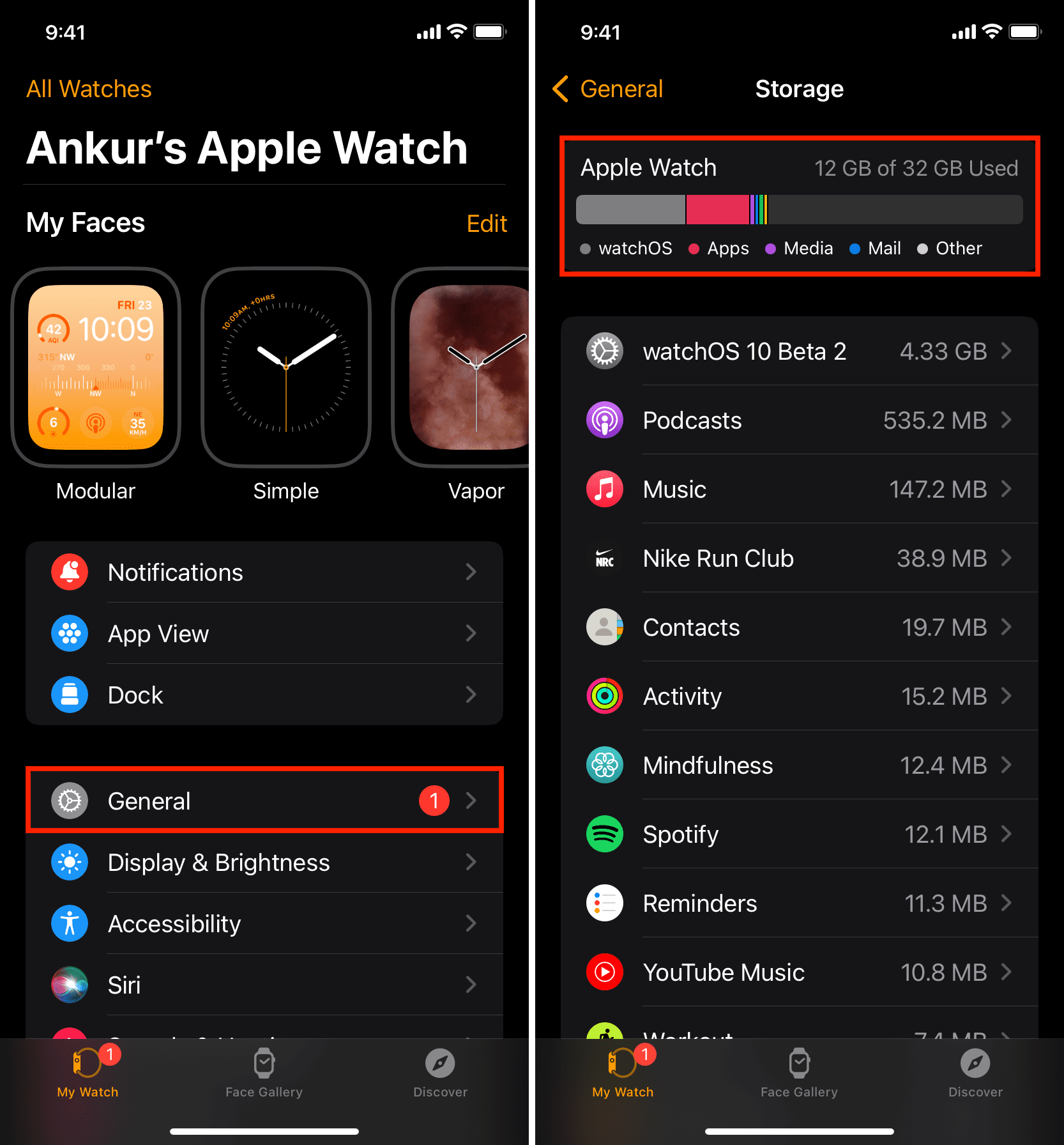
Insufficient storage is one of the top reasons updates fail.
Free Up Space on Apple Watch
- Open the Apple Watch app on your iPhone.
- Go to General > Storage.
- Delete unused:
– Apps (especially large games or media apps)
– Music playlists
– Podcasts or audiobooks
– Old watch faces
Retry the Update
After deleting content:
1. Return to Software Update.
2. Tap Download and Install again.
Pro Tip: Use “Offload Unused Apps” in iPhone Settings to automatically remove infrequently used apps and free space.
Handle a Frozen Progress Wheel
If the update seems stuck, don’t panic—many “frozen” updates are actually still processing.
Wait Before Acting
- Some updates take over 60 minutes, especially on older models.
- If the wheel is moving slightly, wait at least one hour before taking action.
Restart and Retry
If no progress occurs:
1. Force restart Apple Watch:
– Press and hold the side button until the power slider appears.
– Slide to power off, then press the side button again to restart.
2. Restart iPhone (use side + volume buttons depending on model).
3. Delete the partial update:
– In Apple Watch app > General > Storage, find and delete the update file.
4. Reattempt the download.
Warning: Force-restarting during an active update risks data loss—only do so if the device is truly unresponsive.
Resolve Stuck Download or Failed Installation
When the update won’t start, corrupted files or connectivity issues are often to blame.
Clear the Update Cache
- Open Apple Watch app > General > Storage.
- Locate the watchOS update file (usually labeled “Software Update”).
- Tap Delete.
- Return to Software Update and try again.
Improve Connectivity
- Ensure your iPhone is on Wi-Fi (not cellular).
- Move closer to your router if signal is weak.
- Avoid public or metered networks—updates require stable, unlimited Wi-Fi.
Expert Note: A factory reset should be a last resort—try all troubleshooting steps first.
Remove Beta Profile Before Installing Official Release

Using a beta version? You must remove the beta profile to install the official watchOS 26.
How to Delete Beta Profile
From Apple Watch (via iPhone):
1. Open Apple Watch app.
2. Tap My Watch > General > Profiles.
3. Select the beta software profile.
4. Tap Delete Profile and confirm with your passcode.
From iPhone:
1. Go to Settings > General > Profiles & Device Management.
2. Tap the beta profile.
3. Select Delete Profile.
Final Steps
- Restart both devices.
- Open Apple Watch app and check for update.
Critical: Leaving the beta profile active blocks official updates—even if one is available.
Verify Your Apple Watch Updated Successfully
After the restart, confirm the update completed correctly.
Check Software Version
- On Apple Watch, go to Settings > General > About.
- Look for Software Version—it should read 26.0 or higher.
Test Core Functions
- Confirm Activity rings sync with iPhone.
- Check notifications arrive from messages and calls.
- Open third-party apps like Strava or Spotify.
- Re-pair Bluetooth headphones or speakers if disconnected.
Pro Tip: Custom watch faces may reset—reinstall your favorites from the Watch app.
Avoid These Common Update Mistakes
Even small errors can derail the process.
What Not to Do
- ❌ Remove Apple Watch from charger mid-update
- ❌ Close the Apple Watch app on iPhone
- ❌ Restart devices during installation
- ❌ Ignore low storage warnings
- ❌ Skip iPhone iOS updates
Best Practices Summary
| Action | Recommended? |
|---|---|
| Charge watch to 50%+ | ✅ Yes |
| Update iPhone first | ✅ Yes |
| Use Wi-Fi (not cellular) | ✅ Yes |
| Keep devices close | ✅ Yes |
| Manually restart during update | ❌ No |
Remember: Patience prevents problems—rushing increases failure risk.
watchOS 26 Release and Future Updates
Released in September 2025, watchOS 26 launched alongside new hardware:
– Apple Watch Series 11
– Apple Watch Ultra 3
– Apple Watch SE 3
New Versioning System
Apple now aligns watchOS with the calendar year:
– watchOS 26 = 2026
– Skipped versions (e.g., no watchOS 12) reflect the shift
Ongoing Updates
Expect regular minor releases:
– watchOS 26.1, 26.2, etc.
– Roll out every few weeks
– Include bug fixes, new watch faces, and small enhancements
Need More Help? Contact Apple Support
If the update still fails:
Get Official Support
- Visit support.apple.com for live chat and guides.
- Use the Apple Support app to diagnose issues.
- Book a Genius Bar appointment at your local Apple Store.
Last Resort: Erase and Restore
Only if all else fails:
1. Back up your watch via iPhone.
2. On Apple Watch, go to Settings > General > Transfer or Reset > Erase All Content and Settings.
3. Set up as new or restore from backup.
Warning: This deletes all data—back up first.
Final Note: Updating your Apple Watch ensures peak performance, full feature access, and secure data syncing with your iPhone. Always verify compatibility, prepare your devices, and allow time for installation. With this guide, you now know exactly how to update Apple Watch—safely, quickly, and successfully.




