
You’re on the go, your Apple Watch is prompting for a software update, and you’re nowhere near your home Wi-Fi—but your iPhone has full 5G. You open the Watch app, only to find the Download button grayed out. No matter how hard you tap, nothing happens. Frustrating? Absolutely. Impossible? Not at all.
While Apple officially requires Wi-Fi to update your Apple Watch, you don’t need your home network—just any working Wi-Fi connection with internet access. That opens the door to practical, real-world workarounds. This guide reveals how to update Apple Watch without Wi-Fi using proven methods that actually work—no myths, no false promises. Whether you’re off-grid, traveling, or just lack broadband, you’ll learn how to leverage your iPhone hotspot, Mac sharing, portable devices, and public networks to stay current on watchOS 10 and beyond.
Why Apple Watch Needs Wi-Fi for Updates
Apple mandates Wi-Fi for system updates—not because the hardware can’t handle it, but by design. Even LTE and 5G Apple Watch models cannot download full OS updates over cellular, despite being able to stream music, receive calls, and sync data that way.
The reasons are clear:
- Large file sizes: watchOS updates typically range from 1 to 2 GB, which could consume a significant chunk of a limited data plan.
- Stability concerns: Cellular connections are more prone to dropouts, risking corrupted downloads during critical installation phases.
- Battery safety: Apple requires at least 50% battery before starting an update, and large downloads over cellular could drain power mid-process.
- Security and control: Wi-Fi networks are considered more trusted and stable for firmware-level changes.
🔒 Even with your iPhone on 5G, the Apple Watch must be connected to a Wi-Fi network—any Wi-Fi network—to begin the update.
This isn’t a technical limitation—it’s a policy. And while it’s inconvenient, the good news is that any Wi-Fi network counts, not just your home one.
No Direct Cellular Updates (Yet)
Despite having eSIM and 5G, Apple blocks direct cellular OS updates. This frustrates many users who expect the same flexibility as Android Wear OS watches, which often support over-the-air updates via LTE.
| Reason | Impact |
|---|---|
| Data usage risks | Prevents surprise charges on metered plans |
| Battery strain | Large downloads could interrupt installation |
| Update integrity | Wi-Fi reduces chance of mid-install failure |
❗ Many online guides claim “cellular-only updates” are possible—but these are often outdated or misleading. While your Apple Watch uses cellular for daily tasks, full OS downloads still require Wi-Fi.
Until Apple changes this, your workaround is simple: use your cellular data to create a Wi-Fi network.
Use iPhone Hotspot as a Wi-Fi Source
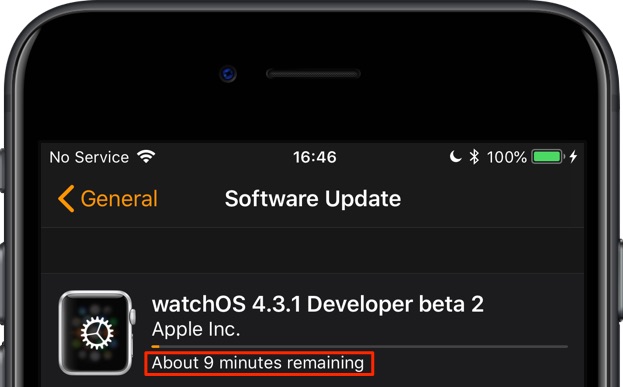
Your iPhone’s Personal Hotspot (in Wi-Fi mode) is the easiest and most accessible way to update your Apple Watch without home Wi-Fi.
The Watch app recognizes your iPhone’s hotspot as a valid Wi-Fi network—making this the top choice for most users.
How to Connect Apple Watch to iPhone Hotspot
- On iPhone: Go to Settings > Personal Hotspot.
- Turn on Allow Others to Join.
- Note your Wi-Fi password.
- On Apple Watch: Open Settings > Wi-Fi.
- Select your iPhone’s hotspot from the list.
- Enter the password.
- Wait for the blue checkmark (connected).
- Open the Watch app on iPhone → General > Software Update.
- Tap Download and Install.
✅ Real user success:
“I’ve updated it using my phone as a hotspot at a no-Wi-Fi house!” — Reddit user
Pro Tips for Success
- Keep both devices within 1–2 feet of each other.
- Use 5G or strong LTE on your iPhone.
- If the hotspot doesn’t appear, restart the Apple Watch.
- Toggle Bluetooth off temporarily—some users report interference.
- If connection stalls, toggle Wi-Fi off and on on the Watch.
🔄 Don’t give up after one failed attempt. Many users succeed on the second or third try.
Share Internet from Mac (iPhone to Mac to Watch)
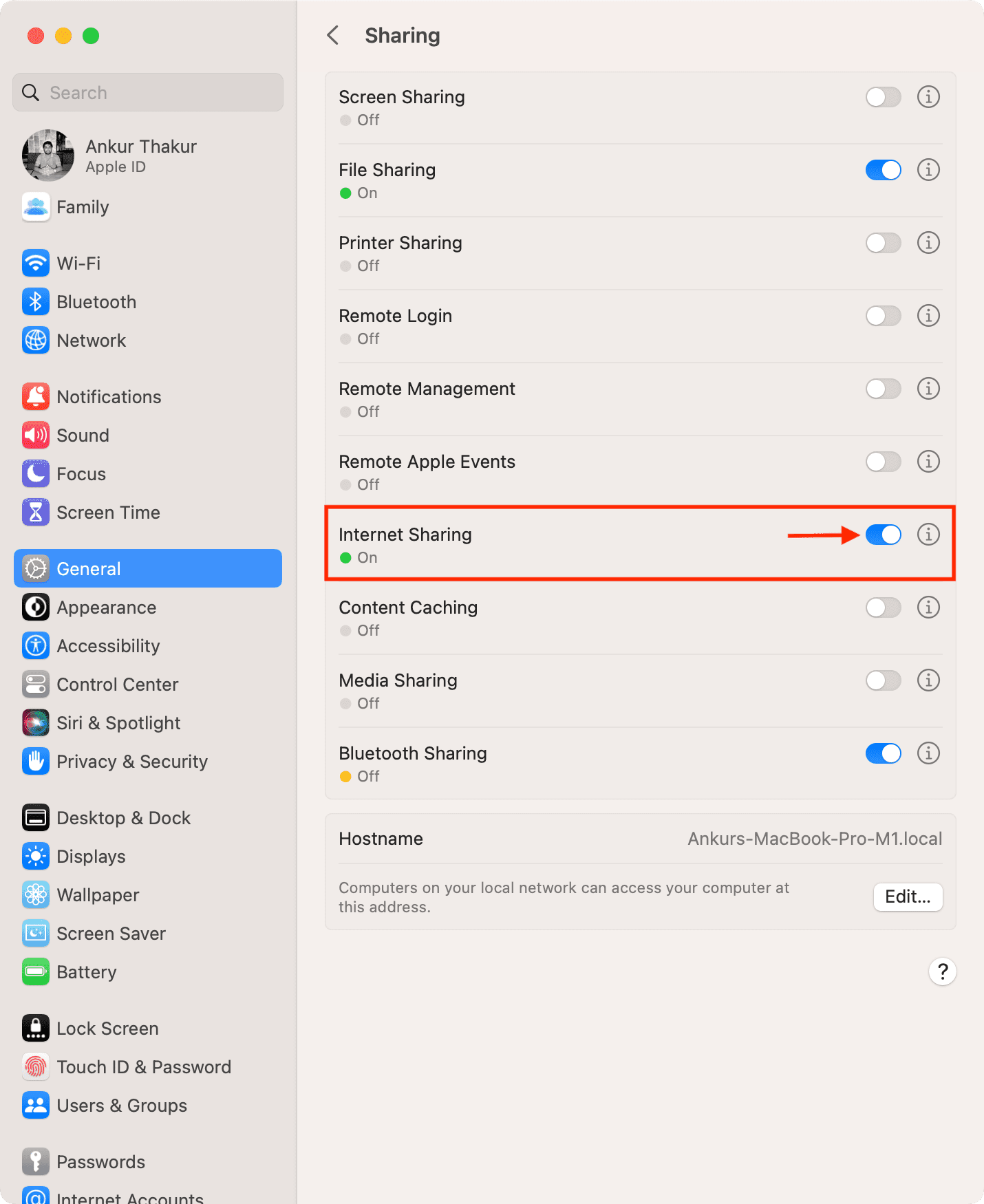
If you own a MacBook or iMac, you can bridge your iPhone’s cellular data through your Mac to create a dedicated Wi-Fi network for your Apple Watch.
This method is ideal for remote workers, rural users, or anyone without fixed broadband.
Steps to Use Mac as a Wi-Fi Hotspot
- Connect iPhone to Mac via USB cable (most reliable).
- On iPhone: Enable Personal Hotspot.
- On Mac: Open System Settings > Network > Sharing.
- Select Internet Sharing.
- From: Choose iPhone (via USB or Wi-Fi).
- To: Select Wi-Fi.
- Click Wi-Fi Options, set a network name and password.
- Check Share between computers using Wi-Fi.
- Turn on Internet Sharing.
- On Apple Watch: Go to Settings > Wi-Fi, join the new network.
- Open Watch app → Software Update → Install.
✅ Verified success:
“Finally worked after setting up my Mac as a hotspot.”
Why This Works Better Than Public Wi-Fi
- No captive portals or login pages.
- Full control over network settings.
- Stable connection via USB tethering.
⚠️ Avoid Bluetooth or USB-only sharing—the Apple Watch needs a Wi-Fi signal.
Use a Portable MiFi Device
A portable hotspot (MiFi) is a standalone device that creates a Wi-Fi network using cellular data. Brands like Verizon Jetpack, AT&T Nighthawk, or T-Mobile Mobile Hotspot are perfect for off-grid users.
How to Update with a MiFi
- Power on the MiFi device.
- Insert an active SIM card.
- On Apple Watch: Settings > Wi-Fi, select the MiFi network.
- Enter password.
- Open Watch app → Software Update → Download.
✅ MiFi gives you on-demand access anywhere with cellular coverage.
Benefits
- No reliance on home internet.
- Data plans often include 15–100GB/month—plenty for updates.
- One-time purchase ($50–$100) for long-term use.
💡 Tip: Buy a prepaid MiFi and use it only when needed.
Connect to Public Wi-Fi Networks
Public Wi-Fi at Starbucks, libraries, airports, or Apple Stores is fully supported for Apple Watch updates.
Best Locations for Reliable Wi-Fi
- Public libraries – Often fast, open access.
- Starbucks – Free, widely available.
- Municipal buildings – City halls, post offices.
- Apple Stores – High-speed Wi-Fi and free support.
🚗 One user drove 30 miles to a Starbucks just to update their Watch.
Tips for Success
- Avoid networks with captive portals (login pages)—Apple Watch can’t open browsers.
- Test the network on your iPhone first.
- Charge fully—updates can take 45 minutes.
- Keep iPhone nearby to monitor progress.
❌ If the network requires a web login, your Watch won’t connect properly.
Visit an Apple Store or Use a Friend’s Wi-Fi
When tech feels overwhelming, human help wins.
Apple Store Support
- Genius Bar staff can assist with updates.
- Free Wi-Fi and expert help.
- No appointment needed for software issues.
🧑🔧 Just ask: “Can I update my Apple Watch here?” They’ll help.
Borrow a Friend’s Wi-Fi
- Fastest solution if someone nearby has Wi-Fi.
- No setup required—just connect and update.
👵 Especially helpful for elderly users:
“I’m an old lady… please? Have mercy on me.”
Borrowing a neighbor’s Wi-Fi solved it in 20 minutes.
Step-by-Step: Install the Update (Once Connected)
After connecting to any valid Wi-Fi source:
- Charge Apple Watch to 50%+ (required).
- Place on charger—don’t remove during install.
- Open Watch app on iPhone → General > Software Update.
- Tap Download and Install.
- Accept terms on iPhone.
- Wait for download (progress on both devices).
- Tap Install on Watch when ready.
- Watch restarts 2–3 times.
- Latest watchOS activates.
⏱️ Total time: 20–45 minutes, depending on speed.
✅ Final check: Settings > General > About > Software Version
Fix Common Update Failures
Even with Wi-Fi, updates can fail. Here’s how to fix them.
“Try Again” or “Start Over” Loop
Cause: Incomplete download or sync error.
Fixes:
- Restart both devices.
- Unpair and re-pair (back up first).
- Delete partial update:
iPhone → Settings > General > iPhone Storage > Watch app > Offload App → Reinstall. - Try a different network.
Wi-Fi Shows Connected But Update Won’t Start
Cause: No real internet or firewall block.
Fixes:
- Test network on another device.
- Avoid public Wi-Fi with login pages.
- On Mac sharing, set DNS to 8.8.8.8 (Google) or 1.1.1.1 (Cloudflare).
Connection Drops During Update
Cause: Weak signal or movement.
Fixes:
- Keep iPhone and Watch side by side.
- Use USB tethering for stability.
- Don’t touch devices until install completes.
❌ If it fails mid-process, restart and retry.
Who Benefits Most?
| User Type | Best Method |
|---|---|
| Rural users | MiFi or iPhone hotspot |
| Travelers | Public Wi-Fi or portable hotspot |
| Elderly users | Apple Store or friend’s Wi-Fi |
| Tech-savvy users | Mac sharing, DNS tweaks |
Requirements Summary
| Requirement | Must Be Met |
|---|---|
| Wi-Fi Connection | Any network with internet |
| Battery Level | 50% or higher |
| iPhone Proximity | Within range |
| Update Size | 1–2 GB |
| Data Source | Cellular via hotspot, MiFi, or Mac OK |
❌ No direct cellular updates.
✅ Any Wi-Fi network works.
Final Tips to Succeed
- Charge first—never start below 50%.
- Be patient—downloads take time.
- Try multiple times—connection issues are common.
- Back up before unpairing.
- Update during downtime—don’t rush.
💡 Pro Move: Schedule updates when you’ll be near Wi-Fi (e.g., at a café).
Bottom Line: You can update your Apple Watch without home Wi-Fi. Use your iPhone as a hotspot, share internet from a Mac, or visit a public location with Wi-Fi. While Apple blocks direct cellular updates, these workarounds let you stay current—no matter where you are. Until Apple removes the restriction, smart connectivity is your workaround.




