
If your Apple Watch feels like it’s underestimating or overestimating your calorie burn, the culprit might be outdated weight data. Your Apple Watch uses your personal health metrics—especially weight—to calculate how many calories you burn during workouts and throughout the day. But if your weight has changed and you haven’t updated it, those numbers could be off by hundreds. The good news? Updating your weight is simple. The catch? You can’t do it directly on the Apple Watch. All changes must be made on your iPhone and synced over.
In this guide, you’ll learn exactly how to update your weight using the Watch app or Health app, switch between pounds and kilograms, troubleshoot sync issues, and ensure your Activity rings, workout logs, and fitness insights stay accurate. Whether you’re losing fat, gaining muscle, or just want precise tracking, keeping your weight current makes your Apple Watch a more reliable fitness partner.
Update Weight via the Watch App (Fastest Method)
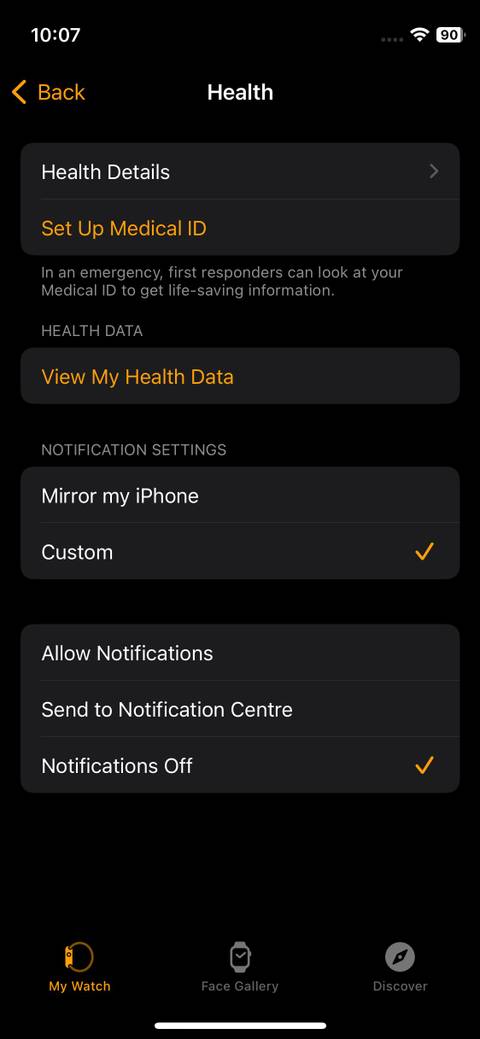
The quickest way to update your weight for Apple Watch calculations is through the Watch app on your iPhone. This method directly updates the profile data used by Activity, Workout, and Move ring algorithms.
Open the Watch App and Navigate to Health Settings
- Unlock your iPhone and open the Watch app (the icon with a watch face).
- Tap the My Watch tab at the bottom.
- Scroll down and select Health.
- Tap Edit in the top-right corner.
This screen displays essential health details like weight, height, sex, blood type, and wheelchair status—all of which impact how your Apple Watch interprets your activity.
Enter Your Current Weight
- Tap Weight.
- Use the numeric keypad to input your current weight.
- Tap Done on the keyboard.
- Repeat for other fields like Height if needed.
- Tap Done again to save all changes.
✅ Pro Tip: This method updates the primary health profile tied to your Apple Watch. If your iPhone and watch are nearby and connected via Bluetooth, the change syncs in seconds.
Update Weight via the Health App (Full Control)

For users who want to manage historical data or verify profile settings, the Health app offers deeper control. It’s also the only place to update your Health Profile, which determines the weight used in calorie calculations.
Add a New Weight Entry
- Open the Health app (red heart icon).
- Tap Browse at the bottom.
- Go to Body Measurements > Weight.
- Tap Add Data in the upper-right corner.
- Enter:
– Your current weight
– The date and time of measurement - Tap Add.
This logs a new data point but doesn’t automatically update your profile weight used by the Apple Watch.
Update Your Health Profile Weight
To ensure accurate calorie tracking:
- In the Health app, tap your profile picture or initials in the top-right corner.
- Select Health Profile.
- Tap Edit.
- Change your Weight field.
- Tap Done to save.
⚠️ Critical: The Apple Watch pulls its calorie-burn data from your Health Profile, not from individual entries. Always confirm this value is up to date.
Change Weight Unit (lbs, kg, or Stone)
You can display weight in pounds (lbs), kilograms (kg), or stone (UK imperial) based on your preference. This setting affects both your iPhone and Apple Watch.
Switch Units in the Health App
- Open Health > Browse > Body Measurements > Weight.
- Scroll down and tap Unit.
- Choose:
– lbs
– kg
– stone - Tap Back to confirm.
🌍 Note: Your iPhone’s region setting (Settings > General > Language & Region > Region) may override this. For example, U.S. users default to lbs and inches.
Verify Updated Weight on Apple Watch
Even though you can’t edit data on the watch, you can confirm the change took effect.
Check Health Details on Your Watch
- Press the Digital Crown to go to the home screen.
- Tap Settings.
- Scroll to Health and tap it.
- Tap Health Details.
- Confirm:
– Correct weight
– Height
– Blood type
– Sex
– Wheelchair status
✅ Tip: Use this screen after updating on your iPhone to verify the sync was successful.
Fix Weight Sync Issues
Sometimes your Apple Watch doesn’t reflect changes. Here’s how to resolve common sync problems.
Force a Manual Sync
- Close the Watch app on your iPhone.
- Restart both your iPhone and Apple Watch.
- Reopen the Watch app and check Health > Health Details.
This often clears minor sync delays.
Check Fitness Tracking Permissions
If data isn’t syncing, ensure your Apple Watch has permission:
- Open Health > Profile > Devices.
- Select your Apple Watch.
- Confirm Fitness Tracking and Health Updates are enabled.
Without these, your watch won’t receive updated health data.
Use a Smart Scale for Automatic Updates
For hands-free tracking, pair a Wi-Fi smart scale with Apple Health. These devices automatically log your weight, eliminating manual entry.
Popular Smart Scales That Sync with Apple Health
- Withings (Nokia Body)
- Fitbit Aria
- Garmin Index
- Eufy Smart Scale
- QardioBase
Once set up, stepping on the scale logs your weight directly into the Health app.
Prevent Duplicate or Conflicting Data
Smart scales can create daily entries that clash with manual updates.
Manage Data Sources
- In Health > Body Measurements > Weight, tap Data Sources & Access.
- Under Write Permissions, disable apps you don’t want contributing data.
- Tap Show All Data > Edit to delete incorrect entries.
✅ Best Practice: Designate one primary source—your scale or manual entry—to avoid confusion.
Update Other Health Profile Info for Better Accuracy
Weight isn’t the only factor. Outdated height, age, or sex data can skew VO₂ max, heart rate zones, and calorie models.
Key Fields to Keep Updated
- Height
- Date of Birth
- Biological Sex
- Blood Type
- Wheelchair Use
To edit:
Health app > Profile > Health Profile > Edit
🧠 Why It Matters: A 30-year-old male and a 60-year-old female burn calories differently. Accurate demographics ensure personalized insights.
Enable Wheelchair Mode for Accurate Push Tracking
If you use a wheelchair, enabling this mode ensures your Apple Watch tracks pushes instead of steps.
Turn On Wheelchair Mode
- Open Watch app > My Watch > Health > Health Details.
- Tap Edit.
- Tap Wheelchair and select Yes.
- Tap Done.
What Changes When Enabled?
- Steps replaced with push count
- Calorie algorithm adjusts for wheelchair propulsion
- New workout types: “Outdoor Wheelchair Walk,” “Wheelchair Run”
- Activity rings adapt to wheelchair-specific goals
🔍 Verify: On Apple Watch, go to Settings > Health > Health Details to confirm “Wheelchair: Yes.”
Why Weight Affects Your Apple Watch Accuracy
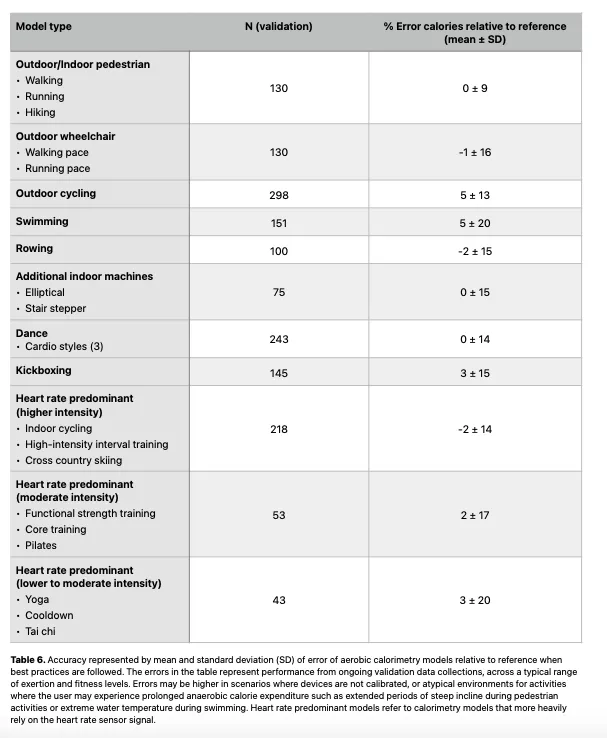
Your weight directly influences several core features.
Calorie Burn (Move Ring)
- A 200 lb person burns ~30% more calories than a 150 lb person doing the same workout.
- If your weight is outdated, your Move ring goal may be too easy or too hard to close.
Workout Estimates
During runs or cycles, your Apple Watch uses weight to calculate:
– Total calories burned
– VO₂ max (on Series 3 and later)
– Recovery time suggestions
An incorrect weight leads to misleading feedback.
Fitness Trends and Progress
Over time, outdated data distorts trends in the Activity and Fitness apps. Updating weight ensures your progress reflects real changes.
📈 User Insight: Many users report that updating weight after losing 10+ lbs made their Activity goals feel more realistic and motivating.
Best Practices for Reliable Health Data
Update Weight Monthly
- Recheck every 30 days.
- Update if you gain or lose 5% of your body weight (e.g., 8 lbs for a 160 lb person).
Measure Consistently
- Weigh yourself:
- Same time each day (morning, after bathroom use)
- On the same scale
- Without shoes or heavy clothing
Automate with a Smart Scale
Pairing a Wi-Fi scale ensures consistent, effort-free logging and trend tracking.
Audit Data Sources Regularly
Every few weeks:
– Open Health > Weight > Data Sources & Access
– Remove unused apps
– Delete conflicting entries
Back Up Health Data
Enable iCloud sync:
1. Settings > [Your Name] > iCloud > Health
2. Toggle Health on
This protects your data during device upgrades.
Delete Old or Incorrect Weight Entries
If your history is cluttered, clean it up.
Remove Individual Entries
- Health > Browse > Body Measurements > Weight
- Tap Show All Data
- Tap Edit
- Tap the red Delete button next to entries
- Tap Done
Clear All Weight Data
Follow steps above, then tap Delete All and confirm.
⚠️ Warning: This is permanent and removes data from all synced devices.
Reset Health Data in iCloud (Advanced)
For a complete reset (e.g., starting fresh):
- Settings > [Your Name] > iCloud > Manage Storage > Apps Using iCloud
- Select Health
- Tap Disable and Delete
🔒 Note: Health data is end-to-end encrypted. Requires iOS 12+, two-factor authentication.
Final Note: Updating your weight on Apple Watch isn’t done on the watch—it’s managed through your iPhone. Use the Watch app > Health > Edit method for quick updates tied to fitness tracking, or the Health app > Health Profile for full control. Pair a smart scale for automatic logging, and review data sources to avoid duplicates. Keeping your weight current ensures accurate calorie burn, better workout insights, and trustworthy progress tracking—so your Apple Watch works for you, not against you.




