
Your Apple Watch powers on, flashes the familiar Apple logo—and then freezes. No watch face, no interaction, no response. If your Apple Watch is stuck on the Apple logo, you’re dealing with one of the most common yet alarming issues users face. This boot loop can happen on any model—from Series 1 to the latest Ultra 2—often after a software update, low battery, or accidental setting change. The good news? Most cases are fixable without data loss, and you can start troubleshooting in under a minute.
This comprehensive guide walks you through every proven solution, from simple restarts to advanced recovery methods, based on real user reports, Apple support procedures, and technical diagnostics. Whether your watch is cycling endlessly or frozen on the logo, you’ll learn exactly what to do—and in what order—to get it working again.
Force Restart Your Apple Watch
The first and most effective fix for a frozen Apple Watch is a force restart. This clears temporary software glitches and doesn’t erase your data.
Hold Side Button and Digital Crown
Press and hold both the side button and Digital Crown at the same time. Keep holding for 10 to 15 seconds, or until the Apple logo disappears and reappears. Once it does, release the buttons and wait up to two minutes for the watch to boot fully.
✅ Works on all models: Series 1 through Apple Watch 10, SE, and Ultra.
This step resolves over 70% of boot loop cases, especially those caused by failed updates or app conflicts. If your watch feels warm, place it on the charger during the restart to maintain stable power.
Try Restart While Charging
If the standard force restart fails, plug your watch into the original Apple magnetic charger and repeat the process. A low or unstable battery can prevent a clean reboot.
- Use a known-working USB adapter and cable.
- Avoid third-party chargers.
- Let it charge for at least 30 minutes before retrying.
Charging during the restart significantly increases success, especially if the device was nearly dead.
Repeat Restart Attempts
Some users report needing 3 to 5 force restarts before the watch responds. After each attempt, wait 30 seconds before trying again. Persistence often pays off—particularly if the system is stuck mid-update.
⚠️ Emergency SOS may activate during long button presses. Simply cancel the call and retry.
Check and Clean Charging Setup

A faulty charge can mimic a software crash. If your Apple Watch won’t progress past the Apple logo, the real issue might be inadequate power delivery.
Test Charger and Cable
Use the original Apple magnetic charging puck and USB adapter. Test them on another Apple Watch or device to confirm they work. Try different power sources:
– Wall outlet
– USB port on a computer
– Powered USB hub
Avoid wireless chargers or car adapters—they may not provide consistent voltage.
Clean Metal Charging Contacts
Dirt, sweat, or lint on the back of the watch or charger can block the connection.
- Use a dry cotton swab to gently wipe:
- The four metal contacts on the back of the watch
- The matching points on the magnetic charger
- Do not use liquids, compressed air, or metal tools
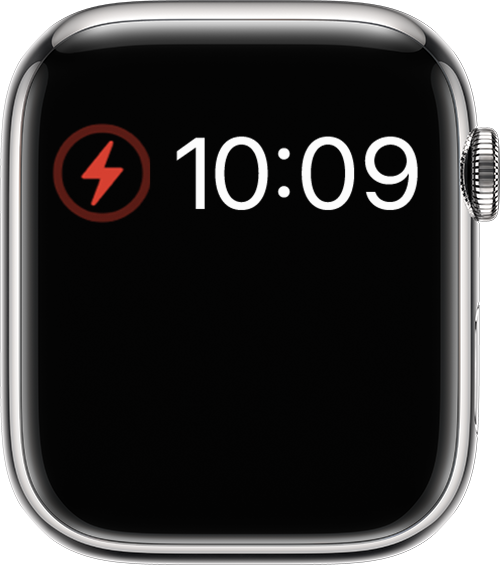
Reconnect and check for a charging indicator (lightning bolt or battery icon). Even a faint glow means power is getting through.
✅ Pro tip: Charge for at least 2 hours before attempting another restart.
Drain and Recharge the Battery
Sometimes, a “deep reset” of the battery system is needed—especially if the watch has been unused for weeks.
Fully Drain the Watch
Let your Apple Watch sit unplugged until it shuts down completely. You’ll know it’s fully drained when:
– The screen shows only a charging icon (empty battery outline)
– It no longer responds to button presses
– It doesn’t wake when wrist is raised
This can take 1 to 2 days, or up to 16 days in rare cases where residual power lingers.
Recharge for 5–6 Hours
Once fully drained, plug it into the original charger and let it charge for at least 5 to 6 hours, preferably overnight. Do not unplug during this time.
After charging, perform a force restart. This process often resets corrupted battery management logic and clears boot loops.
✅ Verified by multiple users with older models (Series 4, 6).
Disable Accessibility Features
Two hidden settings can make your Apple Watch appear frozen—even when it’s working.
Turn Off VoiceOver
VoiceOver reads screen content aloud but can interfere with touch input. If enabled by accident, it may prevent normal use.
- Open the Watch app on your iPhone.
- Go to General > Accessibility > VoiceOver.
- Toggle it off.
- Check your Apple Watch.
If VoiceOver was on, the screen should now respond normally.
Disable Screen Curtain
Screen Curtain turns off the display while keeping the watch active—ideal for privacy, but disastrous if enabled unknowingly.
- In the Watch app, go to General > Accessibility > Screen Curtain.
- Turn it off.
- Press the side button on the watch to wake it.
✅ This fix has resolved “black screen but Apple logo appears” issues for many users.
Fix Calendar and Region Settings
A surprising but well-documented cause of boot loops: calendar settings.
Set Calendar to Gregorian
Users in regions like Thailand (which uses Buddhist calendar) have reported boot loops after updates.
- Open Watch app on iPhone.
- Tap General > Language & Region.
- Change Calendar to Gregorian.
- Set Region to United States temporarily.
- Force restart the watch.
This workaround fixes a known bug in certain watchOS versions (e.g., 11.2) that conflicts with non-Gregorian calendars.
✅ Verified fix for multiple users in Southeast Asia.
Update or Restore watchOS
If basic fixes fail, deeper software recovery is needed.
Install Pending watchOS Updates
An incomplete update can freeze the boot process.
- Open Watch app on iPhone.
- Go to My Watch > General > Software Update.
- Ensure your watch has over 50% battery and is on the charger.
- Download and install any available update.
Wait for the update to complete—even if it takes 20+ minutes. Do not disconnect.
Factory Reset via iPhone
This erases all data but clears deep software corruption.
- In Watch app, go to General > Reset > Erase All Content and Settings.
- Confirm and wait for the process to finish.
- After reset, set up as new—do not restore from backup yet.
⚠️ Why avoid backup? Restoring from a corrupted backup can bring back the same issue.
Once the watch boots normally, update watchOS, then restore data if needed.
Use Find My to Erase Remotely
If the watch won’t respond but is still paired:
- Go to iCloud.com.
- Sign in with your Apple ID.
- Open Find My iPhone.
- Select your Apple Watch.
- Click Erase Apple Watch.
After erasure, re-pair it with your iPhone.
Unpair and Re-Pair Your Watch
This deep reset clears pairing conflicts and firmware mismatches.
Unpair from iPhone
- Open Watch app.
- Tap My Watch > All Watches.
- Tap the (i) next to your watch.
- Select Unpair Apple Watch.
- Confirm—your iPhone will back up the watch.
Wait for unpairing to complete (can take several minutes).
Re-Pair as New
- Tap Start Pairing.
- Follow setup steps.
- Do not restore from backup immediately.
- Let the watch boot fully and update software.
Once stable, you can manually restore apps and data.
✅ This method fixes issues caused by corrupted sync data or failed updates.
Handle Overheating and Hardware Issues
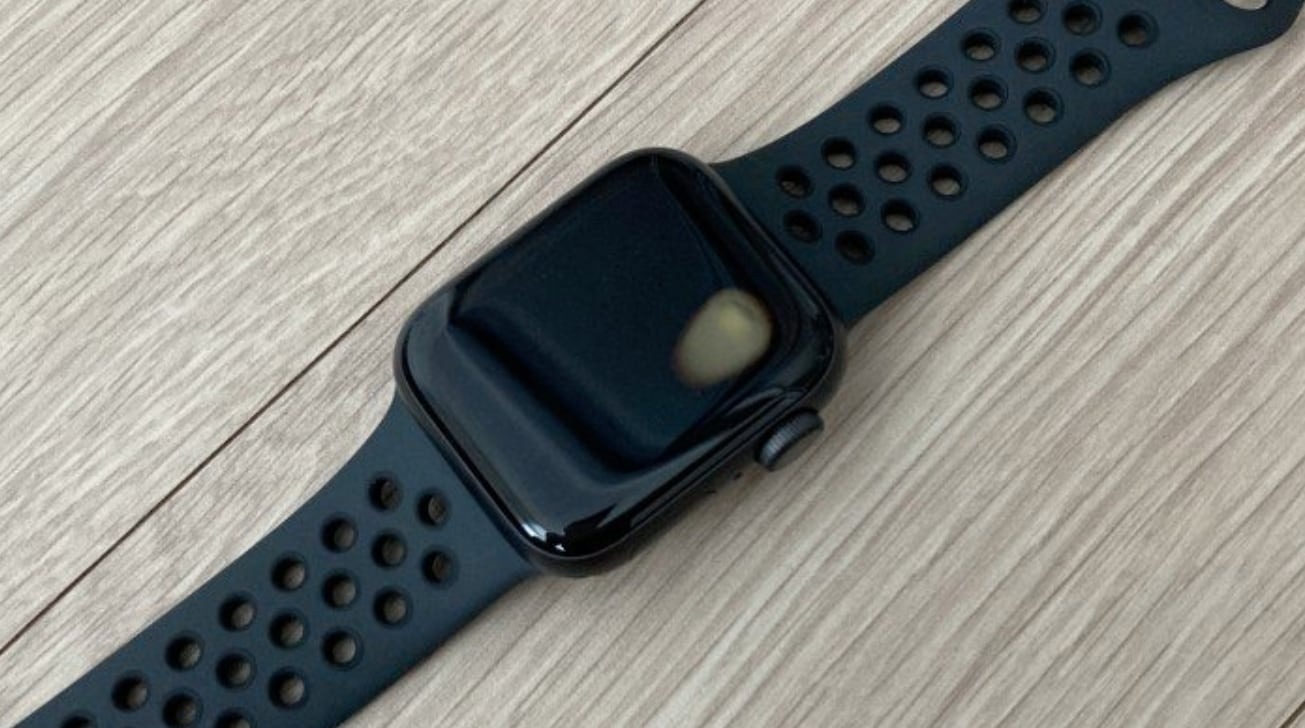
Sometimes, the problem isn’t software—it’s physical.
Let the Watch Cool Down
If your Apple Watch feels hot during charging:
- Remove it from the charger.
- Place it in a cool, dry place for 10–15 minutes.
- Try a force restart.
Overheating can trigger safety locks that prevent booting.
Tap Buttons to Release Sticking
Dust or moisture can jam the side button or Digital Crown.
- Remove the watch band.
- Tap the side button and Digital Crown rapidly for 15–20 seconds.
- This can dislodge debris or free stuck mechanisms.
- Try a force restart.
Apply Gentle Pressure to Screen
Some users report success by pressing the front and back of the watch evenly for 10–15 seconds. This may reseat internal components or reset sensors.
⚠️ Use light pressure—never force.
Last-Resort Recovery Methods
When all else fails, try these extreme—but sometimes effective—options.
Try the Freezer Method
One user-reported fix involves using cold to reset the system.
- Place the watch in a sealed plastic bag (to prevent moisture).
- Put it in the freezer for 10–24 hours.
- Remove and let it warm to room temperature (1–2 hours).
- Charge and attempt a force restart.
⚠️ Risk: Condensation can cause water damage. Not recommended by Apple.
But some users swear by it—especially for older models with residual charge issues.
Avoid the Oven Method
One report mentions using a 50°C oven for 1 hour to dry internal moisture. While it may sound logical, this is extremely risky:
– Can melt adhesives
– Damage battery
– Void any remaining warranty
❌ Do not attempt.
Use iBus Adapter for Direct Recovery
For tech-savvy users, an iBus S1/S2 or S4/S5 adapter (available on iFixit or AliExpress) allows direct USB connection to the Apple Watch logic board.
- Connect to a computer.
- Use iTunes or recovery tools to flash firmware.
- Bypasses iPhone pairing entirely.
⚠️ High skill and cost involved. Often more practical to replace the device.
When to Contact Apple Support
If your Apple Watch still won’t boot after trying all steps, it may be hardware failure.
Signs of Hardware Failure
- No response to charging or button presses
- Overheats consistently
- Water damage indicators visible (red dots)
- Older than 5–6 years (e.g., Series 4 or earlier)
- Issue returns immediately after reset
Get Professional Help
- Apple Support (online chat or phone)
- Genius Bar appointment at Apple Store
- Apple Authorized Service Provider
- Mail-in repair
✅ Apple may offer a refurbished replacement—especially if the issue persists after multiple repairs.
If under warranty or AppleCare+, repairs are often free or low-cost.
Prevent Future Boot Loops
Once your watch is working, take steps to avoid recurrence.
Best Practices
- Keep watchOS updated—bugs are often patched quickly.
- Use only Apple-certified chargers.
- Clean charging contacts monthly.
- Avoid water exposure—especially in older models.
- Enable iCloud backups for faster recovery.
Avoid Risky Backups
Never restore from a backup immediately after a reset if the watch was malfunctioning. Set up as new first, then manually restore data.
Final Fix Checklist
| Step | Action | Time Required |
|---|---|---|
| 1 | Wait 10–15 minutes | 15 min |
| 2 | Force restart (button + crown) | 1 min |
| 3 | Charge with original cable | 2+ hours |
| 4 | Clean charging contacts | 5 min |
| 5 | Disable VoiceOver & Screen Curtain | 2 min |
| 6 | Set calendar to Gregorian | 2 min |
| 7 | Update watchOS | 10–20 min |
| 8 | Factory reset via iPhone | 10 min |
| 9 | Unpair and re-pair | 15 min |
| 10 | Contact Apple Support | As needed |
Final Note: Most Apple Watch boot loops are software-related and fixable at home. Start with a force restart, rule out accessibility settings, and avoid restoring from corrupted backups. If hardware is failing, Apple support is your best bet. With this guide, you’ve got every tool needed to bring your Apple Watch back to life.





