
You glance at your wrist—the time is gone. The screen is pitch black. No tap, no raise, no button press brings it back. Panic starts to creep in. But don’t assume your Apple Watch is dead. A black screen is one of the most common Apple Watch issues—and in 90% of cases, it’s fixable without visiting a store. Whether you own a Series 3, 6, 7, SE, or newer, the problem usually stems from low battery, software freeze, or an accidentally enabled accessibility setting—not hardware failure. This guide walks you through proven fixes, from simple resets to remote iPhone controls and last-resort tricks. Start here—your Watch is likely still alive.
Charge Before You Panic
A completely drained battery can make your Apple Watch appear dead. Even if it’s not showing a charging symbol, it might just need time.
Plug In Correctly
Use the original Apple magnetic charger—third-party chargers often fail to deliver consistent power. Connect it to a USB-A or USB-C wall adapter (not a low-power port like on a laptop or hub). Place the back of your Watch flat against the charger. Within 10 seconds, you should hear a chime or feel a haptic pulse. If not, flip the charger—magnetic alignment is crucial. Misalignment prevents charging, leading to false assumptions of failure.
Wait 2.5 Hours Minimum
If the battery is fully depleted, the screen may stay black even while charging. Don’t keep tapping or waking it—this drains power. Leave it plugged in for at least 2.5 hours uninterrupted. After that, try a force restart. Many users report their Watch “coming back to life” after this extended charge, especially if it was left unused for days.
Test with Another Charger
A faulty cable or charging pad is a common culprit. Borrow a known-working Apple charger or test yours on another Apple Watch. If your Watch charges on a different pad, the original charger is the issue. Always use MFi-certified or genuine Apple accessories to avoid inconsistent voltage that prevents boot-up.
Force Restart: The First Real Fix
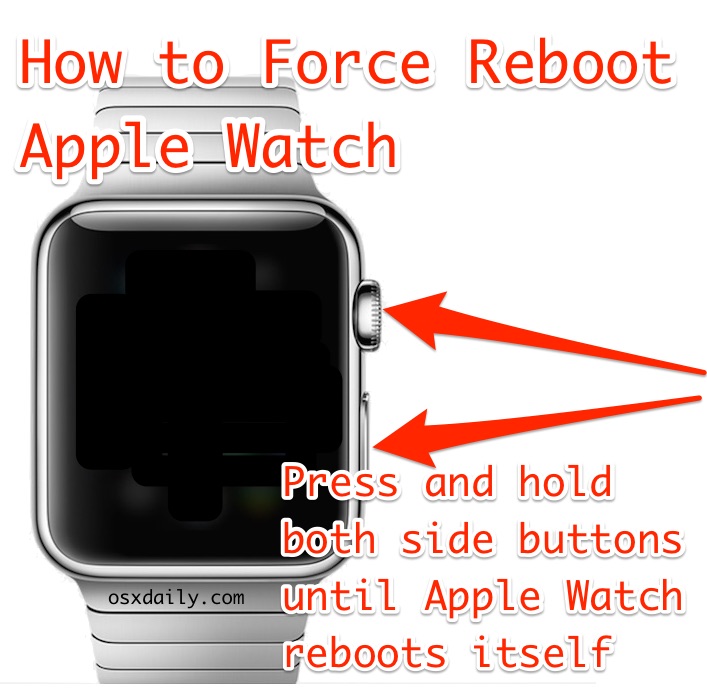
When charging doesn’t revive the screen, force restart is your next move. This resets the operating system and clears freezes that disable the display.
How to Force Restart
Press and hold both the side button and Digital Crown at the same time. Keep holding for 10 to 30 seconds—don’t let go when the screen flickers. Wait until you see the Apple logo, then release. Let the Watch boot completely; this can take up to 2 minutes. If it doesn’t respond, repeat the process.
Why It Works
A frozen WatchOS can disable the display driver. The force restart reboots the system kernel, restoring screen output. It’s effective after failed updates, app crashes, or sync errors. Users like Tengski14 and Hilarious confirmed this fixed their black screen issue without needing Apple support.
Common Mistakes to Avoid
- Releasing too early—before the Apple logo appears.
- Confusing flickers with boot—flickers mean it’s still frozen.
- Using only one button—you must press both simultaneously.
Disable Screen Curtain via iPhone
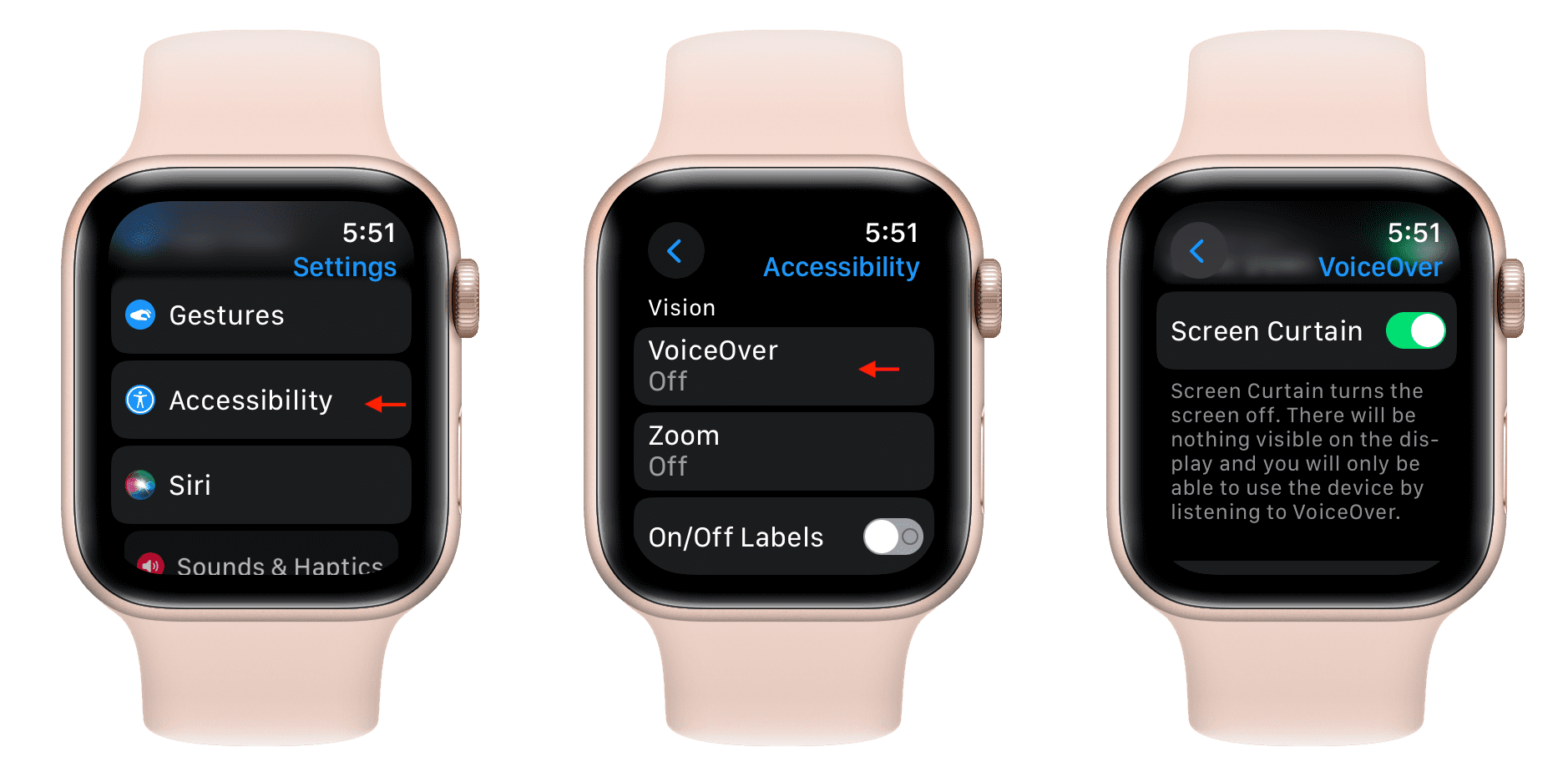
If your Watch vibrates or plays alerts but the screen stays black, Screen Curtain is likely enabled.
What Is Screen Curtain?
This accessibility feature turns off the display while keeping all functions active. It’s designed for voice navigation but can be triggered accidentally—especially if triple-clicking the side button is set to VoiceOver.
Turn It Off Remotely
Open the Watch app on your iPhone. Go to My Watch > General > Accessibility. Tap VoiceOver, then disable Screen Curtain. Also turn off VoiceOver if it’s on. This instantly restores the display—no restart needed. User ForensicHat confirmed this fixed their black screen despite no visible feedback from the Watch.
How It Gets Enabled
- Triple-clicking the side button (if configured).
- During guided access or demo mode.
- After a watchOS update that resets accessibility settings.
Check Theater Mode and Low Power Settings
Two settings can mimic a black screen by disabling automatic wake.
Theater Mode
This mode silences alerts and stops the screen from waking on wrist raise. The mask icon in Control Center means it’s on. To disable: on your iPhone, open the Watch app > My Watch > Theater Mode > toggle off.
Low Power Mode (watchOS 9+)
After updates, Low Power Mode may activate automatically. It disables Always On Display and requires you to press the side button to wake the screen. If your Watch only shows time when pressed, this is likely the cause. Fix it by pressing the side button, opening Control Center, and tapping the battery icon to turn it off.
Reset Wake and Display Settings
Software updates can reset your display preferences.
Enable Raise to Wake
On your iPhone, open the Watch app > My Watch > Display & Brightness > Wake Screen. Ensure Raise to Wake is enabled. Also check Auto-Light on Wake (Series 6+) if the screen stays dark in low light.
Turn On Always On Display (Series 5+)
If your Watch only wakes when you press the button, Always On Display may be off. Enable it in Settings > Display & Brightness > Always On. Without it, the screen appears black when your wrist is down.
Change Watch Face from iPhone
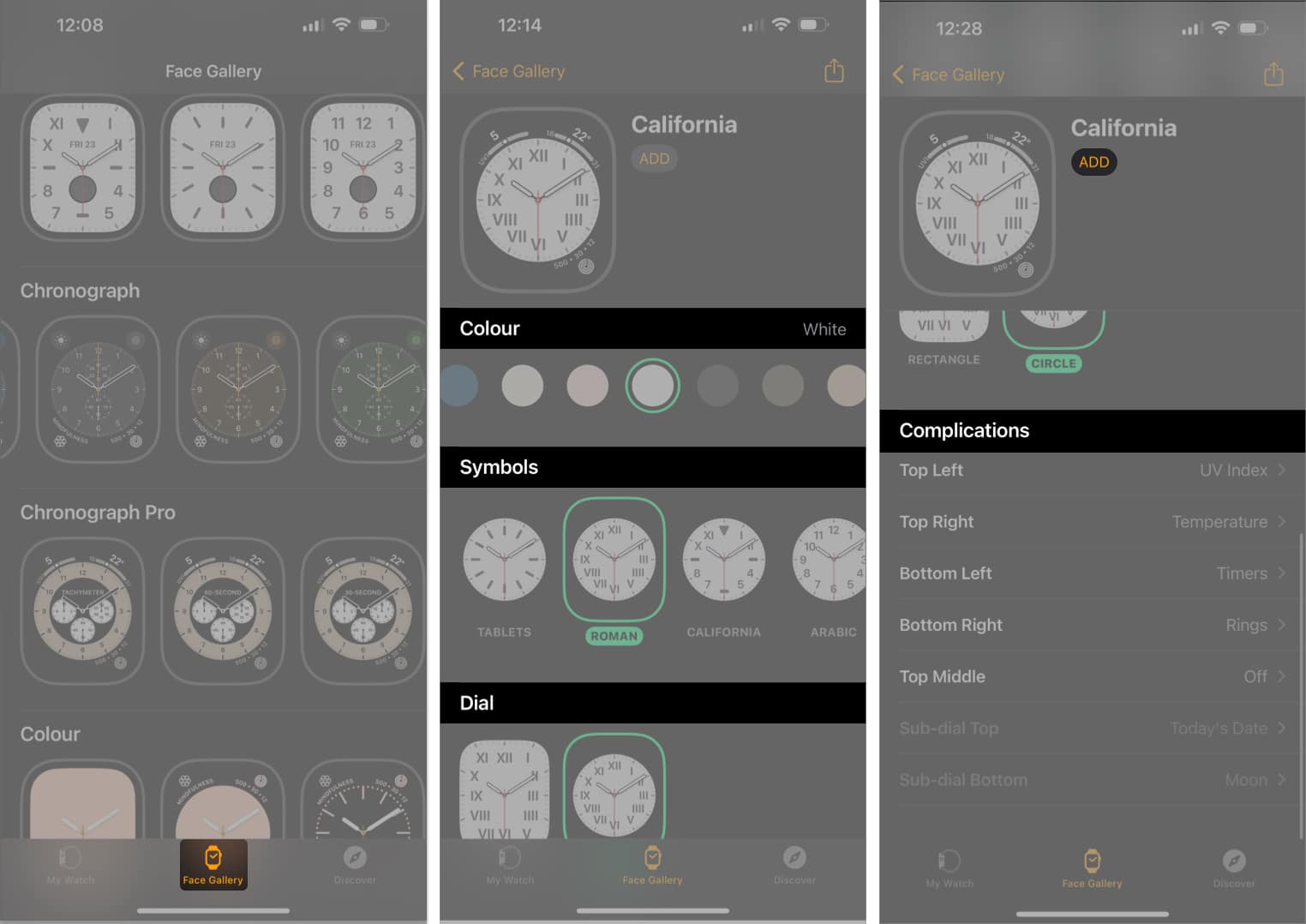
Even with a black screen, you can force a display refresh remotely.
Force a UI Reload
Open the Watch app on your iPhone > My Watch > Faces. Choose a new face—like Infograph or Simple—and tap Add. The Watch will attempt to load the new face, which may trigger the screen to respond. This works even if you can’t see it—commands sync over Bluetooth.
Why It Helps
Changing the face reloads the graphical subsystem. If a corrupted watch face caused the freeze, this bypasses it. It’s a hidden fix many users overlook.
Try the Button Spamming Technique
Some users revive frozen Watches by rapidly pressing buttons.
Tap to Wake Rapidly
Press the side button or Digital Crown 10–15 times quickly. This can jolt the system out of a deep sleep. Combine with charging: keep it on the pad while spamming.
Charge and Press Simultaneously
While connected to power, hold the side button for 10 seconds, release, then repeat. Some report success after 3–5 cycles. The power input plus repeated signal may trigger a boot response.
Inspect for Hardware Issues
If software fixes fail, check for physical damage.
Signs of Hardware Failure
- No Apple logo during force restart.
- No charging symbol after 3+ hours.
- Watch vibrates but screen never responds.
- Faint image visible under bright light (backlight failure).
Impact Damage
Drops can loosen internal ribbon cables. Gently press the screen center and edges, and the back near charging coils. Reconnect to charger and retry force restart. Do not apply excessive force.
Freezer Method (Last Resort)
Some users revive unresponsive Watches with cold exposure.
Step-by-Step
- Seal your Watch in a double ziplock bag.
- Place in freezer for 15–20 minutes.
- Remove and immediately plug into charger.
- Press and hold side button + Digital Crown for 30 seconds.
Reported Success
Users like joshuafromunion and ELJeann revived their Series 6 after days of no response. The cold may contract metal components, reseating loose connections.
Risks
- Condensation inside the device.
- Corrosion from moisture.
- Display damage from thermal stress.
Only attempt if the Watch has no water exposure history and is out of warranty.
Reset and Re-Pair Your Watch
When all else fails, erase and restore.
Unpair via iPhone
Open the Watch app > My Watch > All Watches. Tap the “i” icon, then Unpair Apple Watch. Confirm and wait for backup. This erases the device and breaks Bluetooth pairing.
Set Up Again
Follow setup steps. Choose restore from backup or set up as new. This fixes deep software corruption.
Caution
Only do this if you have a recent backup. You’ll lose unsynced data like unrecorded workouts.
Diagnose Charging Accessories
A bad charger can mimic screen failure.
Test the Charger
Use your charger on another Apple Watch. If it doesn’t work, the accessory is faulty. Borrow a known-working Apple charger and test your Watch.
Use MFi-Certified Gear
Avoid cheap chargers. Use only Made for Apple Watch (MFi) or genuine Apple accessories.
Apple Watch Series 6 Blank Screen Defect
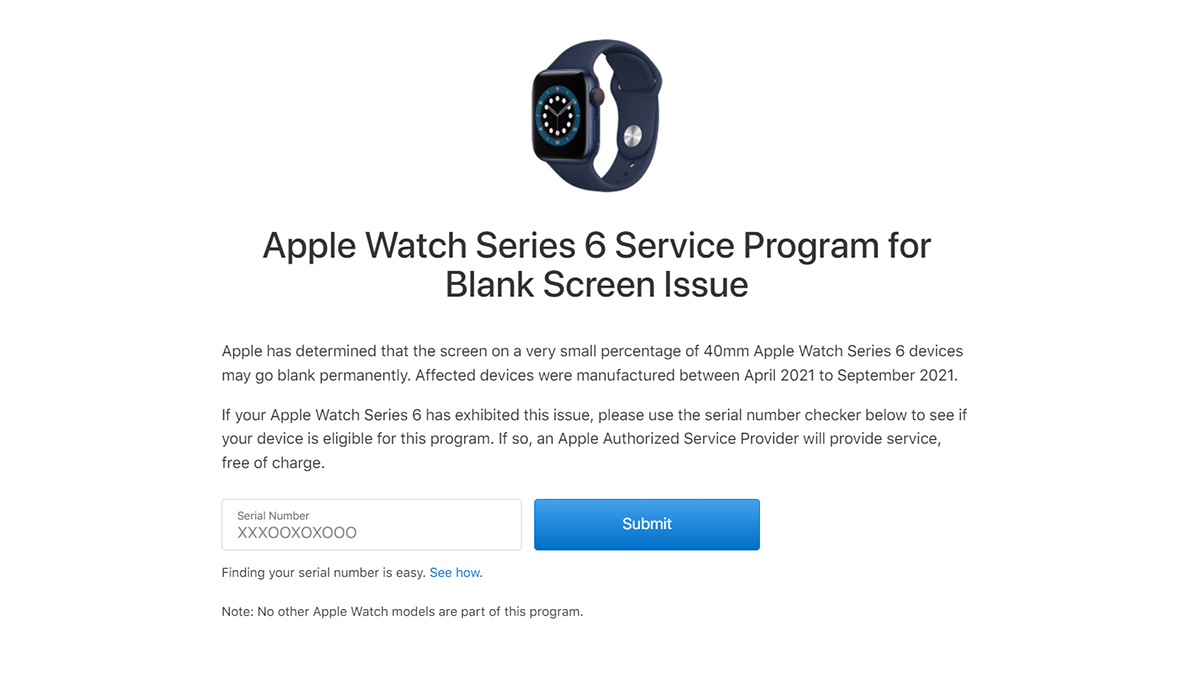
Apple acknowledged a hardware flaw in some Series 6 models.
Apple’s Service Program
A free repair program covers eligible units with blank screens. Check eligibility at Apple’s official page. Coverage is limited to two years from purchase.
User Frustration
Many report the issue appears just after the two-year mark, missing coverage. Despite knowing the defect, Apple charges $300–$450 for out-of-warranty repairs.
Repair Costs and Options
If hardware is confirmed broken, consider cost vs. replacement.
Out-of-Warranty Pricing
- Screen replacement: $50–$80 (third-party), $200+ (Apple).
- Full unit replacement: $300–$450 (Apple).
DIY vs. Professional
Self-repair risks further damage and voids warranty. For most, visiting an Apple Store or authorized provider is safer.
Prevent Future Black Screens
Avoid recurrence with simple habits.
Software Maintenance
- Update watchOS and iPhone iOS regularly.
- Restart your Watch weekly.
- Avoid beta software unless necessary.
Charging Best Practices
- Use original Apple charger.
- Clean contacts weekly.
- Avoid extreme temperatures.
Physical Protection
- Use a protective case.
- Remove Watch during high-impact activities.
- Avoid drops.
Accessibility Settings
- Disable Screen Curtain and VoiceOver unless used.
- Review triple-click side button settings.
Bottom line: A black screen isn’t the end. Start with charging and force restart. Use your iPhone to disable Screen Curtain. Check Low Power and Theater Mode. For Series 6 users, check Apple’s service program—don’t pay for a known defect. If nothing works, reset and re-pair. Your Watch is likely alive—just silent.





