

You’re not imagining it—your Apple Watch isn’t measuring your heart rate. The screen says “Measuring…” but never delivers a result. Your workouts log zero calories. The green sensor lights on the back stay dark, even though the ECG app still works. If this started after updating to watchOS 26.x, you’re part of a growing wave of users facing the same Apple Watch BPM not working issue across Series 3, 9, 10, and Ultra models.
The good news? This is rarely a hardware failure. In most cases, the optical heart rate sensor is physically intact—the problem lies in software logic, charging behavior, or app conflicts. And that means you can fix it yourself, without replacing your watch. Thousands of users have restored full BPM functionality using the steps below, verified by community experts and Apple Watch enthusiasts.
This guide walks you through every possible cause—from overlooked settings to firmware corruption—and gives you a clear action plan to get your heart rate tracking back. Whether you’re troubleshooting after an update, a full-day charging session, or a failed workout, these fixes are tested, specific, and effective.
Confirm Heart Rate Is Enabled in Privacy Settings
Before diving into complex fixes, rule out the most common mistake: heart rate monitoring is disabled.
On your iPhone, open the Watch app, go to My Watch > Privacy > Heart Rate, and make sure the toggle is ON.
On your Apple Watch, navigate to Settings > Privacy & Security > Health > Heart Rate—verify it’s enabled here too.
If you recently updated watchOS, the setting might have reset or become grayed out due to a permissions glitch. Toggle it off, wait 10 seconds, then turn it back on. Immediately open the Heart Rate app to see if it starts reading.
💡 Pro Tip: Some users (like alamantia87) found that switching notification settings from “Mirror iPhone” to “Custom” restored access to heart rate data after an update.
Force Restart Apple Watch and iPhone Together
A regular restart often fails when the sensor is stuck in a corrupted state—especially after charging or an OS update. A simultaneous force restart clears deep system locks between devices.
On Apple Watch:
Press and hold the side button and Digital Crown for 10+ seconds until the Apple logo appears.
On iPhone:
Quickly press Volume Up, then Volume Down, then hold the Side Button until the logo shows.
Wait for both devices to fully reboot before testing the Heart Rate app. This fix has a high success rate, particularly for users experiencing the “Measuring…” hang after overnight charging.
⏱️ Time Required: 2 minutes
✅ User Success: Confirmed by Western_Insect_7580, alamantia87
Stop Using Third-Party Chargers Immediately

Your charging dock could be the root cause. Multiple users traced BPM failure to non-Apple or uncertified 3-in-1 charging stands, especially cheaper Amazon models.
Why it matters:
– Inconsistent power delivery can keep the watch in a logical “charging state” even after removal.
– The heart rate sensor is designed to disable during charging—poor firmware handoff prevents it from reactivating.
– Updates applied over unstable power can corrupt sensor initialization.
Fix:
Switch to an Apple-certified charger like the original magnetic puck or Belkin BoostCharge. After charging, wait 15–20 minutes before starting a workout to allow the system to reset.
🛠️ User Fix (Jcurrier31): Ditched a generic Amazon dock—BPM worked immediately and stayed stable.
Wear Your Watch Snugly Below the Wrist Bone
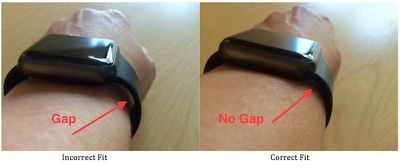
Motion gaps are a leading cause of failed readings. Even slight movement breaks skin contact, fooling the optical sensor.
Correct Position:
– Place the watch 1 inch below the wrist bone.
– Tighten the band so only one finger fits underneath.
– Re-tighten before workouts—especially with Milanese or stretch bands.
For high-motion activities (running, cycling), wear it 1–2 cm higher on the forearm to prevent sliding.
🧠 Expert Insight (Ingo2711): “The weight of the Ultra 3 causes it to shift during arm swings. Wearing it further up stops motion gaps.”
Clean the Back Sensor Regularly
Sweat, oil, and dirt block the green LEDs and photodiodes. A dirty sensor can’t get a reading—even if everything else is perfect.
Steps:
1. Remove the watch.
2. Use a dry, lint-free microfiber cloth.
3. Gently wipe the circular sensor cluster on the back.
4. Never use water, alcohol, or abrasive cleaners.
Also, remove any watch case temporarily. Thick or poorly designed cases can obstruct sensor emissions.
🚫 Warning: Never charge with a wet sensor. Dry completely first.
Toggle Heart Rate Access to Reset Permissions
This workaround, discovered by user alamantia87, forces the system to reauthorize the sensor.
Steps:
1. On Apple Watch: Go to Settings > Privacy & Security > Health > Heart Rate → Turn OFF.
2. Wait 10 seconds.
3. Turn ON again.
4. Open the Heart Rate app and wait.
This is especially effective if ECG works but continuous BPM fails—indicating a software-level access block.
Delete and Reinstall Problematic Third-Party Apps
Apps like TrainerDay, Peloton, or Strava can interfere with Bluetooth heart rate access.
Symptoms:
– BPM = 0 during workouts
– Native apps fail even when third-party app is closed
– Issue began after an app update
Fix:
1. Delete the app from iPhone and Apple Watch.
2. Reinstall from the App Store.
3. Clear cache if available.
4. Re-pair sensors.
📌 Developer Note (Alex, TrainerDay): Some updates broke HRM routing logic. Reinstalling resets permissions.
Unpair and Set Up as New (No Backup)
Restoring from a backup can carry over corrupted settings. A clean setup is the most reliable long-term fix.
Steps:
1. On iPhone: Open Watch app > My Watch > [Your Watch] > Info > Unpair Apple Watch.
2. Confirm (backup is automatic).
3. Do not restore from backup.
4. Set up as new device.
5. Reinstall apps one by one.
✅ Success Reports: Sch1z01dMan, ShipAccomplished2747
⏳ Time: 15–20 minutes
Combine this with an original charger to prevent recurrence.
Perform a Full Factory Reset
If BPM still fails, erase everything.
On Apple Watch:
1. Open Settings > General > Reset > Erase All Content and Settings.
2. Enter passcode.
3. Confirm.
After reset, re-pair and re-enable heart rate and fitness tracking.
🛑 Warning: Back up first if you want to save local health data (though Apple Health syncs to iCloud).
Test for Hardware Failure
Hardware issues are rare—but possible. Signs include:
– No sensor lights ever turn on
– ECG also fails
– Problem persists on multiple replacement watches
– Apple diagnostics detect an issue
🧰 User Experience (SnooDoggos7390): Received a replacement Ultra—same BPM failure after reset.
If you see these, contact Apple Support or visit a Genius Bar.
Submit Feedback to Apple to Demand a Fix
Apple hasn’t officially acknowledged the watchOS 26.x heart rate bug, but user reports drive updates.
Submit feedback:
1. Open Apple Feedback app on iPhone or Mac.
2. Title: “Apple Watch BPM Not Working After watchOS 26.1”
3. Include: model, OS version, whether ECG works, charging habits, and screenshots.
🔗 https://www.apple.com/feedback/apple-watch.html
🗣️ Community Action (One-Philosopher1966): Encourages mass reporting to trigger a patch.
Test on an Apple Store Demo Unit
Before assuming it’s your watch, test your physiology on a store display.
Steps:
1. Visit Apple Store.
2. Try Heart Rate and Workout apps on a demo unit.
3. Wear it snugly for 2+ minutes.
If it fails on multiple units, the issue may be skin tone, tattoo, or wrist size related.
🧪 User Tip (steve626): “I tested three Ultras—mine failed, others worked. Confirmed it was my setup.”
Prevent Future BPM Failures
| Action | Why It Helps |
|---|---|
| Use original Apple charger | Prevents firmware state corruption |
| Restart weekly | Clears background app clutter |
| Clean sensors weekly | Prevents buildup that blocks light |
| Tighten band pre-workout | Ensures skin contact during motion |
| Avoid Low Power Mode | Keeps heart rate monitoring active |
| Update only on Wi-Fi + Charger | Reduces update corruption risk |
🔄 Pro Routine: After charging, restart watch, open Heart Rate app, then start workout.
Final Checklist: BPM Not Working?
✅ Restart both iPhone and Apple Watch (force if needed)
✅ Check Heart Rate setting on both devices
✅ Clean back sensor with microfiber cloth
✅ Wear snugly, 1 inch below wrist bone
✅ Toggle Heart Rate OFF/ON in settings
✅ Use original Apple or certified charger
✅ Try simultaneous force restart post-charge
✅ Unpair and set up as new (no backup)
✅ Submit feedback to Apple
✅ Visit Apple Store for hardware test
Bottom Line: The Apple Watch BPM not working issue is primarily software-driven, especially after watchOS 26.x updates and use of third-party chargers. The fact that ECG still works in most cases confirms the sensor is intact—Apple just needs to patch the logic bug. Until then, follow this guide to regain reliable heart rate tracking—no replacement needed.





