
You double-click the side button on your Apple Watch—once, twice—and nothing happens. No payment card appears. No “Hold Near Reader” prompt. Just silence. This glitch strikes without warning, often after a watchOS update, and affects Apple Watch Series 7, Series 9, Ultra 2, and SE (3rd gen). But here’s the good news: in over 95% of cases, this isn’t a hardware failure. It’s a software or settings issue—and it’s fixable, often in under 5 minutes.
The double-click-to-pay feature is one of the most seamless conveniences Apple offers. When it stops working, your morning coffee run, subway tap-in, or grocery checkout becomes a frustrating hassle. You might see the Dock instead, or your watch might just wake up. Meanwhile, Apple Pay works perfectly on your iPhone. This guide cuts through the noise with only proven, user-tested solutions—no guesswork. You’ll learn how to diagnose the root cause fast and restore Apple Pay functionality for good.
Restart Your Apple Watch to Clear Glitches
A simple restart is the fastest, most effective first step.
When your Apple Watch ignores double-clicks, a full reboot clears temporary system errors—especially those triggered by watchOS 9.6.1 or iOS 17/18 updates. This fix resolves frozen processes, sensor lag, or corrupted memory states that block hardware responses.
How to Restart Properly
- Open Settings on your Apple Watch
- Tap General > Shut Down
- Swipe the power slider to turn it off
- Wait 60 seconds—this ensures a complete reset
- Press and hold the side button until the Apple logo appears
If the screen is frozen, force restart:
– Press and hold both the side button and Digital Crown for 10+ seconds until the Apple logo shows.
Why It Works: Users like wickw50 and bammsi reported immediate restoration of Apple Pay after rebooting post-update. No data loss. No setup changes. Just a clean system state.
Set Side Button Click Speed to “Slow”
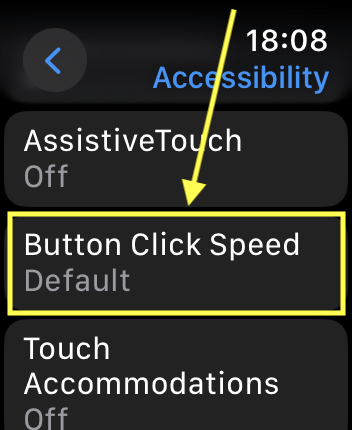
If your taps feel too fast or too slow, the watch may not register them.
Apple Watch uses timing algorithms to distinguish single, double, and long presses. If the click speed is set too fast, normal taps won’t trigger Apple Pay.
Adjust to “Slow” for Better Recognition
- On Apple Watch: Open Settings
- Go to Accessibility > Side Button
- Change Click Speed to “Slow”
- Test by double-clicking near a contactless terminal
What Happens:
– You get more time between presses
– The system becomes more tolerant of imperfect timing
– No restart needed—takes effect instantly
User Result: Em— confirmed on May 21, 2023: “Changed click speed to slow… now double-click works when holding watch up to reader.”
⚠️ Warning: Some users still report needing extremely fast clicks—this often points to deeper gesture conflicts, especially with AssistiveTouch enabled.
Confirm Your Apple Pay Card Is on the Apple Watch
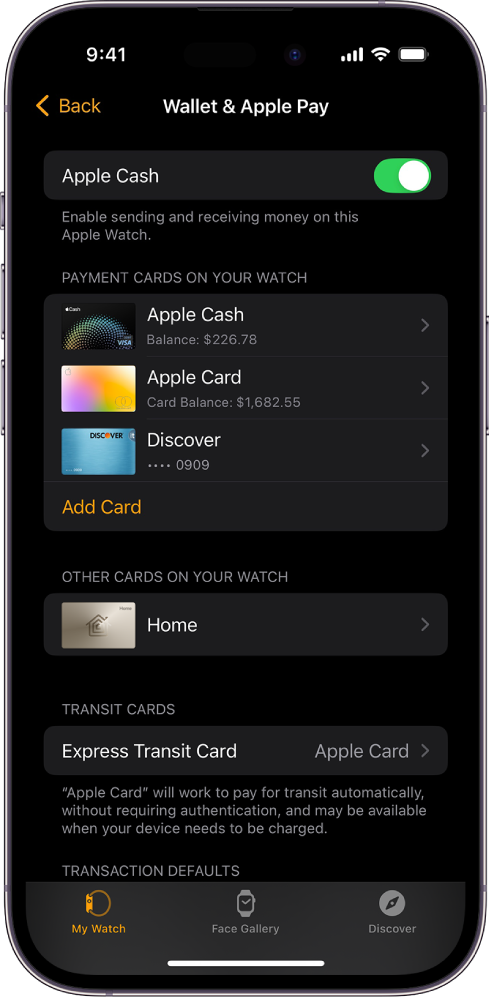
Just because a card is in your iPhone Wallet doesn’t mean it’s on your watch.
This is one of the most overlooked causes. Apple Pay must be explicitly enabled on the Apple Watch, and cards don’t always sync automatically—even if they appear in the Wallet app.
How to Check and Add a Card
- Open the Watch app on your iPhone
- Scroll to Wallet & Apple Pay
- Check “Payment cards on your watch”
- If empty or missing your card, tap Add Card
- Follow verification steps (may require bank approval)
Visual Clue:
– A synced card shows “Ready to Use” or “Active”
– If it says “Pending” or nothing appears, the card isn’t active on the watch
Fix Sync Issues:
– Remove the card from the Watch section
– Restart your Apple Watch
– Re-add the card
This fixed the issue for users who saw their card in the app but couldn’t trigger it via double-click.
Disable Conflicting Accessibility Features
Accessibility settings like AssistiveTouch disable the double-click gesture to prevent conflicts.
Even if turned off, residual configurations can block Apple Pay. The main culprits:
– AssistiveTouch
– Quick Actions
– Zoom with Hand Gestures
– VoiceOver with Hand Gestures
These override standard button functions—meaning double-click won’t work.
Fix: Reset AssistiveTouch with the LD150 Method
Many users get stuck in a loop: you need Apple Pay to set up AssistiveTouch, but AssistiveTouch blocks Apple Pay. Here’s the proven workaround:
Steps:
- On Apple Watch: Go to Settings > Accessibility > AssistiveTouch
- Turn AssistiveTouch ON
- Tap “Confirm With AssistiveTouch” > Turn OFF
- Now turn AssistiveTouch OFF completely
- Test double-click
Why It Works: This sequence resets the gesture priority stack, clearing corrupted states without requiring a double-click during setup.
Stuck in a Loop?
– AlliOop and razoirder52 couldn’t confirm setup
– Solution: Restart Apple Watch after turning AssistiveTouch off, then test
Enable Double Tap in Gestures (watchOS 10+)
On Series 9, Ultra 2, and SE 3, Apple Pay double-click depends on the Double Tap system.
If Double Tap is disabled, the side button won’t trigger Apple Pay.
Turn On Double Tap
- Open Settings on Apple Watch
- Tap Gestures > Double Tap
- Ensure Double Tap is ON
Required Settings:
– Wrist Detection: Enabled (Settings > Passcode)
– Wake on Wrist Raise: On (Settings > Display & Brightness)
– Wear the watch on the correct wrist (matches Orientation setting)
When It Fails:
– During ECG or Depth app use
– In third-party apps showing a shaking hand icon
– If the watch detects improper fit or movement
Reset Apple Pay Settings on iPhone
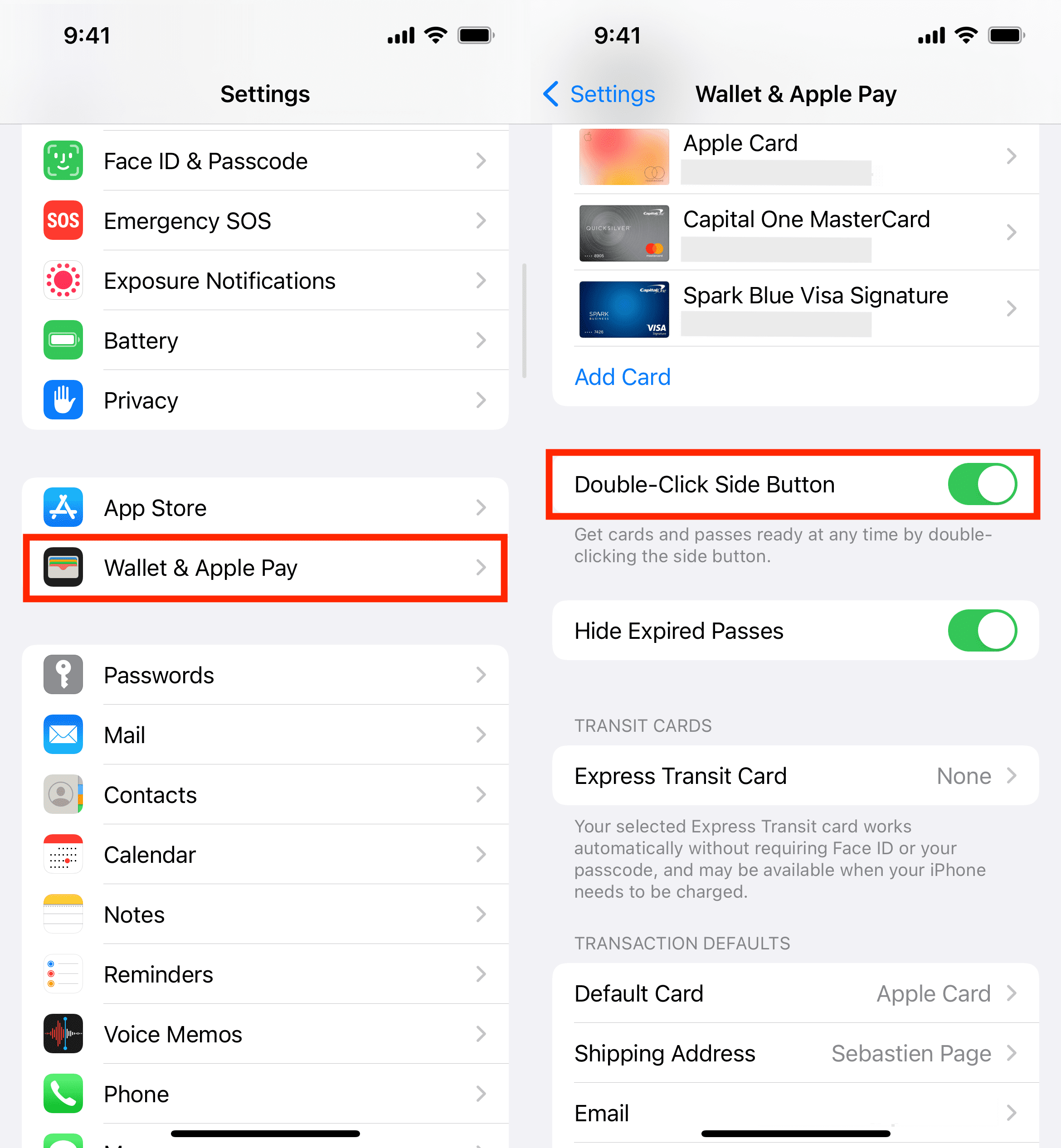
Sometimes the double-click function gets disabled silently.
Even if Apple Pay works on your iPhone, the “Double-Click Side Button” toggle may be off or glitched.
Toggle the Setting
- On iPhone: Open Settings > Wallet & Apple Pay
- Find “Double-Click Side Button”
- Toggle it OFF
- Wait 20 seconds
- Toggle it ON again
- Restart your Apple Watch
Alternative: Remove and re-add your card:
– In Wallet & Apple Pay, tap your card
– Select Remove This Card
– Restart the watch
– Re-add via Wallet app
Forces a fresh sync—critical if the card appears but won’t trigger.
Unpair and Re-pair Your Apple Watch
When sync issues run deep, a clean pairing resets communication.
This is the most effective fix for persistent bugs, especially after iOS or watchOS updates.
How to Re-pair
Unpair:
1. Open Apple Watch app on iPhone
2. Tap My Watch > All Watches
3. Tap “i” next to your watch
4. Select Unpair Apple Watch, confirm
Re-pair:
1. Power on Apple Watch
2. Hold iPhone near it
3. Follow setup prompts
4. Choose Restore from Backup
Time: 15–30 minutes
Data Loss?: No—everything is backed up, but you’ll re-enter passwords and reconfigure some settings.
User Result: ScootsSue and mike.lamasa resolved circular loops only after re-pairing.
Update watchOS and iOS
Outdated or buggy software is a top cause.
Known issues with watchOS 9.6.1 and iOS 17/18 have caused widespread double-click failures.
Install Updates
- On iPhone: Open Apple Watch app
- Tap My Watch > General > Software Update
- Download and install any available update
- Update iPhone too (Settings > General > Software Update)
Pro Tip: Keep both devices charged and on Wi-Fi during update. Interrupted installs can corrupt system files.
Reset All iPhone Settings
When nothing else works, reset configurations without losing data.
This clears corrupted preferences blocking Apple Pay.
Steps
- On iPhone: Settings > General > Transfer or Reset iPhone > Reset > Reset All Settings
- Enter passcode
- Wait for restart
- Re-enable Apple Pay and double-click
- Re-pair Apple Watch if needed
Note: Resets Wi-Fi, Bluetooth, and privacy settings—reconnect afterward.
Rule Out Hardware and Physical Issues
Most problems are software-based, but hardware faults do occur.
Test the Side Button
- Press and hold: Should show power slider
- Double-press: Should open Apple Pay (if working)
- Single press: Should wake/sleep
If only double-click fails, it’s likely software.
If no button functions work, suspect hardware damage.
Check for Case Interference
- Remove thick, magnetic, or metal cases
- NFC signals can be blocked
- Use Apple-certified cases only
Terminal and Positioning Tips
- Look for the contactless symbol (four curved lines)
- Hold watch 1–2 inches from reader
- Keep wrist still—movement cancels the transaction
- Try multiple terminals
Address Family Sharing and Age Restrictions
Minors may have Apple Pay disabled by banks or Apple policies.
Even if a parent adds a card, financial institutions often block Apple Pay for under-18 accounts.
Solutions
- Contact your bank to confirm eligibility
- Try adding a prepaid card or Apple Cash
- Use the iPhone for payments until restrictions lift
When to Contact Apple Support
If all software fixes fail:
- Schedule a Genius Bar appointment
- Use the Apple Support app for remote diagnostics
- Call 1-800-MY-APPLE (1-800-692-7753)
Possible Hardware Issues:
– Faulty side button sensor
– Water or impact damage
– Internal NFC module failure
Apple can run diagnostics and replace the watch if under warranty.
Prevention Best Practices
Keep Apple Pay working smoothly:
- Restart Apple Watch weekly
- Update software immediately
- Avoid beta OS versions
- Use certified cases without metal
- Test Apple Pay monthly
- Monitor changes after updates
Final Note: The Apple Watch Apple Pay double-click not working issue is almost always solvable without repair. Start with a restart and click speed adjustment, then move through AssistiveTouch toggle, card sync check, and software updates. If those fail, re-pairing or resetting settings will likely fix it. Save this guide—your future self will thank you when Apple Pay stops working again after the next update.




