

If your Apple Watch double tap not working, you’re not alone. This innovative hands-free gesture—introduced with watchOS 10.1—lets you answer calls, pause music, snooze alarms, and navigate your Smart Stack without touching the screen. But when it fails to respond, the frustration is real. The good news? Most issues are fixable. Whether you’ve just updated your watch or have been struggling for weeks, this guide delivers proven solutions. From checking compatibility and disabling conflicting settings to mastering the correct tap technique and resetting your device, we’ll walk you through every step. By the end, you’ll know exactly why double tap isn’t working—and how to restore it for good.
Confirm Your Apple Watch Model Supports Double Tap
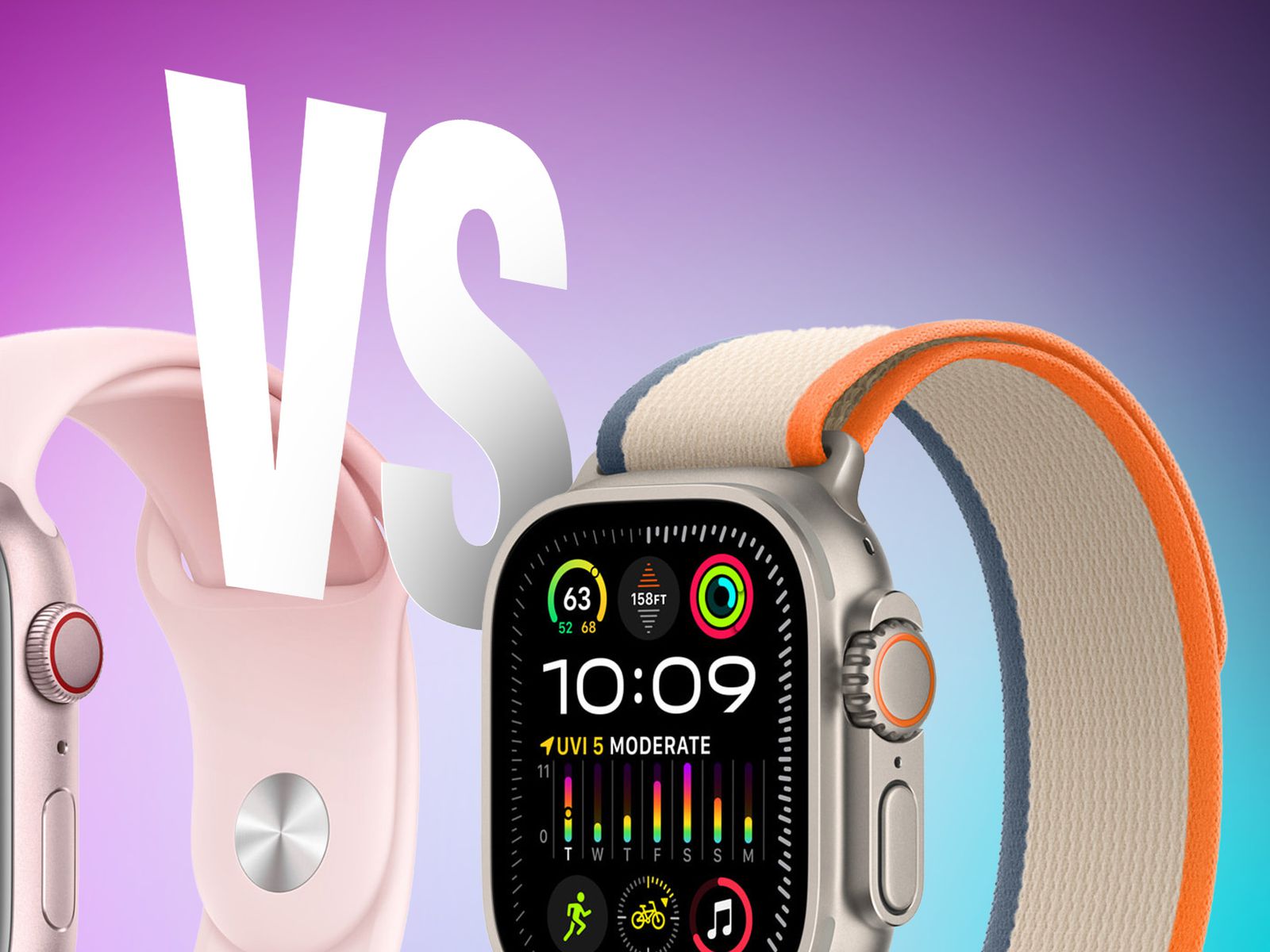
Before troubleshooting, verify your watch model actually supports the feature.
Check if You Have a Series 9, Ultra 2, or SE (3rd Gen)
Double tap is exclusive to Apple Watch Series 9, Ultra 2, and Apple Watch SE (3rd generation). Older models—even if updated to the latest software—cannot use this gesture. The reason? It relies on the S9 SiP chip, which powers advanced motion detection and sensor fusion.
To confirm your model:
1. Open the Watch app on your iPhone
2. Tap My Watch → General → About
3. Look for the Model Number
– A2846, A2847, A2848 = Series 9
– A2680, A2681 = Ultra 2
– A2887, A2888 = SE (3rd gen)
If your model isn’t listed, double tap is not supported.
Verify You’re Running watchOS 10.1 or Later
Even compatible watches need watchOS 10.1 or newer. The initial release of watchOS 10.0 did not include double tap.
Update your watch:
1. On Apple Watch: Settings → General → Software Update
2. If an update is available, follow prompts to install
3. Keep your watch on the charger during installation
After updating, restart your watch and test the gesture again. Some users report it takes a few minutes to activate post-update.
Enable Core Settings for Double Tap
Even on the right hardware and software, double tap won’t work unless key settings are enabled.
Turn On the Double Tap Gesture
Ensure the feature is activated:
– On Apple Watch: Settings → Gestures → Double Tap → Toggle ON
– Or via iPhone: Watch app → My Watch → Settings → Gestures → Double Tap → ON
You can also customize what happens when you double tap:
– During media playback (e.g., pause/resume)
– When opening the Smart Stack
– While viewing notifications
Customize these in the same menu.
Keep Wrist Detection Enabled
Double tap requires Wrist Detection to be ON. If disabled, your watch assumes it’s not being worn and ignores all gestures.
Check:
1. On Apple Watch: Settings → Passcode → Wrist Detection
2. Ensure it’s toggled on
Disabling this to save battery or for convenience will break double tap functionality.
Enable Wake on Wrist Raise
The gesture only works when the screen is awake.
Confirm:
– Settings → Display & Brightness → Wake on Wrist Raise = ON
– Raise your wrist fully before tapping
Even if you use Tap to Wake, you must still raise your wrist first—double tap won’t activate a sleeping screen.
Disable Conflicting Features That Block Double Tap
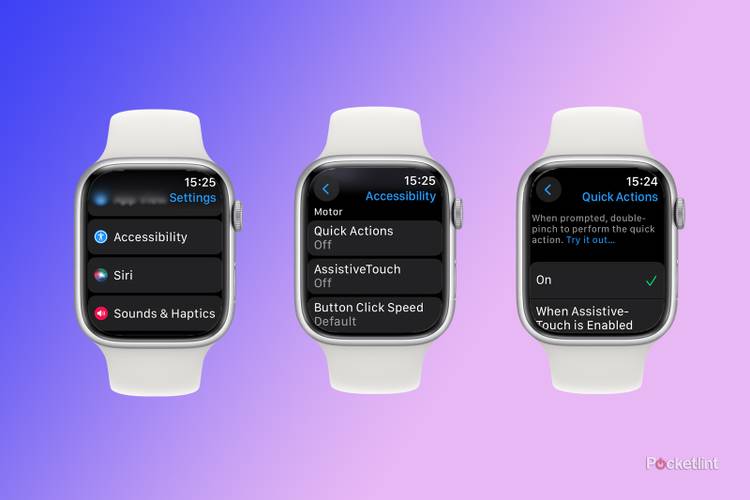
Several system settings disable double tap by design.
Turn Off AssistiveTouch
AssistiveTouch and Double Tap cannot coexist. If AssistiveTouch is enabled, double tap will be grayed out.
Disable it:
1. On Apple Watch: Settings → Accessibility → AssistiveTouch → OFF
2. Wait 10 seconds, then re-enable Double Tap
AssistiveTouch offers alternative gestures like double pinch for older models, but it blocks double tap on newer ones.
Disable Other Hand Gesture Features
The following accessibility tools conflict:
– Quick Actions
– Zoom with Hand Gestures
– VoiceOver with Hand Gestures
Turn them off:
– Settings → Accessibility
– Scroll to each feature and disable
Even if you don’t use them, having them enabled prevents double tap from working.
Exit Low Power, Theater, and Water Lock Modes
These modes disable all gesture inputs.
Check Control Center:
1. Press the Side button to open Control Center
2. Look for:
– Yellow battery icon = Low Power Mode → Tap to disable
– Mask icon = Theater Mode → Tap to exit
– Water drop icon = Water Lock → Turn off after swimming
Any of these active will block double tap.
Perform the Double Tap Gesture Correctly
Even perfect settings won’t help if your technique is off.
Use the Right Finger Motion
Double tap detects micro-movements between your index finger and thumb using the S9 chip’s sensor fusion.
Do:
– Tap thumb and index finger together twice quickly
– Keep fingers close to the side of the watch
– Keep your arm straight and steady
Avoid:
– Using middle or ring fingers
– Wide, exaggerated motions
– Tapping too slowly (more than 1 second between taps)
– Tapping too fast (less than 0.3 seconds apart)
Some users report better results using thumb and middle finger, even though it’s not officially supported.
Wear Your Watch Snugly
A loose fit reduces sensor accuracy. The optical heart rate sensors help detect motion, so ensure:
– Watch band is snug (one finger fits underneath)
– Sensors on the back are clean and unobstructed
– Skin contact is consistent
Sweat, dirt, or hair between the watch and wrist can interfere.
Restart and Reset Your Apple Watch
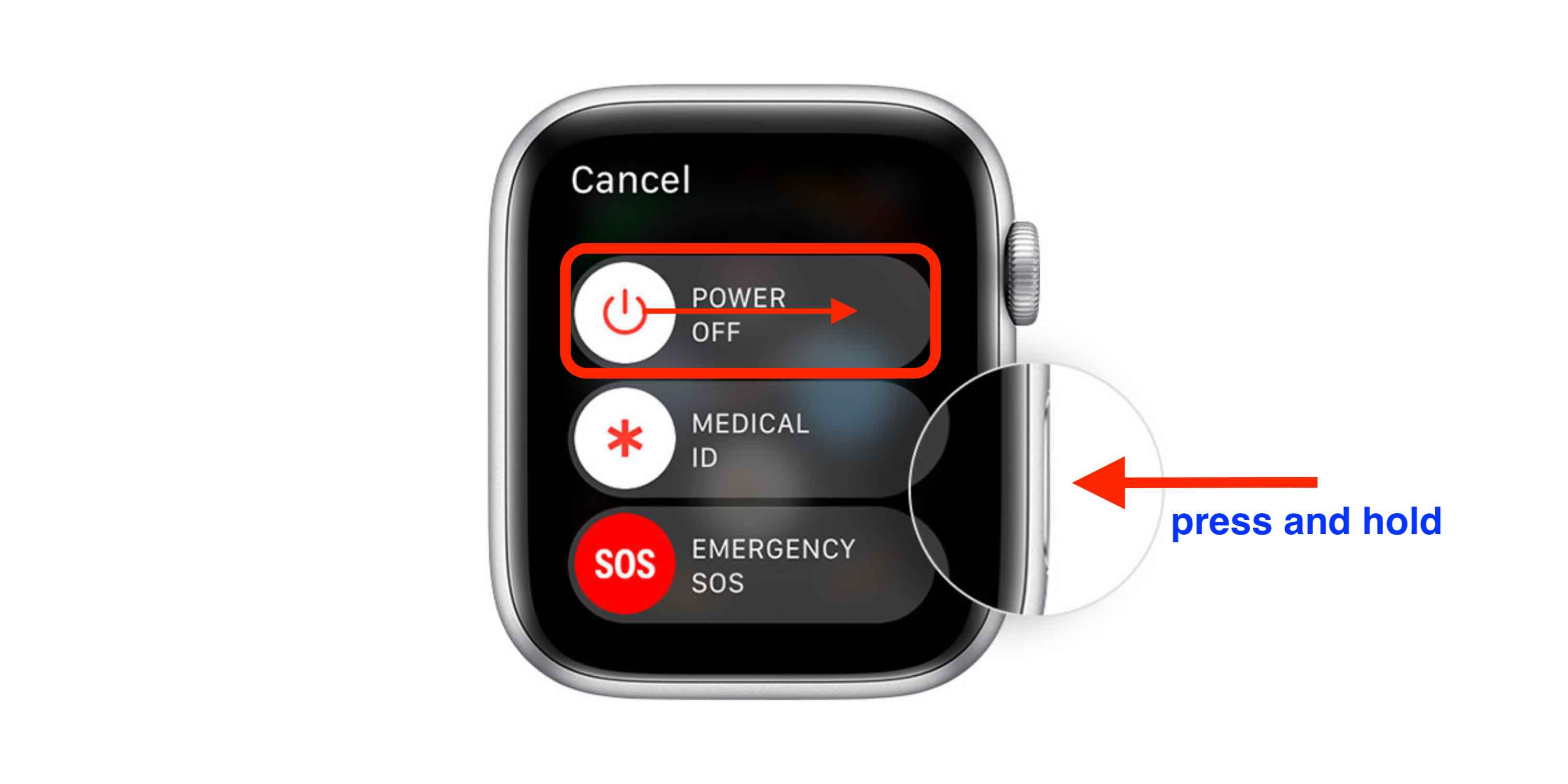
If settings are correct but the gesture still fails, clear system glitches.
Restart Your Apple Watch
Clear temporary errors:
1. Press and hold the Side button
2. Drag the power slider to turn off
3. Wait 60 seconds
4. Press and hold the Side button to restart
Test double tap after reboot.
Force Restart (Hard Reset)
Resets system memory:
1. Press and hold Side button + Digital Crown
2. Hold for 10–15 seconds
3. Release when the Apple logo appears
This doesn’t erase data but clears stuck processes.
Toggle Double Tap Off and On
Resets gesture recognition:
1. Go to Settings → Gestures → Double Tap
2. Toggle OFF → Wait 5 seconds → Toggle ON
This often fixes unresponsive gestures after updates.
Reset Accessibility Settings
Some users fix issues by resetting gesture subsystems:
1. Open Settings → Accessibility
2. Turn off SOS Touch → Wait 5s → Turn back on
3. Turn off Hand Gestures → Wait 5s → Turn back on
4. Tap Reset to Default (if available)
This clears corrupted gesture profiles.
Address Environmental and Physical Barriers
External factors can block gesture detection.
Avoid Motion Interference
Double tap may fail during:
– Running
– Cycling
– Climbing stairs
Vigorous arm movement confuses the motion coprocessor. Test the gesture while standing still with your arm relaxed.
Check for Tattoo Interference
Dark or solid tattoos on the wrist can block optical sensors. The S9 SiP uses infrared and PPG sensors to detect micro-movements—tattoos absorb light and reduce accuracy.
Try:
– Wearing the watch on your non-dominant wrist (if tattoo-free)
– Positioning the watch above or below the tattooed area
– Testing with a temporary band or cover over the tattoo
Apple acknowledges tattoos can affect sensor performance across features like heart rate and ECG.
Wear the Watch on the Correct Wrist
The watch must be worn on the wrist set in Orientation.
Verify:
1. Settings → General → Orientation
2. If set to Left, wear on left wrist
3. Swapping wrists without changing settings causes gesture failure
Change orientation if needed and retest.
Re-pair Your Apple Watch as a Last Resort
If all else fails, software corruption may be the cause.
Erase and Re-pair Your Watch
This fixes deep system issues:
1. On iPhone: Open Watch app → General → Reset → Erase Apple Watch Content and Settings
2. Confirm and wait for completion
3. Set up as new or restore from backup
4. Re-enable Double Tap after setup
After re-pairing, avoid restoring conflicting accessibility settings immediately.
Note: This takes 15–30 minutes. Ensure your iPhone and watch are charged.
When to Contact Apple Support
If double tap still doesn’t work, the issue may be hardware-related.
Signs of Hardware Failure
- Double tap never worked, even after re-pairing
- Multiple restarts and resets fail
- Other gestures (like wrist raise) are sluggish
- User reports receiving replacement units from Apple
Contact Apple:
– Use the Apple Support app on iPhone
– Schedule a Genius Bar appointment
– Call AppleCare
Some users received replacements under warranty after confirming the issue wasn’t resolved through troubleshooting.
Known Firmware Bugs
Early adopters reported inconsistencies even on compatible hardware. While most were fixed in watchOS 10.2 and later, some sensitivity calibration issues persist. If Apple confirms a bug, a future update may resolve it.
Final Note: The Apple Watch double tap not working issue is usually fixable with the right settings and technique. Start by confirming compatibility, then methodically disable conflicting features, restart systems, and refine your gesture. Most users regain functionality within minutes. But if hardware or firmware is at fault, Apple Support remains your best path forward. Keep your watch updated, avoid Low Power Mode, and practice the correct tap motion—soon, double tap will become second nature.





