
You know your Apple Watch passcode. You’ve used it hundreds of times. But now, when you enter it—digit by digit, slowly, carefully—nothing happens. The screen flashes, reloads, or just ignores your input. No error message, no hint, no access. And yet, your Apple Watch still appears in the Find My app. It’s listed in the Watch app on your iPhone. Your sleep data, heart rate logs, and workout history are still syncing in the background.
This isn’t a lost or broken device. It’s a software-level lockout—one that’s increasingly common, especially on newer models like the Apple Watch Series 10 running watchOS 11.6.1. And if you’re tracking long-term health metrics, participating in medical research, or relying on irreplaceable sensor data, resetting the device isn’t an option.
The good news? You don’t need to erase your Apple Watch to fix a non-working passcode. In most cases, the issue is a temporary glitch, not a hardware failure or forgotten code. And with the right troubleshooting steps, you can regain access—without losing a single ECG reading or step count.
Force Restart Your Apple Watch
A force restart is the most effective first step—and it won’t delete any data. This simple action clears corrupted memory, resets the user interface, and often restores passcode recognition within seconds.
Why It Works
Under the hood, the Apple Watch runs a complex interaction between the touchscreen input buffer, the passcode verification system, and the paired iPhone’s authentication layer. A software hiccup—like a frozen process or memory leak—can disrupt this chain, making the device reject even the correct passcode.
A force restart breaks that loop. It shuts down active processes, clears temporary files, and forces the system to reinitialize the lock screen from scratch.
How to Force Restart
- Press and hold the side button and the Digital Crown at the same time.
- Keep holding for 10 to 15 seconds.
- Release when you see the Apple logo appear on the screen.
- Wait for the watch to fully boot up—this may take up to 30 seconds.
- Try entering your passcode again.
✅ Pro Tip: If the screen flickers or goes black before the Apple logo appears, don’t panic. This is normal during a system reset.
⚠️ Avoid releasing too early—if the Apple logo doesn’t appear, repeat the process. Incomplete restarts won’t fix the issue.
If your passcode now works, great. If not, move to the next step. Your data is still intact.
Reset Sync Data from Your iPhone

Even when your Apple Watch is locked, you can fix sync-related corruption from your iPhone—without touching the watch itself.
When to Use This Fix
This method is ideal if:
– Your Apple Watch appears in Find My
– It’s still listed in the Watch app > My Watch
– Health data continues to sync
– But the passcode screen remains unresponsive
These signs confirm the watch is powered, paired, and communicating with iCloud—meaning the problem isn’t hardware or total system failure.
Steps to Reset Sync Data
- Open the Watch app on your iPhone.
- Tap My Watch, then go to General > Reset.
- Select Reset Sync Data.
- Wait several minutes—there’s no progress bar or confirmation.
- Try unlocking your Apple Watch.
🔄 What Happens: This clears corrupted caches for contacts, calendars, health data, and other synced content. It doesn’t delete your data—it just rebuilds the sync pipeline.
💡 Expert Insight: Many passcode failures stem from silent sync conflicts. Resetting the sync database can resolve authentication issues that appear unrelated.
Reconnect or Repair via the Watch App
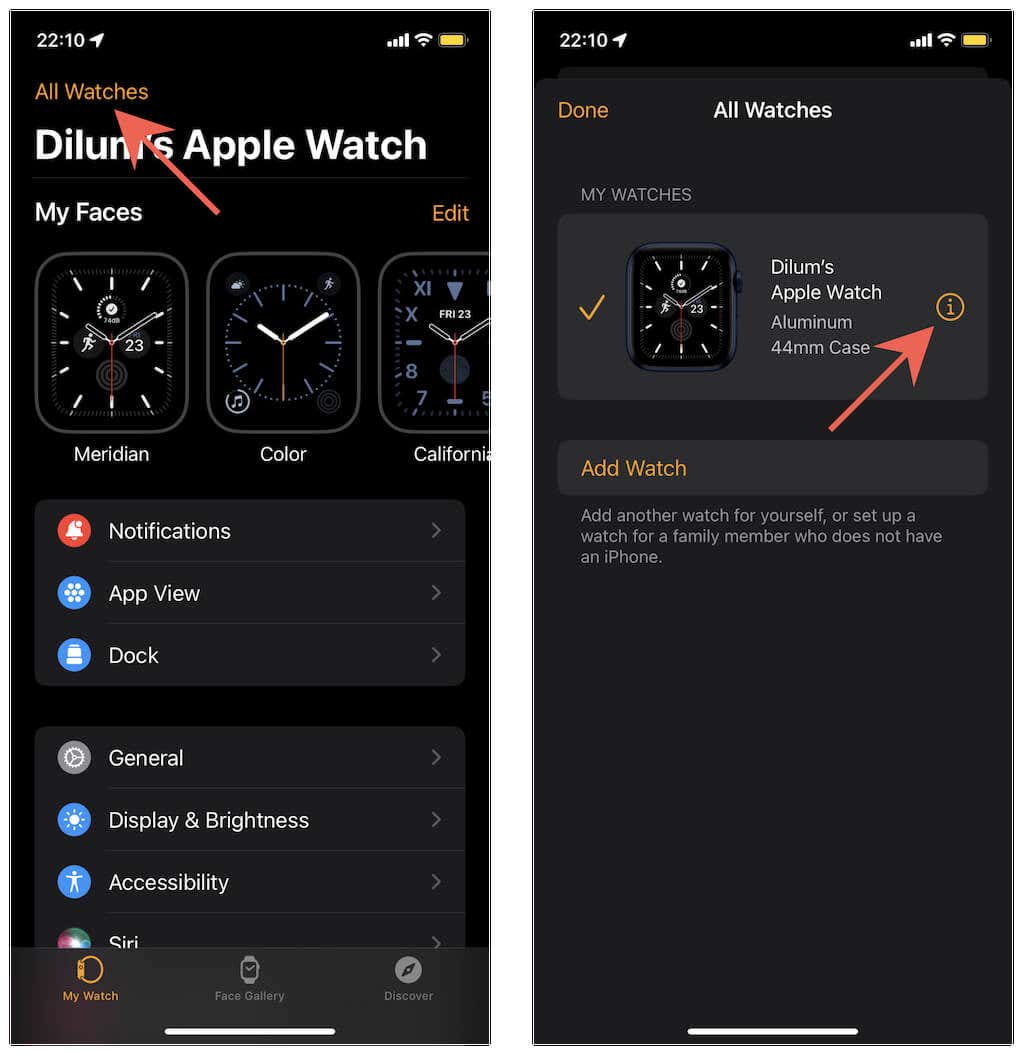
If sync corruption persists, re-establishing the secure Bluetooth connection between devices may help.
How to Check for Reconnection Options
- Keep your Apple Watch near your iPhone.
- Open the Watch app.
- Tap My Watch, then tap the “i” icon next to your watch.
- Look for:
– Reconnect
– Repair
– Update Needed
❌ Do not tap “Unpair”—this triggers a full erase and deletes all data, including health logs and third-party app data.
⚠️ If no options appear, the watch may be in a deep lock state. This is a sign you should contact Apple Support before proceeding.
This step is rare but effective when Bluetooth pairing has degraded due to software drift or failed updates.
Diagnose Your Device Status Without Erasing
Before taking any destructive action, confirm your Apple Watch’s status.
Is Your Data Still Safe?
Use this checklist:
| Feature | What It Means |
|---|---|
| ✅ Visible in Find My | Device is online, powered, and linked to iCloud |
| ✅ Listed in Watch app | Bluetooth pairing is intact |
| ✅ Syncing health data | Internal storage is active—data is preserved |
| ❌ Can’t update software | Administrative lock is active—passcode required |
🔍 Key Insight: If your watch appears in both apps, your data is still there. Avoid resets unless absolutely necessary.
Avoid These Common Mistakes
Many users lose data unnecessarily by making preventable errors.
❌ Repeatedly Entering the Wrong Passcode
Even one accidental tap counts. If Erase Data is enabled (Settings > Passcode > Erase Data), 10 failed attempts will wipe your watch clean.
🔒 Check: If you’re unsure whether this setting is on, assume it is—especially on newer models.
❌ Unpairing Without a Backup
Unpairing triggers automatic erasure. If you haven’t backed up recently, all workout history, ECGs, and medical logs are gone forever.
❌ Using Third-Party Tools
No legitimate third-party app can bypass Apple Watch security. These tools often steal Apple ID credentials or install malware.
🛑 Only Apple can unlock an Activation Locked device.
Erase Only If You Must
If non-destructive fixes fail and you’re okay with losing data (or have a recent backup), proceed carefully.
Option 1: Erase from iPhone (Recommended)
Best for GPS + Cellular models, this method lets you manage your cellular plan.
Steps
- Open Watch app on iPhone.
- Go to My Watch > General > Reset.
- Tap Erase Apple Watch Content and Settings.
- Confirm with your Apple ID password.
- Choose:
– Keep Plan: Reuse cellular with same iPhone
– Remove Plan: Cancel service (contact carrier) - Wait for erasure.
- Re-pair and restore from backup.
💾 Backup Note: A local backup is automatically created before erasure.
🔐 Activation Lock Reminder: You’ll need the original Apple ID and password to reactivate.
Option 2: Reset Directly on Apple Watch
Use only if your iPhone is unavailable.
Steps
- Place Apple Watch on charger.
- Press and hold the side button until the power slider appears.
- Press and hold the Digital Crown until Erase all content and settings appears.
- Tap Reset, then confirm.
- Wait for completion.
- Set up as new or restore from backup.
⚠️ No backup is created during on-device reset.
When Data Can’t Be Lost: Contact Apple Support
If your Apple Watch stores medical logs, long-term fitness data, or health research records, do not reset.
Instead, contact Apple Support immediately.
How to Get Help Without Erasing
- Call Apple Support or use Chat Support at apple.com/support.
- Say:
“My Apple Watch is locked but still paired and online. I can see it in Find My and the Watch app. I need to recover access without erasing data.”
- Emphasize:
– Participation in a health study
– Need to preserve ECG, sleep, or sensor data
– Device is not lost or stolen - Ask:
– “Is there a way to verify my identity and unlock the device remotely?”
– “Can you check if my iCloud backup includes recent watch data?”
🎯 Rare But Possible: In edge cases, Apple has verified ownership and assisted with unlocking paired, online devices—without full erase.
📂 Request Backup Verification: Confirm whether your latest watch data is backed up to iCloud.
Prevent Future Lockouts
Once you regain access, protect yourself.
Enable iCloud Backup
Ensure automatic backups happen nightly.
Verify Settings
- On iPhone: Settings > [Your Name] > iCloud > Manage Storage > Backups
- Tap your device.
- Confirm Apple Watch is listed and backup is recent.
Backups occur when:
– Watch is on charger
– Connected to Wi-Fi
– Paired with iPhone
– Screen is off
🔄 Check monthly—especially after software updates.
Use a Simple 4-Digit Passcode
Alphanumeric codes are secure but error-prone. For most users, a 4-digit numeric code (like 1111 or 1234) reduces mistyping on small screens.
🔐 Still secure: Activation Lock and encryption remain active.
Turn Off “Erase Data” If Risk Is High
If you’re in a medical study or rely on local data:
- On Apple Watch: Settings > Passcode > Erase Data
- Toggle off
⚠️ Trade-off: Less security, but prevents automatic wipe after 10 failed attempts.
You can re-enable it later.
Restart Weekly
Prevent glitches before they happen.
Do a Force Restart Every 7 Days
- Clears memory
- Resets processes
- Prevents UI freezes
⏱️ Takes 15 seconds. Could save hours of troubleshooting.
Summary: What to Do Based on Your Situation
| Scenario | Action |
|---|---|
| Passcode not working but watch responsive | Force restart first |
| Watch in Find My and Watch app | Data is safe—avoid reset |
| Health or research data at risk | Contact Apple Support now |
| Willing to erase for fix | Erase via iPhone (backup created) |
| Cellular model | Use iPhone method to manage plan |
| No reconnect option in Watch app | Support case needed—no self-fix |
| Screen unresponsive to touch | Check for hardware damage |
Final Advice: Don’t Rush to Reset
Most Apple Watch passcode issues stem from temporary software glitches, not forgotten codes or hardware failure. A simple force restart fixes the majority.
If your data is irreplaceable:
– Stop all reset attempts
– Contact Apple Support
– Explain the research or medical context
– Ask about secure recovery pathways
Apple won’t advertise this option—but in rare, documented cases, they’ve helped users unlock paired devices without data loss.
Your Apple Watch isn’t dead. It’s just stuck. And with the right steps, you can get it back—with all your data intact.





