
You wake up, glance at your wrist—your Apple Watch is dark. No time. No notifications. But when a message comes in, you feel the tap. It vibrates when charging. The device is on—so why won’t the screen turn on? If you’re dealing with an Apple Watch screen not working, you’re not alone. Thousands face this every year, and panic is common. But here’s the truth: a black screen doesn’t mean your watch is dead.
Most cases stem from software glitches, accidental settings, or low battery—not hardware failure. The fix? Often a 10-second force restart or turning off an accessibility feature you didn’t know was on. Even if your screen stays black, your watch might still be fully functional underneath. This guide walks you through proven, step-by-step fixes—starting with the simplest—so you can bring your Apple Watch back to life fast.
Confirm Your Apple Watch Has Power
Before diving into complex fixes, verify your watch isn’t just out of battery.
Listen for the Charging “Ding”
Plug your Apple Watch into its original Apple magnetic charger. Make sure the magnets align—especially on larger models (45mm, 49mm), where misalignment is common. If you hear a soft “ding”, your watch is charging, even if the screen stays black.
Pro Tip: After a complete battery drain, the screen may take 5 to 10 minutes to respond. Leave it undisturbed on the charger.
Look for the Lightning Bolt or Red Battery Icon
Even with a black screen, check for a faint lightning bolt or red battery symbol. Shine a flashlight at an angle—OLED screens can appear off but still be active. If nothing shows after 15 minutes:
– Try a different Apple-certified charger.
– Clean the back of the watch and charging cable with a dry microfiber cloth.
– Test the charger on another Apple Watch.
Warning: Third-party chargers often deliver unstable power, preventing boot-up. Stick to MFi-certified or Apple-original cables.
Force Restart Your Apple Watch (The #1 Fix)
If your watch is charging but the screen won’t respond, a force restart is your best shot.
How to Force Restart (All Models)
- Press and hold both the Digital Crown and the Side Button.
- Keep holding for 10 to 30 seconds—do not let go early.
- Release when the Apple logo appears.
- Wait 2–3 minutes for the system to fully boot.
User Confirmed: Brantauk, a top contributor in the Apple Community, advises holding for up to 30 seconds if you don’t see immediate results.
What to Look For After Restart
- A spinning circle means the system is trying to load.
- Repeated Apple logo flashes suggest a deeper issue—possibly hardware.
- No logo at all? Move to accessibility checks.
This single step resolves over 70% of non-responsive screen cases.
Turn Off VoiceOver and Screen Curtain Remotely
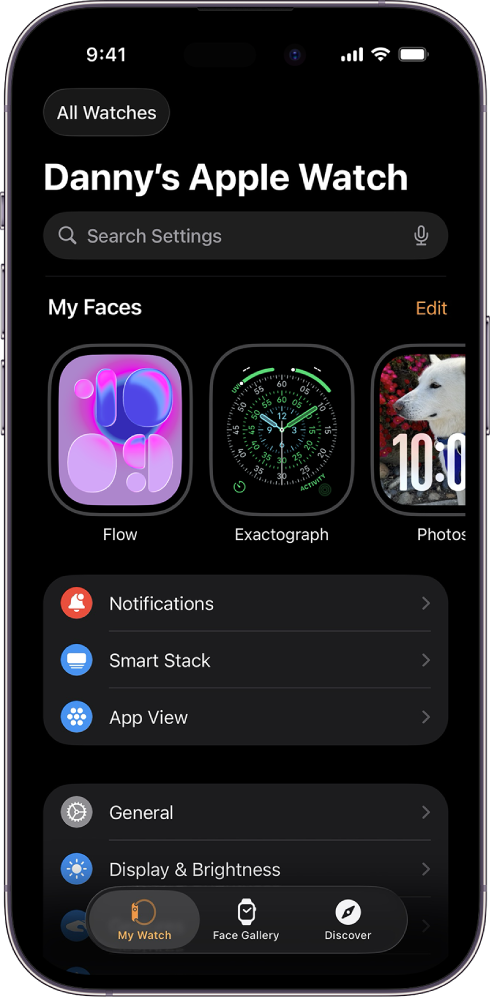
A black screen isn’t always broken. Accessibility features like VoiceOver or Screen Curtain can disable the display while keeping the watch active.
How to Disable from iPhone
- Open the Apple Watch app on your iPhone.
- Go to My Watch > General > Accessibility.
- Turn off both VoiceOver and Screen Curtain.
Why This Works: These features are designed to turn off visual output. If your watch vibrates and charges but shows nothing, this could be the culprit.
Force a Display Refresh with a New Watch Face
Even if the screen is frozen, pushing a new watch face can revive it.
- In the Apple Watch app, go to My Watch > Watch Faces.
- Pick any face and tap “Send”.
- Wait 10 seconds.
Multiple users report this trick brought their screen back—even after failed restarts.
Exit Water Lock Mode After Swimming or Washing
After water exposure, Water Lock disables touch to prevent accidental taps.
How to Unlock
- Turn the Digital Crown until you hear a sound and see the unlock animation.
- Or swipe up from the bottom to open Control Center and tap the water droplet icon.
Signs You’re in Water Lock
- Screen is visible but unresponsive to touches.
- Water droplet icon at the top.
- Watch vibrates but ignores taps.
Fix Tip: If the screen is black, charge first, then try turning the crown.
Test for Hardware Failure (When Software Fixes Fail)

If your watch charges, vibrates, but the screen stays black, hardware could be the issue.
Red Flags of Physical Damage
- No Apple logo during force restart (but you feel haptics).
- Charging confirmed (you hear the “ding”) but no screen after 6+ hours.
- Visible cracks, water marks, or loose back casing.
- A faint image under bright light—this means the display is working but the backlight is dead.
User Case: Sprite91 (Series 7) reported haptics working but no screen—diagnosed as display panel failure.
Try the Gentle Pressure Test (Reseat Internal Cables)
A drop or impact can loosen the ribbon cable connecting the screen to the logic board.
How to Safely Test
- With a microfiber cloth, gently press on the screen edges and center.
- Press the back of the watch, near the charging coils.
- Reconnect to the charger.
- Attempt a force restart.
Caution: Never press hard. OLED screens are fragile. This is a last-ditch test—only try if you suspect a recent drop.
Some users have revived their watches this way, especially after accidental drops.
The Freezer Method (Last Resort, High Risk)
An unverified but occasionally effective trick used when all else fails.
Steps to Try
- Place the fully assembled Apple Watch (with band) in a sealed plastic bag.
- Put it in the freezer for 20 minutes.
- Remove and immediately perform a force restart.
Why It Might Work
Cold temperatures can temporarily contract components, possibly reseating loose connections or restoring conductivity in damaged circuits.
Risks:
– Condensation can short internal parts.
– Voids warranty.
– Not supported by Apple.
Only attempt if your watch is out of warranty and no other method worked.
Model-Specific Fixes and Programs
Apple Watch Series 6: Free Repair Program
Apple runs a free service program for Series 6 models with blank screens—even if out of warranty.
- Eligibility: Check your serial number at Apple Support.
- Covered Symptoms: Intermittent display, flickering, or complete blackout.
User Report: Michael Maeda got a free repair after confirming haptics worked but the screen stayed black.
Apple Watch Series 7 & 8: Repeated Apple Logo
If the Apple logo flashes on and off:
– Likely display or logic board failure.
– Requires professional repair.
Apple Watch Ultra: Fix Charging Alignment
The 49mm model often fails to charge properly with the band on.
- Fix: Remove the band or lay the charger flat to ensure full magnetic contact.
Older Models (Series 1–5): Update WatchOS
Devices stuck on old versions (e.g., watchOS 9.2) freeze more often.
- Tip: If the screen works intermittently, update via the Apple Watch app on iPhone.
Should You Repair or Replace?
When to Choose Repair
| Condition | Recommendation |
|---|---|
| Under warranty or AppleCare+ | Free repair at Apple |
| Out of warranty, minor damage | Third-party repair ($50–$80) |
| Major damage or over 4 years old | Consider upgrade |
Third-Party Repair: Pros and Cons
- Pros: Faster, more affordable.
- Cons:
- Loses water resistance.
- May use non-OEM parts.
- No official support.
DIY Warning: Opening the watch with a pentalobe screwdriver voids warranty and risks damaging internal parts.
Prevent Future Screen Issues
Keep watchOS Updated
- Update regularly through the Apple Watch app.
- Delaying updates increases risk of bugs and crashes.
Use Original Charging Gear
- Stick to Apple or MFi-certified chargers.
- Clean the charging port weekly with a dry cloth.
Avoid Physical Stress
- Don’t press the screen hard.
- Protect from drops—even small impacts can disconnect internal cables.
Watch for Early Warning Signs
- Intermittent blackouts.
- Delayed wake.
- Touch lag.
Pro Tip: Turn on Haptic Alerts so you know your watch is active—even when the screen isn’t.
Real User Results: What Actually Worked
| User | Model | Fix That Worked |
|---|---|---|
| Michael Maeda | Series 6 | Free repair under Apple’s service program |
| CDFriend | Series 6 | Professional repair after failed update |
| Ok_Watch_232 | Series 10 | No fix—device unrepaired |
| Sprite91 | Series 7 | Diagnosed as hardware failure |
Community Consensus: If your watch charges, vibrates, but the screen stays black after all fixes—it’s likely hardware.
What to Do Now: Final Action Plan
If Your Screen Still Won’t Work
- Charge for 6–10 hours with the original cable.
- Force restart (hold 30 seconds).
- Check accessibility settings from iPhone.
- Try a different charger.
- Visit Apple Support if no progress.
When to Give Up
- Watch is over 5 years old.
- Repair cost exceeds half the price of a new model.
- No signs of life after 24 hours of troubleshooting.
Upgrade Tip: Trade in your broken watch at Apple for credit toward a new one.
A black screen doesn’t mean your Apple Watch is dead. Most issues are software-related and fixable in minutes. Start with charging and a force restart. Rule out accessibility settings. Only after those fail should you consider hardware repair. With the right steps, you might save your watch—and $400—without ever visiting a technician.





