

You glance at your wrist, and there it is—a red “X” or a blinking red iPhone icon. Your Apple Watch says iPhone disconnected, and instantly, everything stops working. No notifications. No calls. Health data won’t sync. The seamless experience you depend on is broken. If you’re using an iPhone 15, 17 Pro, or Apple Watch Series 10, Ultra, or earlier models—especially on iOS 17.0.1 or watchOS 10.6.1—you’re not alone. Thousands of users report this exact issue. But here’s the good news: over 90% of disconnections are software-related and fixable without visiting a store. This guide walks you through every step—from quick fixes to full resets—so you can restore your connection fast and prevent it from happening again.
Confirm Devices Are Within Range and Powered On
Before diving into complex troubleshooting, eliminate the most basic causes. A disconnected Apple Watch often just needs proximity or a power check.
Bring iPhone and Apple Watch Close Together
Bluetooth has a limited range—typically 3 to 30 feet—but walls, metal, or interference can reduce it significantly.
– Place your iPhone and Apple Watch within 1 foot of each other.
– Avoid keeping your iPhone in a bag, drawer, or another room.
– If syncing health data or using Apple Watch Mirroring, keep both devices in the same space.
Visual cue: After repositioning, look for the green iPhone icon to reappear on your watch face—this means the connection is restored.
Ensure Both Devices Are Powered and Responsive
A dead or unresponsive device breaks the link instantly.
– On your Apple Watch, press the side button. The screen should light up.
– If it shows a low-battery screen or stays black, charge it for at least 15 minutes.
– On the iPhone, press the side button. If nothing happens, force restart it (hold side + volume down until Apple logo appears).
⚠️ Warning: A device that’s off or frozen won’t reconnect automatically. Always verify both are powered before proceeding.
Toggle Airplane Mode to Reset Wireless Connections
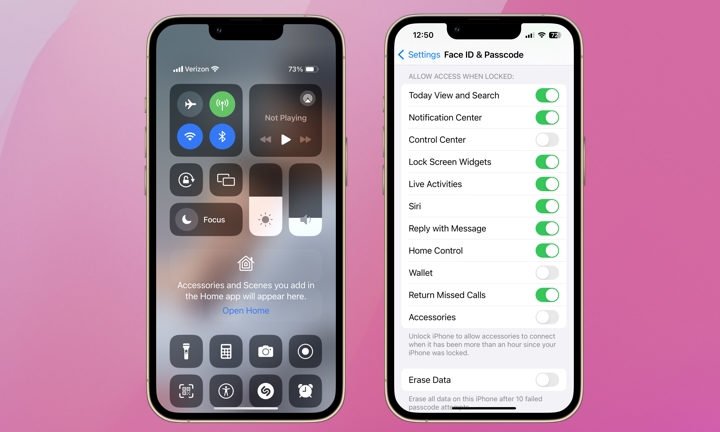
Airplane Mode disables Bluetooth and Wi-Fi—the two main ways your Apple Watch connects to your iPhone. Toggling it resets the wireless stack and often restores the link.
Turn Airplane Mode On and Off on Apple Watch
- Swipe up from the watch face to open Control Center.
- Tap the Airplane Mode icon (airplane symbol).
- Wait 10 seconds—you may see the red “X” disappear briefly.
- Tap the icon again to turn Airplane Mode off.
The watch will attempt to reconnect via Bluetooth automatically.
Repeat on iPhone
- Open Control Center (swipe down from top-right on iPhone X and later).
- Tap the Airplane Mode icon to turn it on.
- Wait 10 seconds.
- Tap again to turn it off.
✅ Pro Tip: This “double toggle” resets both Bluetooth and Wi-Fi systems and resolves the issue in under a minute for many users.
Restart Bluetooth on iPhone and Apple Watch
A frozen Bluetooth process can prevent reconnection—even if both devices are on and close.
Restart Bluetooth on iPhone
- Open Settings.
- Tap Bluetooth.
- Toggle it off.
- Wait 5–10 seconds, then toggle it back on.
Wait up to 60 seconds for the Apple Watch to reconnect.
Restart Bluetooth on Apple Watch
- Open Settings on the watch.
- Tap Bluetooth.
- Toggle it off, wait 10 seconds, then toggle on.
What to look for: After re-enabling, the watch may briefly show “Connecting…” before the green iPhone icon returns.
❌ Common mistake: Skipping the wait time. Letting the system fully reset increases success rates.
Restart Both Devices to Clear Glitches
A full restart clears temporary software bugs that can block Bluetooth or Wi-Fi communication.
How to Restart Apple Watch
- Press and hold the side button until the Power Off slider appears.
- Swipe to turn off.
- Wait 30 seconds.
- Press and hold the side button again until the Apple logo appears.
Allow 1–2 minutes for boot-up.
How to Restart iPhone
- iPhone 8 and later: Press and hold side button + volume down until the power slider appears. Slide to power off. Wait 30 seconds, then restart.
- iPhone 7/7 Plus: Press and hold side + volume down.
- iPhone 6s and earlier: Press and hold the side button.
After both restart, keep them close for 2–3 minutes to allow automatic reconnection.
✅ User confirmation: Users like Fit_Response_8083 and DontTreadOnDan reported this fixed the issue—even without further steps.
Test Connection with “Ping iPhone” Feature
Use this built-in tool to check if your devices can still communicate.
Run the Ping Test
- On Apple Watch, swipe up to open Control Center.
- Tap “Ping iPhone”.
Listen for a beeping sound from the iPhone.
Interpret the Result
- iPhone beeps: Connection is partially active. The issue may be software-related.
- No sound: Full disconnection. Proceed to deeper troubleshooting.
✅ Expert note: If the iPhone pings but the red icon remains, try restarting the Watch app on your iPhone.
Update iOS and watchOS to Fix Known Bugs

Outdated or mismatched software is a leading cause of disconnection—especially on iOS 17.0.1 and watchOS 10.6.1, which have known Bluetooth bugs.
Update iPhone (iOS)
- Open Settings > General > Software Update.
- Download and install any available update.
- Keep iPhone connected to Wi-Fi and charged above 50%.
Update Apple Watch (watchOS)
- Open the Watch app on iPhone.
- Go to General > Software Update.
- Follow prompts to install.
✅ Pro Tip: If the update stalls, keep the watch on the charger and within 3 feet of the iPhone. Restart both if needed.
Reset iPhone Network Settings to Clear Corrupted Data
Corrupted Wi-Fi, Bluetooth, or cellular settings can prevent reconnection.
How to Reset
- On iPhone, go to Settings > General > Reset.
- Tap Reset Network Settings.
- Confirm. You’ll need to re-enter Wi-Fi passwords afterward.
After reset:
– Reconnect to Wi-Fi.
– Wait for Apple Watch to reconnect automatically.
⚠️ Warning: Only use this if other steps fail—it erases saved networks and cellular settings.
Fix Multiple Watch Confusion in the Watch App
If you’ve used or owned more than one Apple Watch, the system might be trying to connect to the wrong one.
Select the Correct Watch
- Open the Watch app on iPhone.
- Tap “All Watches” in the top-left corner.
- Ensure your current watch (e.g., Series 10, Ultra) is marked as active.
Remove Old Watches
- In the All Watches list, tap the “i” icon next to an old or unused watch.
- Tap Unpair Apple Watch.
✅ Official guidance: Apple confirms incorrect selection can trigger disconnection messages—even if Bluetooth is working.
Use Apple Watch Mirroring to Force Reconnection
A user-reported workaround that tricks the system into re-pairing.
Steps to Trigger Reconnection
- Restart your iPhone.
- After reboot, go to Settings > Accessibility > Apple Watch Mirroring.
- Turn Apple Watch Mirroring on.
- Wait 30–60 seconds for the connection to establish.
- Once connected, turn Mirroring off.
✅ User success: akenns1947 used this on an iPhone 17 Pro and Apple Watch Ultra 1 with immediate results.
❗ Note: This setting may not appear if your OS is outdated or region-restricted.
Unpair and Re-pair Apple Watch (Last Resort)
When all else fails, a full unpair and re-pair clears corrupted pairing data—the most effective long-term fix.
Unpair from iPhone
- Open Watch app > My Watch tab.
- Go to General > Reset > Unpair Apple Watch.
- Confirm. This erases all data on the watch.
🔐 Activation Lock: You’ll need your Apple ID and password to set it up again.
Reset Apple Watch (If Needed)
If unpairing doesn’t trigger a reset:
1. On the watch, go to Settings > General > Reset > Erase All Content and Settings.
2. Confirm and wait.
Re-pair the Watch
- Bring iPhone and Apple Watch close.
- The pairing screen should appear on the watch.
- Follow setup steps to restore from backup or set up as new.
✅ Pro Tip: If the pairing screen doesn’t appear, open the Watch app and tap the “eye” icon (top-right) to manually initiate pairing.
When to Contact Apple Support
If your Apple Watch disconnects within hours of re-pairing, the issue may be hardware-related.
Signs of Hardware Failure
- Disconnections occur even when devices are side-by-side.
- Bluetooth fails on other accessories (AirPods, CarPlay).
- Watch or iPhone has water or impact damage.
- Red mobile icon persists on LTE models despite strong signal.
Next Steps
- Contact your carrier (for LTE/Cellular models) to verify plan and eSIM status.
- Visit Apple Support online for diagnostics.
- Schedule a Genius Bar appointment for hardware testing.
✅ Final note: After re-pairing, keep both devices powered on and within range for 24 hours to stabilize the connection. Avoid restarting or updating during this period.
Summary: The “Apple Watch says iPhone disconnected” issue is usually fixable. Start with Airplane Mode toggle, Bluetooth restart, and device reboot. If problems persist, update software, reset network settings, or re-pair the watch. Most users regain full functionality without visiting a store. But if disconnections return quickly, consider hardware failure or carrier issues—and contact Apple.





