
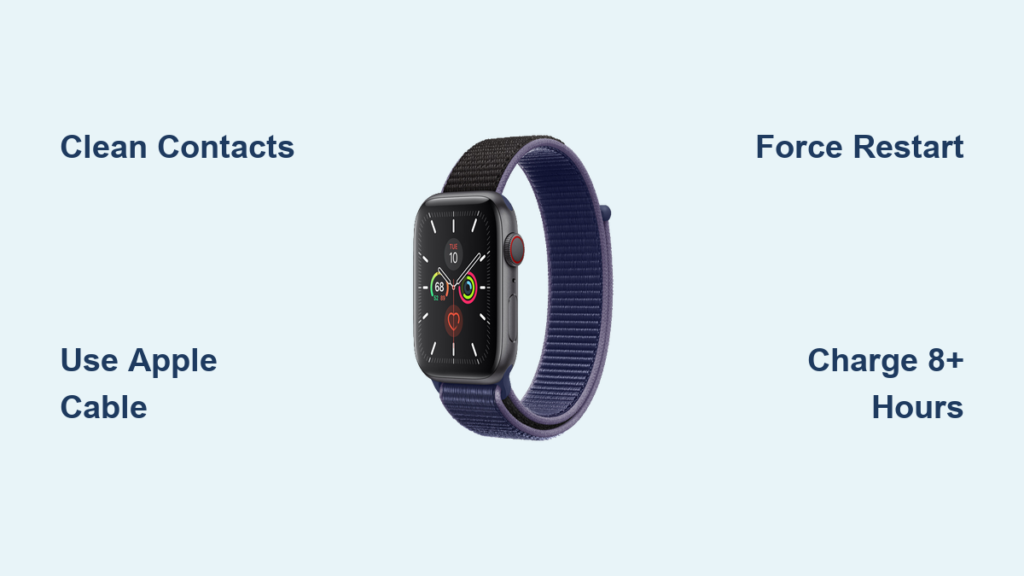
Your Apple Watch Series 5 is dead on the charger—no Apple logo, no charging ring, just silence. Maybe it shows a red lightning bolt and refuses to power up, or perhaps it briefly flickers to life only to stop charging at 1%. You’ve tried different cables, outlets, and even a force restart. Still nothing. If you’re searching “Apple Watch Series 5 won’t charge,” you’re not alone. This is one of the most common complaints among long-term Apple Watch users, especially on older models like the Series 5.
But here’s the good news: most charging issues aren’t permanent. In fact, the problem often lies in something simple—like a dirty charging puck, a faulty cable, or a deeply drained battery that needs time to wake up. This guide walks you through every proven fix, from basic checks to advanced resets, based on real user reports, Apple’s official support, and insights from former Apple engineers. Whether your watch shows a red lightning bolt, stops at 1%, or won’t respond at all, you’ll know exactly what to do next—and when it’s time to call Apple.
Confirm Whether Your Apple Watch Is Actually Charging
Before assuming the worst, verify if your watch is charging at all.
Look for the Right Charging Signs
When you place your Apple Watch Series 5 on the charger, watch for these visual cues:
– Red lightning bolt: Battery is critically low (under 10%), but not charging yet.
– Red or green lightning inside a ring: Charging has started.
– Apple logo: The watch is booting—good sign.
– Blank screen: Don’t panic. It may still be charging. Wait up to 30 minutes.
⚠️ Important: A red lightning bolt does not mean charging—only that the battery is nearly empty. The charging ring must appear for power to flow.
Some deeply drained watches take 10–30 minutes to show any sign of life. Avoid repeatedly unplugging it; let it sit undisturbed.
Use Genuine Apple Charging Accessories Only

Third-party chargers are a leading cause of charging failure.
Stick to Apple-Branded or MFi-Certified Gear
Only use:
– Apple Magnetic Charging Cable (included with Series 5)
– Apple USB-C Magnetic Fast Charging Cable
– Apple Watch Magnetic Charging Dock
– MagSafe Duo Charger (ensure alignment)
❌ Avoid non-MFi-certified cables—they may look identical but deliver inconsistent power. Some region-specific chargers (e.g., sold in China) display:
“Unable to charge. This is a country-specific charger.”
Even if a cable appears undamaged, internal wire breaks can prevent charging. Always test with a known-good Apple setup if possible.
Test Different Power Sources and Connections
A weak power source can mimic a dead watch.
Try These Power Options
Test each:
– Apple 5W, 12W, or 20W wall adapter (best choice)
– Computer USB 3.0+ port (avoid older USB 2.0)
– Powered USB hub
– Car charger or power bank
✅ Pro Tip: Wall adapters are far more reliable than PC USB ports, which often deliver insufficient power and delay charging by 30+ minutes.
Ensure both ends of the cable are fully plugged in. Try multiple wall outlets to rule out electrical issues.
Clean the Charging Contacts Thoroughly
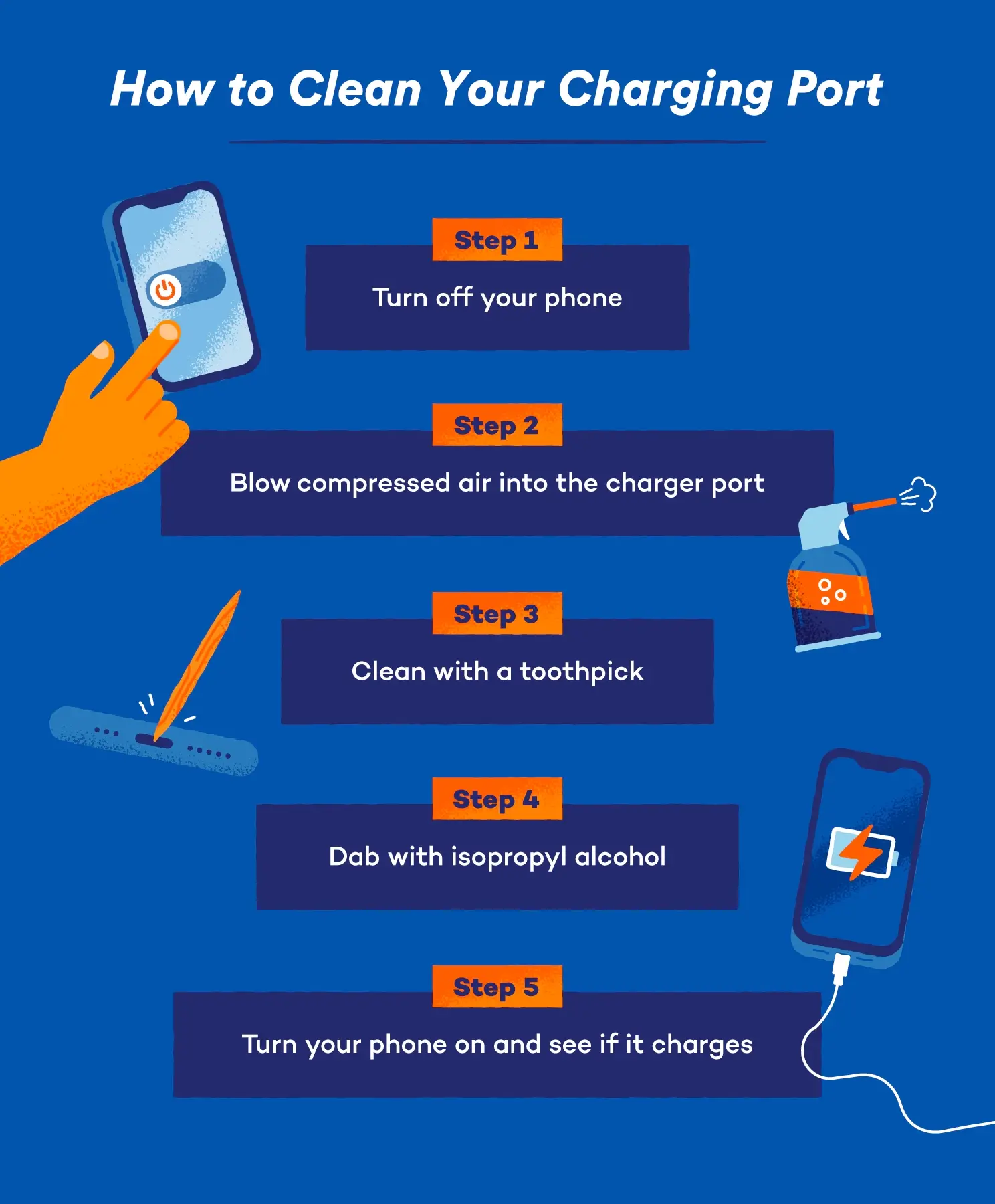
Dirt, sweat, and metal particles block electrical contact.
Safe Cleaning Steps
- Power off the watch if responsive.
- Wipe the back of the watch and charging puck with a dry, lint-free cloth.
- Gently brush the charging pins with a clean, dry toothbrush.
- Avoid liquids, compressed air, or sharp tools.
🧼 Pro Tip: Clean contacts weekly to prevent corrosion and intermittent charging.
After cleaning, align the watch magnetically and press gently until it snaps securely into place.
Force Restart Your Apple Watch
Software glitches can prevent the watch from recognizing the charger.
How to Perform a Force Restart
- Press and hold Side Button + Digital Crown.
- Hold for 10+ seconds.
- Release when the Apple logo appears.
- Wait 2 minutes, then reconnect to charger.
This resets the power management system and clears temporary software locks.
✅ Works on all Apple Watch models, including Series 5.
Try this after every failed charging attempt—it’s often the missing step.
Test with Different Charging Hardware

Cables and adapters wear out internally, even if they look fine.
Isolate the Problem
Use this test sequence:
1. Your cable + known-good adapter → if it charges, original adapter failed.
2. Your adapter + known-good cable → if it charges, your cable is faulty.
3. Borrow a full Apple setup → confirms whether the issue is device-specific.
💡 Real Case: A Series 7 user fixed “charges to 1%, then stops” by replacing the cable—despite no visible damage.
Apple Watch Series 5 uses magnetic inductive charging—tiny coil misalignments or microfractures in the cable can kill efficiency.
Re-seat Internal Connections (Physical Reset)
Impacts or drops can loosen internal ribbons.
Pressure Reset Method
- Power off the watch.
- Press firmly on the center of the display with both thumbs.
- Apply equal pressure to the back of the watch (over the charging coil).
- Immediately perform a force restart.
- Reconnect to charger.
⚠️ Apply even pressure—do not press near edges or buttons.
This technique mimics how Apple technicians reseat connectors during repairs.
Let It Charge for 8–10 Hours Overnight
A deeply drained battery may be in hibernation.
Extended Charge Protocol
- Connect to a wall adapter.
- Leave undisturbed for 8–10 hours.
- Do not touch the watch or check status.
Some units require long exposure to reactivate the battery management system.
🔋 Real Case: A Series 6 took 7+ hours to show signs of life. Slight warmth confirmed minimal current flow.
If nothing happens after 10 hours, move to deeper diagnostics.
Perform a Full Discharge and Recharge Cycle
Reset battery calibration if the watch powers on intermittently.
Step-by-Step
- Use the watch until it shuts down completely.
- Press Digital Crown—no response means it’s fully dead.
- Connect to charger and leave for 8–10 hours.
This clears false battery readings and resets charge thresholds.
⏱️ Speed Tip: Perform multiple force restarts daily to drain faster.
Use this when the watch boots but won’t charge past low percentages.
Try Complete Battery Drain (Last Resort)
For watches stuck in red-lightning limbo.
Deep Reset Procedure
- Leave the watch unplugged and unused for 3–7 days.
- Perform 2–3 force restarts per day to accelerate discharge.
- Wait until no Apple logo or time display appears.
- Connect to charger.
🔬 Origin: Shared by a retired Apple QA engineer, this targets firmware-level hibernation bugs.
📊 Outcome: Some users report success after 5 days; others find no change—indicating hardware failure.
Only attempt if all else fails.
Check Battery Health (If the Watch Powers On)
Degraded batteries lose ability to hold or accept charge.
How to Inspect
On the watch:
1. Open Settings > Battery > Battery Health
2. View Maximum Capacity:
– >80%: Normal wear
– <80%: Battery needs replacement
📉 Example: A Series 6 with 71% capacity showed unstable charging after 4 years of GPS workouts.
Battery Health is only accessible when the watch powers on.
Update Software or Reset the Watch
Outdated or corrupted software can disrupt charging.
Install the Latest watchOS
On iPhone:
1. Open Watch app
2. Tap General > Software Update
3. Download and install
Updates often include power management fixes.
Erase All Content (Final Software Fix)
If the watch charges intermittently:
1. Settings > General > Reset > Erase All Content and Settings
2. Enter passcode
3. Confirm
4. Re-pair with iPhone
🚫 Warning: Deletes all data. Only use if the device is functional.
This removes corrupted system files that may interfere with charging logic.
Diagnose Hardware Issues
When software and accessories check out, hardware may be failing.
Common Hardware Failures
- Failing charging coil: No response despite good cable/power.
- Loose battery connector: Intermittent charging, stops at 1%.
- Damaged logic board: Requires professional repair.
- Cracked back casing: May disrupt contact or expose internals to moisture.
🛠️ User Report: A cracked back was linked to charging failure—location matters.
Water damage (beyond WR50 rating) or corrosion from sweat/lotion can also break circuits.
When to See Apple Support
If all steps fail, seek professional help.
Signs You Need Service
- No response after 10+ hours on charger
- Charging stops at exactly 1%
- Battery health below 80% with charging issues
- Visible damage to case or back
- Watch out of warranty but otherwise functional
Repair Options
- Apple Store Genius Bar: Free diagnosis, repair quote
- Apple Mail-in Service: Via support.apple.com
- Authorized Service Provider: May offer lower-cost battery replacements
💬 User Experience: One Series 7 owner was told only a paid replacement was available—no repair option.
Apple offers battery service for out-of-warranty watches. Cost varies by region.
Prevent Future Charging Problems
Keep your Apple Watch charging reliably with these habits.
Best Practices
- ✅ Use only Apple or MFi-certified chargers
- ✅ Clean contacts weekly
- ✅ Avoid extreme temperatures (below 0°C or above 35°C)
- ✅ Update watchOS regularly
- ✅ Don’t leave the watch fully drained for days
- ✅ Store in a cool, dry place
❌ Skip the “freezer trick”—while some claim cold reseats components, condensation risks short circuits.
Regular maintenance prevents 80% of charging issues.
Quick Decision Tree: What to Try Next
| Symptom | Recommended Action |
|---|---|
| Red lightning bolt | Connect charger, wait 30 min for ring icon |
| Blank screen | Force restart, then charge 8–10 hours |
| Stops at 1% | Test with known-good cable, check battery health |
| No response | Clean contacts, try wall adapter, force restart |
| Battery <80% | Schedule battery replacement via Apple |
| Watch works but won’t charge | Update software, erase all content |
| Nothing works | Visit Apple Store or authorized repair |
Final Note: Most Apple Watch Series 5 charging issues are not permanent. Start with cleaning, use genuine gear, and allow extended charging. Many “dead” watches come back after 8+ hours. If software and accessories are ruled out, hardware failure is likely—especially if battery health is poor or the case is damaged. For reliable diagnostics and safe repairs, Apple Support remains the best option. Don’t give up too soon—your watch might just need time to wake up.





