

Is your Apple Watch Series 7 touch screen not working? You’re not alone. Thousands of users have reported sudden touch failure—where taps do nothing, the screen freezes, or the display stays black despite vibrations and notifications. Even with the Digital Crown and side button responding, a dead touchscreen cripples core functions like unlocking, launching apps, or checking messages.
The good news: most cases are fixable without repair. This guide reveals every proven solution—from quick resets to deep software fixes—based on real user reports, Apple’s official protocols, and hardware diagnostics. Whether the issue is temporary, software-related, or hardware-based, you’ll learn exactly what to do next, in order of effectiveness.
Force Restart Your Apple Watch Series 7
A frozen operating system is the most common cause of touch screen failure. A force restart clears stuck processes and resets the touch driver without deleting any data.
How to Force Restart
- Press and hold both the Digital Crown and Side Button at the same time.
- Keep holding for 10 to 30 seconds, even after the red power-off slider appears.
- Release when the Apple logo flashes on the screen.
⚠️ Be patient: The Apple logo may stay visible for up to 5 minutes while the system fully reboots. Don’t press any buttons during this time.
This fix resolves temporary software hangs that disrupt touch responsiveness. Many users report immediate recovery—even after repeated daily failures.
When to Use This Fix
- Screen shows no response but watch vibrates
- Buttons highlight when tapped but no action occurs
- Issue started after a recent watchOS update
- Touch stops working intermittently throughout the day
Remove Any Screen Protector
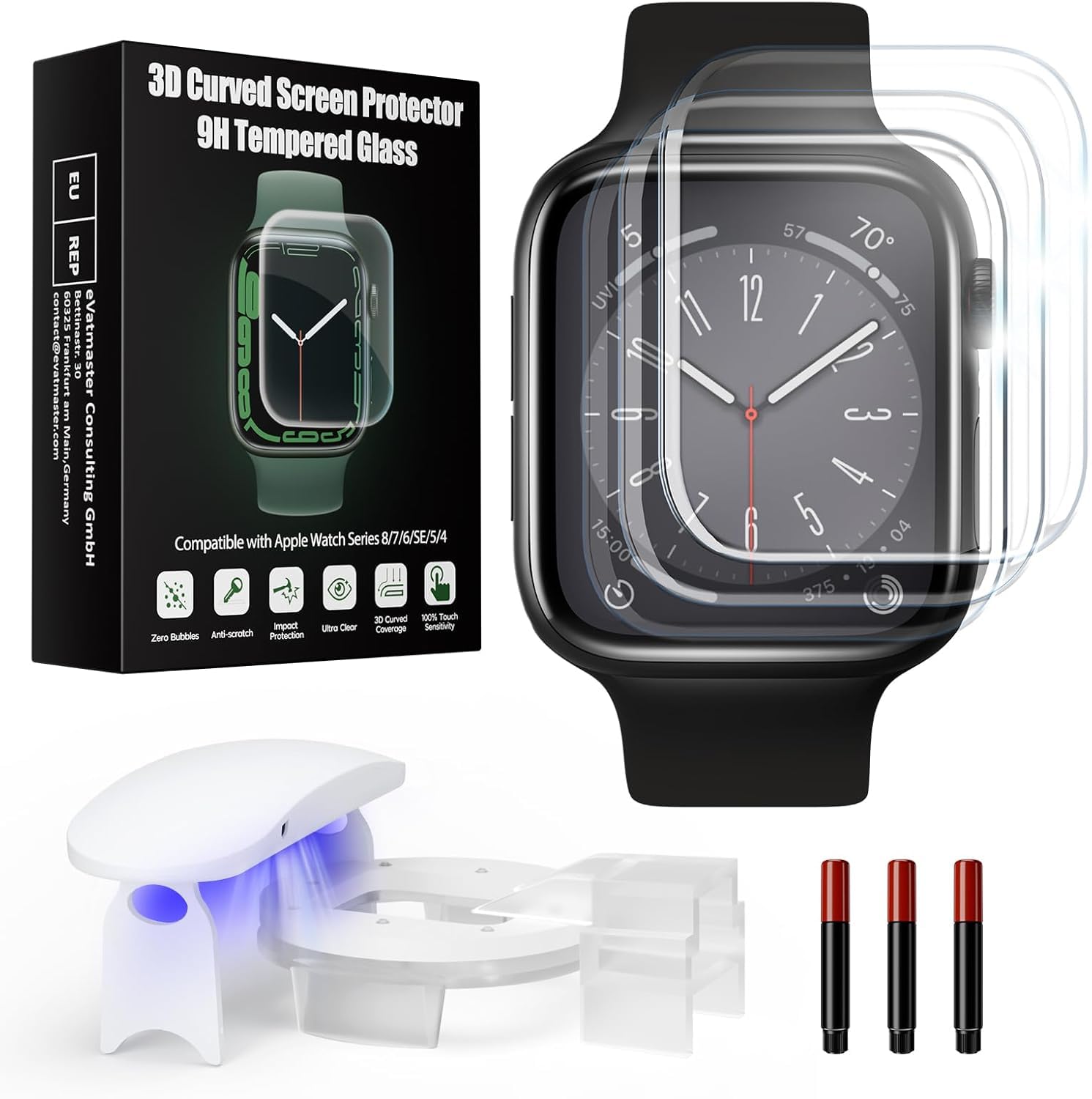
Even high-quality third-party screen protectors can interfere with the capacitive touch sensors on the Apple Watch Series 7’s edge-to-edge display.
Why Screen Protectors Cause Problems
- Static layers or adhesive films disrupt electrical signals
- Micro-bubbles or misalignment create “dead zones”
- Some protectors are too thick for the ultra-sensitive OLED panel
How to Test
- Gently peel off the screen protector.
- Wipe the screen with a dry microfiber cloth.
- Try tapping the watch face to unlock or open an app.
✅ Real user result: “Removing the protector solved the issue 🙏” — Zerashk-Gulida (verified Apple Community member)
Pro Tip
Test without a protector for at least 24 hours. Only reapply if touch remains stable.
Disable Water Lock Mode
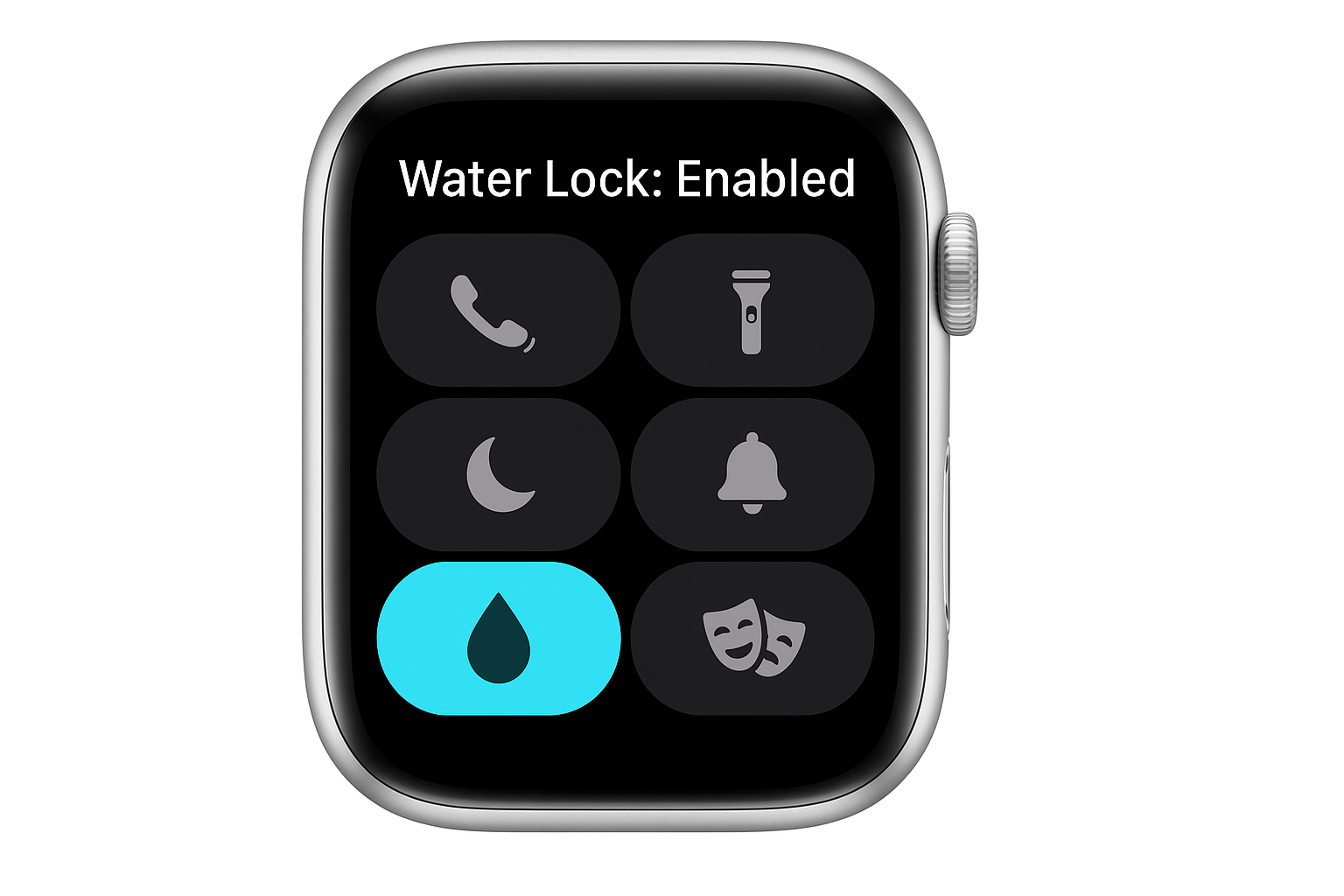
If you’ve been swimming, showering, or washing your hands, Water Lock may be active—intentionally disabling touch to prevent accidental inputs.
How to Tell Water Lock Is On
- A blue water droplet icon appears at the top of the screen
- Rotating the Digital Crown produces a dripping sound
- Screen won’t respond to taps until unlocked
How to Exit Water Lock
- Wake the screen by raising your wrist or pressing any button.
- Rotate the Digital Crown clockwise until the display unlocks.
If the screen is frozen during exit, perform a force restart first—this often clears a stuck Water Lock state.
Clean the Screen and Your Hands
Dirt, sweat, oil, or hand sanitizer residue can block touch detection on the sensitive OLED display.
Step-by-Step Cleaning Guide
- Power down the watch or let it sleep.
- Dampen a lint-free microfiber cloth with plain water (no chemicals).
- Gently wipe the screen in circular motions.
- Dry thoroughly with a clean part of the cloth.
- Wash and dry your hands before using the watch.
Common Touch Killers
- Hand sanitizer: Alcohol leaves a film that insulates your fingers
- Sunscreen or lotion: Creates a barrier between skin and screen
- Workout grime: Sweat and salt buildup reduce conductivity
🛑 Avoid: Alcohol, bleach, window cleaners, or abrasive towels—they can damage the oleophobic coating that prevents smudges.
Charge the Watch Fully
A deeply drained battery may power internal components (like haptics) but not the display controller or touch sensor.
Proper Charging Procedure
- Use the original Apple magnetic charger.
- Ensure a firm magnetic snap—misalignment prevents charging.
- Let it charge for at least 30 minutes uninterrupted.
Advanced Wake-Up Trick
While charging:
– Rapidly press the Side Button 5–10 times
– Alternate with Digital Crown presses
This “button spamming” technique has revived many watches stuck in a low-power, frozen state.
✅ Works when: Watch vibrates or rings but screen stays black or unresponsive.
Update to the Latest watchOS Version

Software bugs in certain watchOS updates—like 9.6.2 and 11.4—have caused widespread touch screen failures.
How to Check for Updates
- Open the Watch app on your iPhone.
- Tap My Watch > General > Software Update.
- Download and install any pending update.
Why Updates Matter
- Apple frequently releases patch versions (e.g., 9.6.3) to fix critical bugs
- Updates correct touch driver glitches and UI freezes
- Some users report daily touch failures only after buggy updates
🔁 Pro Tip: Even if your watch says “up to date,” check again in 24 hours—patches roll out gradually.
Change Your Watch Face Remotely
If the interface is frozen, changing the watch face from your iPhone can force a system refresh—even without touch input.
Steps to Refresh Remotely
- Open the Watch app on your iPhone.
- Go to My Watch > Watch Faces.
- Choose a new face (e.g., Simple, Infograph, or Unicorn).
- Tap “Send to Apple Watch”.
This often:
– Breaks a frozen UI loop
– Restarts the graphics engine
– Restores touch functionality within seconds
✅ Verified fix: Multiple users report touch returning after remote face change, even when the screen was completely unresponsive.
Unpair and Re-Pair Your Apple Watch
Deep software corruption or sync errors between your iPhone and watch can disable touch input.
How to Re-Pair
- Open Watch app on iPhone.
- Tap All Watches > select your watch > tap the “i” icon.
- Choose Unpair Apple Watch.
- Confirm and wait for unpairing to complete.
Afterward:
– Re-pair the watch as new or restore from backup.
Requirements
- iPhone connected to Wi-Fi
- Apple Watch charged to 50% or more
- iCloud backup enabled (recommended)
This fix resolves hidden configuration conflicts that prevent the touch system from initializing.
Factory Reset the Apple Watch
When all else fails, a factory reset wipes all data and reinstalls the operating system—ideal for persistent, unexplained touch failure.
Steps to Erase
- Open Watch app on iPhone.
- Go to My Watch > General > Reset.
- Tap Erase All Content and Settings.
- Enter your passcode to confirm.
After reset:
– Re-pair and restore from backup.
💾 Back up first: This removes apps, health data, settings, and preferences.
This is the most thorough software fix—perfect for resolving deep system corruption.
Inspect for Hardware Damage

If software fixes fail, the problem may be physical.
Signs of Hardware Failure
- Cracked or chipped screen (even hairline fractures)
- Partial touch response (e.g., only top half works)
- No reaction after full charge and factory reset
- Touch flickers when pressing the edges (suggests loose cable)
Common Causes
- Drops that disconnect the internal ribbon cable
- Pressure from tight bands or pockets
- Manufacturing defects (rare but documented)
⚠️ Gentle test: Press lightly around the bezel while tapping. If touch flickers, a loose internal connection is likely.
Visit Apple for Professional Repair
When hardware is faulty, only Apple or an authorized provider can safely repair it.
When to Seek Help
- Screen is cracked or discolored
- Touch fails after all software fixes
- Watch is under warranty or AppleCare+
Estimated Repair Costs
| Issue | Cost | Notes |
|---|---|---|
| Screen replacement | $50–$80 | Covers display and touch sensor |
| Logic board failure | $200+ | Rare; usually covered under warranty |
| Water damage | Not covered | Unless AppleCare+ with damage coverage |
🛠️ Avoid DIY: Internal components are fragile. Improper handling can void your warranty or cause permanent damage.
Prevent Future Touch Issues
Avoid recurrence with these best practices.
Keep Software Updated
- Enable automatic updates
- Check for patches after major releases
Avoid Risky Accessories
- Skip cheap or uncertified screen protectors
- Use only Apple-certified films
Maintain Cleanliness
- Wipe screen weekly with microfiber
- Wash hands before use
- Avoid hand sanitizer right before touching
Enable Regular Backups
- Turn on iCloud backup
- Sync via iPhone weekly
🔐 Why it matters: A good backup ensures you can reset safely without losing health data or preferences.
Quick Fix Summary (What to Try First)
| Step | Action | Success Rate |
|---|---|---|
| 1 | Force restart | ⭐⭐⭐⭐☆ |
| 2 | Remove screen protector | ⭐⭐⭐⭐⭐ (if present) |
| 3 | Clean screen & hands | ⭐⭐⭐☆☆ |
| 4 | Exit Water Lock | ⭐⭐⭐⭐☆ (if applicable) |
| 5 | Charge + button spam | ⭐⭐⭐⭐☆ |
| 6 | Update watchOS | ⭐⭐⭐⭐☆ |
| 7 | Change face remotely | ⭐⭐⭐☆☆ |
| 8 | Unpair & re-pair | ⭐⭐⭐⭐☆ |
| 9 | Factory reset | ⭐⭐⭐⭐⭐ |
| 10 | Apple repair | Definitive fix for hardware |
Final Advice
If your Apple Watch Series 7 touch screen not working issue persists:
– Start simple: Restart, clean, remove protector.
– Progress logically: Update OS, refresh UI, re-pair.
– Reserve reset and repair for last.
💡 Remember: If the watch vibrates, rings, or shows haptics, it’s likely not dead—software or interference is to blame.
Contact Apple Support or visit an Apple Store if under warranty. For long-term reliability, avoid third-party accessories and keep your watchOS current.
Your Apple Watch should respond instantly to touch. With these steps, it will—again.





