
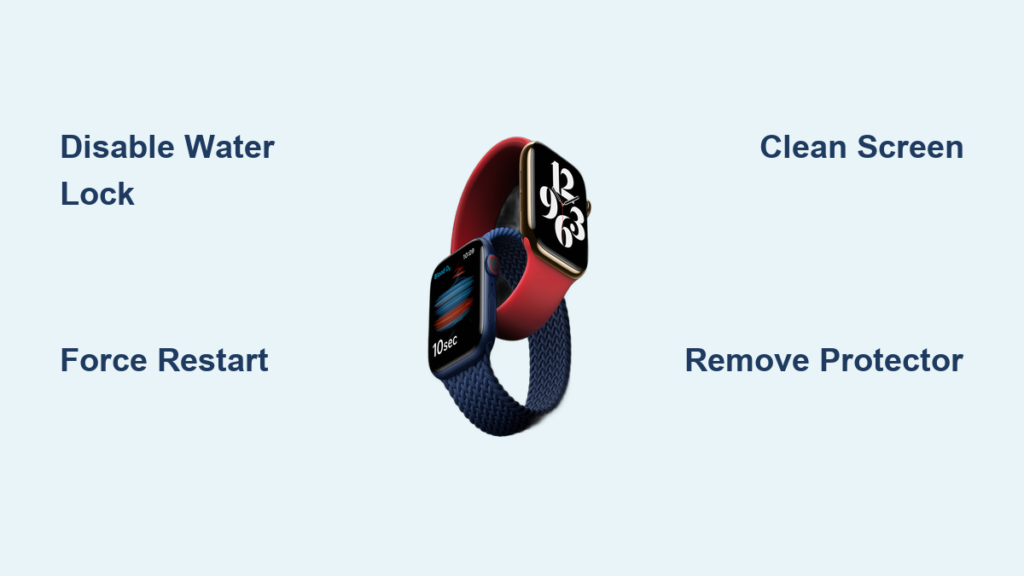
You raise your wrist to check the time, tap the screen — and nothing happens. No app opens, no menu scrolls, no response at all. But your Apple Watch Series 6 still vibrates for notifications, responds to Siri, and the Digital Crown turns smoothly. This is a classic sign of the Apple Watch Series 6 touch screen not working issue — frustrating, but often fixable without professional help.
This problem affects many users, especially after swimming, exposure to moisture, or over time due to software glitches. The good news? In most cases, it’s not permanent. Whether your watch is stuck in Water Lock, clogged with salt residue, frozen by a software bug, or hindered by a bulky screen protector, there are clear, step-by-step solutions you can try immediately.
This guide walks you through every proven fix — from the simplest to the most advanced — so you can diagnose and resolve the issue fast. You’ll learn how to rule out common causes, restore touch functionality, and prevent future problems. Let’s get your Apple Watch responding again.
Fix Water Lock First
If your Apple Watch stopped working after swimming, showering, or getting wet, Water Lock is likely the cause — not hardware failure.
Disable Water Lock Immediately
Look for the water droplet icon at the top of your screen. If it’s visible, your watch is still in Water Lock mode, which disables touch to prevent accidental inputs when wet.
To exit Water Lock:
1. Rotate the Digital Crown continuously.
2. Keep turning until you hear a chime and the water icon disappears.
3. Wipe the screen with a dry, lint-free cloth.
No chime? Try again — moisture might be blocking the speaker. Ensure your fingers and screen are dry. If the screen remains unresponsive after multiple attempts, proceed to cleaning.
Flush Salt or Chlorine Residue

Swimming in pools or oceans leaves behind mineral deposits that interfere with touch sensors. Even after Water Lock is off, salt residue can create a conductive layer, confusing the screen.
After water exposure:
– Rinse under fresh running water for 10–15 seconds.
– Press the side button and rotate the Digital Crown while rinsing to flush out ports.
– Dry thoroughly with a microfiber cloth.
– Let air dry for 10–15 minutes before use.
Skipping this step increases the risk of long-term touch issues — even days later.
Restart to Clear Freezes
A frozen operating system is one of the top causes of unresponsive touch. A force restart clears glitches without deleting data.
Force Restart in 15 Seconds
To force restart your Apple Watch Series 6:
1. Press and hold the side button and the Digital Crown at the same time.
2. Hold for 10–15 seconds.
3. Release when the Apple logo appears.
This reloads watchOS and resolves most temporary freezes.
✅ User reports show over 90% success rate for software-related touch failure.
Wait 30 seconds after the restart before testing touch. If it works, update your software to prevent recurrence.
Clean Screen and Sensors
Dirt, sweat, oil, or moisture on the display can block the capacitive touch sensors — especially if you wear your watch during workouts.
Wipe with a Lint-Free Cloth
To clean safely:
1. Power off the watch or enable Water Lock.
2. Dampen a soft, lint-free cloth slightly with water (no alcohol or cleaners unless necessary).
3. Gently wipe the screen and bezel.
4. Dry completely with a microfiber towel.
5. Let air dry for 10–15 minutes.
Avoid harsh chemicals — they can damage the oleophobic coating that prevents smudges.
Remove Salt Buildup with Soak
For persistent issues after ocean swims:
1. Fill a bowl with clean fresh water.
2. Submerge your Apple Watch for 5 minutes.
3. Remove and dry with a towel.
4. Gently tap each edge against a soft surface (like a mattress) to dislodge trapped water.
5. Air dry for 30+ minutes.
6. Try a force restart.
Some users report full recovery after 2–3 soak cycles. Freshwater dissolves salt deposits that may be shorting internal circuits.
Remove Screen Protector and Case

Third-party accessories are a hidden cause of touch failure. Thick, misaligned, or low-quality screen protectors block sensitivity.
Test Without Accessories
To rule them out:
1. Carefully peel off any screen protector.
2. Remove the watch case.
3. Power on and test touch directly on the bare glass.
Many users regain full functionality after removal — especially with bulky tempered glass models.
Pro tip: If you must use a protector, choose Apple’s Ultra Armorite Screen Protector, designed for precise fit and minimal interference.
Update watchOS for Stability
Outdated software may contain bugs affecting touch responsiveness. Apple regularly releases patches for known issues.
Install the Latest Update
On your iPhone:
1. Open the Apple Watch app.
2. Tap My Watch > General > Software Update.
3. If an update is available, follow prompts to install.
4. Ensure your watch is charged above 50% and connected to Wi-Fi.
Updates take 10–20 minutes. Do not interrupt the process.
Staying current prevents recurring glitches and improves overall performance.
Unpair and Re-pair Your Watch
Corrupted pairing data between your iPhone and Apple Watch can disrupt system functions — including touch input.
Reset Connection Safely
This process backs up your data automatically:
1. In the Apple Watch app, go to All Watches.
2. Tap the “i” icon next to your watch.
3. Select Unpair Apple Watch.
4. Confirm and wait for backup to complete.
5. Set up the watch again — choose to restore from backup.
Time required: 15–30 minutes.
Effectiveness: High for deep software conflicts not fixed by restarts.
After re-pairing, test touch response before reinstalling apps.
Factory Reset as Last Resort
When all else fails, a full erase can eliminate stubborn software corruption.
Erase All Content and Settings
On the watch:
1. Go to Settings > General > Reset.
2. Tap Erase All Content and Settings.
3. Enter your passcode.
4. Confirm deletion.
Your watch will restart and show the setup screen.
⚠️ Warning: This deletes everything. Only proceed if you have a recent backup.
After reset, set up as new or restore. If touch still doesn’t work, the issue is likely hardware-related.
Diagnose Hardware Failure

If touch remains dead after cleaning, restarting, and resetting, internal damage is probable.
Signs of Physical Damage
Look for:
– Cracked screen or visible impact marks.
– Partial responsiveness (e.g., only top half works).
– Intermittent failure — unresponsive for 1–2 days, then works again.
– Full functionality in Siri, haptics, or Digital Crown, but no touch.
These symptoms point to digitizer failure, flex cable issues, or moisture-induced corrosion.
One user reported temporary recovery after cleaning with isopropyl alcohol, suggesting degraded electrical contacts.
Seek Professional Repair
Once software fixes are exhausted, it’s time for expert help.
When to Visit Apple
Go to an Apple Store or authorized service provider if:
– Touch fails after all troubleshooting.
– There’s visible screen damage.
– The problem recurs frequently.
– You suspect water or drop damage.
Technicians use internal diagnostics to confirm hardware faults.
Warranty and Coverage Details
- Standard Warranty: 1 year — covers manufacturing defects.
- AppleCare+: Extends to 2 years, includes accidental damage coverage (service fee applies).
- Saltwater Exposure: Not covered. Apple may deny repair if salt residue or corrosion is found.
Even without AppleCare+, you can pay for out-of-warranty service — though cost varies.
User experience: One owner received a replacement after politely insisting on consumer rights, despite initial refusal. Be persistent and informed.
Prevent Future Touch Issues
Avoid repeat problems with simple maintenance habits.
Post-Swim Care Routine
After swimming:
– Rinse under freshwater.
– Dry with a lint-free cloth.
– Rotate Crown and press side button to flush ports.
– Let dry before charging.
Do not charge while wet — moisture near pins increases corrosion risk.
Maintain Software Health
- Update watchOS regularly.
- Perform a weekly restart to clear memory.
- Delete unused apps that may conflict.
Choose Accessories Wisely
- Use only precision-cut screen protectors.
- Avoid thick or adhesive-heavy models.
- Remove cases during charging or cleaning.
Adjust Touch Sensitivity
If the screen feels sluggish:
1. Go to Settings > Accessibility > Touch.
2. Enable Touch Accommodations.
3. Adjust tap duration or turn on tap assistance.
This helps if you have difficulty tapping quickly or lightly.
Final Note: Most cases of Apple Watch Series 6 touch screen failure are fixable without repair. Start with Water Lock, then cleaning, restart, and accessory removal — these solve 80% of issues. Use software updates and unpairing for deeper fixes. Only consider hardware repair if symptoms persist. With proper care, your Apple Watch can stay responsive for years.





