
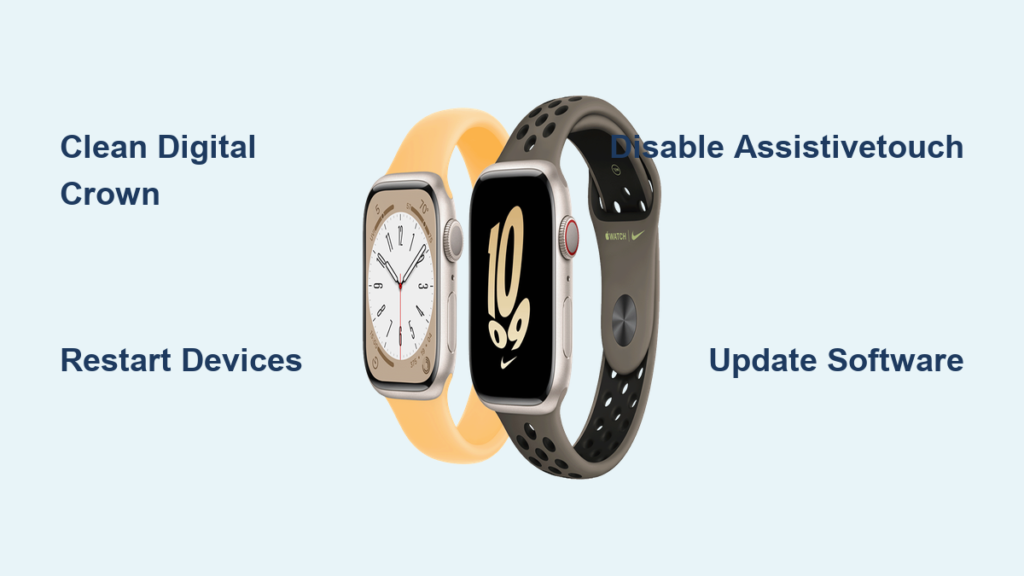
If your Apple Watch Series 8 ECG not working, you’re not alone. Thousands of users report the same frustrating experience: the ECG app starts, detects a heartbeat, then resets after just 1–30 seconds without completing the reading. Some watches fail every single time; others work inconsistently. This issue affects not only the Series 8 but also models from Series 6 through Series 10, with notable spikes in complaints following watchOS 10.2 and 10.4 updates.
The root cause isn’t always user error—contaminated sensors, software bugs, or even hardware degradation can all be to blame. But here’s the good news: over 60% of users fix it with simple cleaning and resets. In this guide, you’ll learn proven fixes, avoid common mistakes, and know when to demand repair or replacement from Apple.
Clean Digital Crown and Back Sensor

The most frequent reason your Apple Watch Series 8 ECG not working is poor electrical contact. The ECG function requires a complete circuit: one path through your finger on the Digital Crown, and another through the back sensor touching your skin. Dirt, sweat, salt residue, or moisture can break this circuit, causing premature failure.
Use Alcohol and Dental Floss for Deep Cleaning
Apple recommends using a damp, lint-free cloth, but real-world fixes go beyond that—especially when debris is trapped under the crown.
- Dampen a cotton swab with 70% isopropyl alcohol.
- Gently clean around and under the Digital Crown.
- Use dental floss soaked in alcohol to reach tight gaps between the crown and case (as reported by user Picsou0459).
- Wipe the back sensor with the same method.
- Dry thoroughly before testing.
✅ Success story: User XstarcoreX cleaned both areas with rubbing alcohol—ECG function returned instantly.
This method clears grime that regular wiping misses. For stubborn residue, 99% isopropyl alcohol (like WrinkledCoinPurse used with acetone) may help, but avoid harsh chemicals that could damage coatings.
Try a Dry Paper Strip to Absorb Residue
No alcohol? Try this low-risk trick:
- Cut a thin strip of printer paper.
- Slide it between the Digital Crown and housing.
- Rotate slightly to absorb dust and oils (users alphadsl and Temporary_Sky7256 confirmed success).
- Repeat until the paper comes out clean.
This removes debris without introducing moisture, making it ideal for daily maintenance.
Avoid Ultrasonic Cleaning (High Risk)
One user (FingerGreedy7503) restored ECG function by soaking their watch in 99% isopropanol in an ultrasonic cleaner for 10 minutes. While effective, this voids warranty and risks damaging water seals or internal components. Not recommended unless you accept the possibility of permanent damage.
Restart Apple Watch and iPhone
A soft reboot clears temporary software glitches that may block ECG readings—especially after an update.
Force Restart Apple Watch
- Press and hold the side button and Digital Crown.
- Keep holding for 10–15 seconds until the Apple logo appears.
- Wait for reboot to complete.
Restart iPhone
- For Face ID models: Press volume up, then volume down, then hold the side button until the power slider appears.
- Slide to power off, wait 30 seconds, then turn back on.
After both devices restart, test the ECG app again. Users like Richard1864 and Clementine1518 reported success after months of failure—sometimes simply closing background apps and rebooting was enough.
Disable AssistiveTouch on iPhone
A hidden software conflict: AssistiveTouch on your iPhone can interfere with Apple Watch touch recognition, including the Digital Crown.
Turn Off AssistiveTouch
- Open Settings on iPhone.
- Go to Accessibility > Touch > AssistiveTouch.
- Toggle it off.
Also disable Hand Gestures if enabled (Settings > Accessibility > Touch > Hand Gestures).
🛠️ User proof: larss11 disabled both features—ECG worked immediately.
This fix is temporary for some, but worth trying first—it costs nothing and takes seconds.
Update to Latest watchOS and iOS
Software bugs introduced in watchOS 10.2 and 10.4 are linked to ECG failures. Apple has since released patches, so staying updated is critical.
Check for Updates
On iPhone:
1. Open the Watch app.
2. Tap General > Software Update.
3. Install any available watchOS update.
On iPhone:
1. Go to Settings > General > Software Update.
2. Install latest iOS version.
✅ iShellie confirmed watchOS 10.4 (March 7, 2024) resolved known ECG issues.
If you’re on iOS 18 beta or newer, consider whether the issue started after the update (as user BranchBorn4405 suspected). Downgrading isn’t easy, but a clean restore might help.
Reinstall or Reset the ECG App
Sometimes the ECG app becomes corrupted or loses connection.
Remove and Re-add ECG Complication
- On your Apple Watch, long-press the watch face.
- Tap Edit.
- Tap the + in the complications ring.
- Remove the ECG shortcut.
- Re-add it from the list.
Alternatively:
– On iPhone, open Watch app.
– Go to My Watch > ECG.
– Toggle off Show on Apple Watch.
– Wait 10 seconds, then toggle back on.
This refreshes the app connection and resolves sync issues.
Perform a Hard Reset (Force Restart)
If a normal restart fails, a force restart clears deeper system errors.
How to Force Restart
- Press and hold the side button and Digital Crown.
- Hold for at least 10 seconds.
- Release when you see the Apple logo.
Wait 30 seconds before opening ECG. This fixed the issue for Bobbybino after months of problems.
Unpair and Re-pair Your Apple Watch
When all else fails, a full re-pair can resolve hidden connectivity issues.
Steps to Re-pair
- On iPhone, open Watch app.
- Tap All Watches > (i) next to your watch.
- Tap Unpair Apple Watch → confirm.
- Back up when prompted.
- After unpairing, set up as new or restore from backup.
- Reinstall apps and reconfigure ECG.
⚠️ Time: 20–40 minutes. Only do this if other fixes fail.
Users like ventbs tried this with no success—so it’s medium effectiveness, but worth it if you suspect sync corruption.
Change Wrist Position for Better Contact
Your watch placement affects how easily you can press the Digital Crown.
Problem: Crown on Outside, Hard to Press
- You wear the watch on your left wrist, crown on the right side.
- Using your left index finger to press it feels awkward and unstable.
Fix: Switch to Right Wrist
- Move the watch to your right wrist.
- Now the Digital Crown is on the inside, near your thumb.
- Use your right (dominant) hand to press it.
✅ Rockyfordboy: “I changed to right wrist… works every time now.”
Alternative: Keep on Left, Use Right Hand
- Leave watch on left wrist.
- During ECG, use your right hand to press the crown.
- Rest your arm on a table for stability.
Use Proper ECG Technique
Even with clean sensors, poor posture or pressure causes failure.
Best Practice Setup
- Sit upright, feet flat on floor.
- Place forearm on a flat, stable surface (table, lap).
- Keep hand relaxed, not clenched.
- Apply light, steady pressure to the crown—don’t squeeze.
- Stay still for 30 seconds.
🧠 Pro tip: iShellie recommends breathing normally and avoiding distractions.
Check for Hardware Faults
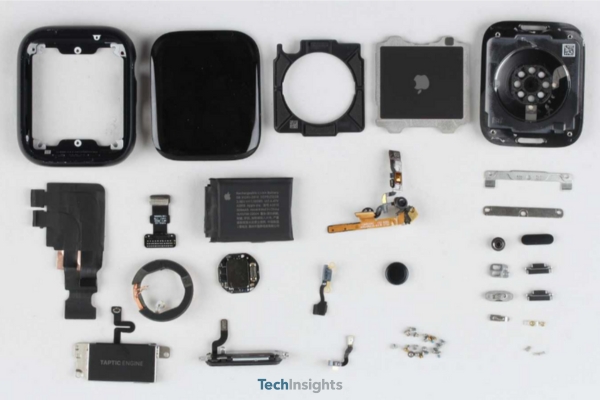
If cleaning and software fixes fail, the issue may be internal hardware degradation.
Common Hardware Issues
- Worn Digital Crown contacts due to moisture exposure.
- Corroded back sensor electrodes.
- Loose internal connections.
- Failed ECG circuit board.
🔍 eagleonthebeach: ECG stopped after one year on Series 7—no damage, just wear.
These issues often appear after swimming, gym use, or humid climates, even with proper care.
Visit Apple Genius Bar (Santa Monica Example)
When DIY fails, in-person diagnostics can confirm hardware faults.
What Happens at Genius Bar
- Technician runs internal diagnostics.
- Tests crown resistance, sensor response, and ECG signal quality.
- Checks for water damage or physical wear.
📍 Santa Monica Apple Store: Open 10 a.m.–8 p.m., walk-ins accepted after 10 a.m.
Bring Video Proof
Record a clear video of:
– Opening ECG app.
– Placing finger on crown.
– Watch restarting after 1–3 seconds.
This proves the issue isn’t user error.
Possible Outcomes
- Free repair or replacement (if under warranty).
- $400 out-of-warranty repair (common quote).
- Discount on new Apple Watch (if repair declined).
💡 jcl007: Apple replaced Series 8 after second visit—initial test missed the issue, but button test revealed abnormal crown noise.
Unconventional Fixes (Use at Your Own Risk)
Some users succeed with unofficial methods. These are not Apple-approved and may damage your watch.
Pull the Digital Crown Out
- Gently pull the crown outward (Resident-Village631).
- May dislodge trapped debris.
- Return to normal position and test.
Low risk, high reward if it works.
Use Compressed Air
- Blow compressed air into the crown gap ([deleted]).
- Removes dust and moisture.
- Works instantly for some after 100 failed attempts.
Avoid high pressure—don’t force it.
Polish with Salt + Alcohol
- Mix salt and alcohol into a paste (Alarming-Emergency61).
- Gently rub on crown to polish contact surface.
- Rinse and dry.
Risky—could scratch finish—but restored conductivity for one user.
When to Demand Apple Repair or Replacement
Under Warranty? Escalate Immediately
- ECG failure is covered under Apple’s one-year warranty.
- If support denies it, ask for a supervisor.
- Provide video evidence and logs (if available).
Out of Warranty? Consider These Options
| Option | Details |
|---|---|
| Credit Card Protection | iReadECGs used extended warranty from card issuer to get refund and replacement. |
| Apple Service Program | Check if your model is part of a recall or repair program. |
| Cost-Benefit Decision | $400 repair vs. $399 new Series 9 SE? Often better to upgrade. |
Summary: Fix Apple Watch Series 8 ECG Not Working
The Apple Watch Series 8 ECG not working issue is real, widespread, and often fixable.
✅ Top 3 Fixes (Try First)
- Clean Digital Crown with alcohol and dental floss.
- Restart both watch and iPhone.
- Disable AssistiveTouch on iPhone.
🛠️ Next Steps
- Update to latest watchOS and iOS.
- Reinstall ECG app.
- Try right wrist for better crown access.
🏥 If Nothing Works
- Visit Apple Genius Bar with video proof.
- Push for repair or replacement.
- Use credit card warranty if out of warranty.
⚠️ Final Note
The ECG is a Class II medical device—it should work reliably. Persistent failure suggests a design or durability flaw. If cleaning and resets don’t help, don’t accept “no” from Apple. Demand action. Your health monitoring depends on it.





