

You wake up, reach for your Apple Watch, and instead of the time or a notification, you see a red lightning bolt on a black screen. No buttons respond. The display is frozen. This isn’t a software crash—it’s the charger with red bolt screen, and it means your Apple Watch has completely drained its battery. It’s a common issue, especially after leaving the watch unused for days or trying to charge it with a faulty cable. The good news? This is almost never permanent damage. In most cases, your Apple Watch can be revived in under an hour using simple, proven steps. Whether you own an Apple Watch SE, Series 9, or Ultra 2, this guide gives you a complete action plan to diagnose, fix, and prevent the red bolt issue—using only official Apple recommendations and real user-tested methods.
What the Red Lightning Bolt Really Means
Red Bolt = Critically Low Battery
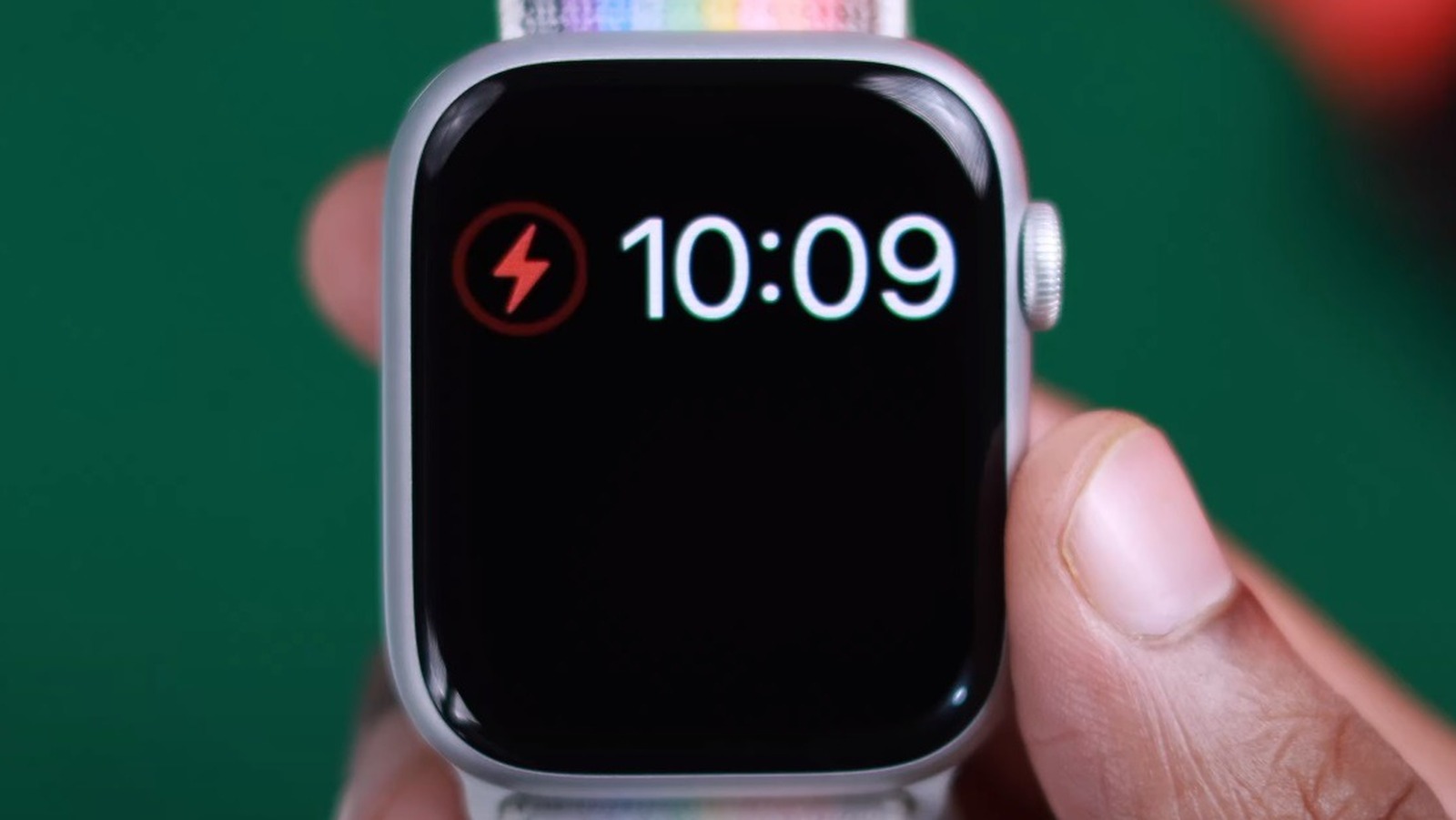
The red lightning bolt is not an error—it’s a warning that your Apple Watch has no usable battery power left. When the battery drops below the minimum threshold (typically around 3–5%), the watch can’t boot up. Instead, it enters a low-power recovery state. When connected to a charger, it displays the red bolt to signal that it’s attempting to draw power. There are two key variations:
- Solid red bolt on black screen: Battery is fully drained. The watch cannot start.
- Red bolt with time displayed: Your watch is in Power Reserve mode, showing only the time to conserve energy.
Once charging begins successfully, the red bolt turns green, followed by the Apple logo. If that doesn’t happen, the problem may lie in your charging setup or hardware.
Power Reserve vs. Dead Battery: Know the Difference
Don’t confuse these two states. Power Reserve mode activates automatically when the battery hits 0% or when you manually trigger it by holding the side button and swiping. In this mode, your watch shows only the time and the red bolt—it disables all functions to preserve just enough power for a restart. A fully dead battery, on the other hand, has no residual charge at all. It won’t respond until it accumulates enough power to reboot. The key clue? If you see the time, it’s Power Reserve. If the screen is completely black except for the bolt, the battery is likely fully depleted.
Why Your Apple Watch Shows a Red Bolt
Deep Discharge from Long Inactivity
Leaving your Apple Watch off the charger for more than 48–72 hours often leads to a deep discharge. After three days, the battery can fall below the level needed to power on. This is especially common with new or backup watches that sit unused. Apple even ships devices with batteries fully drained to extend shelf life. Solution? Charge for at least 30 minutes before expecting a response—don’t unplug after 5 minutes and assume it’s broken.
Using a Faulty or Incompatible Charger
A surprisingly common cause is non-MFi-certified charging cables. MFi (Made for iPhone/iPad/Watch) certification ensures the cable meets Apple’s power delivery standards. Cheap third-party cables may provide insufficient current, failing to charge a deeply drained watch. Worse, WPT-compliant chargers (sold only in China and Indonesia) won’t work elsewhere and display the error: “Unable to charge. This is a country-specific charger.” Always use Apple-branded or MFi-certified gear.
Dirty or Misaligned Charging Contacts
Even a thin layer of sweat, dust, or oil on the back of your watch or the charger can block the magnetic connection. Thick cases, magnetic screen protectors, or bent pins can also prevent proper contact. If the magnets don’t snap securely, power won’t transfer. Cleaning and realigning often solve the issue instantly.
Background Apps Draining Power Faster Than Charging
Sometimes, your watch is on but draining power faster than it charges. Fitness apps, music players, or glitchy third-party apps can consume more energy than your charger supplies. This results in net battery loss, even while plugged in. The watch may briefly wake, then shut down again. Closing background apps can stop this cycle and allow the battery to recharge.
Step-by-Step Fix: Revive Your Apple Watch
Charge for 30+ Minutes Without Interruption
Do not press any buttons. Do not unplug. Plug your Apple Watch into a genuine Apple charger and leave it undisturbed for at least 30 minutes. During deep discharge, the system needs time to accumulate enough power to boot. Many users panic after 5 minutes and disconnect—this resets the process. Wait the full half-hour. If successful, you’ll see:
- Red bolt → Green bolt (charging begins)
- Green bolt → Apple logo (device boots)
- Apple logo → Normal startup
Real case: A user received a new Apple Watch 9 showing a red bolt out of the box. After 30 minutes on an Apple 12W adapter, it powered on normally.
Use Genuine Apple Charging Equipment
Stick to Apple-branded gear:
- Magnetic Charging Cable (USB-A or USB-C)
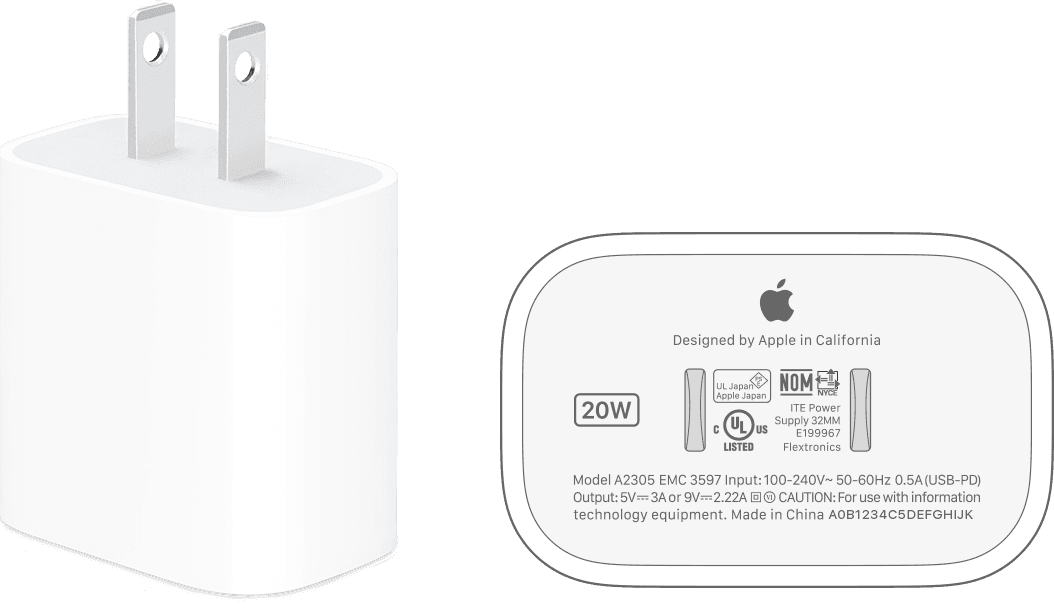
- 5W or 12W USB Power Adapter
- MagSafe Duo Charger or Charging Dock
Avoid third-party cables unless they’re MFi-certified. Non-certified chargers often fail to deliver the required 5V/1A minimum, especially under load. If you suspect a faulty cable, borrow a known-working Apple one—don’t risk buying another cheap replacement.
Clean the Charging Contacts Thoroughly
Dirt blocks conductivity. Clean both ends:
- Unplug and power off.
- Use a dry, lint-free microfiber cloth.
- Wipe the back of the watch and concave side of the charger.
- For sticky residue, lightly dampen the cloth with 70% isopropyl alcohol.
- Never spray liquid directly. Let dry completely before reconnecting.
Pro tip: Clean weekly if worn during workouts or in humid environments.
Align the Charger Correctly
Ensure the magnets snap securely:
- Place the concave side of the charger against the flat back of the watch.
- For larger models (45mm, Ultra), lay the charger flat on a table.
- Remove thick bands or cases that tilt the alignment.
- If using a vertical dock, try switching to flat placement.
Misalignment is a silent issue—many users report success just by repositioning the charger.
Close Background Apps to Reduce Power Draw
If the watch wakes briefly but dies again:
- Press the side button.
- Swipe up from the bottom to open the App Dock.
- Swipe up on each app preview to close it.
- Return to the watch face and reconnect.
This reduces system load, letting the battery charge instead of drain.
Force Restart the Watch
When unresponsive, perform a hard reset:
- Press and hold both the Side Button and Digital Crown.
- Keep holding for at least 10 seconds.
- Continue until the Apple logo appears (may take up to 2.5 minutes).
- Release and let it charge.
User confirmed: This fixed red bolt issues on Series 7, SE, and Ultra 2 models.
Test with Alternative Equipment to Isolate the Problem
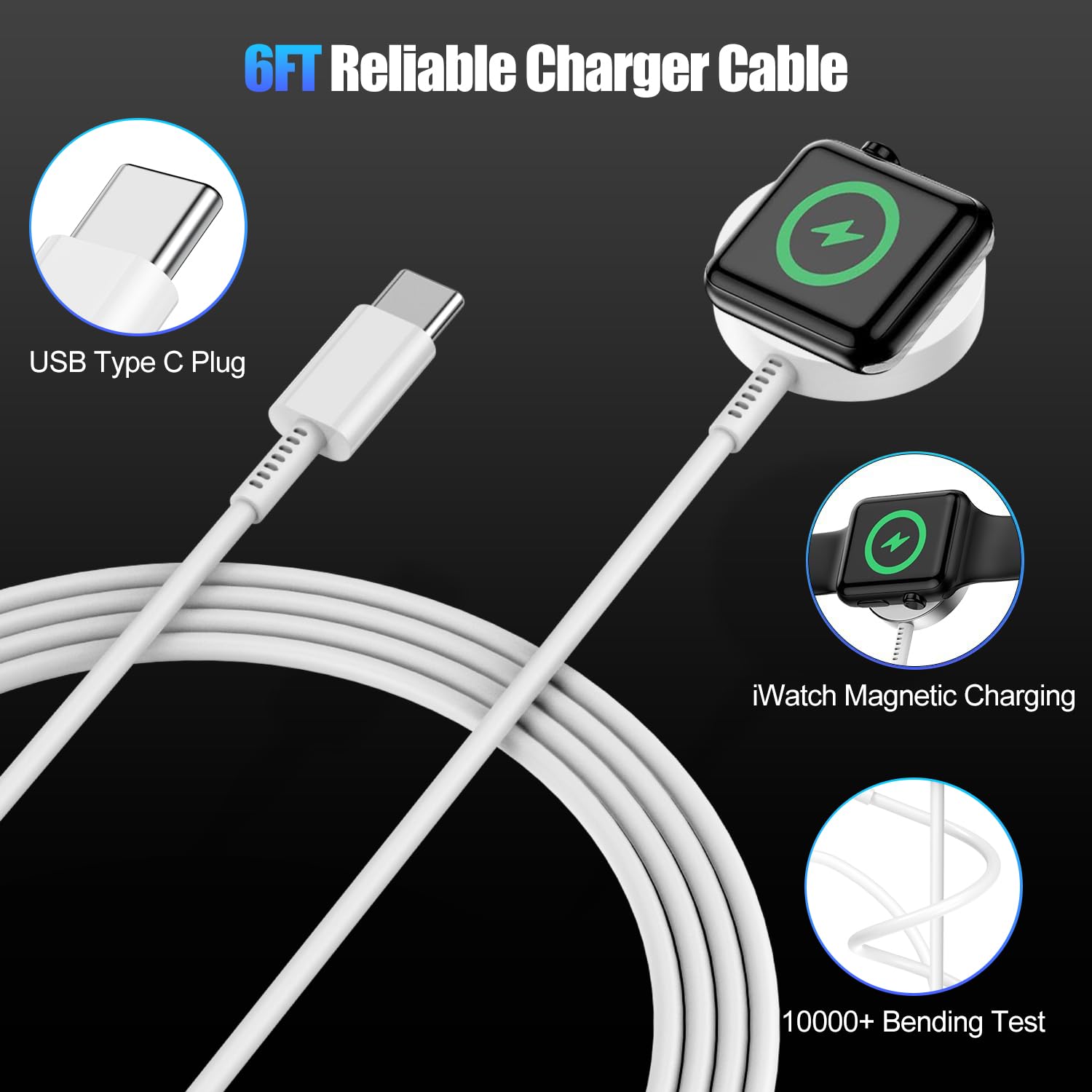
Use the swap test to identify the faulty component:
| Component | How to Test |
|---|---|
| Charging cable | Try a known-working Apple cable |
| Power adapter | Use your iPhone’s 5W or 12W charger |
| USB port | Plug into a powered-on Mac or different wall outlet |
| Computer | Ensure it’s not sleeping or in low-power mode |
Rule of thumb: If your cable charges another Apple Watch, the issue is likely your device. If it fails on multiple watches, replace the cable.
When to Seek Apple Support
Signs of Hardware Failure
If the red bolt won’t turn green after 1+ hour of verified charging, consider:
- No response: Faulty battery or charging port
- Bolt flashes then vanishes: Intermittent connection
- Charger overheats: Damaged cable or internal short
- Green bolt but no charge gain: Battery calibration or logic board issue
Apple Watch batteries typically last 2–3 years before degrading. After that, they may fail to hold charge or enter deep discharge more easily.
Visit Apple for Professional Help
Go to an Apple Store or Authorized Service Provider if:
- Watch remains dead after all troubleshooting
- Battery drains rapidly after full charge
- Frequent Power Reserve mode without cause
- Error: “Unable to charge. This is a country-specific charger.”
Apple offers battery service for $79 (USD) out of warranty. They can run diagnostics to confirm battery health and replace if needed.
Technical Charging Specs You Should Know
| Parameter | Requirement |
|---|---|
| Voltage | 5V |
| Current | 1A (5W) minimum |
| Recommended Adapter | Apple 5W or 12W USB |
| Fast Charging | Series 7 and later (with USB-C) |
| MFi Certification | Required for third-party accessories |
Warning: Chargers below 1A (like USB hubs or older ports) may not revive a deeply drained watch.
Quick Fix Checklist
| Step | Action | Expected Outcome |
|---|---|---|
| 1 | Charge 30+ minutes uninterrupted | Red → Green bolt |
| 2 | Use genuine Apple charger & adapter | Stable connection |
| 3 | Clean watch back and charger | Remove debris |
| 4 | Align magnets securely | Firm snap, no wobble |
| 5 | Close background apps | Reduce power drain |
| 6 | Force restart (Side + Crown) | Apple logo appears |
| 7 | Test with different cable/power | Isolate fault |
| 8 | Visit Apple Support | Diagnose hardware |
Follow this checklist in order for the best chance of recovery.
Prevention & Maintenance Tips
- Charge nightly: Avoid deep discharges.
- Use Optimized Battery Charging: Slows wear (watchOS 7+).
- Clean weekly: Wipe contacts with a dry cloth.
- Use MFi-certified accessories only.
- Restart weekly: Clears memory leaks.
Pro insight: Regular maintenance prevents 80% of red bolt issues.
The red lightning bolt is not a defect—it’s a safety feature. Most cases resolve with patient charging and proper gear. Avoid third-party chargers, clean regularly, and restart monthly. If all else fails, Apple Support can diagnose and repair. Keep this guide handy—you’ll likely need it again.





