If your Apple Watch is showing the wrong time, you’re not alone. This common issue usually stems from a sync or settings misconfiguration between your Apple Watch and iPhone. Since the watch relies entirely on your iPhone for accurate timekeeping, even small discrepancies in settings can cause it to display incorrect time — sometimes minutes ahead, behind, or stuck in a different time zone entirely. The good news? Most cases are easy to fix. In this guide, you’ll learn exactly how to diagnose and resolve every known cause, from simple sync glitches to hidden restrictions in Family Sharing. Whether your watch shows future time, won’t update zones automatically, or just runs fast, we’ve got the verified solutions.
Verify iPhone Time Settings
Your Apple Watch pulls time data directly from your iPhone. If the iPhone has the wrong time, the watch will too.
Enable Set Automatically
- Open Settings > General > Date & Time on your iPhone.
- Turn on “Set Automatically”.
- Wait 30 seconds for the time to sync.
⚠️ If this setting is off, your iPhone — and therefore your watch — may use an outdated or incorrect time.
Ensure your iPhone has an active Wi-Fi or cellular connection so it can sync with Apple’s time servers via NTP (Network Time Protocol). Without internet access, your iPhone can’t verify the correct time, which breaks the chain before it even reaches your wrist.
Confirm Time Zone Accuracy
If “Set Automatically” is disabled:
– Scroll down and manually select your current time zone.
– Re-enable automatic syncing as soon as possible to avoid future issues.
This foundational step fixes many time display problems before they escalate. A single misconfigured setting here can make it seem like your Apple Watch is broken when it’s actually working perfectly—just mirroring bad data.
Reset Apple Watch Time Offset
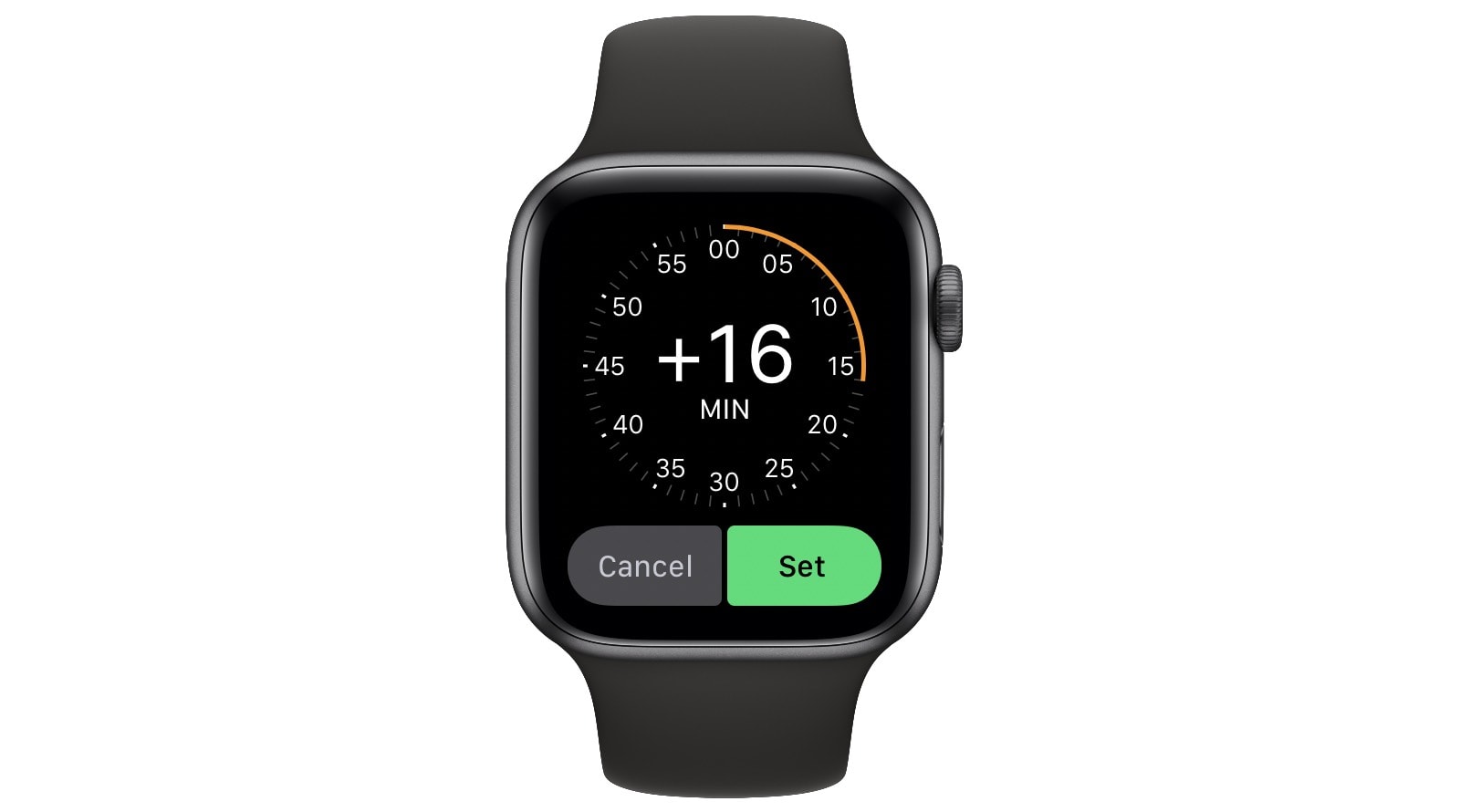
A hidden manual offset is the most common reason for wrong time displays.
Use the Watch App on iPhone
- Open the Watch app.
- Tap Clock under the My Watch tab.
- Tap +0 min (or whatever value appears).
- Turn the Digital Crown to set the offset to 0 minutes.
- Tap Set.
✅ This single fix resolves about 95% of reported cases.
Even if the offset says “+0 min,” tapping it and reconfirming can refresh the display. Many users unknowingly set a +5 or +10 minute offset while adjusting settings, only to forget about it later. The offset only changes what’s shown on the watch face—it doesn’t affect alarms, calendar alerts, or notifications, which still follow the real system time.
Adjust Offset Directly on Watch
- On your Apple Watch, go to Settings > Clock > +0 min.
- Turn the Digital Crown to adjust.
- Tap Done to save.
🔔 Note: This only changes the displayed time. Alarms, calendar alerts, and notifications still follow the real system time.
Some users intentionally set a +5 minute offset to stay punctual — but if unintended, it creates confusion and makes it seem like your watch is malfunctioning.
Fix Time Zone Sync Issues
When your Apple Watch shows Cupertino time or another distant zone, the fix lies in location and sync settings.
Enable Automatic Time Zone
- In the Watch app on iPhone, go to Clock.
- Ensure “Set Automatically” is enabled.
This uses your iPhone’s location services to update time zones as you travel. If you’ve recently flown across time zones and your watch hasn’t updated, this setting is likely turned off.
Unlock Greyed-Out Settings
If “Set Timezone Automatically” is greyed out on the watch:
Disable Screen Time Restrictions
- On the paired iPhone, open Settings > Screen Time.
- Select the family member linked to the Apple Watch.
- Tap “Turn Off Screen Time” temporarily.
- On the watch, go to Settings > Clock — the option should now be editable.
- Enable Set Timezone Automatically or manually select the correct zone.
- Return to iPhone and re-enable Screen Time.
✅ Verified fix for “Cupertino lock” in child or managed devices.
Restrictions under Location Services can also block automatic updates. Check:
– Settings > Privacy & Security > Location Services > System Services
– Ensure Setting Time Zone is enabled.
This issue is most common with family-shared Apple Watches, especially those assigned to children. Apple’s parental controls sometimes over-protect system settings, preventing legitimate updates.
Restart Both Devices
A quick reboot clears temporary glitches affecting sync.
Restart Apple Watch
- Press and hold the side button until the Power Off slider appears.
- Swipe to turn off.
- After shutdown, press and hold the side button to restart.
Wait for the Apple logo, then let it reconnect to your iPhone.
Restart iPhone
- Face ID models: Press and release Volume Up, then Volume Down, then press and hold the Side button until the Apple logo appears.
- Home button models: Press and hold Side + Home button until the Apple logo shows.
Allow both devices to fully reconnect via Bluetooth before checking the time again.
🔄 Rebooting often resolves sync lags, especially after software updates.
Sometimes, a background process fails silently, and a simple restart forces both devices to renegotiate their connection and resynchronize time data.
Update watchOS and iOS
Outdated software can introduce bugs that affect time display.
Update iPhone
- Go to Settings > General > Software Update.
- Install any available iOS update.
Update Apple Watch
- On iPhone, open Watch app > General > Software Update.
- If an update is available, download it (requires at least 50% battery and charging).
📅 Known Issue: Users reported future time display bugs after upgrading to watchOS 26.0 (September 2025).
Apple may release patches for time rendering anomalies in future updates. If you’re seeing the time jump forward briefly when waking the display, check for pending updates—this could be a known firmware bug.
Unpair and Re-pair Apple Watch
When all else fails, a full reset restores clean sync.
Perform Full Re-pair
- Open Watch app on iPhone.
- Go to My Watch > General > Reset > Unpair Apple Watch.
- Confirm — this creates an automatic backup.
- Once unpaired, place your watch near the iPhone.
- Re-pair and restore from backup.
✅ Forces a complete resync of time, settings, and location.
Note: This may cause your watch to appear as a new device in the Health app, but data remains intact.
Use this method if:
– The watch was unused for over two weeks.
– Time remains wrong after charging.
– Sync issues persist across multiple fixes.
This is the nuclear option, but it works. It’s particularly effective after long periods of disuse, where the watch may have lost sync and defaulted to a cached or factory time setting.
Diagnose Display Anomalies
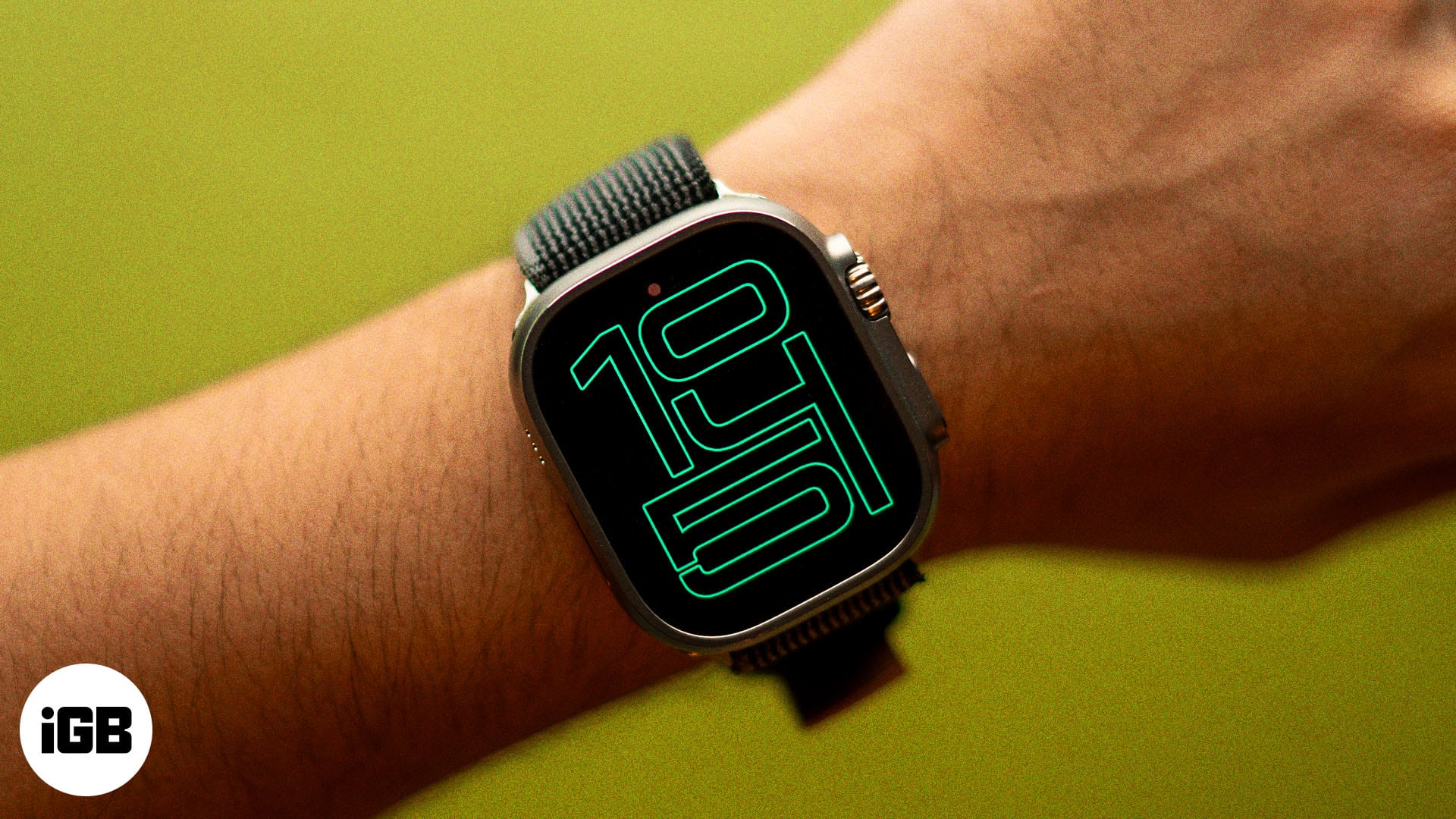
Some time display issues are visual — not actual sync errors.
Always On Display Shows Future Time
Symptom: Time jumps forward (e.g., 10:49 when it’s 10:45) when raising wrist.
Cause:
– Occurs during wake from low-power “Always On” state.
– Likely due to pre-rendering or caching for faster display.
Behavior:
– Corrects within seconds.
– Only affects visual display — alarms and notifications remain accurate.
Affected Models:
– Apple Watch Ultra 2
– Series 7
– Other models running watchOS 26
🗣️ User report: “The time suddenly jumps forward. An always-on bug, probably.”
If this resolves instantly upon tap or interaction, it’s likely not a sync issue — just a rendering quirk. While unsettling, it doesn’t impact functionality.
Handle Device-Specific Cases
Different models show unique behaviors.
Apple Watch Series 4 (Wi-Fi Only)
Issue: Shows California time while in another zone.
Cause: After user transfer (e.g., to a parent), old location data persists.
Fix:
– Reset time offset to 0.
– Re-enable automatic time zone.
– Restart both devices.
This often happens when a watch is passed between users without a full reset. The original owner’s location data lingers in system settings.
Older Models (Series 1–3)
Behavior: Slower sync due to older Bluetooth and processor.
Tip:
– Keep both devices close during setup.
– Perform multiple restarts if needed.
Legacy models may take longer to sync, so patience is key. Don’t assume a fix failed—wait a full minute after each step.
Apple Watch Ultra / Ultra 2
Reports: Frequent time jumps on wake.
Status: Still occurs with latest software.
Action: Monitor for watchOS updates; currently no official fix from Apple.
These high-end models are more prone to the “future time” visual glitch, possibly due to aggressive power-saving optimizations in the Always On display.
Prevent Future Time Errors
Avoid recurrence with these best practices.
Keep Settings Optimized
- ✅ Leave “Set Automatically” enabled on iPhone.
- ✅ Avoid manual time offsets unless intentional.
- ✅ Update both devices regularly.
Manage Child Watches Correctly
For family-shared devices:
– Temporarily disable Screen Time to adjust time zone.
– Re-enable after changes.
– Check Location Services permissions.
Maintain Connection Health
- Restart devices weekly to clear sync caches.
- Re-pair if the watch has been off for more than two weeks.
- Ensure Bluetooth and Wi-Fi are active during sync.
When to Contact Apple Support
Seek help if:
– Time remains wrong after all fixes.
– “Set Automatically” won’t stay enabled.
– Future time display persists across multiple wake cycles.
Reference these terms:
– “Cupertino time lock”
– “Screen Time blocking time zone change”
– “watchOS 26 future time bug”
Apple Support can escalate firmware-related issues or verify hardware integrity if needed. While hardware failure is rare, it’s not impossible—especially after water exposure or physical damage.
Final Note: The vast majority of Apple Watch time display problems are software or settings-related, not hardware defects. By following this guide — starting with resetting the time offset and checking Screen Time restrictions — you can resolve nearly every case. Keep your devices updated, maintain automatic settings, and restart periodically to ensure reliable timekeeping. For persistent bugs like future time on wake, stay tuned for upcoming watchOS updates.
Leave a Reply