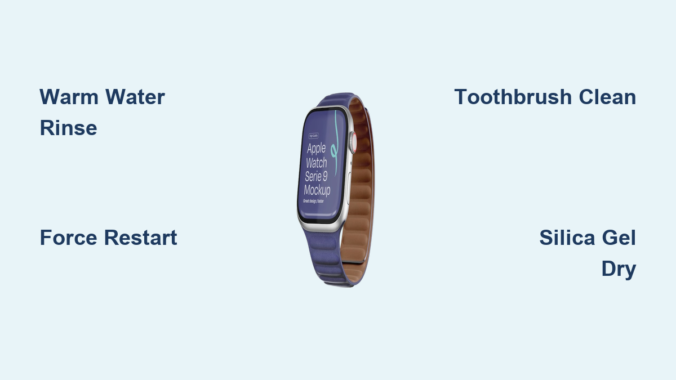
If your Apple Watch side button isn’t working, you’re not alone. From unresponsive clicks to accidental SOS alerts, this frustrating issue affects users across all models—especially those who wear their watch during workouts, swimming, or in humid environments. The good news? Most problems stem from preventable causes like sweat buildup, trapped moisture, or software glitches—not permanent hardware failure.
You might notice the button feels stuck, clicks with no response, or triggers actions unintentionally. Before assuming it’s broken, know that over 80% of cases resolve with simple cleaning or a quick restart. Even after water exposure, full recovery is possible within days. This guide delivers every proven fix—from gentle rinses to internal repair insights—so you can restore your Apple Watch’s functionality safely and effectively.
Whether the side button is completely dead or acting erratically, we’ll help you diagnose the root cause and apply the right solution. Let’s get your watch back in action.
Diagnose the Real Cause First
Before diving into fixes, determine if the problem is software-related or physical. Jumping straight to disassembly could waste time—or make things worse.
Perform a Force Restart to Test Button Function
Press and hold both the side button and Digital Crown for at least 10 seconds. Keep pressing until the Apple logo appears. This test is critical because:
- If the watch restarts, the button works mechanically.
- The issue is likely a software freeze, not hardware damage.
- Even if the button seems dead normally, it may still function during a forced restart—this is a major clue.
If nothing happens after 15 seconds, try charging first—your battery might be fully drained.
Check Battery and Charging Status
A black screen doesn’t always mean the side button is broken. A deeply discharged battery can mimic total failure.
- Plug in your Apple Watch using a known-good charger.
- Charge for 2–3 hours, even if nothing appears.
- Some users report the Apple logo flashing briefly when near the charger—this indicates the battery is trying to wake up but may need extended charging.
If the device powers on intermittently, the issue could be power-related rather than button-specific.
Test All Side Button Functions
After rebooting, verify each function:
- Single press: Should wake the screen or open the app switcher.
- Double-click: Opens Wallet (or your set shortcut).
- Long press: Starts the SOS emergency call countdown.
If only one function fails, check settings in the Watch app > General > Shortcuts. A misconfigured shortcut might be overriding expected behavior.
Clean the Button Without Tools

Most unresponsive buttons are clogged with sweat, salt, or dust. These safe, no-tool methods clear blockages fast—and often work instantly.
Rinse Under Warm Tap Water
Hold your Apple Watch under a gentle stream of warm (not hot) water. Direct the flow at the side button while pressing it repeatedly for 5–15 seconds.
- Why it works: Heat softens residue; water flushes out particles.
- Caution: Avoid high pressure. Never use hot water—it can damage seals.
Many users report the button “popping” back to life immediately after this step.
Use the Damp Finger Method
Moisten your fingertip and rub it around the edge of the button while pressing it several times.
- This dissolves dried salt and oils without submerging the device.
- Safe and effective—confirmed by multiple user reports.
It’s especially useful after workouts or beach exposure.
Activate Water Ejection Mode
Swipe up from the watch face and tap the water droplet icon. Then hold the Digital Crown until vibrations stop.
- The rapid pulsing helps dislodge moisture and debris from internal gaps.
- Use after rinsing or swimming to clear trapped water.
This feature is designed to “push” water out—but it also helps free stuck mechanisms.
Deep Cleaning With Household Tools
When water alone doesn’t work, targeted cleaning with common items often does.
Scrub With a Soft Toothbrush
Use a clean, soft-bristled toothbrush (dry or slightly damp) to gently brush around the button’s edge.
- Apply circular motions while intermittently pressing the button.
- Continue for 1–2 minutes.
- Combine with a warm water rinse for better results.
This method has resolved long-term sticking caused by salt buildup, especially in coastal areas.
Apply Isopropyl Alcohol (IPA) Carefully
Use 99.9% isopropyl alcohol on a cotton swab or toothbrush tip.
- Clean around the button edge—avoid speaker grilles, microphone ports, and screen.
- Wipe dry after application.
Benefits:
– Evaporates quickly
– Dissolves oils and mineral deposits
– Reduces corrosion risk
Warning: IPA can degrade adhesives over time—use sparingly and never inject it under the button.
Try the Tapping Technique
Gently tap the side of the watch (button side) with the end of a toothbrush handle or blunt object.
- Purpose: Dislodge internal debris jamming the mechanism.
- Combine with brushing and rinsing for best results.
One user reported success after months of failure using this technique.
Recover After Water Exposure
If the button failed after swimming, showering, or a hot tub, trapped moisture may be the culprit—even if the exterior looks dry.
Let It Air Dry for Several Days
Internal components can stay wet long after the outside dries. Some users report full recovery after 5–7 days of passive drying.
- Example: A Series 4 user noticed issues 5 days post-swim, followed by gradual return of function.
- Don’t assume it’s broken—patience pays off.
Use Silica Gel, Not Rice
Place your Apple Watch in an airtight container with silica gel packets (from shoeboxes or electronics packaging).
- More effective than rice at absorbing moisture.
- Leave for 24–72 hours, ideally longer.
- Add a small airflow gap (½ inch) for passive circulation.
Avoid rice—it’s less efficient and can leave dust residue.
Cool Airflow, Never Heat
Use a hairdryer on cool setting or place near a fan to increase evaporation.
- Never apply heat—can damage internal seals and adhesives.
- Continuous airflow speeds drying without risk.
Charge to Generate Mild Heat (With Caution)
If the device powers on intermittently, charging produces slight warmth that helps dry internals.
- Only attempt if the exterior is dry.
- Monitor closely—stop if behavior turns erratic.
Fix Software Glitches
Sometimes the button works physically but isn’t recognized by the system.
Update watchOS
An outdated OS may have bugs affecting button response.
- Open Watch app on iPhone → General > Software Update
- Install any pending updates.
- Some versions include fixes for side button detection.
Unpair and Re-Pair Your Watch
Resets software state and clears corrupted settings.
Steps:
1. Open Watch app > My Watch > All Watches
2. Tap the info (i) button next to your watch
3. Select Unpair Apple Watch
4. Keep cellular plan if reusing same device
5. Re-pair as new
Note: Only possible if the button works enough to start setup.
Remove Case and Screen Protector
Thick cases or poorly aligned screen protectors can press against the side button, causing it to stick or fail.
- Remove all accessories.
- Test the button directly.
- Reinstall case only if it doesn’t interfere with button travel.
When Internal Repair Is Necessary
If cleaning and software steps fail, internal damage may be the cause.
Signs You Need Hardware Repair
- Button is sunken, popped out, or wobbly
- No response even during force restart
- Visible impact damage
- Previous third-party repair
- Persistent issues after drying and cleaning
These often indicate mechanical failure or flex cable damage.
Internal Button Module Replacement (Series 8 Example)
Replacing the side button requires full disassembly:
-
Break Adhesive Seal
– Apply isopropyl alcohol along edges
– Use a plastic pry tool to lift display slowly -
Disconnect Flex Cables
– Peel back display
– Lift connector flaps with tweezers
– Remove screws securing components -
Access Power Button Assembly
– Fold adjacent cable aside
– Remove two screws holding the button module
– Extract carefully -
Inspect and Clean
– Check for corrosion, debris, or cracked parts
– Clean contacts with IPA and fine tool
– Soldering required if flex cable is damaged—button is soldered to crown cable -
Reassemble with Care
– Reinstall module in correct orientation
– Reconnect battery and cables
– Reapply cold press adhesive
– Cure under pressure (e.g., rubber bands) for hours -
Test Post-Repair
– Power on and charge fully
– Verify firm, consistent click
– Loose feel means misalignment
⚠️ Warning: Disassembly voids water resistance permanently, even if resealed perfectly.
Seek Professional Help
For most users, DIY repair is too risky. Here’s when to go pro.
Contact Apple Support
If your watch is under warranty or AppleCare+, repairs or replacements are often free.
- Apple typically replaces the entire unit rather than repairing components.
- Out-of-warranty service is available at a cost.
Bring your watch to an Apple Store or authorized service provider for diagnosis.
Avoid Third-Party Repairs for Water Resistance
While cheaper, third-party shops may not restore proper sealing.
- Risk of future water damage increases.
- Use only if replacement cost is prohibitive.
Prevent Future Failures
Avoid repeat issues with simple maintenance habits.
Clean Weekly and After Exposure
- Wipe with lint-free cloth weekly.
- After swimming: Rinse with freshwater, dry thoroughly.
- Monthly: Use damp toothbrush to clean button area.
Avoid High-Risk Environments
Limit exposure to:
– Saltwater
– Chlorine
– Sand
– Sunscreen
Remove the watch during intense water activities when possible.
Choose Accessories Wisely
- Pick cases that don’t cover or compress the side button
- Avoid thick screen protectors that restrict button movement
Dry Immediately After Wet Use
- Shake off excess water
- Use Water Lock ejection mode
- Dry with soft towel
- Store in dry place
Summary of Best Fixes (Ranked)
| Rank | Method | Success Rate | Risk |
|---|---|---|---|
| 1 | Warm water rinse + press | High | Low |
| 2 | Soft toothbrush cleaning | High | Very Low |
| 3 | Force restart | Diagnostic | None |
| 4 | Water droplet edge trick | Medium-High | Low |
| 5 | IPA cleaning | Medium | Low-Moderate |
| 6 | Silica gel drying | Medium (after water) | Low |
| 7 | Tapping with blunt tool | Medium | Moderate |
| 8 | Oil application | Low-Medium | Moderate |
| 9 | Internal repair | High (if skilled) | Very High |
| 10 | Rice drying | Low-Medium | Low |
Final Recommendations
First 24 Hours: Act Fast
- Try warm water rinse and toothbrush scrub
- Perform force restart
- Charge overnight if unresponsive
- Use Water Ejection Mode
If No Improvement
- Apply IPA or try silica gel drying
- Attempt unpair and re-pair
- Contact Apple Support if under warranty
- For out-of-warranty: Weigh repair vs. replacement cost
Last Resort
- Internal disassembly only for experienced technicians.
- Accept that water resistance will be lost post-repair.
Critical Insight: Don’t give up after water exposure. Many users report full recovery after 3–7 days of drying, sometimes even after appearing dead.
Regular cleaning and prompt drying are your best defenses. Treat your Apple Watch like precision electronics—not just a fitness tracker—and the side button will keep working for years.
Leave a Reply