
You say “Hey Siri” — but your Apple Watch stays silent. No chime, no spinning icon, no response. If Siri isn’t working on your Apple Watch, you’re not imagining it — and you’re definitely not alone. This issue affects Apple Watch Series 3 and newer models, including the SE, Ultra, and all watches running watchOS 10.x. Whether you rely on Siri to start a workout, set a timer, or control your smart home, a non-responsive assistant can throw off your entire day.
The good news? In most cases, Siri not responding is fixable without visiting an Apple Store. The root cause is rarely hardware-related and more often tied to misconfigured settings, connectivity problems, microphone blockage, or software bugs introduced in recent watchOS updates. This guide walks you through proven troubleshooting steps — from quick fixes to deep resets — so you can get Siri working again, fast. You’ll learn how to diagnose the real issue and apply the right solution, whether it’s a simple restart or a full re-pair.
Enable Siri on Your Apple Watch
Before diving into complex solutions, confirm Siri is actually turned on. Many users unknowingly disable key settings during updates or after resetting.
Turn On Core Siri Features
On your Apple Watch, go to Settings > Siri and ensure these toggles are active:
– Listen for “Hey Siri”
– Siri on Apple Watch
– Speak with Siri
– Siri Responses: Set to Always On
If any option is grayed out, the problem likely stems from your iPhone’s settings. Siri on Apple Watch depends heavily on your paired iPhone for configuration and voice processing.
Sync Siri Settings on iPhone
Open the Watch app on your iPhone, tap the Siri tab, and verify:
– Listen for “Hey Siri” is enabled
– Talk & Type to Siri is turned on
– Language matches your Apple Watch exactly
Critical tip: A language mismatch — like iPhone set to Australian English and Watch to US English — breaks Siri entirely. Always change the language on your iPhone first, then sync it to your Watch.
For a quick reset, toggle “Talk & Type to Siri” off, wait 5 seconds, then turn it back on. This forces a reconnection and often restores functionality within seconds.
Verify Internet and Network Connectivity

Siri needs an internet connection for most tasks — even on cellular Apple Watches. If your Watch can’t reach the internet, you’ll see: “You need an internet connection to use Siri.”
Check Wi-Fi and Cellular Status
On your Apple Watch:
– Open Settings > Wi-Fi — ensure you’re connected to a known network
– For cellular models: Go to Settings > Cellular — confirm signal bars and active service
If Wi-Fi keeps dropping, try restarting your router or moving closer to it. When near your iPhone, your Watch uses its internet connection — but once out of range, it must rely on Wi-Fi or cellular.
Refresh Wi-Fi Assist
Wi-Fi Assist helps maintain connectivity by switching to cellular when Wi-Fi is weak.
On your iPhone:
– Open Watch app > Cellular
– Toggle Wi-Fi Assist off, wait 5 seconds, then turn it back on
This forces your Watch to renegotiate its network connection — often restoring Siri access when it’s stuck in a failed state.
Restart and Reset Siri
A simple restart clears temporary software glitches that block Siri.
Soft Restart Your Apple Watch
- Press and hold the side button until the power slider appears
- Slide to power off
- Wait 10 seconds
- Press and hold the side button again until the Apple logo appears
Test Siri after reboot. This step resolves about 60% of transient issues.
Force Restart (If Watch Is Frozen)
If your Watch doesn’t respond to taps or buttons:
– Press and hold Digital Crown + side button simultaneously
– Keep holding until the Apple logo appears (~10 seconds)
– Release and wait for startup
This clears stuck processes and often brings Siri back online.
Reset Siri Listening and Cache
Corrupted voice recognition data can prevent activation.
On Apple Watch:
1. Go to Settings > Siri
2. Toggle Listen for “Hey Siri” OFF
3. Wait 5 seconds, then toggle it back ON
4. Tap Siri History > Delete Siri History
This resets your voice profile and removes cached errors that may be blocking recognition.
Clean the Microphone
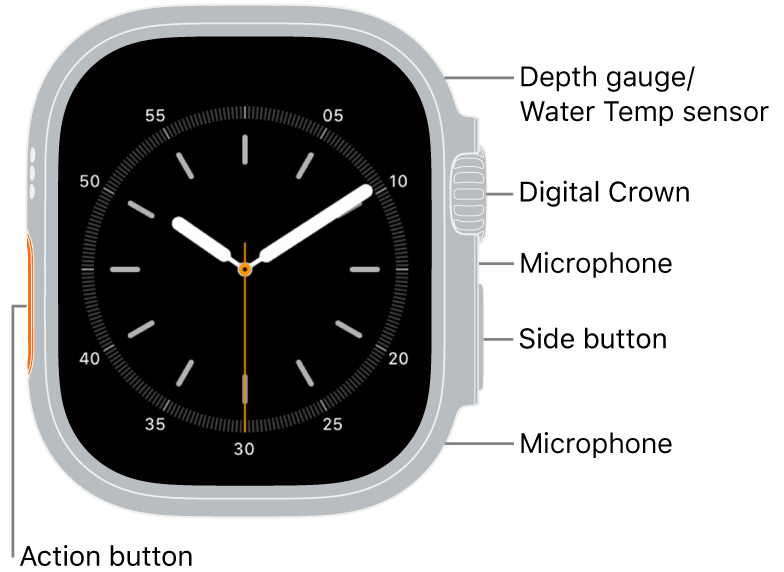
Dust, sweat, or a bulky case can block the microphone — located between the Digital Crown and side button.
Safe Cleaning Method
- Remove your Watch from the band and case
- Use a lint-free cloth, slightly dampened with water
- Gently wipe the microphone area
- Let it air dry completely before testing
Warning: Avoid liquids, compressed air, or sharp tools. Cases with raised edges or screen protectors may muffle sound. Test Siri without the case to rule it out.
Test for Microphone Failure
If Siri doesn’t respond and:
– Others can’t hear you during calls
– Dictation fails in Messages
– Voice memos record poorly
Then the microphone may be damaged. Try dictation on your iPhone — if it works there but not on your Watch, the issue is likely hardware-related.
Update watchOS and iOS

Apple has fixed Siri bugs in watchOS 10.3.1 and later. If you’re on 10.1 or 10.2, you may experience broken on-device processing.
Update Apple Watch
- Open Settings > General > Software Update
- Install any available update
- Ensure your Watch is charged above 50% and connected to Wi-Fi
Update iPhone
On your iPhone:
– Go to Settings > General > Software Update
– Install the latest iOS version
Many users report that silent fixes in minor updates restored Siri — even if the patch notes didn’t mention it.
Fix Language and Region Mismatches
A hidden but common cause: language or region mismatch between devices.
Match Language Settings Exactly
On iPhone:
– Settings > Siri (or Apple Intelligence & Siri) > Language
– Choose your preferred option (e.g., English – United States)
On Apple Watch:
– Settings > Siri > Language — must match iPhone exactly
Even a small difference (e.g., UK vs US English) can disable voice recognition.
Enable iPhone Dictation
Siri uses your iPhone’s dictation engine.
On iPhone:
– Settings > General > Keyboard
– Turn on Enable Dictation
If disabled, Siri can’t process speech — even if mic and network are fine.
Reset iPhone Settings
If Siri options are grayed out or unresponsive, deeper OS issues may be at play.
Reset All Settings on iPhone
- On iPhone: Settings > General > Transfer or Reset iPhone > Reset
- Tap Reset All Settings
- Re-enter Wi-Fi passwords and re-enable services
This doesn’t erase data but resets network, privacy, and system settings. Many users report this restores grayed-out Siri toggles on the Watch.
User verified: After resetting, Onefasteg6 regained full Siri control without re-pairing.
Unpair and Re-pair Apple Watch
When all else fails, re-pairing removes corrupted settings and cached profiles.
Option A: Restore from Backup
- Open Watch app > My Watch > Tap ‘i’ > Unpair Apple Watch
- Confirm backup to iCloud
- Re-pair and restore from backup
Use this if you want to keep all apps and settings.
Option B: Set Up as New (Recommended for Siri)
- Unpair as above
- During setup, choose “Set Up as New Apple Watch”
- Skip restoring from backup
Why it works: Prevents re-import of broken Siri configurations. RichardRO37 fixed on-device Siri using this method.
Drawback: You’ll need to reconfigure Apple Pay, apps, and preferences — but it’s the most effective fix for persistent issues.
Diagnose Hardware Issues
If software fixes fail and:
– Microphone doesn’t work in calls
– Dictation is dead across all apps
– Speaker also sounds muffled
Then hardware failure is likely.
Get Professional Repair
Visit an Apple Store or authorized service provider. Apple Watch Series 4 and newer are still supported under warranty and AppleCare+.
Expert insight: If neither Siri nor dictation works, the microphone has likely failed (per lkrupp, Apple Community Level 7 contributor).
Apple can run diagnostics and replace the unit if needed — often the same day.
Understand On-Device Siri Limits
Apple promised on-device Siri for local commands like:
– Start workout
– Set timer
– Check heart rate
But many users still get: “You need an internet connection.”
Reality Check
- Expected: Offline functionality for basic tasks
- Actual: Feature worked at launch, then broke in watchOS 10.1/10.2
- Some users report automatic fix after 2–3 weeks, likely due to silent updates
This is likely a software regression, not a missing feature. Until Apple confirms a full rollout, assume internet is required for most functions.
Prevent Future Siri Failures
Keep Siri working long-term with these habits.
Weekly Maintenance
- Restart your Watch once a week
- Clean the microphone after workouts
- Check language settings after iOS updates
Avoid Problematic Cases
Third-party cases often cover the microphone. Use Apple-branded or low-profile cases that leave the mic area exposed.
Keep Software Updated
Enable automatic updates on both devices:
– iPhone: Settings > General > Software Update > Automatic Updates
– Apple Watch: Updates install automatically when charging and connected to Wi-Fi
Final Note: Siri not responding is usually a settings or software issue, not hardware. Start with restart, settings check, and language sync — then progress to reset and re-pair if needed. If your microphone fails across all apps, contact Apple for repair. With the right steps, most users restore full Siri functionality — no data loss required.





