Your Apple Watch lights up with the familiar Apple logo—and then nothing. No home screen, no watch face, just a frozen image or an endless loop: logo, blackout, logo again. You’re not imagining it. Thousands of Apple Watch users—from Series 1 to Ultra 2—have faced this exact boot loop issue, where the device fails to start properly after an update, during charging, or seemingly out of nowhere.
This frustrating problem can stem from software glitches, low battery, corrupted settings, or even moisture damage—but most cases aren’t permanent. The good news? With the right troubleshooting steps, you can often fix an Apple Watch stuck on the Apple logo in under an hour—without visiting an Apple Store. In this guide, you’ll learn proven, step-by-step fixes backed by real user experiences and Apple’s own support recommendations. From simple force restarts to advanced recovery methods and even regional calendar hacks, we’ve got you covered.
You’ll also discover common mistakes that make the problem worse—like restoring from a corrupted backup or using a third-party charger—and how to avoid them. Whether your watch is brand new or several years old, this comprehensive plan gives you the best shot at recovery. Let’s get your Apple Watch back on its feet.
Force Restart Your Apple Watch
The first and most essential step for any Apple Watch frozen on the Apple logo is a force restart. This clears temporary software crashes and resets unresponsive system processes.
Hold Side Button and Digital Crown
Press and hold both the side button and the Digital Crown at the same time. Keep holding for 10–15 seconds, even if the screen goes black. Wait until the Apple logo reappears, then release both buttons.
Let the watch boot completely—this may take 2–3 minutes. Do not tap the screen or press any buttons during this time. If you see a spinning progress wheel under the Apple logo, do not restart—your watch is installing an update. Let it charge and finish the process.
This method works on all Apple Watch models, including Series 1 through 9, SE, and Ultra. Many users report success after just one attempt, though some needed multiple tries. If the standard force restart doesn’t work, move to the next step.
Try Force Restart While Charging
If your Apple Watch won’t respond to a regular force restart, a weak or unstable power supply might be the culprit.
Connect Charger Before Restarting
Plug your watch into the original Apple magnetic charging puck. While it’s connected and charging, press and hold both the side button and Digital Crown for 10–15 seconds.
Watch for the Apple logo to return. Some users report seeing a circular dial or animation around the logo during this phase—this indicates the system is resetting. Keep the watch on the charger throughout the process.
Why this works: Charging ensures the device has enough power to complete the restart. In low-battery states, a force restart might fail mid-process, worsening the boot loop. One Series 6 owner resolved the issue only after three attempts while charging—so persistence pays off.
Check Your Charging Equipment
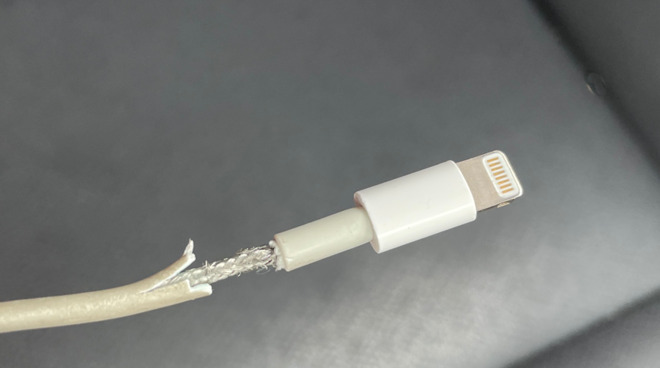
A faulty cable or dirty charging contacts can mimic a software failure.
Inspect Cable and Charging Surfaces
Examine your charging cable for fraying, bent connectors, or loose magnetic ends. Clean the back of the watch and the charger puck using a dry, soft cotton swab. Avoid liquids or abrasive cloths.
Test with a different Apple-certified charger or USB port. If possible, try your charger on another Apple Watch. If it fails there too, the issue is likely the charger—not your device.
Critical tip: Only use genuine Apple or MFi-certified accessories. Non-compliant chargers can deliver unstable voltage, preventing your watch from booting properly.
Drain and Recharge the Battery Fully
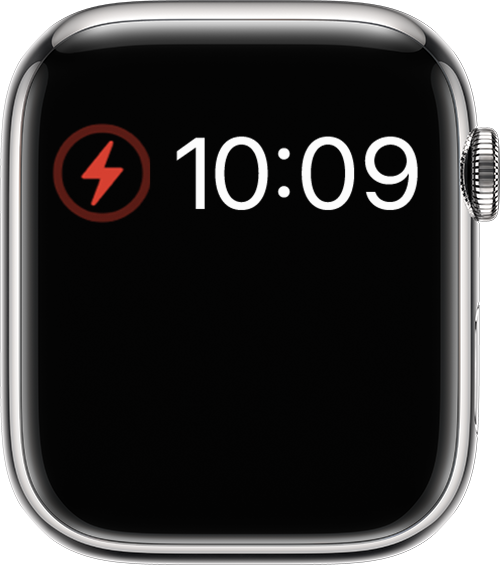
For persistent boot loops, especially in older models, a deep battery reset can help.
Let Battery Die Completely
Unplug your watch and leave it unused until the screen shows no response—not even a flicker. This can take 1–2 days, but some users report needing up to 16 days for deeply stuck units.
Once fully drained, connect to a working charger and leave it plugged in for 5–6 hours, ideally overnight. After charging, perform a force restart.
One Series 3 user succeeded after draining their watch for two weeks until it displayed a snake-like cable icon (a low-power indicator). After charging and resetting, it booted normally.
Clean Stuck Buttons and Sensors
Debris, moisture, or sticky residue can cause buttons to remain pressed, triggering unintended reboots.
Remove Band and Clean Thoroughly
Slide off the band and clean:
– Side button (press and wipe around the edges)
– Digital Crown
– Back sensors and magnetic contacts
Use a dry microfiber cloth or soft brush. For sticky buildup (like syrup or sweat), wipe gently with a damp cloth, then dry completely.
A McDonald’s employee fixed their Series 4 after removing sugar residue that had jammed the side button—a real-world fix that proves how small issues can cause big problems.
Tap or Press to Reset Internal Components
Gentle physical pressure may dislodge stuck sensors or reset components affected by heat or moisture.
Tap Buttons Repeatedly
Quickly press the side button and Digital Crown 15–20 times each. Then, gently press on:
– The front display
– The back glass
Hold each press for 10–15 seconds. This may recalibrate internal switches.
Warning: Do not use excessive force—this is not a drop test.
This method is based on user reports where minor impacts or thermal expansion caused internal misalignment. While not officially supported, it’s a low-risk step worth trying.
Reconnect via Bluetooth During Boot Loop
Even in a boot loop, your watch may maintain a Bluetooth connection with your iPhone.
Trigger Restore from iPhone
Place your iPhone close to the watch. While the Apple logo cycles:
– Open Settings > Bluetooth on your iPhone.
– Wait for the Apple Watch to appear.
– Tap the “i” icon and select Forget This Device.
– Re-pair via the Watch app, choose Start Pairing, then Restore.
If a restore prompt appears, follow it while the watch charges. One Series 3 user regained access after multiple pairing attempts triggered recovery mode.
Enter Recovery Mode (Red Exclamation Mark)
When normal restarts fail, force your watch into recovery mode.
Activate the Red ! Screen
- Press and hold both buttons until the screen blacks out.
- Immediately after, press and hold only the Digital Crown.
- Keep holding until a red exclamation mark (!) appears.
- Double-click the side button to proceed.
Alternatively, after a force restart, hold only the side button for 20 seconds until “Erase All Content and Settings” appears. Tap it and confirm.
Some users require multiple attempts over hours before the red ! shows up.
Factory Reset Using iPhone Watch App
If your watch remains paired, reset it remotely.
Erase All Content and Settings
- Open the Watch app on your iPhone.
- Go to My Watch > General > Reset > Erase All Content and Settings.
- Confirm with your Apple ID password.
After erasing, re-pair the watch. Set up as new—avoid restoring from backup unless absolutely necessary. Corrupted backups can reintroduce the same boot loop.
Unpair and Re-pair Apple Watch
Complete unpairing removes all pairing data.
Remove Watch from iPhone
- In the Watch app, go to All Watches.
- Tap the “i” next to your device.
- Select Unpair Apple Watch, confirm, and enter Apple ID.
- A backup is saved automatically.
Then re-pair and set up as new. This is safer than resetting if your watch is partially responsive.
Fix Calendar Setting (Buddhist to Gregorian)

A surprising fix for users in Thailand: a calendar bug in watchOS.
Change Region Calendar to Gregorian
- On your iPhone, open the Watch app.
- Go to General > Language & Region.
- Tap Calendar.
- If set to Buddhist, change it to Gregorian.
- Restart the Apple Watch.
Multiple users in Thailand resolved boot loops instantly. Even if you’re not in Southeast Asia, check this setting.
Update watchOS via iPhone
Outdated software can cause boot loops.
Install Latest Software Update
- Open Watch app > My Watch > General > Software Update.
- Download and install any available updates.
- Keep watch on charger and near iPhone.
Regular updates patch known bugs. If the watch won’t stay on long enough to update, reset first, then update after setup.
Try the Freezer Method (Use with Caution)
A controversial last resort—especially for moisture-affected watches.
Seal and Chill the Watch
- Place in a sealed plastic bag.
- Put in the freezer for 10–24 hours.
- Remove and let warm to room temperature for 1–2 hours.
- Charge and attempt a force restart.
Warnings: Apple does not endorse this. Risk of condensation, damage, or voided warranty. Use only as a last resort.
Cancel Pending Updates or App Installs
Interrupted downloads can corrupt the system.
Stop Ongoing Installations
If the watch responds intermittently:
1. Open Watch app > General > Reset > Reset Home Screen.
2. Cancel any pending app downloads or updates.
3. Restart the watch.
When to Contact Apple Support
If all else fails, the issue may be hardware-related.
Signs You Need Professional Help
- No response after 6+ hours of charging
- Battery degradation (common in Series 4–6)
- History of water exposure
- Physical damage
- Boot loop returns after factory reset
Prevention Tips to Avoid Future Loops
- Keep watchOS and iOS updated
- Never interrupt updates
- Use genuine Apple chargers
- Clean after sweating or swimming
- Avoid restoring corrupted backups
Final Thoughts
An Apple Watch stuck on the Apple logo is frustrating—but rarely permanent. Most cases resolve with a force restart, battery reset, or calendar setting fix. For persistent issues, contact Apple Support, especially under warranty. With patience and the right steps, your Apple Watch can come back to life—fully functional and ready to go.
Leave a Reply