
Your Apple Watch is designed to help you track sleep, stay focused, and wake up refreshed—not trap you in a dimmed, silent interface when you’re wide awake. Yet, thousands of users report the same frustrating issue: the sleep icon remains visible, notifications are silenced, and no matter how many times you tap it, Sleep Mode won’t turn off. Even after dismissing alarms, charging the watch, or restarting both devices, the screen stays locked in nighttime mode.
This glitch affects Apple Watch Series 3 through Series 9, especially on watchOS 10 and 11, and often appears after an iOS update or when your iPhone dies overnight. The root cause? A sync failure between your iPhone’s Focus settings and your Apple Watch. When Sleep Focus doesn’t deactivate properly on the iPhone—like after it runs out of battery—the watch never receives the signal to wake up.
The good news: You don’t need to erase your device or visit Apple Support yet. This guide delivers proven, step-by-step fixes—ranked from easiest to most effective—that have helped users worldwide regain control. Whether your watch froze after a software update or won’t exit Sleep Mode after an alarm, these solutions will fix it—fast.
Re-Sync iPhone and Apple Watch Focus Settings
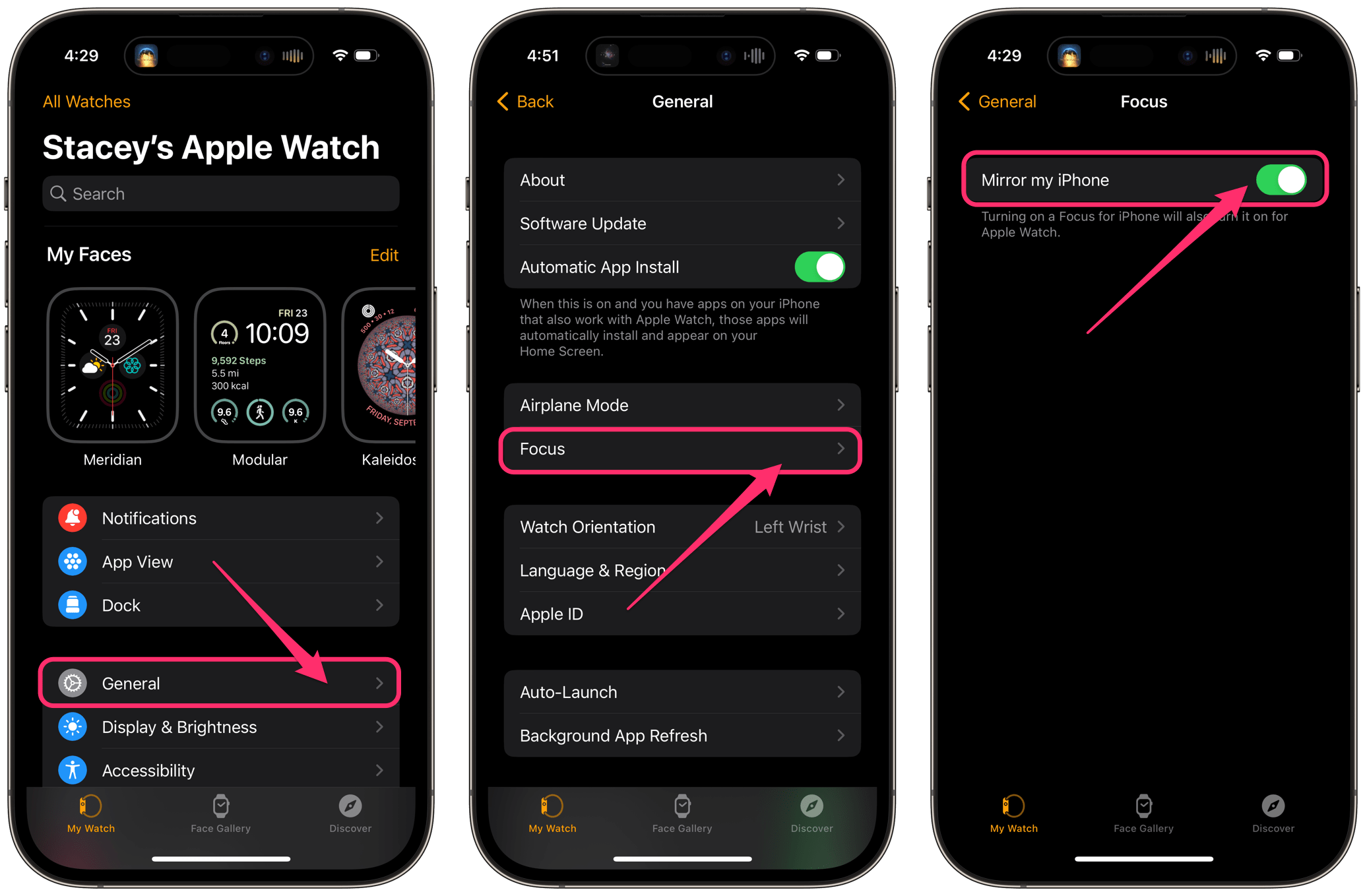
The most common reason your Apple Watch stays stuck in Sleep Mode is a broken sync between your devices. Even if you disable Sleep Mode on your iPhone, the watch may still think it’s active. Forcing a re-sync often resolves the issue instantly.
Toggle “Mirror my iPhone” to Reset Sync
This fix, confirmed by users on Series 7 and later, forces the Apple Watch to recheck your iPhone’s current Focus state.
- Open the Watch app on your iPhone.
- Tap My Watch > General > Focus.
- Turn “Mirror my iPhone” off.
- Wait 5 seconds, then turn it back on.
- On your iPhone, manually enable Sleep Focus.
- Immediately disable it.
This triggers a full sync. Within seconds, your Apple Watch should exit Sleep Mode and return to normal brightness and notifications.
✅ Pro Tip: After syncing, swipe up from the watch face to open Control Center and confirm the half-moon Focus icon is gone.
Delete and Recreate Sleep Focus on iPhone
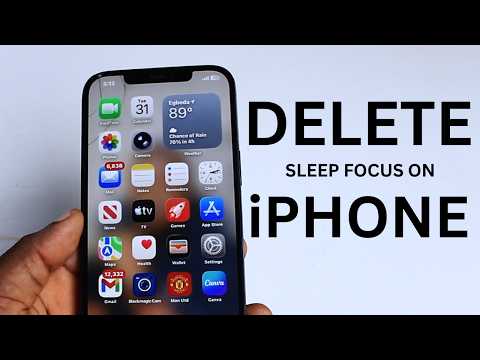
If toggling sync doesn’t work, the Sleep Focus profile itself may be corrupted. Deleting and rebuilding it clears any stuck state.
Reset the Sleep Focus Profile
- On your iPhone, go to Settings > Focus > Sleep.
- Tap Delete Focus.
- Wait 30 seconds for the change to sync to your watch.
- Re-enable Sleep Mode:
– Open Health app > Browse > Sleep > Full Schedule & Options.
– Tap Add Schedule and set your bedtime and wake time. - Turn on Sleep Mode and test.
This is especially effective if Sleep Mode activates automatically—even when you’ve disabled it.
⚠️ Note: Ensure “Track Sleep with Apple Watch” is enabled in Watch app > Sleep. Without this, Sleep Mode may not function correctly.
Manually Toggle Sleep Mode on the Watch
Sometimes, the simplest fix works best. Forcing your Apple Watch to re-evaluate its Focus state can break the loop.
Enable and Disable Sleep Mode Directly
- On your Apple Watch, swipe down to open Control Center.
- Tap the Focus icon (half-moon).
- Tap Sleep Mode to enable it (even if already on).
- Tap again to disable it.
Alternatively:
– Press and hold the side button.
– Scroll to the bed icon.
– Tap to enable, then tap again to disable.
This forces the system to refresh its mode state.
✅ Works best when combined with the iPhone sync toggle above.
Switch Focus Modes to Reset the System
If your watch rebooted while in Sleep Mode—like after dying overnight—it may not know it’s awake. Switching to another Focus mode tricks the system into recalibrating.
Use Do Not Disturb to Exit Sleep
- On your iPhone, manually enable Sleep Focus.
- On the Apple Watch, swipe up for Control Center.
- Tap Focus > Do Not Disturb (or Work, Personal, etc.).
- Wait 10 seconds.
- Tap to switch back to Sleep or disable Focus entirely.
This often resets the stuck interface and restores normal behavior.
🔄 Why it works: The watchOS Focus engine treats mode changes as state verification events, correcting sync mismatches.
Adjust Your Sleep Schedule Temporarily

If your iPhone died overnight, it couldn’t send the “wake up” signal. The watch still thinks it’s bedtime.
Bump Wake Time Forward to Break the Loop
- On iPhone, open Health app > Browse > Sleep.
- Tap Full Schedule & Options.
- Edit your schedule and move wake time forward by 5–10 minutes.
- Tap Done.
- Wait 10–30 seconds for sync.
- Reopen and restore the original wake time.
This forces the system to recognize a new “future” wake time, breaking the stuck state.
✅ User-tested: This fix is particularly effective after a full battery drain.
Trigger the Alarm by Manually Advancing Time
If nothing else works, simulate the alarm trigger. This forces the watch to exit Sleep Mode as if you’d woken up.
Manually Advance iPhone Clock to Trigger Alarm
- On iPhone, go to Settings > General > Date & Time.
- Turn off Set Automatically.
- Set the time to 5–10 minutes before your scheduled wake time.
- Wait—the alarm should trigger on your Apple Watch.
- Dismiss the alarm.
- The watch should now exit Sleep Mode and return to normal.
- Re-enable Set Automatically.
⏰ Warning: Do not skip dismissing the alarm—this is what tells the system the sleep cycle is over.
Close Background Apps That Block Sleep Transitions
Apps like Google Maps or Workout can keep your screen awake and interfere with Focus mode transitions—making it seem like Sleep Mode is stuck.
Force-Close Interfering Apps
- Double-press the Digital Crown.
- Swipe left to see all open apps.
- Swipe up to close:
– Google Maps
– Workout
– Any navigation or third-party health app - Restart the watch if needed.
✅ Pro Tip: After closing apps, force restart the watch to ensure a clean state.
Re-Enable Sleep Screen on iPhone
If the Sleep Screen isn’t enabled, your Apple Watch may skip key interface steps during transitions.
Turn On Sleep Screen to Ensure Full Functionality
- On iPhone, go to Settings > Focus > Sleep.
- Tap Customize Screen.
- Toggle Sleep Screen to ON.
- Choose what to display: Clock, Alarm, or both.
Without this enabled, the watch may not fully activate—or exit—Sleep Mode.
🔁 Best practice: Always enable Sleep Screen to ensure consistent behavior.
Force Restart the Apple Watch
When all else fails, a hard reset clears temporary glitches without deleting data.
Perform a Force Restart
- Press and hold the side button and Digital Crown simultaneously.
- Hold for 10–15 seconds.
- Release when the Apple logo appears.
Once rebooted:
– Open Control Center and check if Sleep Mode is still active.
– Try toggling it off again.
🔄 Use this after other fixes—especially if the screen is unresponsive.
Reset All Settings (No Data Loss)
If the issue keeps recurring, corrupted system settings may be the culprit. Resetting them clears Focus, Bluetooth, and Wi-Fi configurations.
Reset via iPhone Watch App
- On iPhone, open Watch app > General > Reset.
- Tap Reset All Settings.
- Enter your passcode if prompted.
- Wait for the watch to restart.
Afterward:
– Re-pair Bluetooth devices.
– Re-enable Sleep Mode and test.
⚠️ Note: This does not delete apps or health data, but you’ll need to reconfigure Wi-Fi and privacy settings.
Unpair and Re-Pair as Last Resort
Apple Support often recommends this when software bugs resist fixes. It’s time-consuming but effective.
Erase and Reconnect Watch
- On iPhone, open Watch app > General > Reset.
- Tap Erase All Content and Settings.
- Confirm and wait for the process to finish.
- Set up the watch again:
– Restore from iCloud backup or set up as new. - Reinstall apps and re-enable Sleep Mode.
🕒 Time required: 20–60 minutes, depending on apps and data.
❌ Only use if other fixes fail—this is a nuclear option.
Prevent Future Sleep Mode Stuck Issues
Once fixed, avoid recurrence with these best practices.
Keep iOS and watchOS Updated
Apple occasionally patches Focus and Sleep Mode bugs.
- Check Watch app > General > Software Update.
- Ensure iOS and watchOS are current.
✅ Example: watchOS 10.5.1 and iOS 17.5 included Focus sync improvements.
Maintain a Consistent Sleep Schedule
A defined schedule helps the system manage transitions.
- Open Health app > Browse > Sleep > Add Schedule.
- Set bedtime and wake time.
- Enable alarm if needed.
- Turn on Track Sleep with Apple Watch.
Avoid Manual Time Changes
Changing the time manually confuses sleep logic.
Keep Auto-Set Time Enabled
- On iPhone, go to Settings > General > Date & Time.
- Turn on Set Automatically.
❌ Never manually adjust time to test alarms—use the Bedtime feature instead.
Close Apps Before Bed
Prevent interference by closing apps that keep the screen awake.
Nightly Routine Checklist
- Close Google Maps, Uber, Workout.
- Enable Sleep Mode from Control Center.
- Charge both iPhone and Apple Watch.
🔋 Battery tip: Don’t let either device die overnight—this breaks Focus sync.
Final Fixes Summary (Quick Reference)
| Fix | Time | Success Rate |
|---|---|---|
| Toggle Focus Sync | 1 min | ⭐⭐⭐⭐☆ |
| Delete & Recreate Sleep Focus | 2 min | ⭐⭐⭐⭐☆ |
| Manual Toggle on Watch | 30 sec | ⭐⭐⭐⭐☆ |
| Switch Focus Modes | 1 min | ⭐⭐⭐☆☆ |
| Adjust Sleep Schedule | 2 min | ⭐⭐⭐☆☆ |
| Trigger Alarm via Time | 3 min | ⭐⭐⭐☆☆ |
| Close Background Apps | 1 min | ⭐⭐⭐⭐☆ |
| Force Restart | 1 min | ⭐⭐⭐☆☆ |
| Reset All Settings | 5 min | ⭐⭐⭐☆☆ |
| Unpair & Re-Pair | 30+ min | ⭐⭐⭐⭐☆ |
The Apple Watch stuck in Sleep Mode issue is software-based, not hardware-related, and primarily stems from Focus sync failures. While Apple has not issued a permanent fix as of 2025, the solutions above—especially toggling Focus sync and resetting Sleep Focus—resolve the problem in most cases. Stay updated, keep your devices charged, and avoid manual time changes to prevent recurrence. When in doubt, the Apple community remains the best source for real-world fixes.





